
Create professional landing pages with UX/UI design, storytelling, and conversion optimization techniques for engaging user experiences
Unlock the potential of no-code web development with our comprehensive specialization in creating stunning digital experiences. Tailored for designers and entrepreneurs, this program takes you from the fundamentals of UX/UI design to the implementation of websites across platforms like Figma, Webflow, Squarespace, and WordPress. You'll dive into storytelling through landing pages, master design systems, and explore the dynamic capabilities of Webflow. Squarespace will guide you in crafting elegant, functional sites, while WordPress with Elementor offers a flexible solution to build powerful web presences.
Guided by experts Juan Mora, Filip Felbar, Jan Losert, Mónica Durán, and Isa Macías, this specialization equips you with the skills to develop impactful digital ecosystems without writing a single line of code. You'll learn to create scalable design systems, high-conversion landing pages, and interactive websites tailored to various needs. By the end, you'll have a diverse portfolio showcasing your proficiency with leading no-code tools, ready to provide comprehensive solutions for clients with varying requirements and budgets.
What will you learn in this specialization?
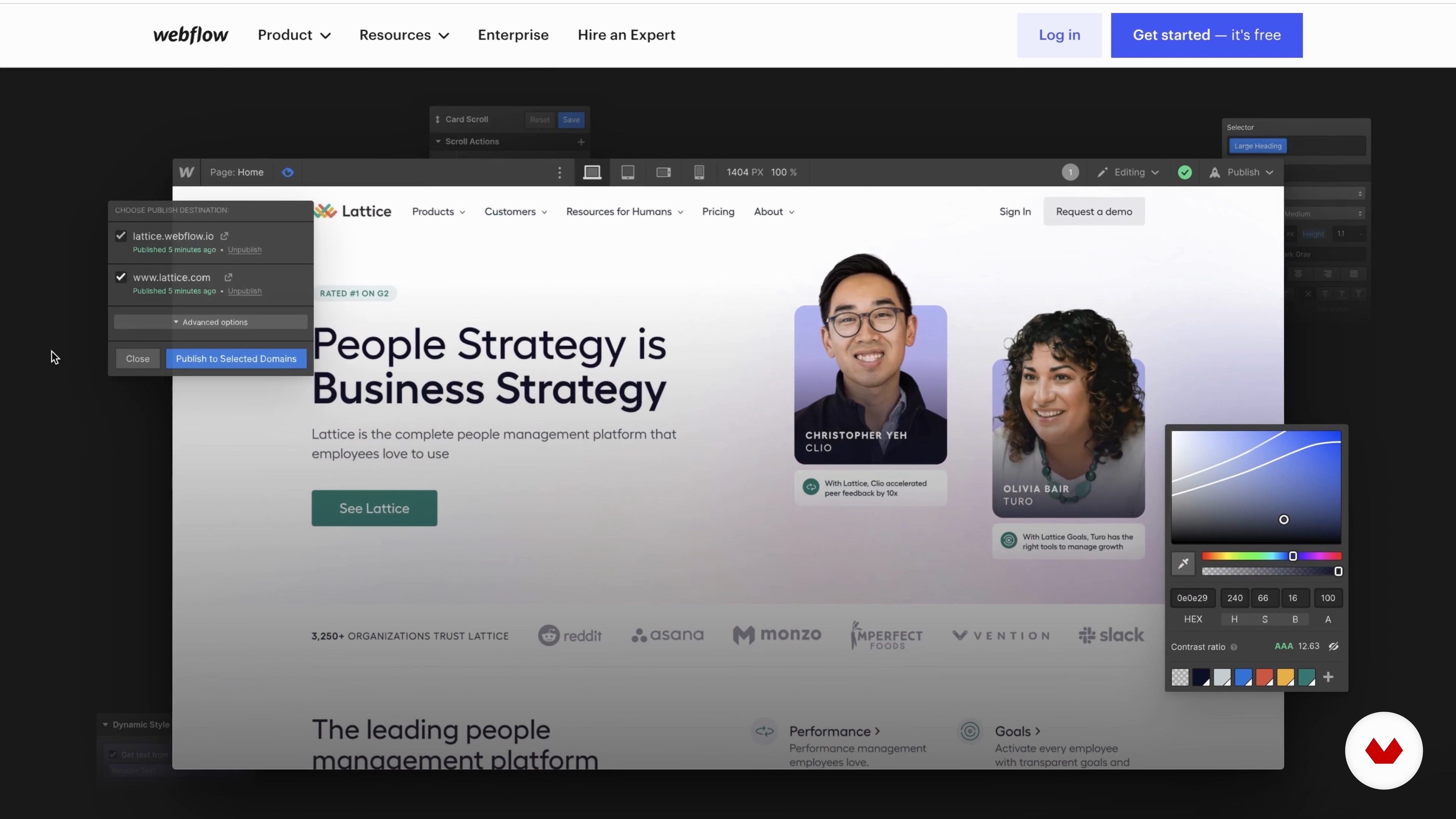 1
1Introduction
Forget everything you thought you needed to build a website. What once required complex code is now in your hands—intuitive, visual, and open to everyone. Dive into the creative freedom of no-code tools and discover how design, strategy, and storytelling come together to shape meaningful digital experiences from scratch.
2m
 2
2Influences | Juan Mora
Here you will find the designers who have influenced my work and I will explain why and how they have done it.
2m
 3
3Influences | Filip Felbar
Now, I would like to talk about my biggest influences and how they have impacted me as a creative.
7m
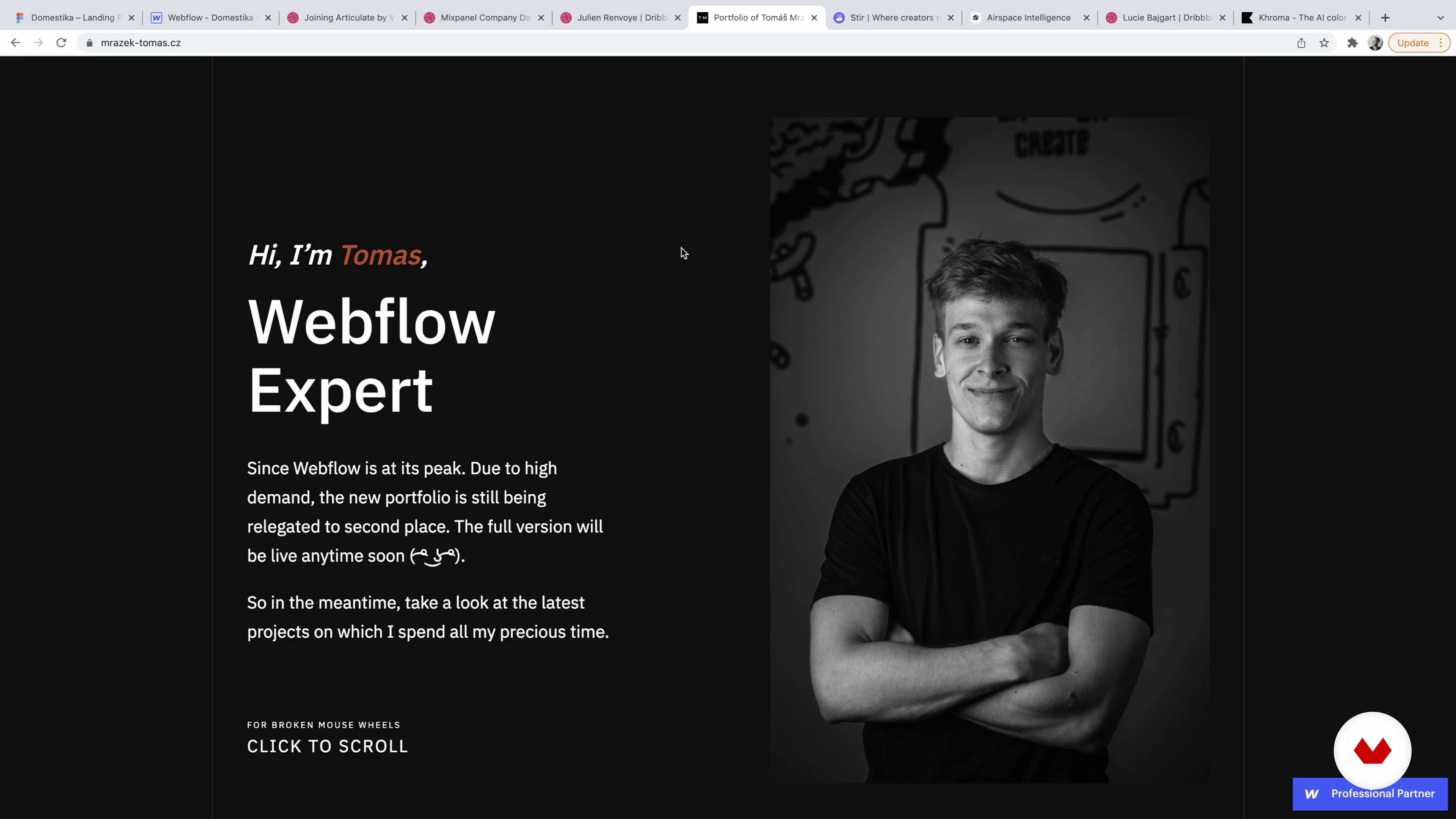 4
4Influences | Jan Losert
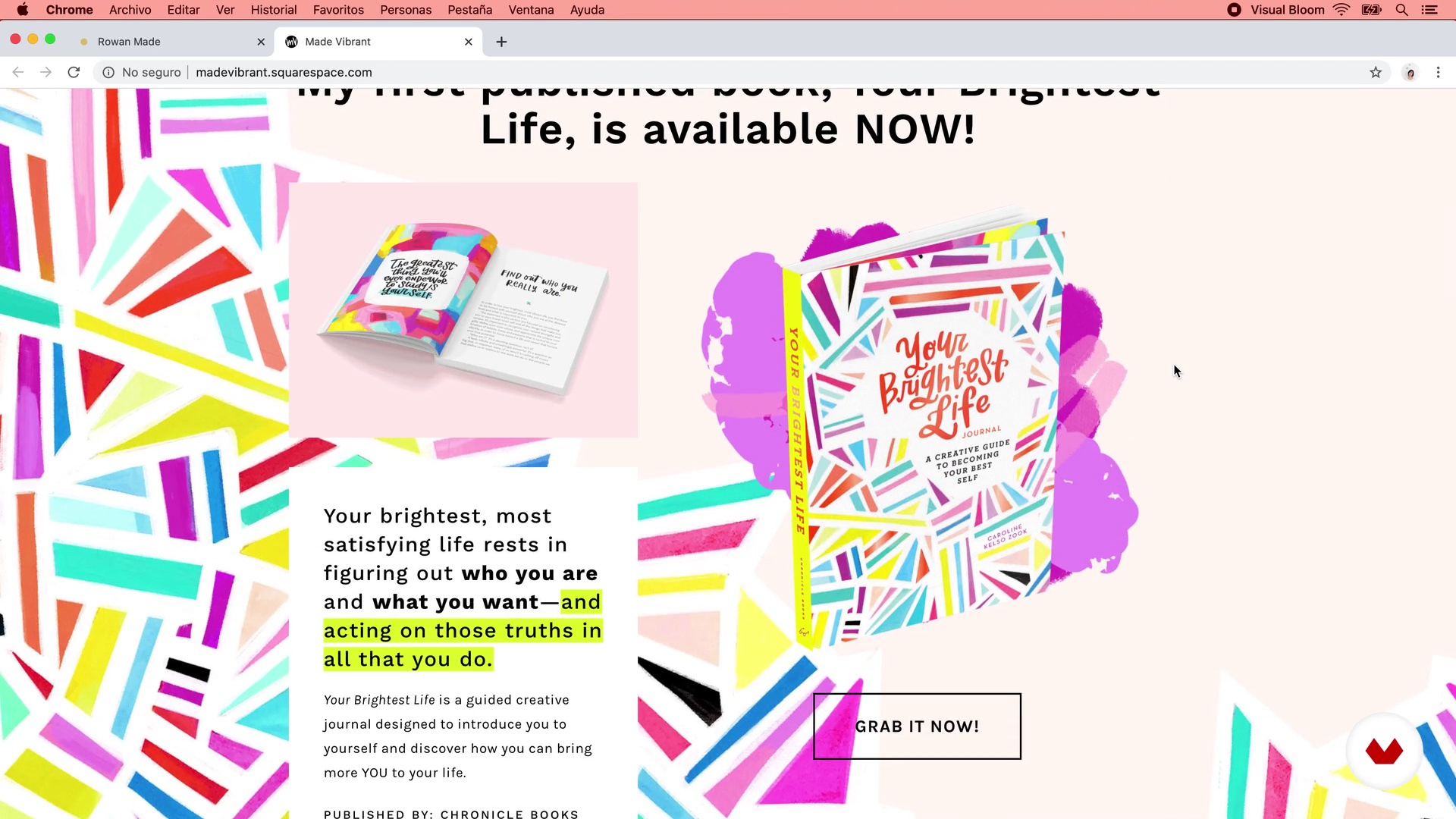
I want you to look into five people who have shaped my style or kept me driven at my job. And I’ll tell you why I enjoy their work.
11m
 5
5Influences | Mónica Durán
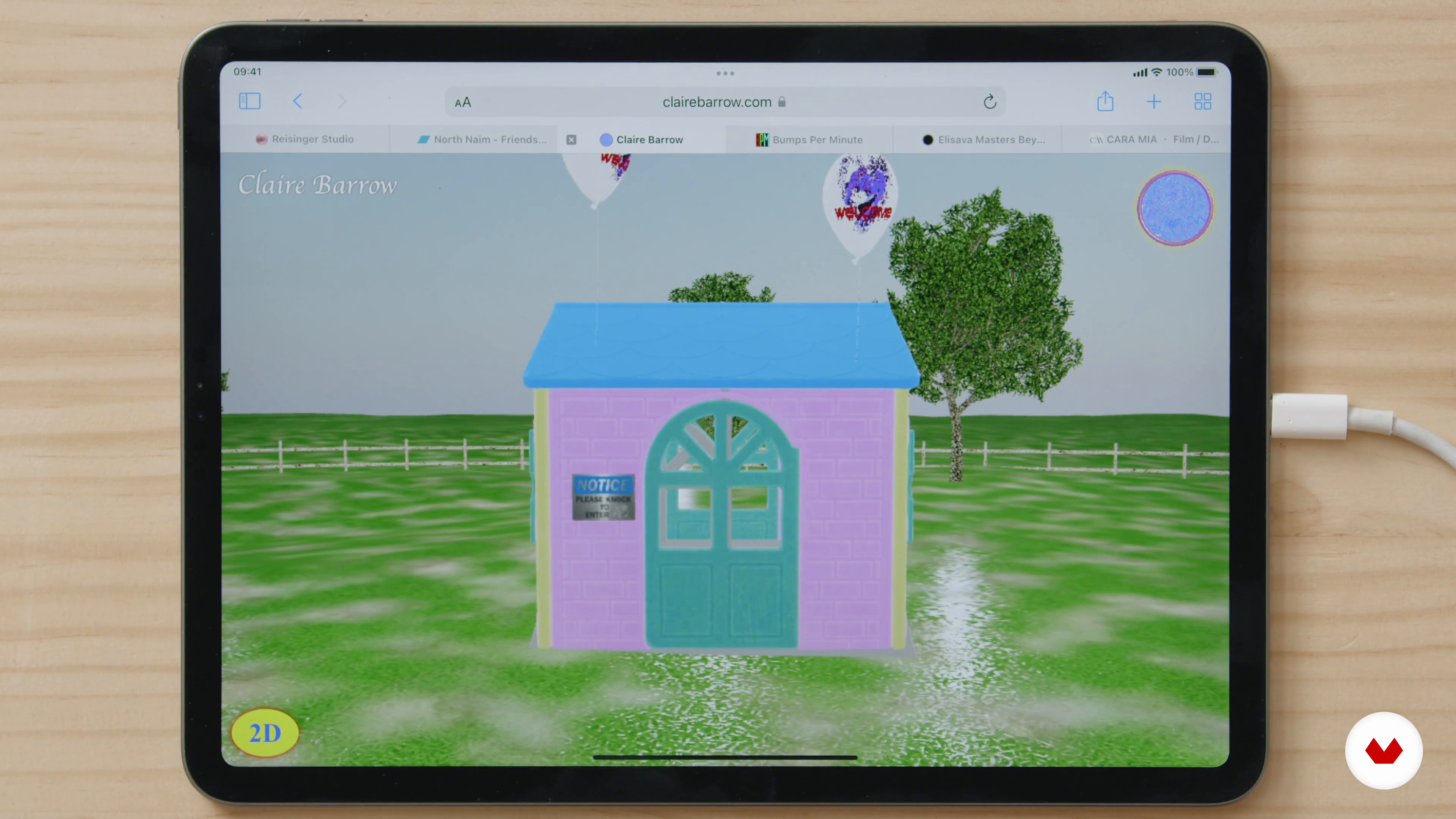
In this lesson I want to share with you some of the web designers specialized in Squarespace that I follow very closely. I will also show you some books and blogs on design and web design in general that have been very helpful in my training process, and that I continue to consult frequently.
10m
 6
6Influences | Isa Macías
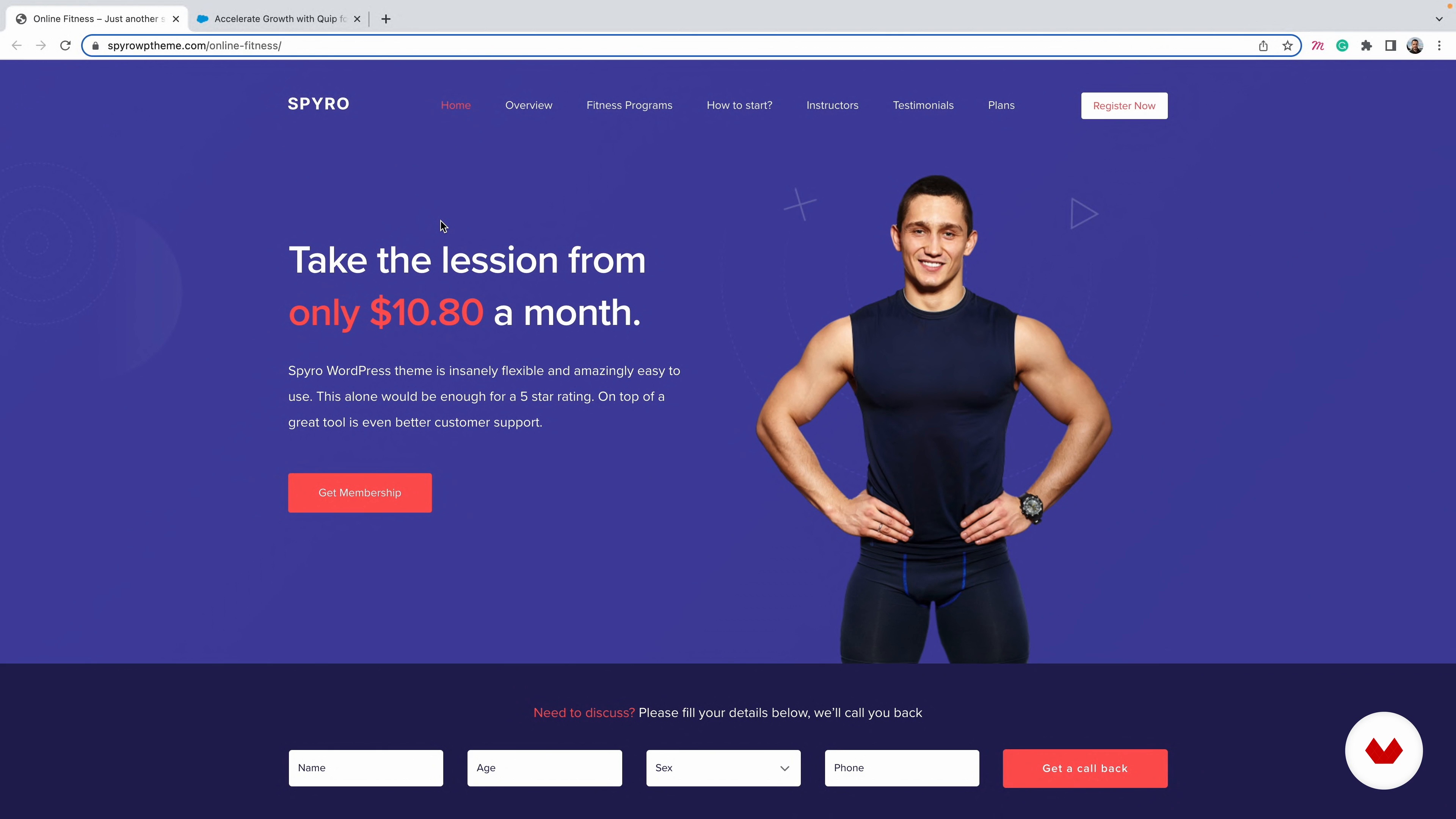
For me it is super important to have creative references with which to inspire myself on a daily basis and to be in constant learning. In this lesson I will show you which studios and designers freak me out the most today.
2m
 3
3Types of landing pages
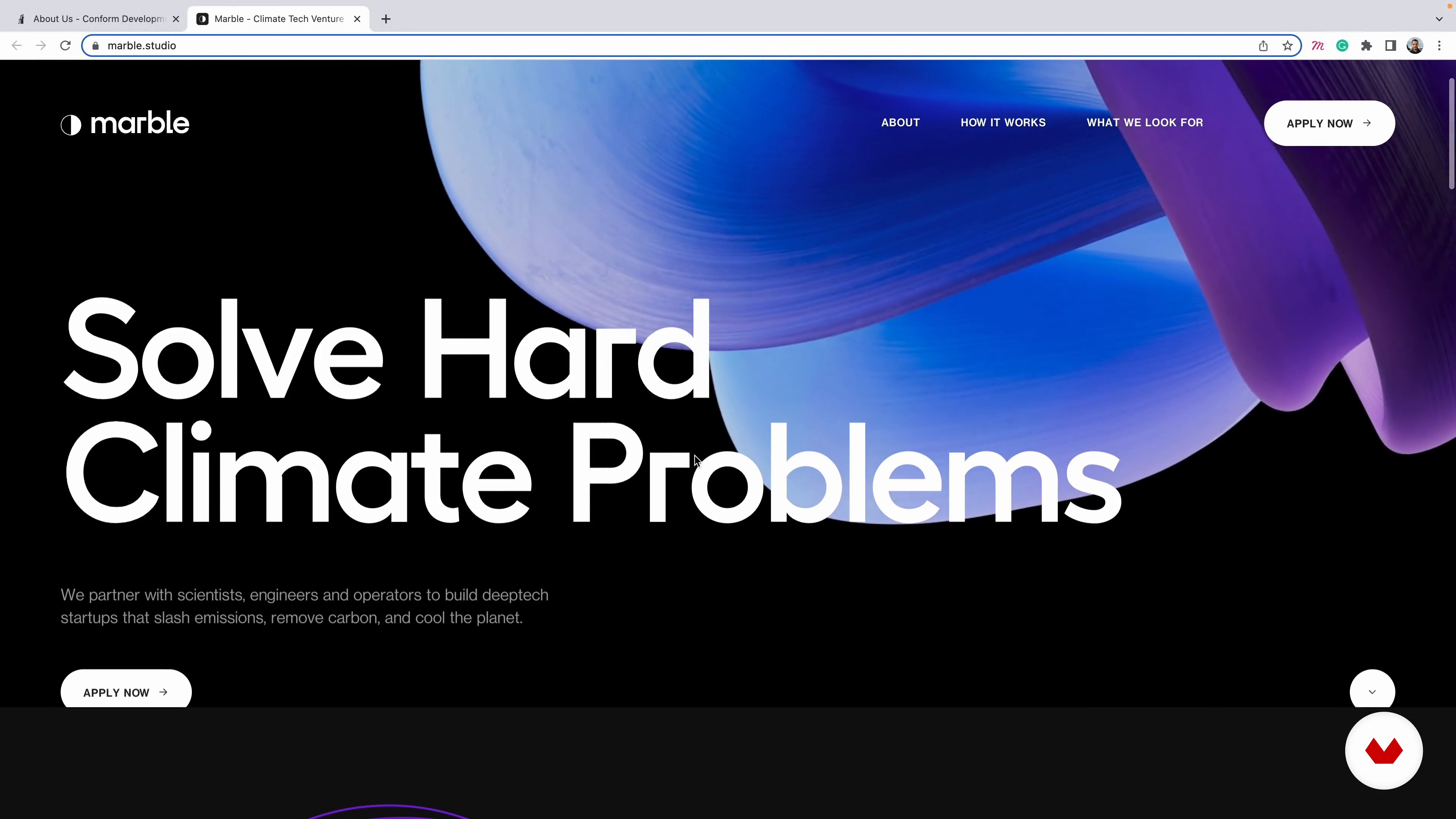
In this lesson you will learn about different types of landing pages and I will teach you how to identify which one is the most suitable for the project you are going to carry out.
7m
 4
4What is a good landing page?
Now I am going to explain with several examples how to identify the elements that make up an effective website.
8m
 5
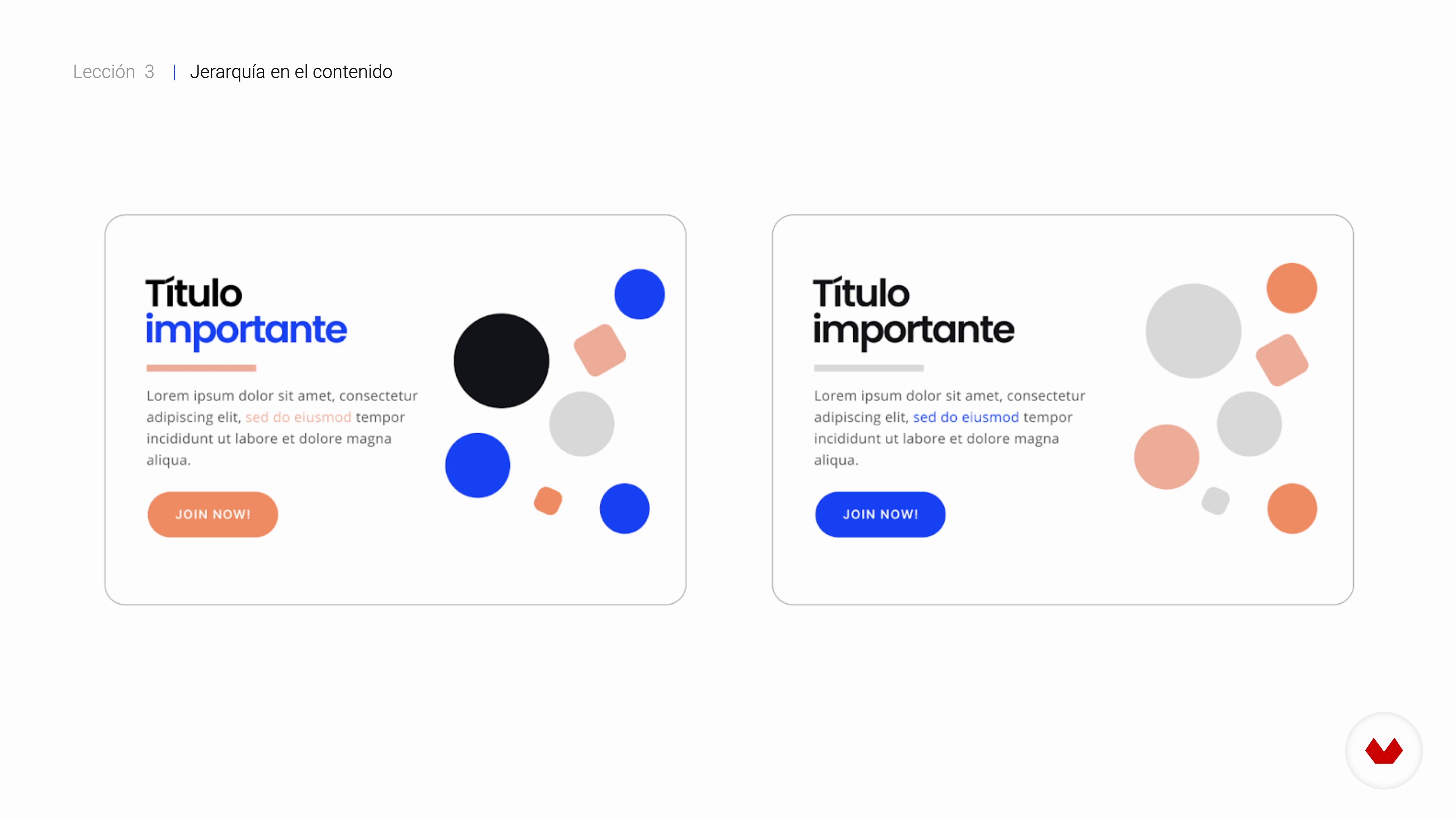
5What is hierarchy in content?
In this lesson I will tell you how to prioritize content and its importance in the storytelling of a landing page.
5m
 6
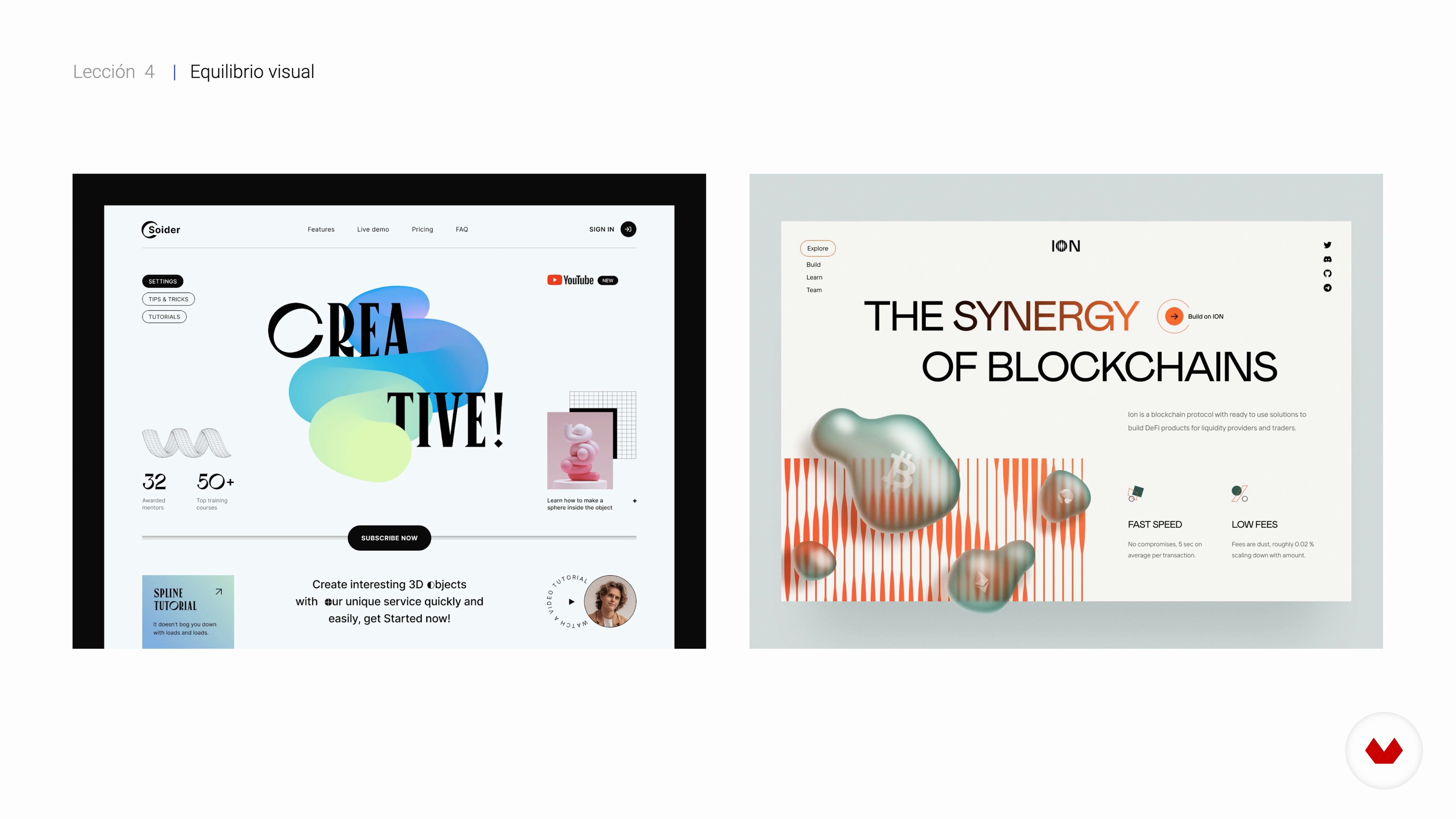
6Contrast, visual balance and the 3 second rule
Finally, we are going to analyze the role that contrast and balance play in the navigation of a landing page. We will also see how to use the 3-second rule to our advantage.
4m
 7
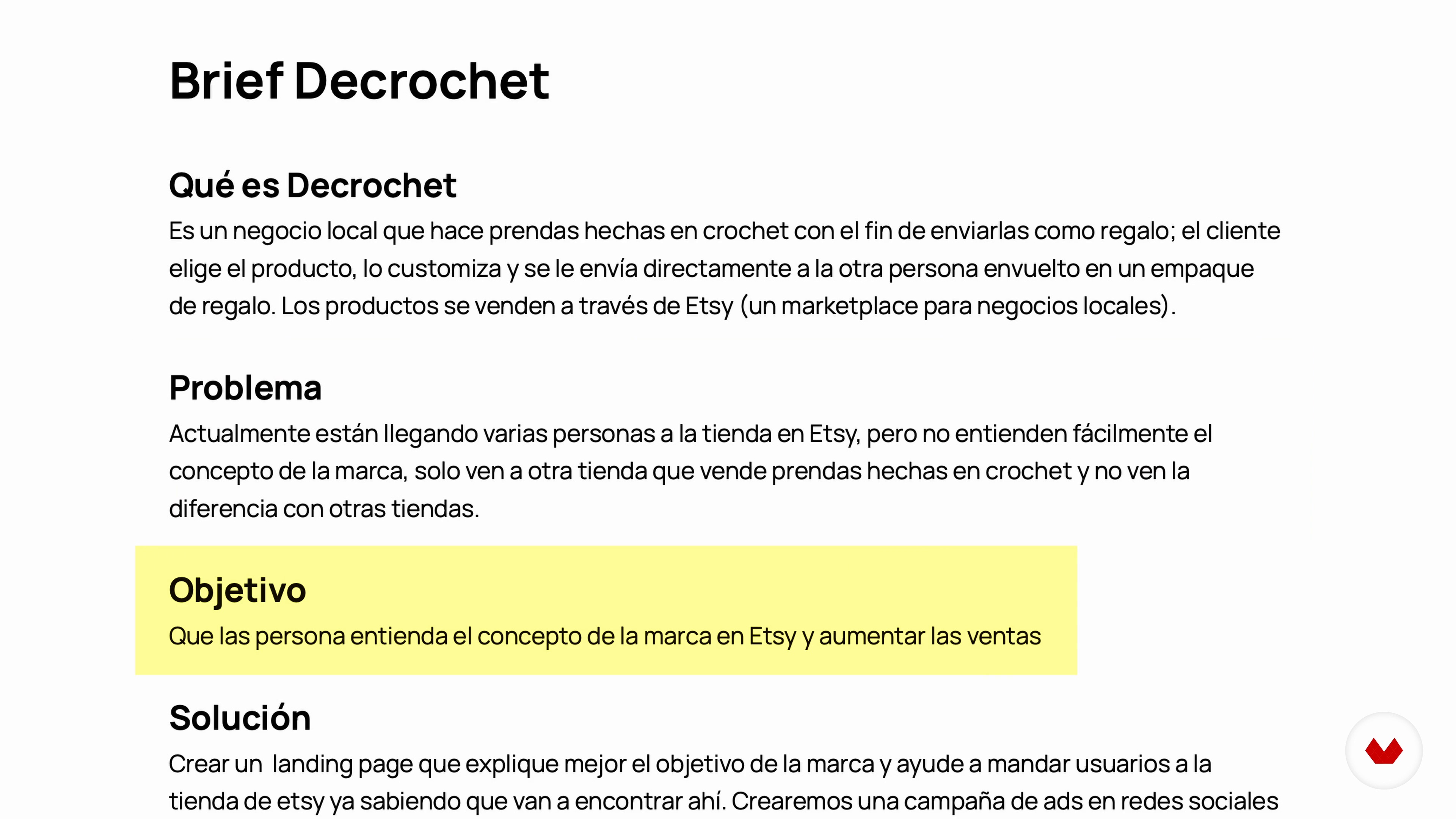
7The brief and how to investigate
The brief is the document that helps us to understand the needs of the client. In this lesson, I will teach you how to investigate from the interpretation of a brief.
11m
 8
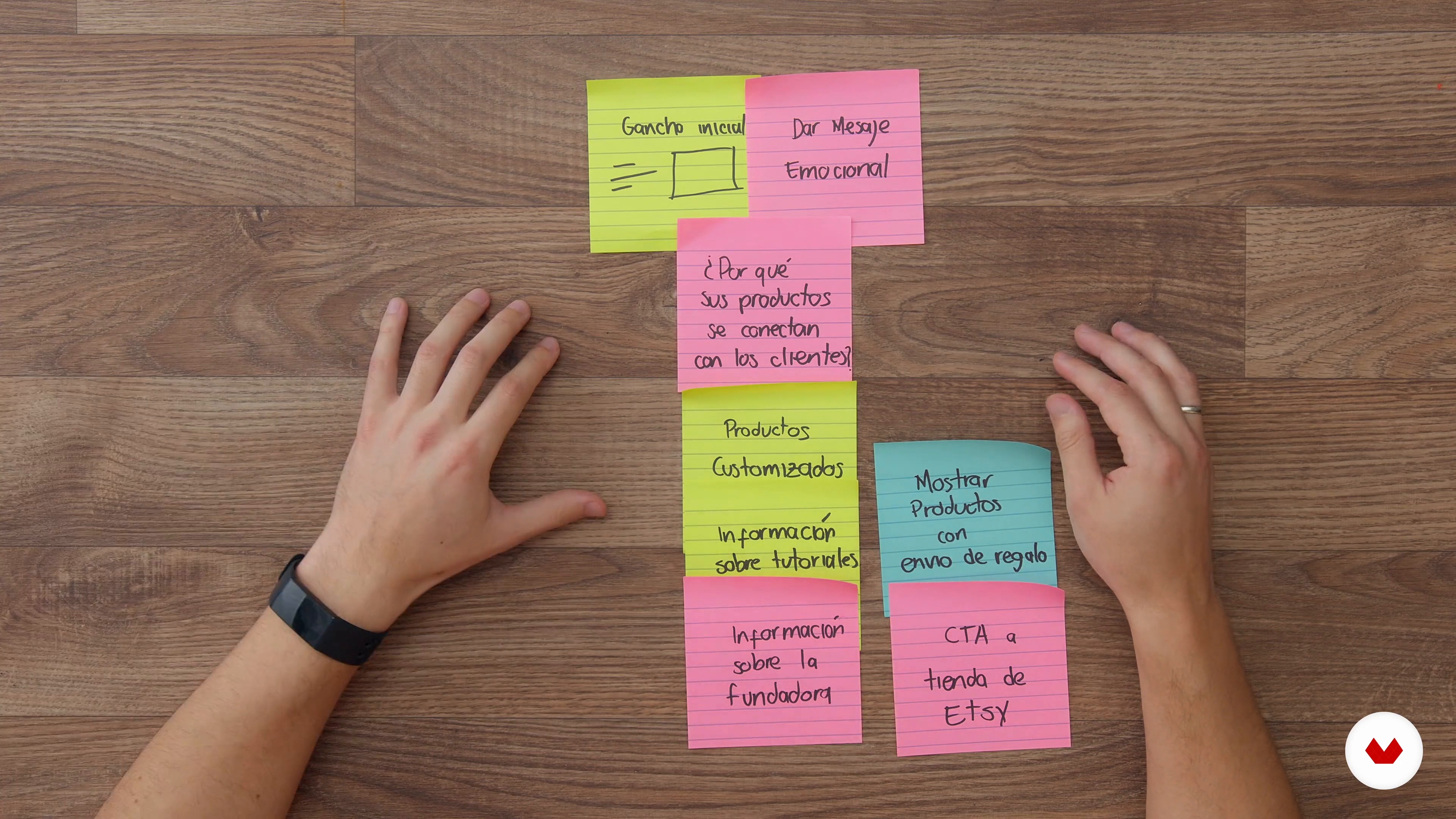
8Content structure for a landing page
Now I will teach you how to organize the content to tell a story based on the previous research.
4m
 9
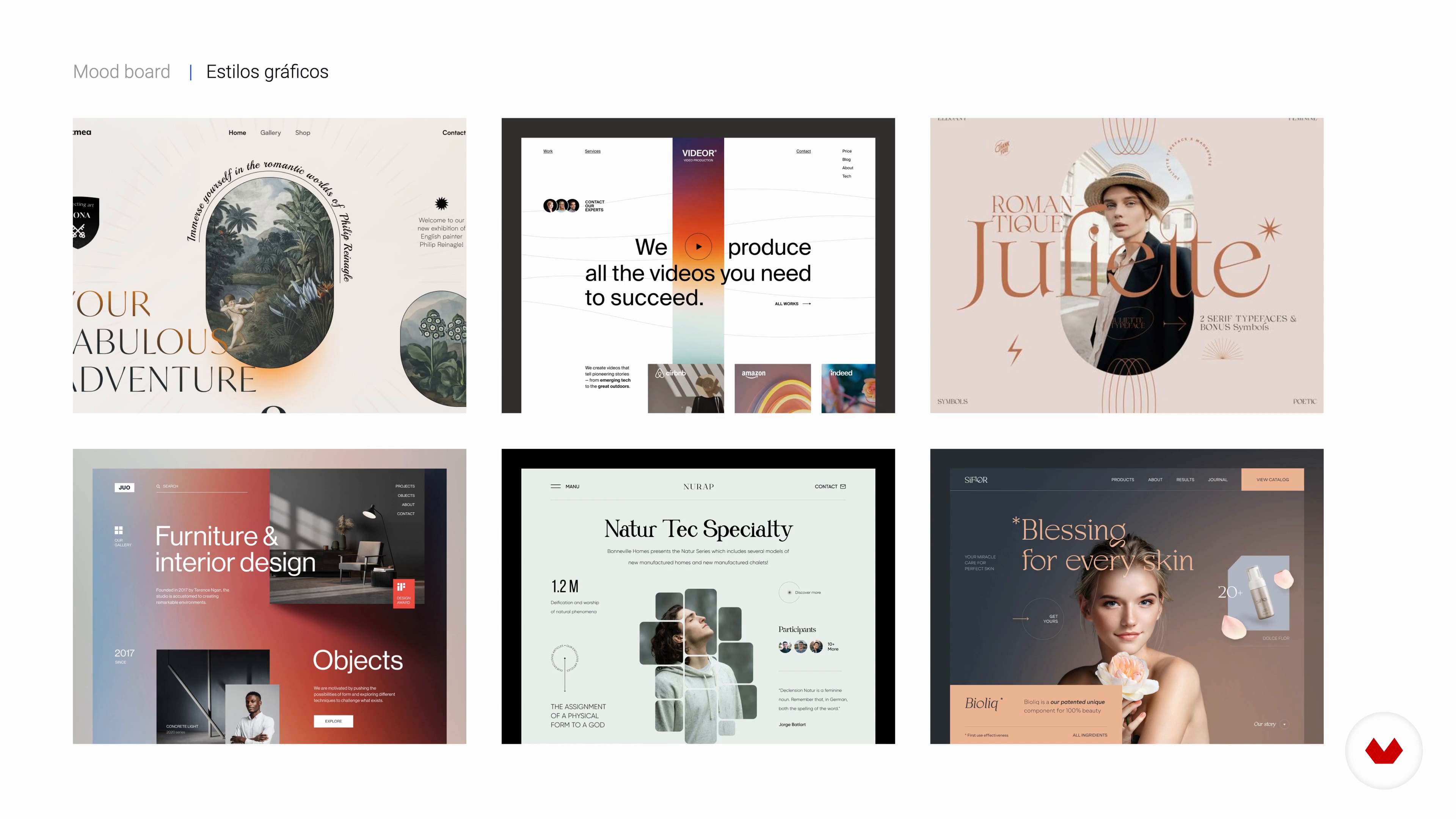
9How to make a mood board
In this lesson we are going to see how to create a mood board as a tool for analysis, inspiration and debugging.
6m
 10
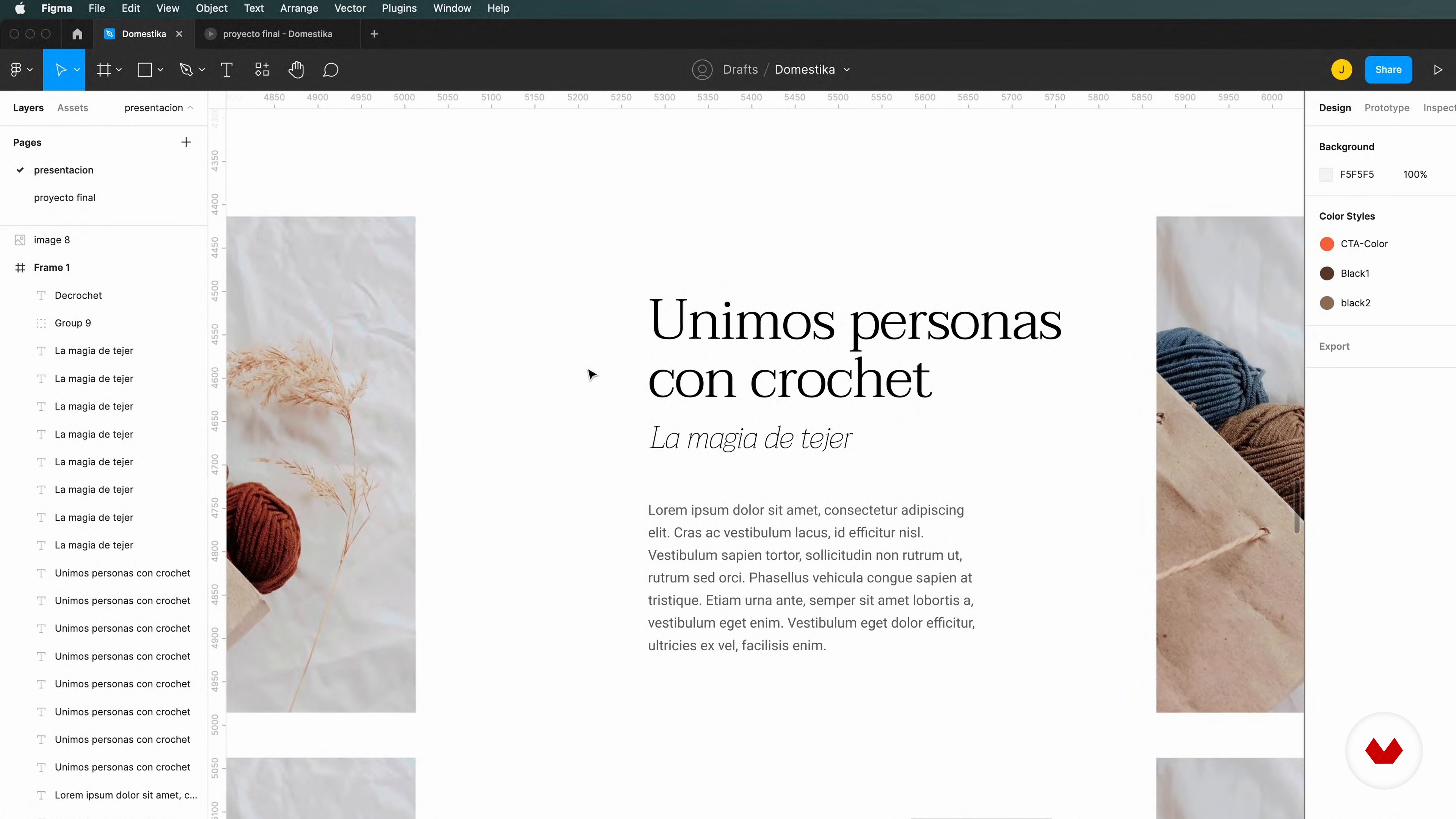
10The right typography
Finally, I am going to tell you about the importance of typography and I will explain how to select it properly so that it best suits the project you have in hand.
4m
 11
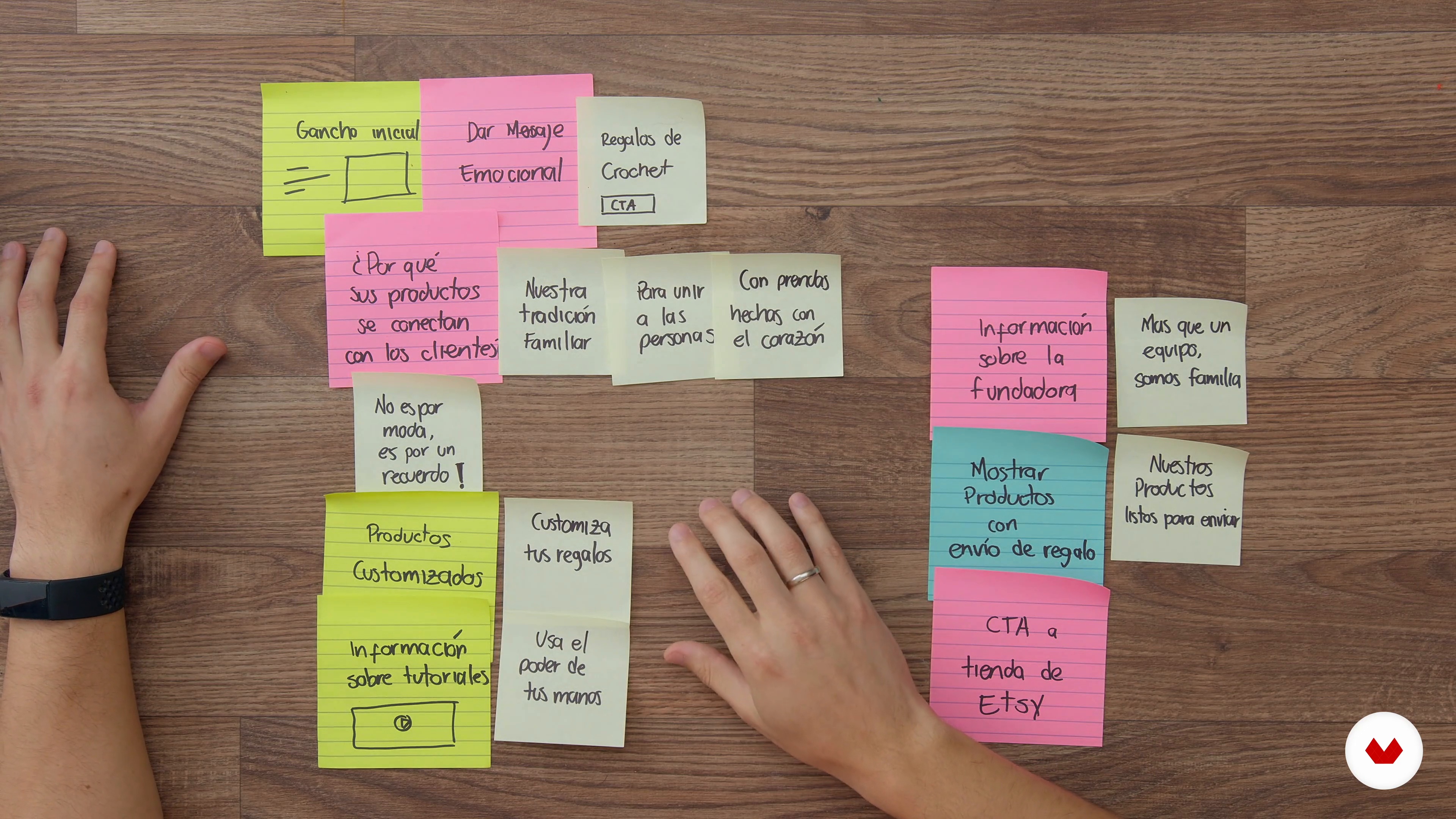
11Story creation
In this lesson you will learn to take into account the behavior of people when they interact with a product, system or service. Also how to use this information as a basis for the organization of your story along with the structure proposed in the planning.
7m
 12
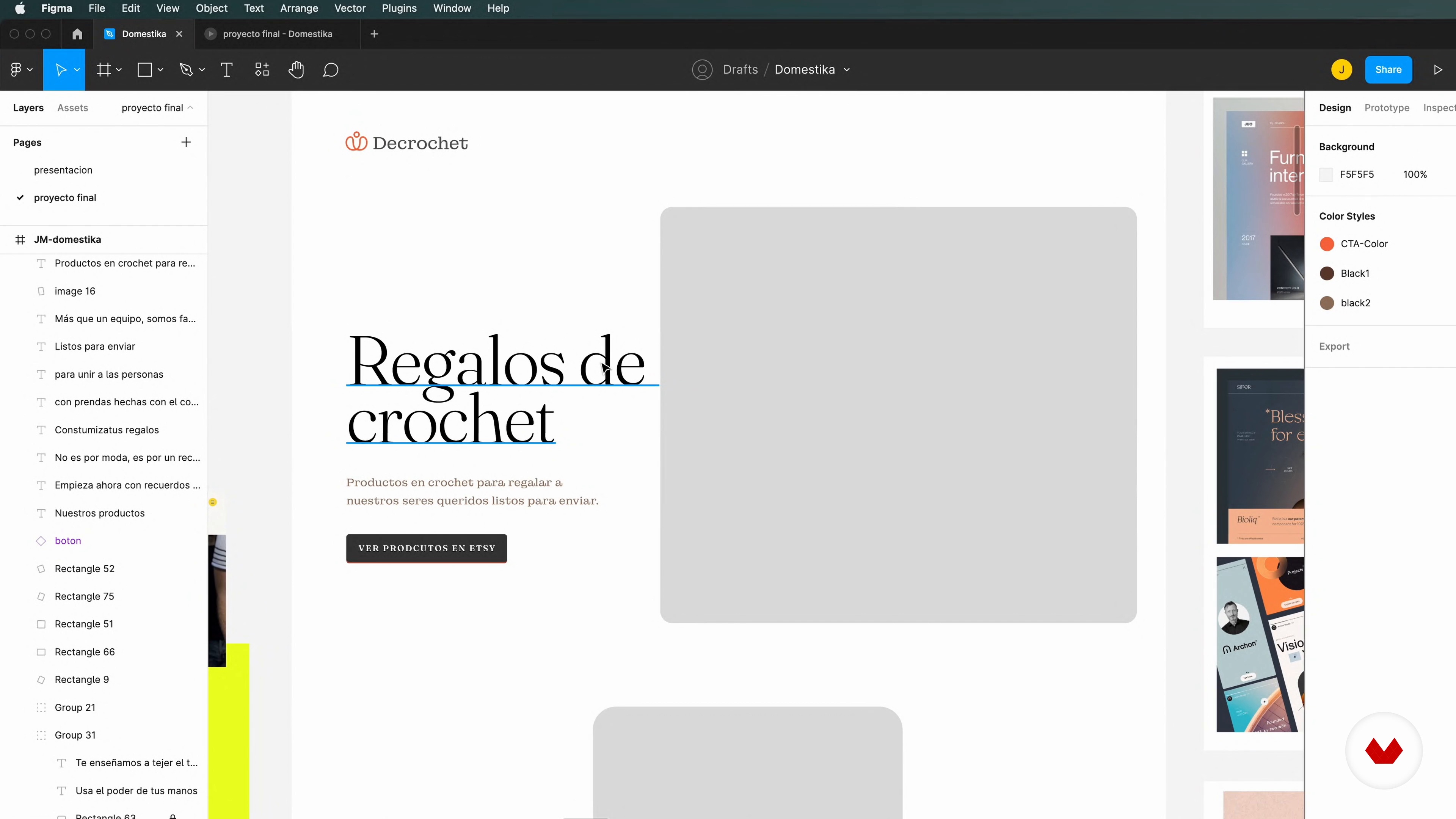
12Put all the material on the canvas!
It is time to place on the canvas all the elements that you have collected during the course to start the design of your landing page. In this lesson I explain how to do it.
11m
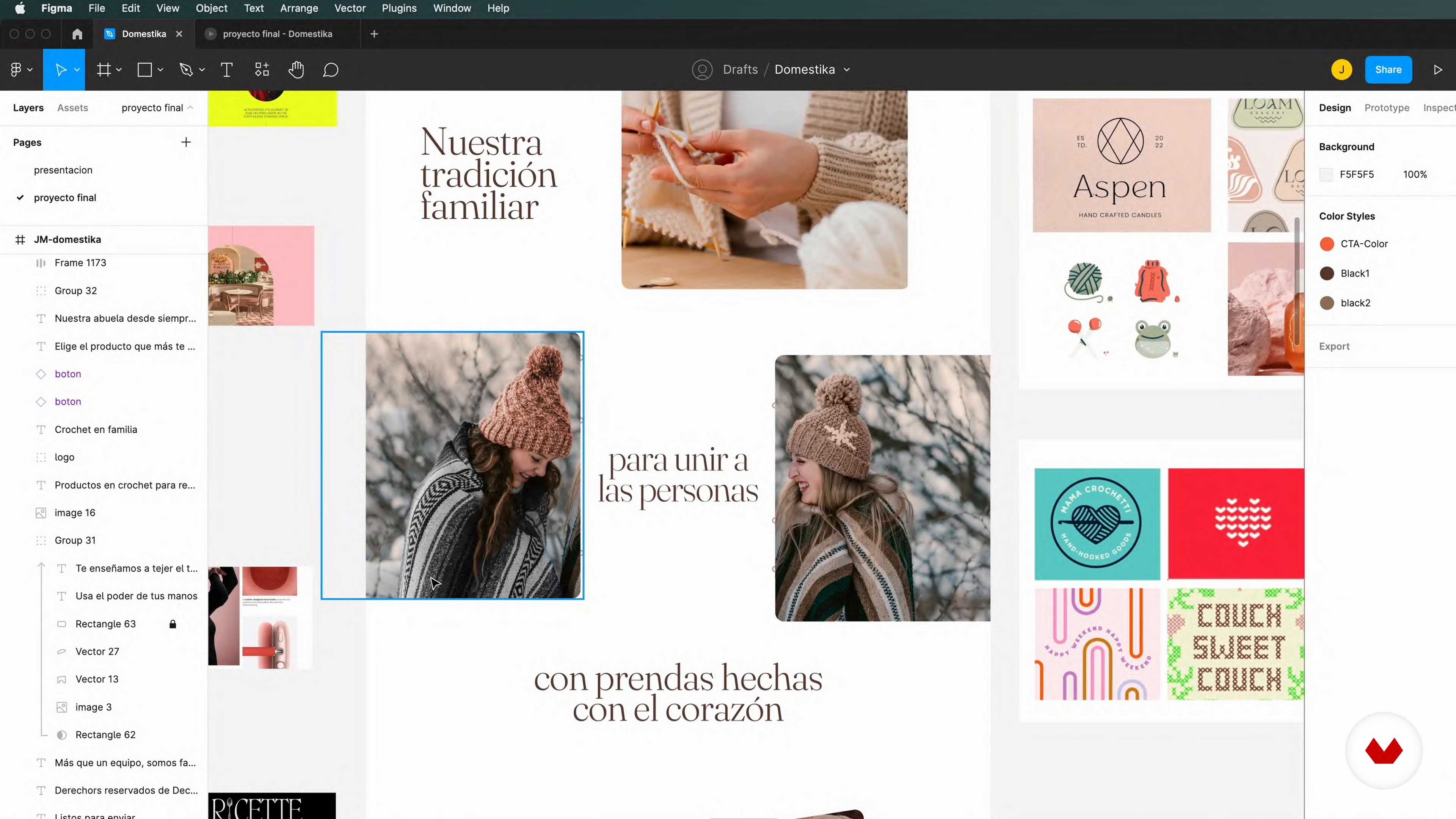 13
13Create the assets you need for your landing page
Finally, I am going to tell you how to create your own assets from the material you find on the internet. I will also recommend where to look for them.
10m
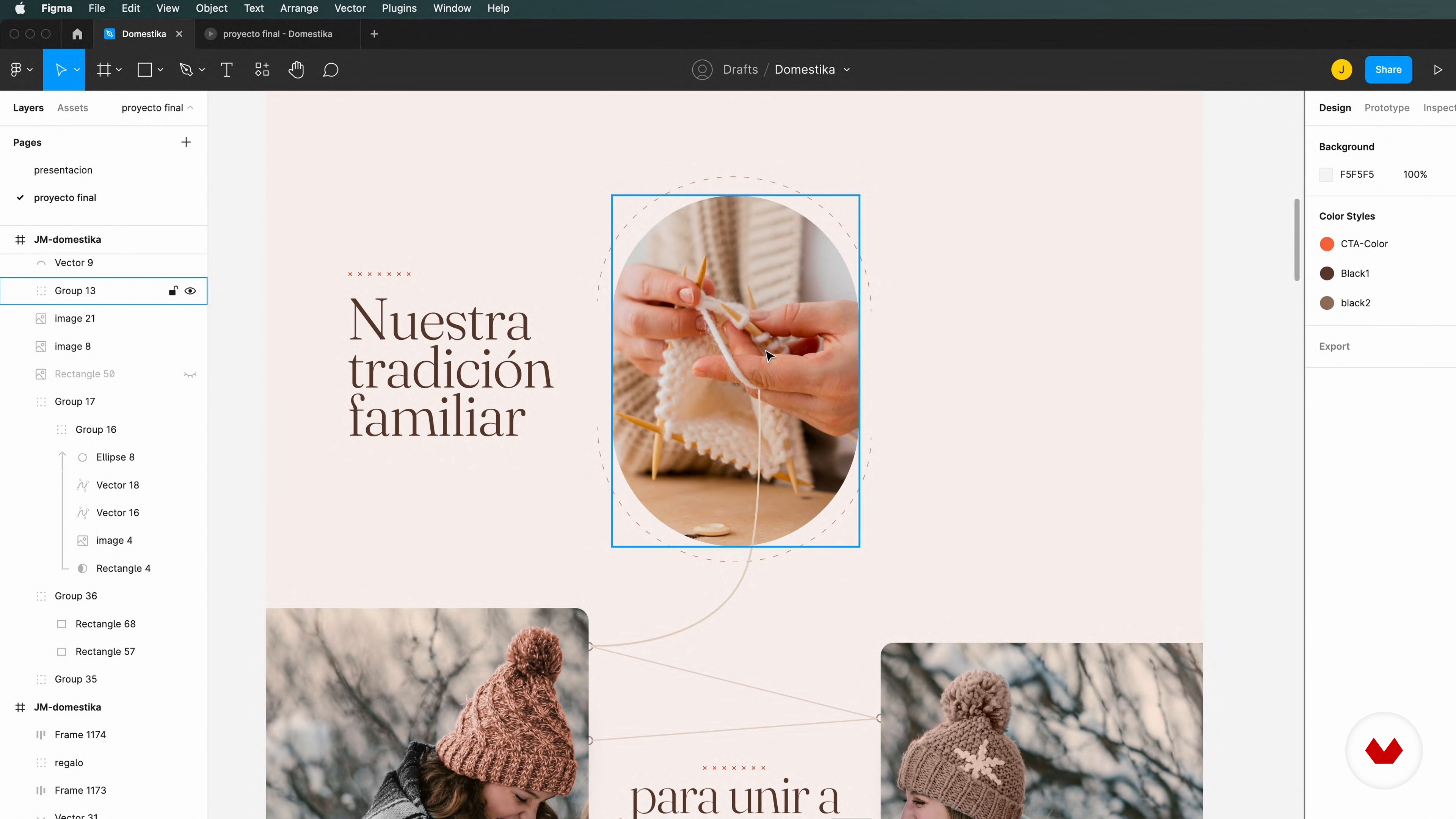 14
14Design Definition
In this lesson I will teach you how to create the style guide to shape your landing page. We will have to define graphic and typographic elements to give consistency and unity to the design.
10m
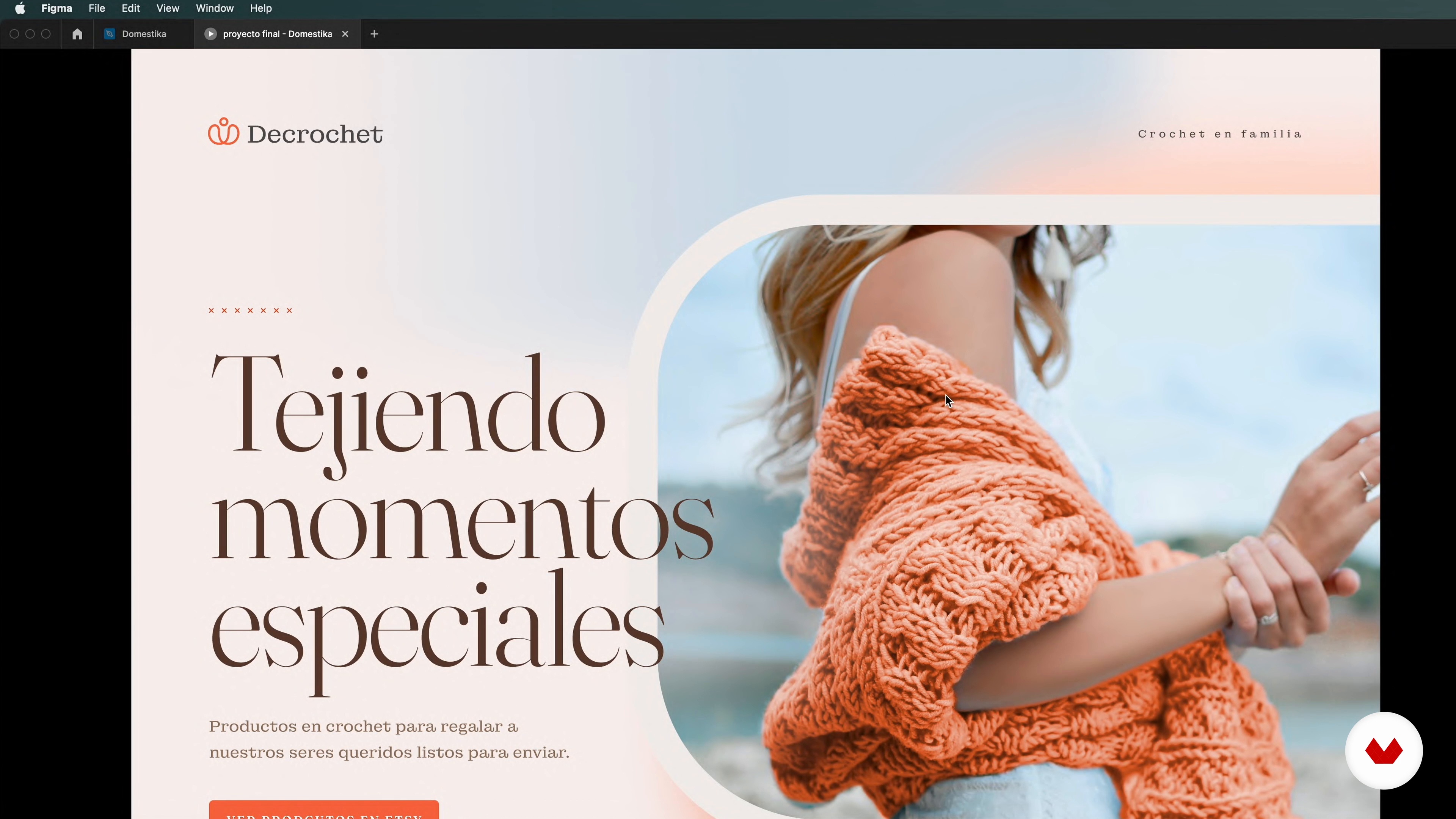 15
15Polish your design: feedback
It is time to seek feedback on what we have done so far. This way we can adjust the necessary details to obtain the final design of the course project.
5m
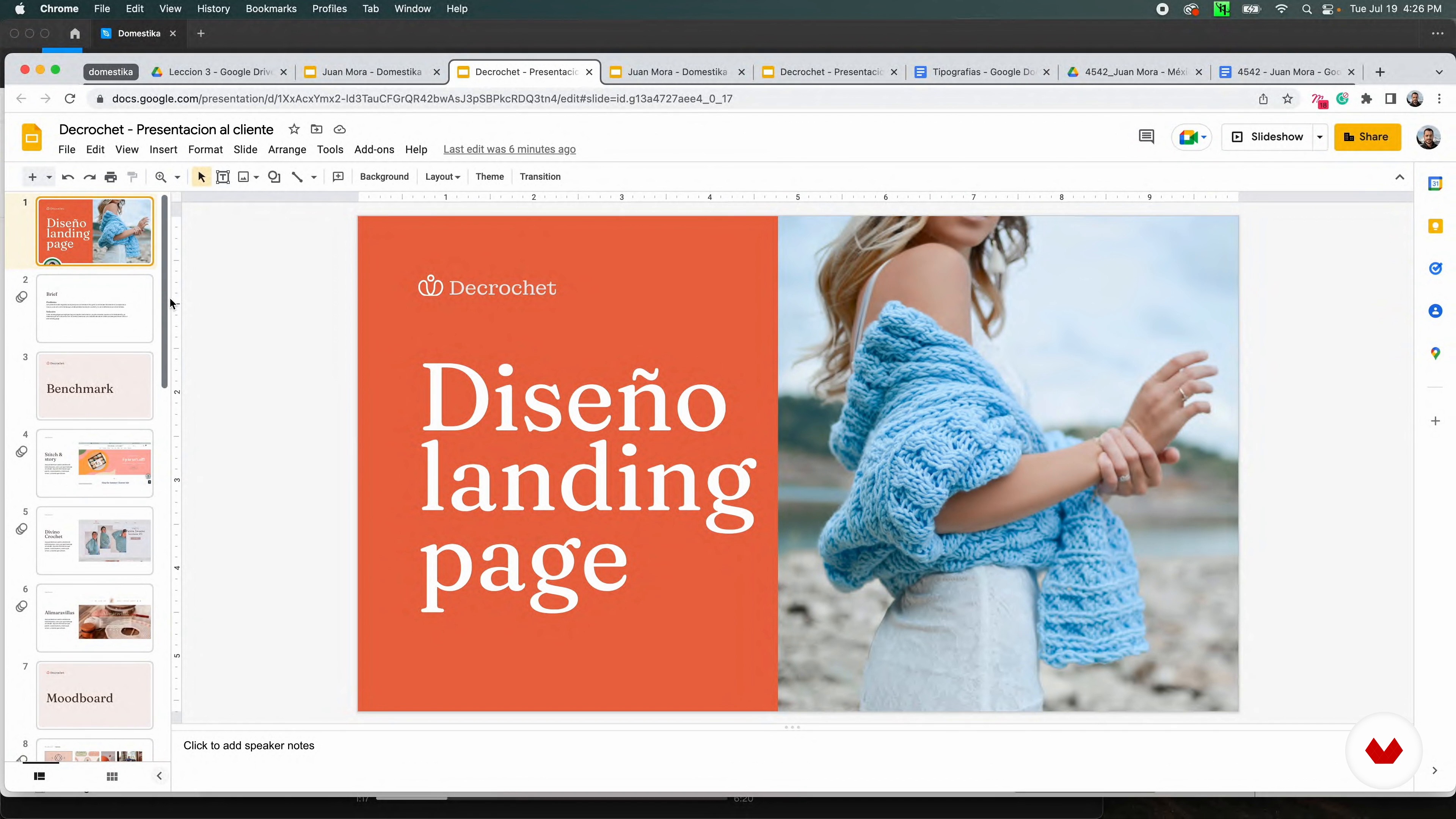 16
16Presentation to the client
In this lesson I will show you how to present your project to your client and what you should take into account to explain the decisions you made to show what you did.
4m
 3
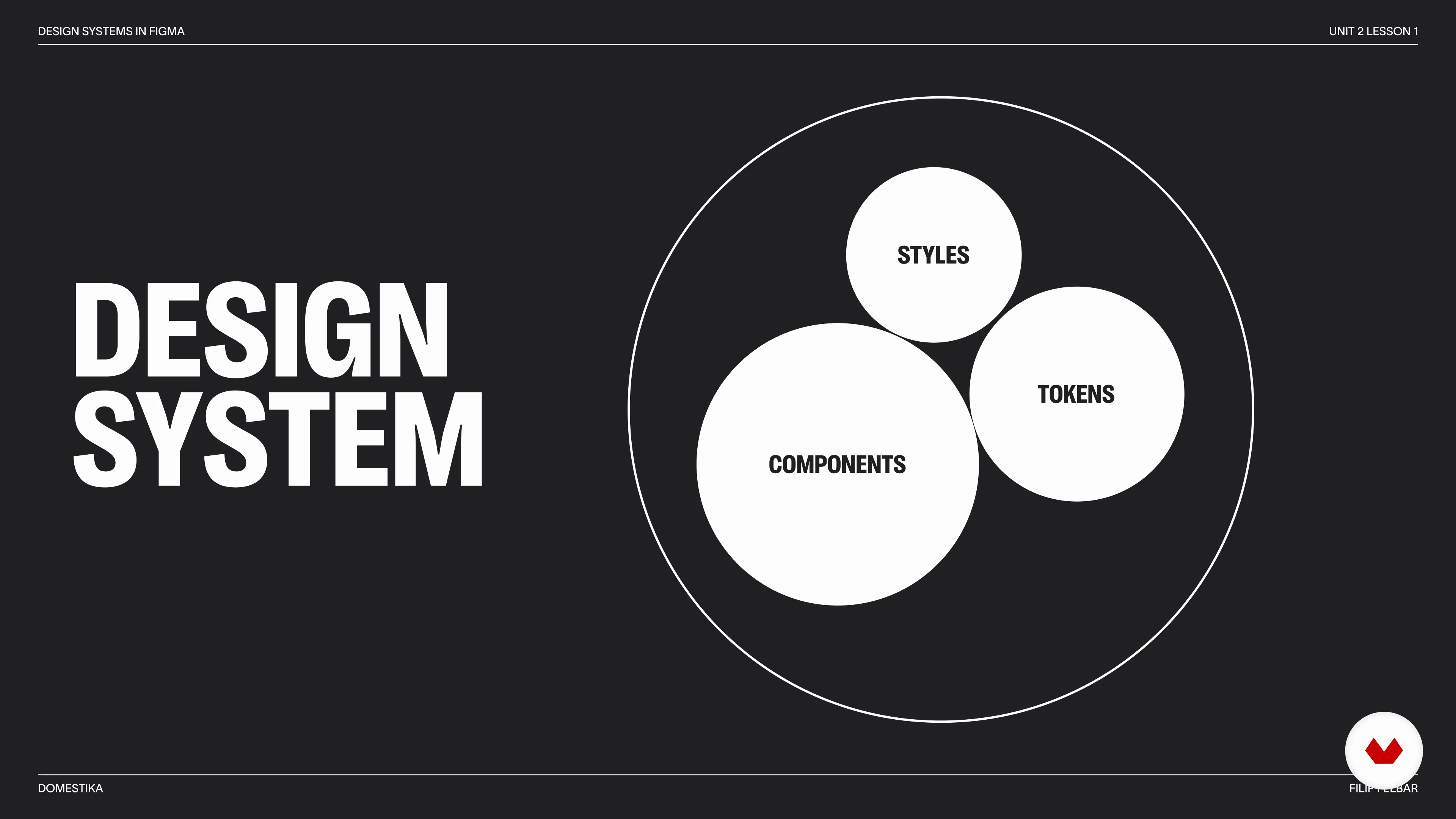
3Introduction to Design Systems
In this lesson, I will present a short overview of what design systems are and how they're typically utilized. I will also elaborate on how my exact process works and why it's been beneficial for me.
6m
 4
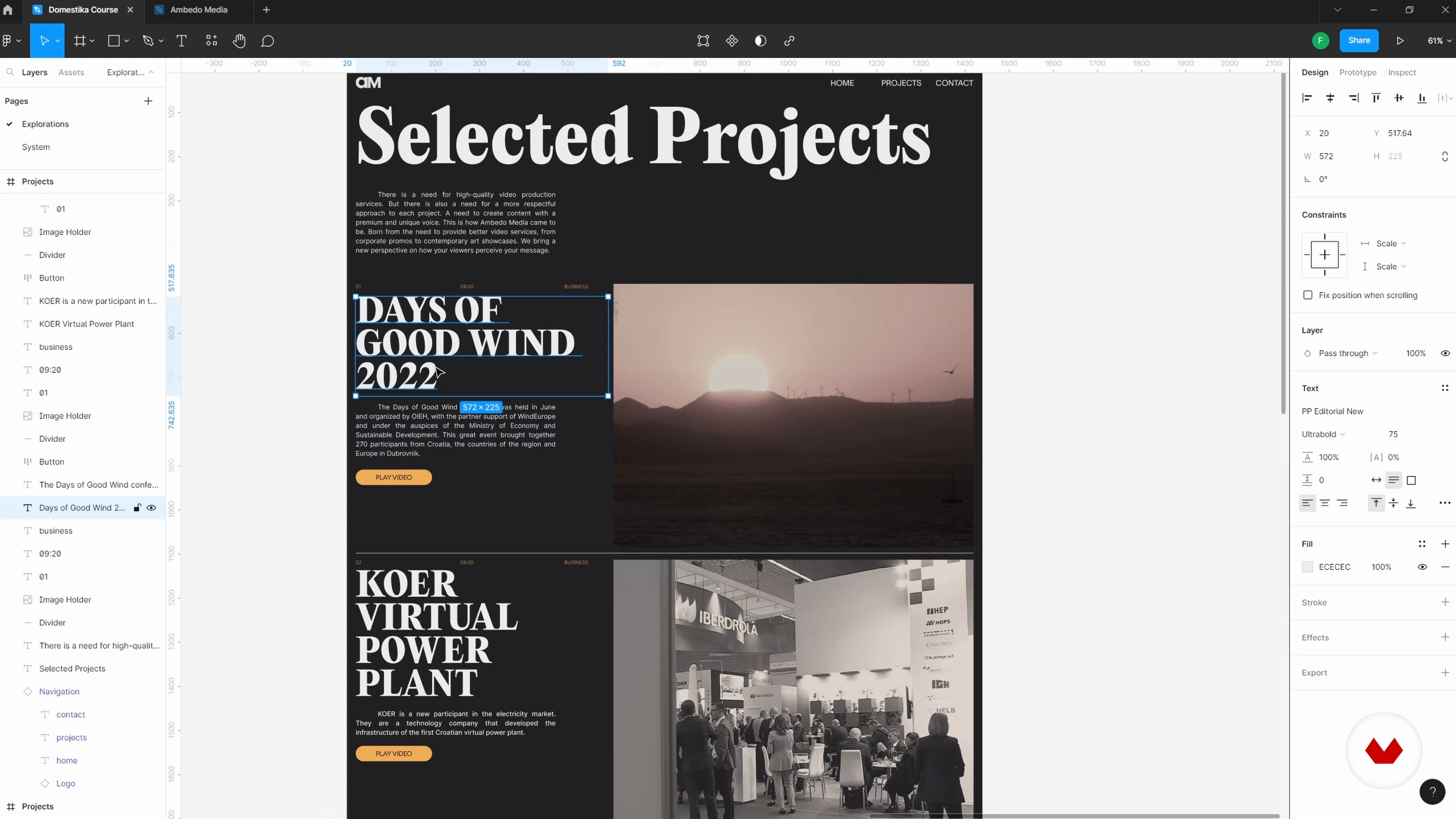
4How Design Systems Can Help You Speed Up Your Workflow
Next, I will give you some quick examples of how design systems can help you increase your efficiency, going over how global styles and components are helpful.
8m
 5
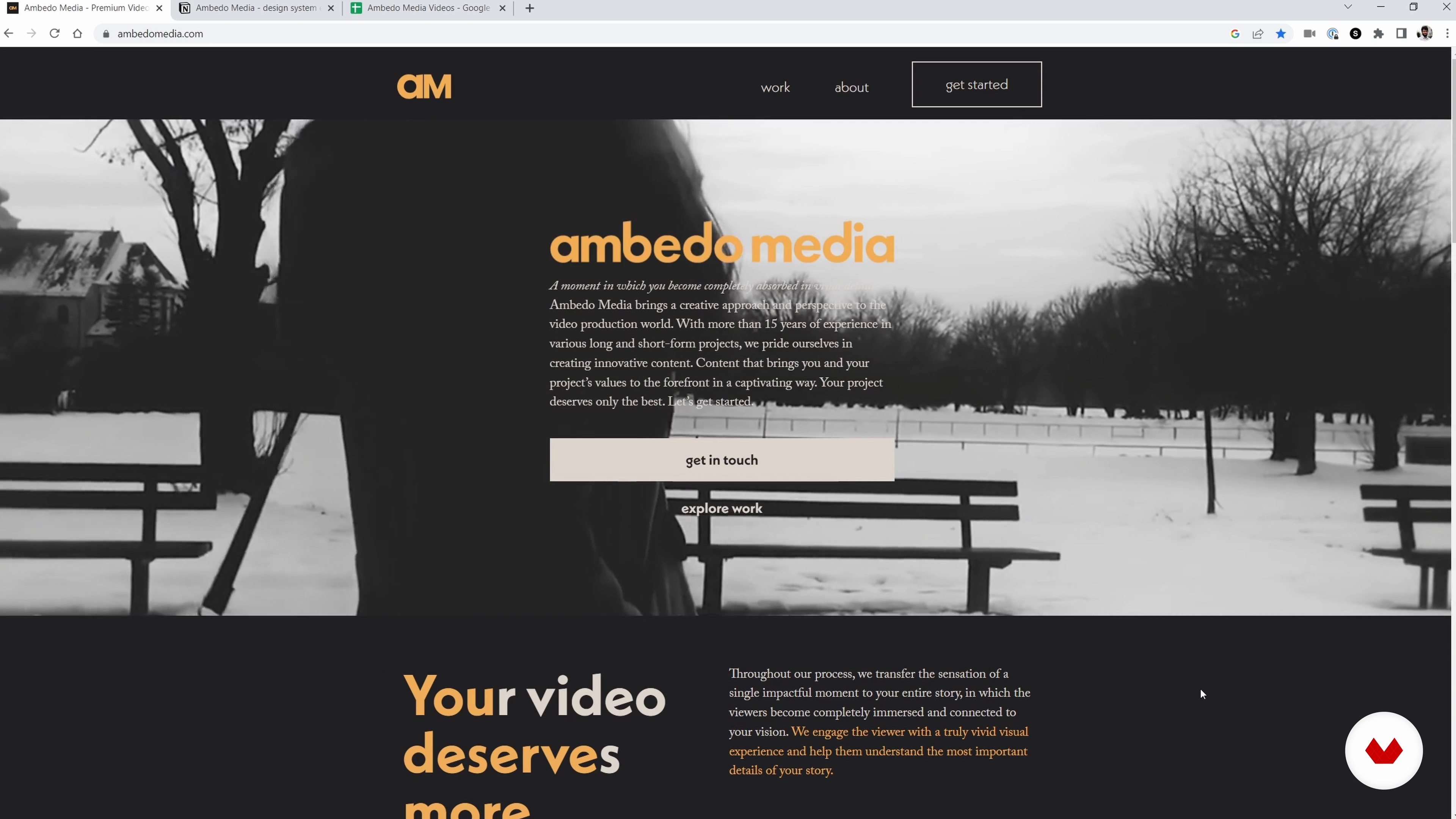
5Introduction to the Project and Approach
Let's now go over the project we will be working on! I will create a general breakdown of what we need in order to have a successful start.
6m
 6
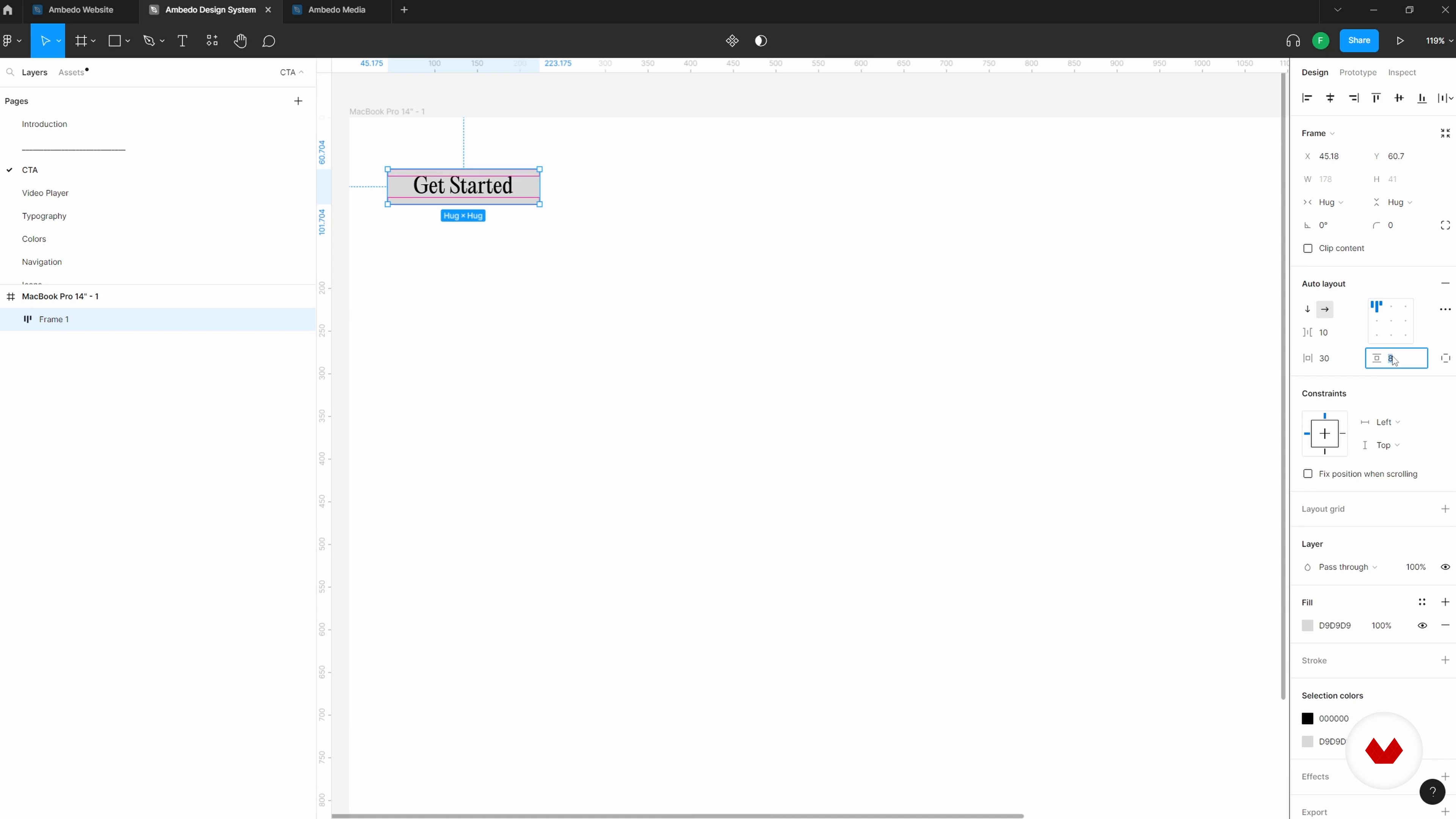
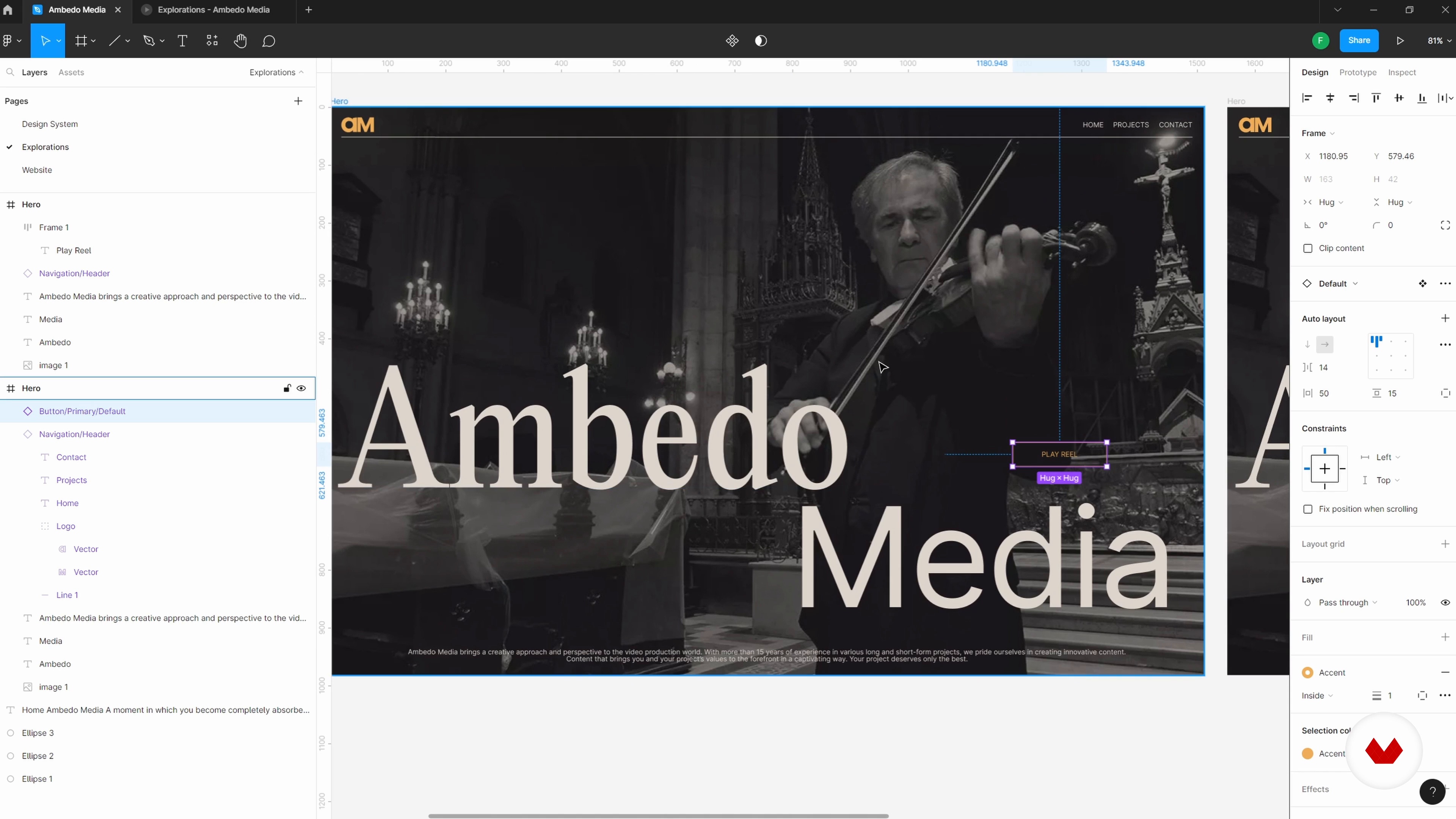
6Setting up the Figma File and Beginning the First Explorations 1
First, I will go over how design systems can be created in Figma. Then, I will start the first explorations and collect some initial components.
18m
 7
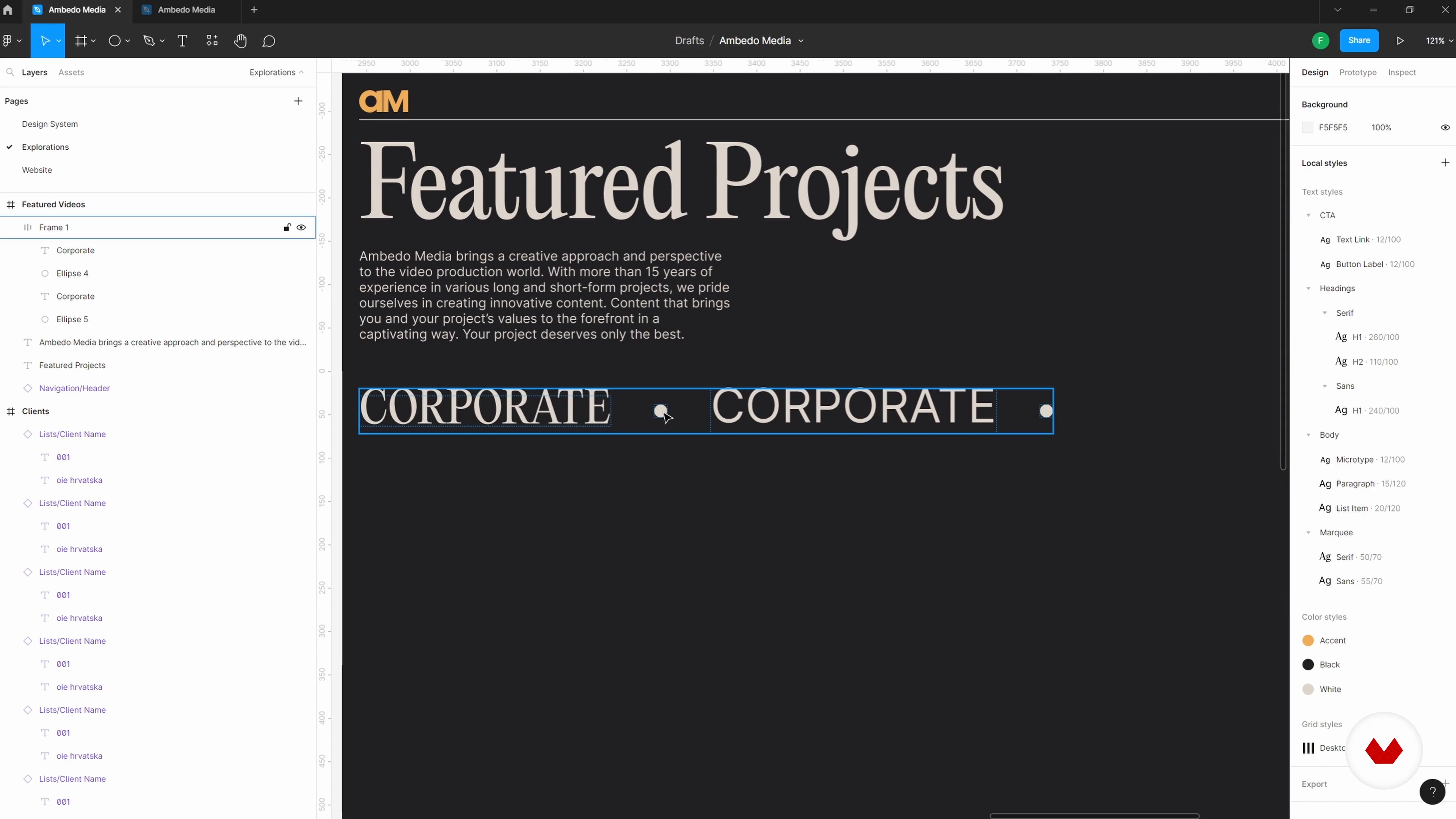
7Setting up the Figma File and Beginning the First Explorations 2
With these initial design explorations, we can play around with any and all ideas that come to mind. Let's see some more!
16m
 8
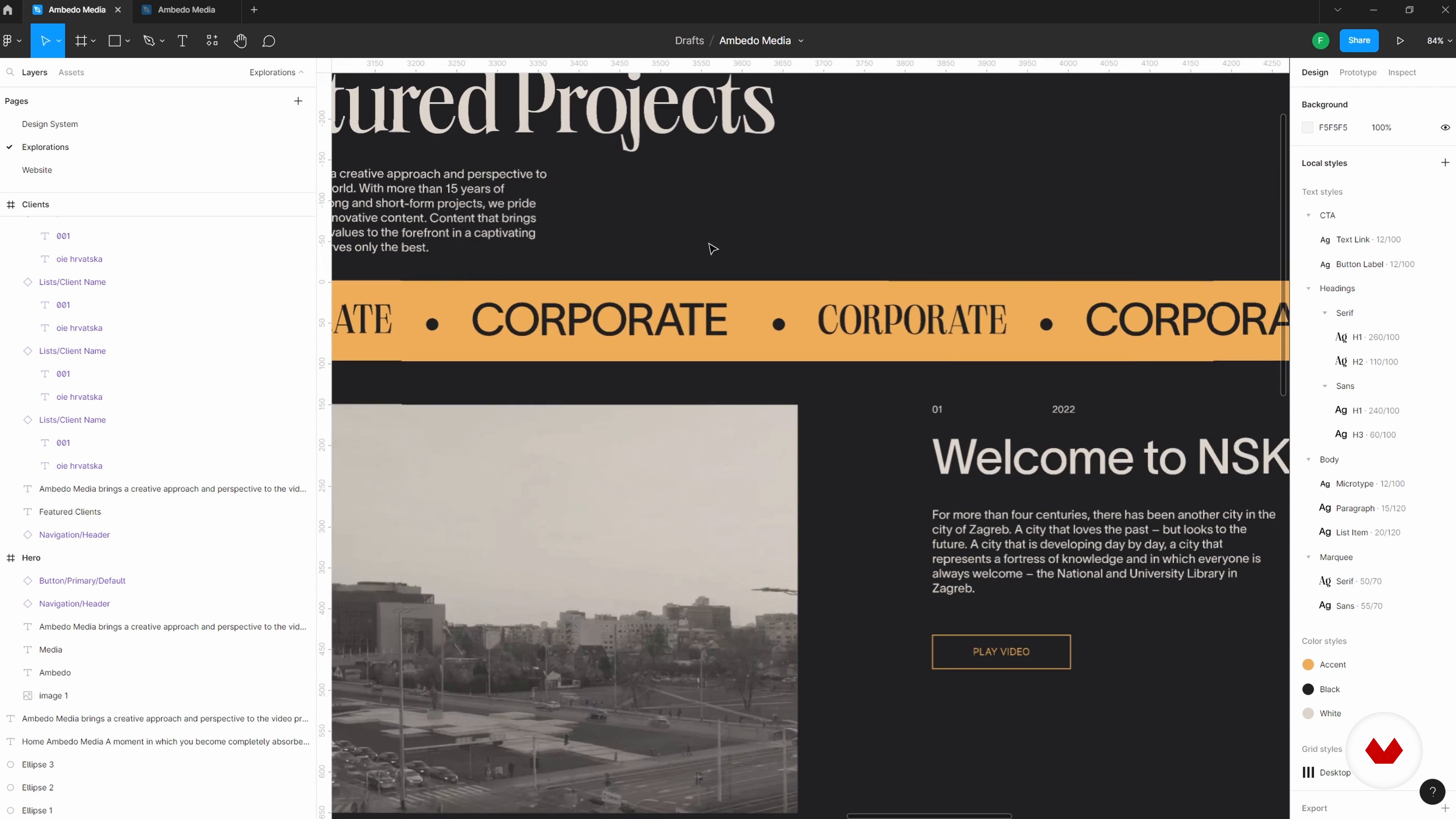
8Expanding the Explorations and Design System 1
I will continue expanding my designs and layouts, as well as the design system itself. You will see how I utilize components and auto layouts, so you get a bit of a sense of how it works.
19m
 9
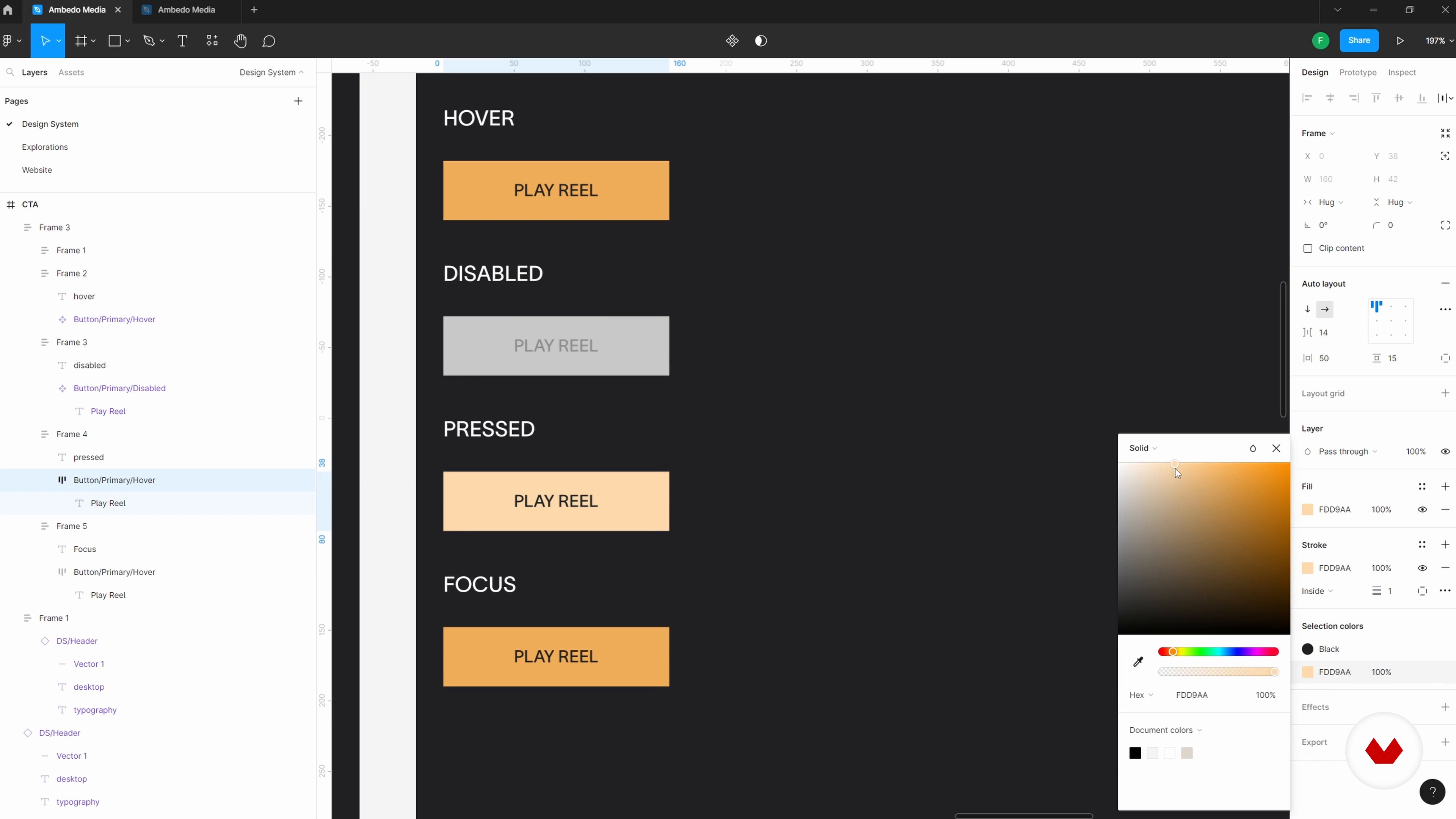
9Expanding the Explorations and Design System 2
Once we have a more clear idea of what direction we would prefer to take the project in, we revise some of our initial choices and update our global styles throughout the layouts. Let's see how my project evolves!
20m
 10
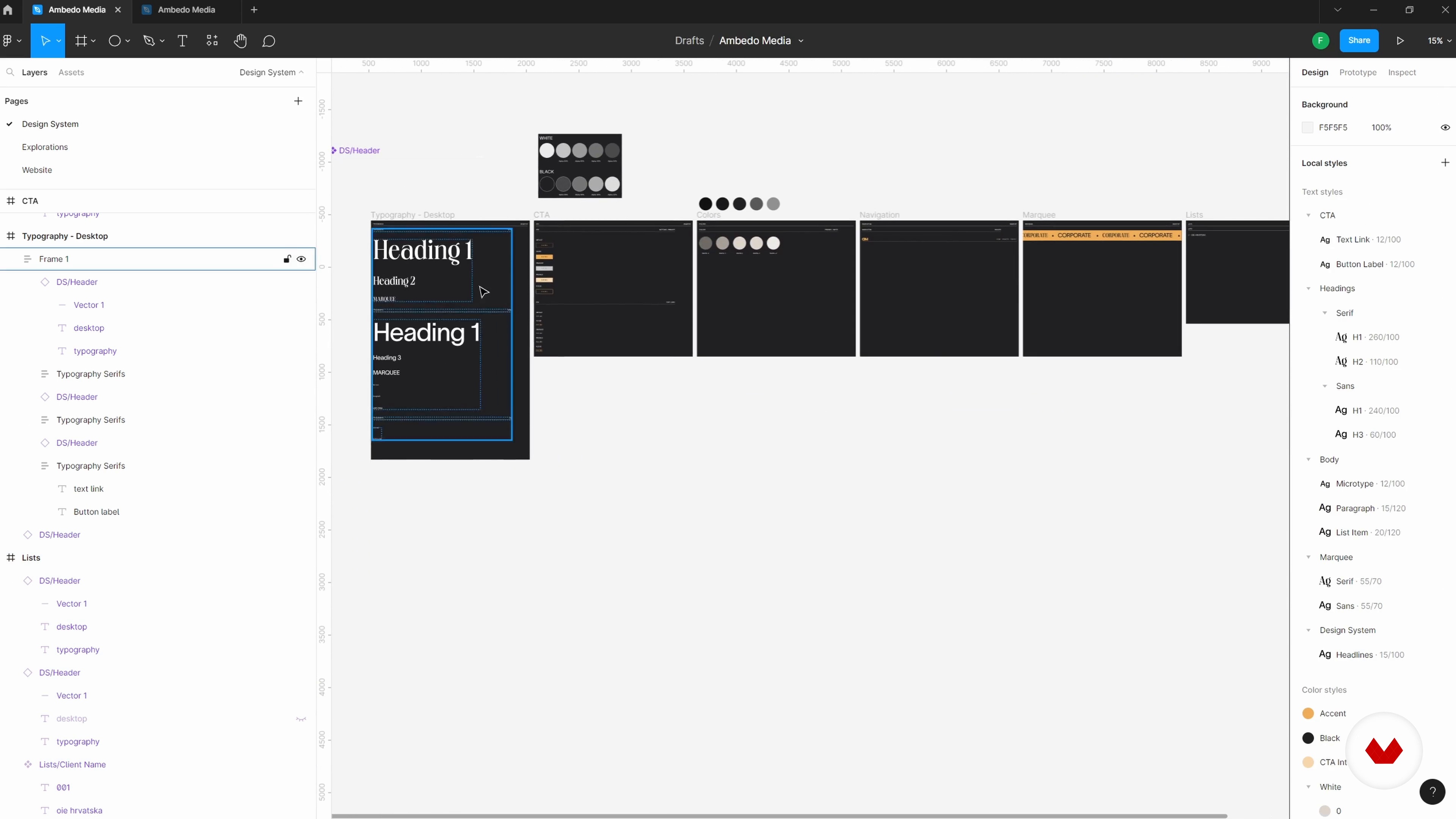
10Organizing the Design System Pages 1
In this lesson, I will be going over the components and styles I have created and start placing them on dedicated pages to have an initial sense of the structure.
14m
 11
11Organizing the Design System Pages 2
I will continue refining my design system files. Remember, being able to refine a design system library at these earlier stages can reduce the time it will take at the end of the project when we're preparing everything for the final handover.
11m
 12
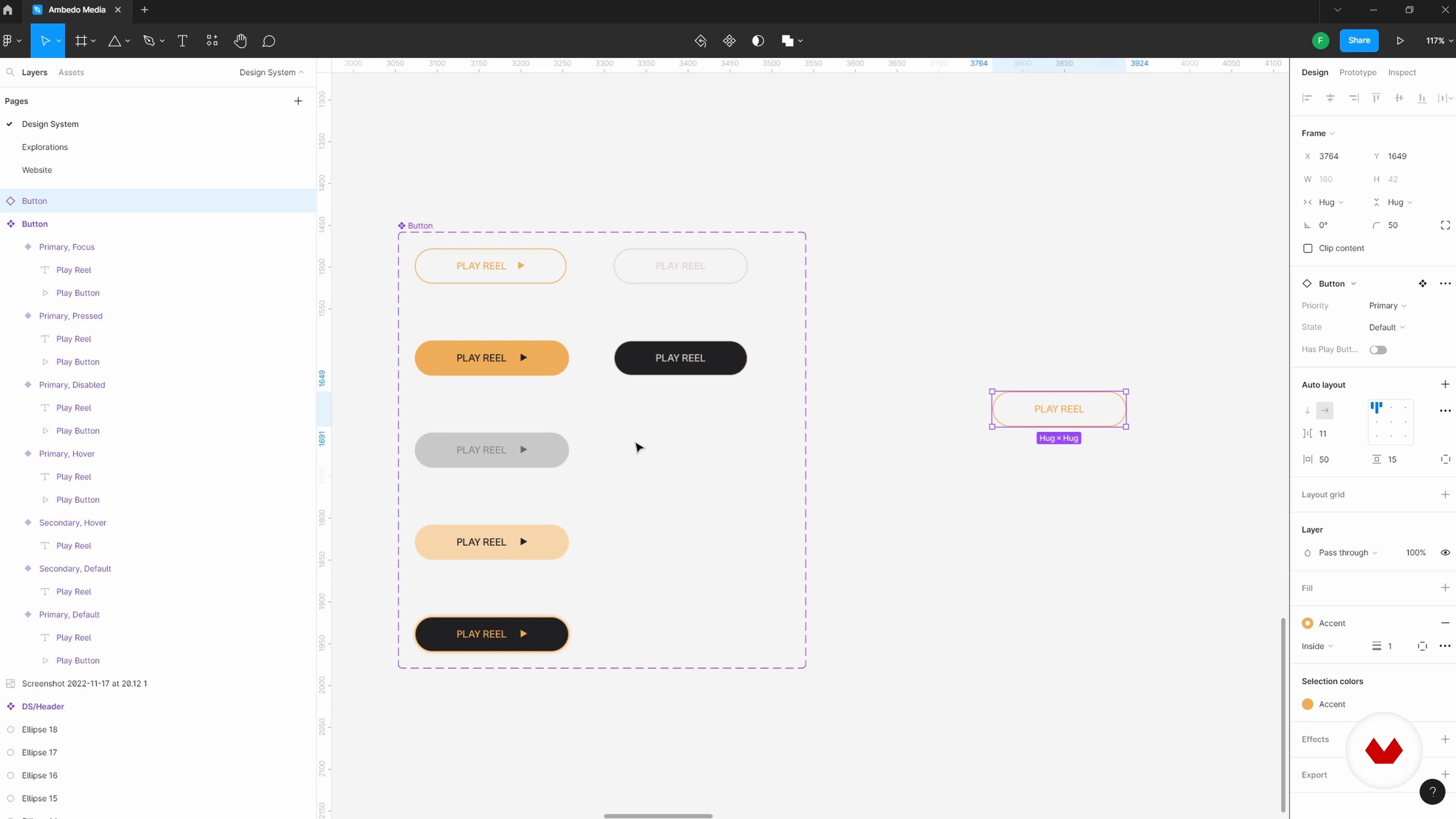
12Exploring Variants When Creating Components
In this lesson, we will dive a bit deeper into components; you will understand how we can use variants to grow our toolkit even further. You will also get a better sense of how the naming conventions come into play within Figma and where you can explore to see which features you would like to highlight and have easy access to.
14m
 13
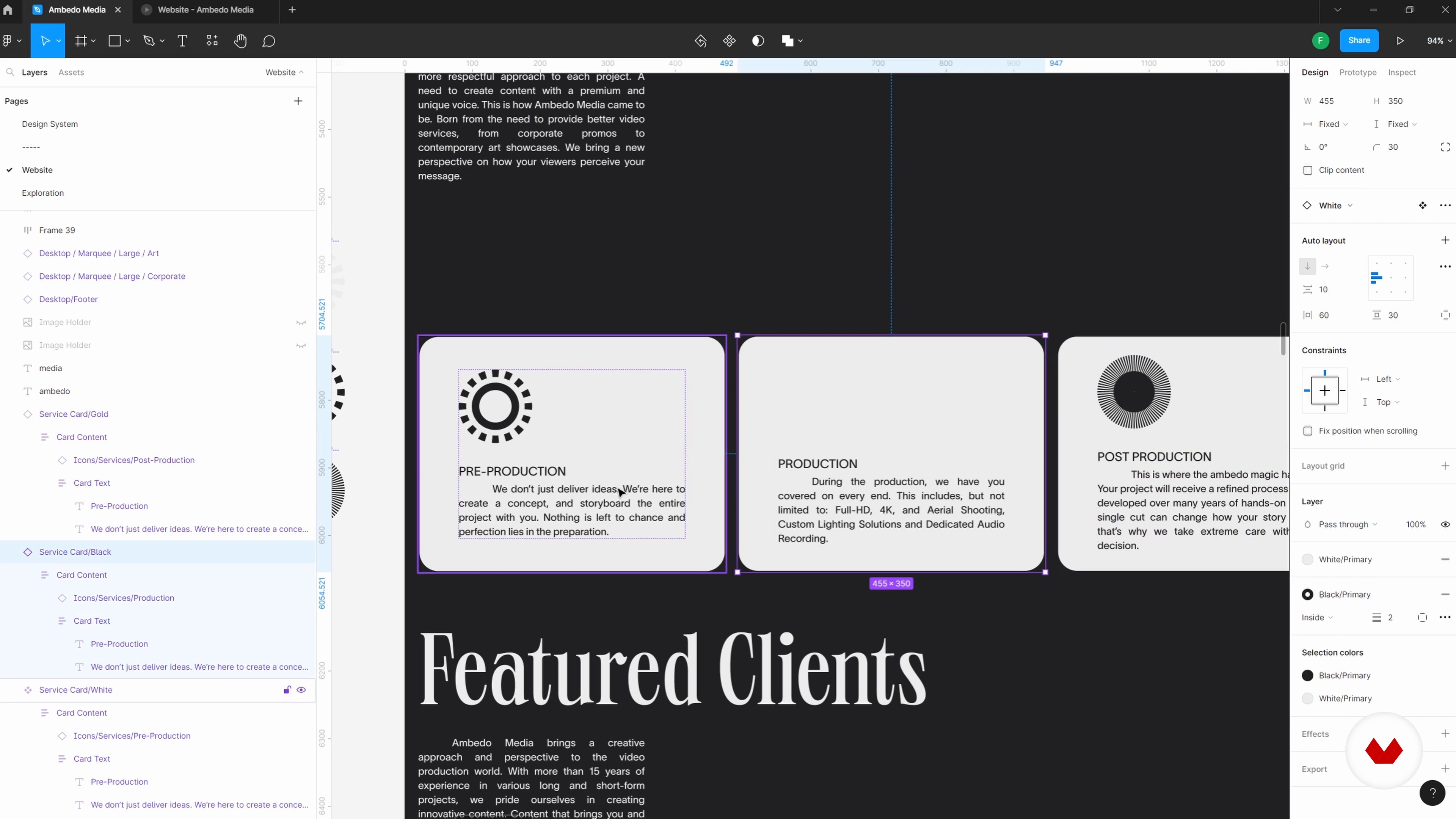
13Refining the Design System with an Assembled Page 1
In this lesson, we will go over a further developed design. Now, at this stage, I have gone through a few iterations in my explorations and I have landed in a direction that I'm quite satisfied with. From here, we will take a deeper dive into creating components and auto layouts. We will also look at how combining these tools can help us create more dynamic flows and layouts.
20m
 14
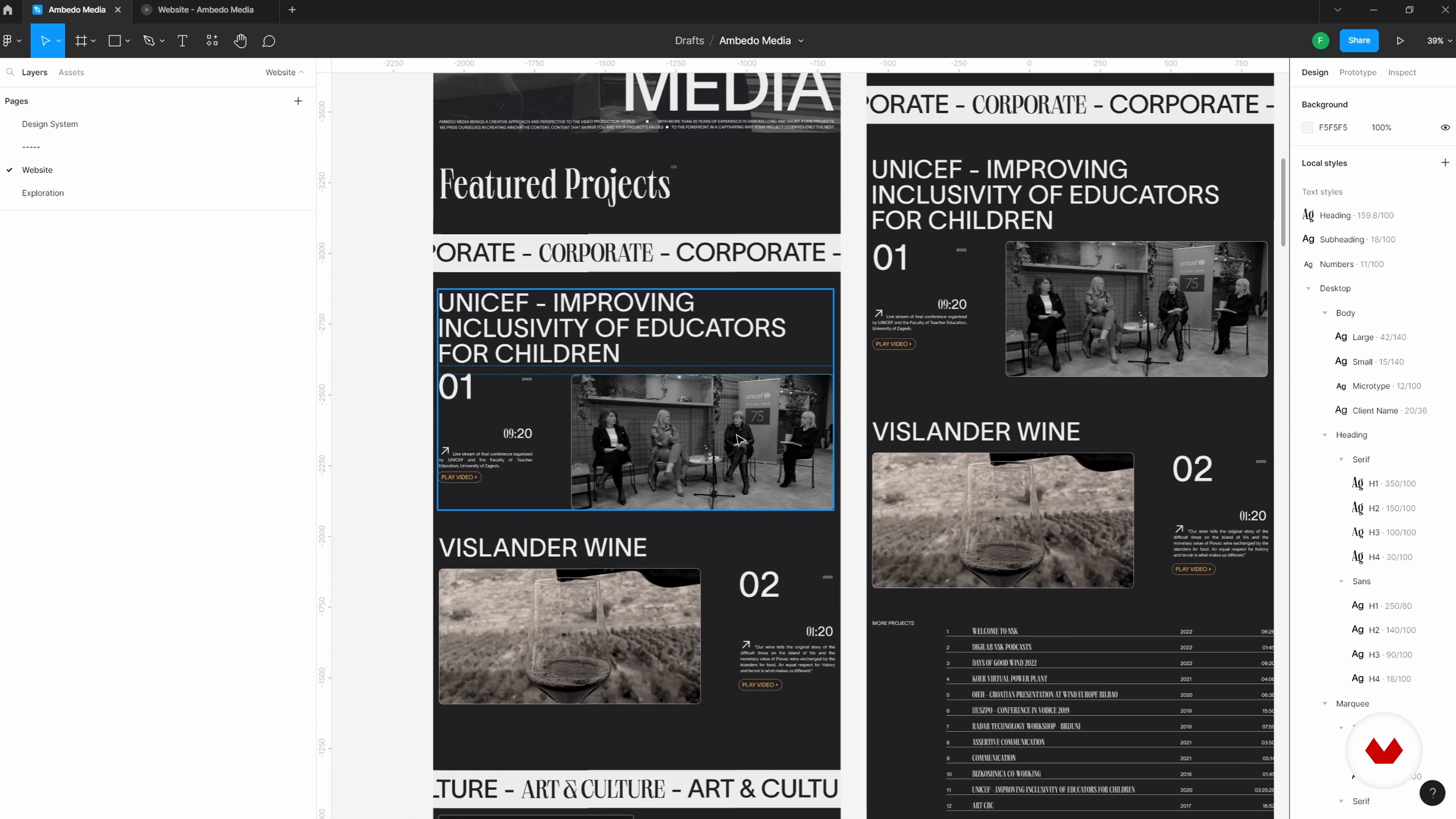
14Refining the Design System with an Assembled Page 2
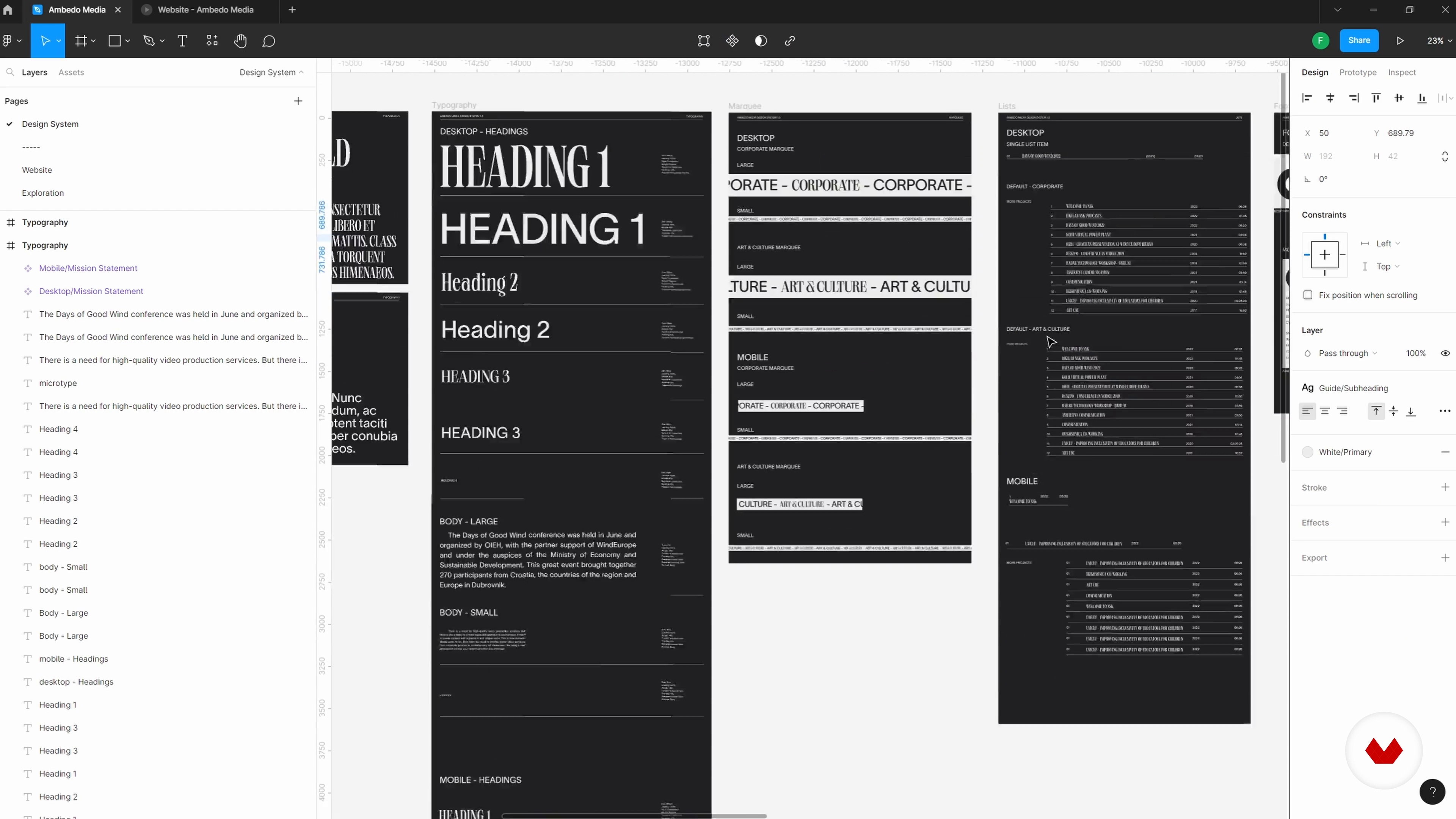
I will continue refining the design system. When working with websites that have a lot of repeating content, content indexes or archives in general, I find it extremely helpful to nest multiple auto layouts, components, and instances within each other.
19m
 15
15Refining the Design System with an Assembled Page 3
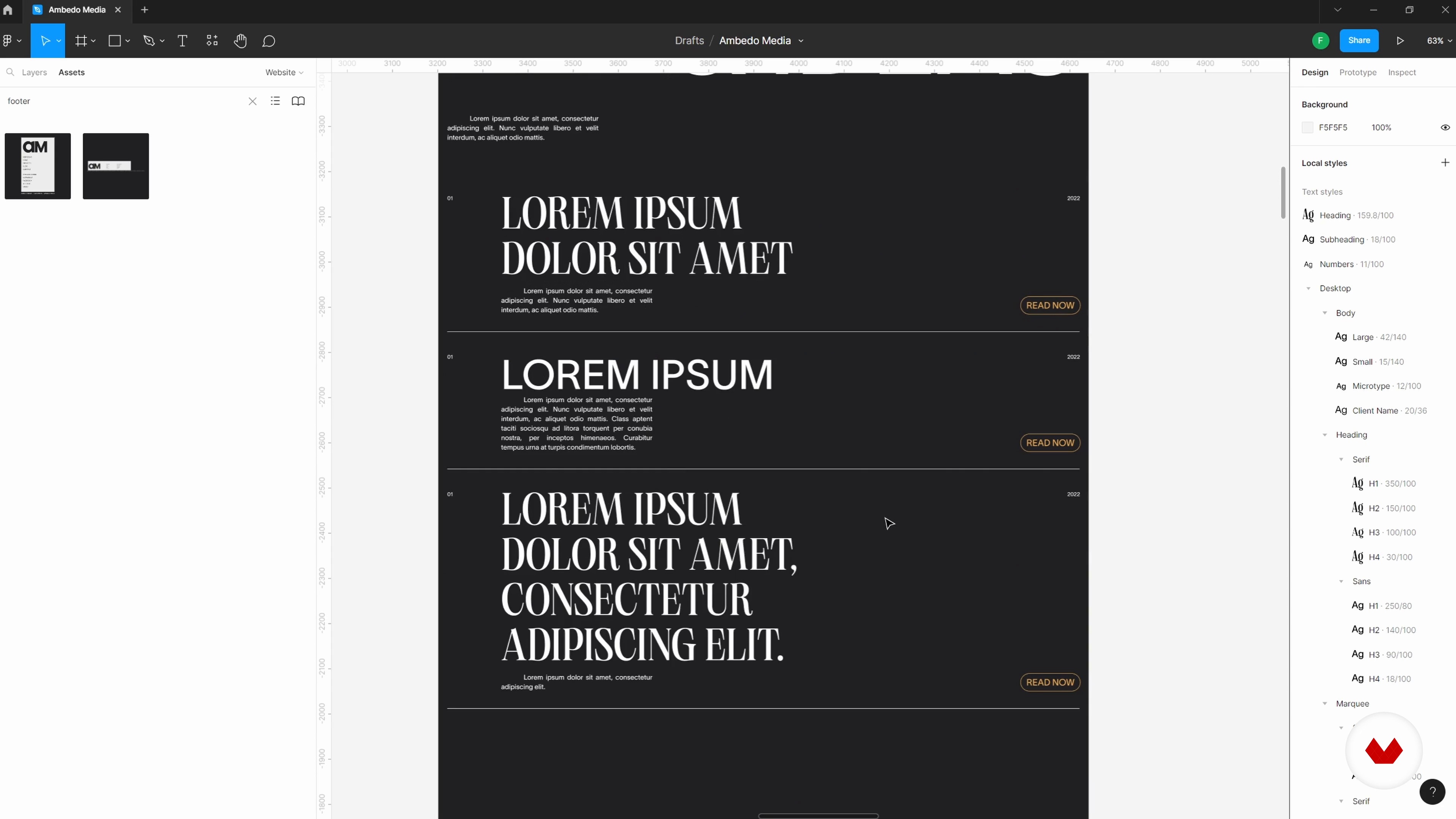
Spending a bit more time building a single layout with components and auto layout will help you see how different content formats can work in different instances. In case we realize after a few tweaks that the content we're working with actually doesn't agree with our initial vision, we can modify multiple instances of different content pieces at the same time in order to get a better sense of how our concept can be utilized in a real-world environment. Let's see how this design system and website will be structured.
15m
 16
16Setting up New Pages with the Complete Design System 1
Now I will expand the web designs with some new pages: a blog archive, a contact page, and a product gallery. The next step will be putting the design system to the test and seeing what elements work, what needs to be changed, and what would need to be added.
19m
 17
17Setting up New Pages with the Complete Design System 2
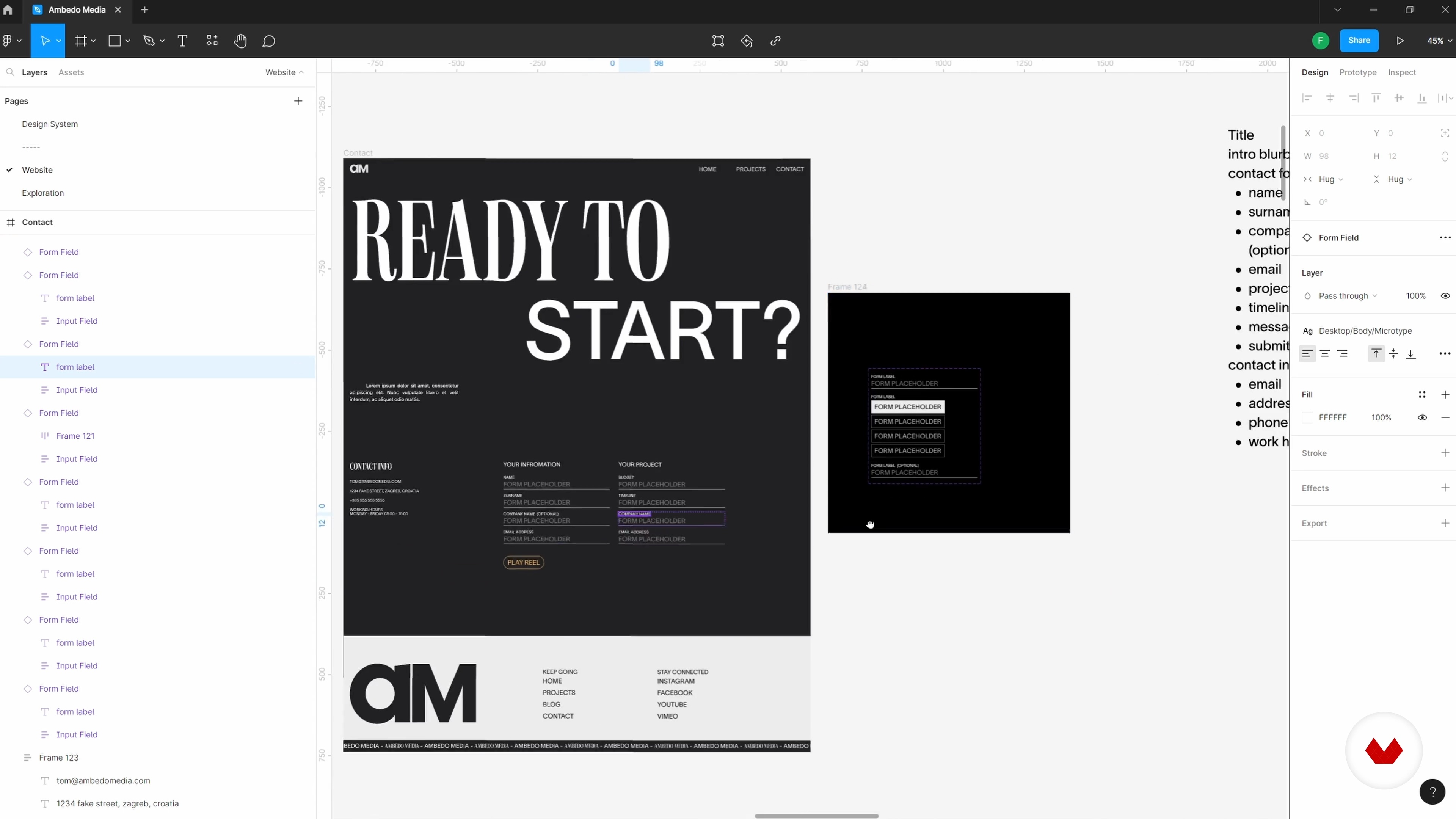
After creating a blog archive and a blog post, I will show you how to build a contact page. This allows us to see how the design system we have created can help us quickly create these new elements.
20m
 18
18Setting up New Pages with the Complete Design System 3
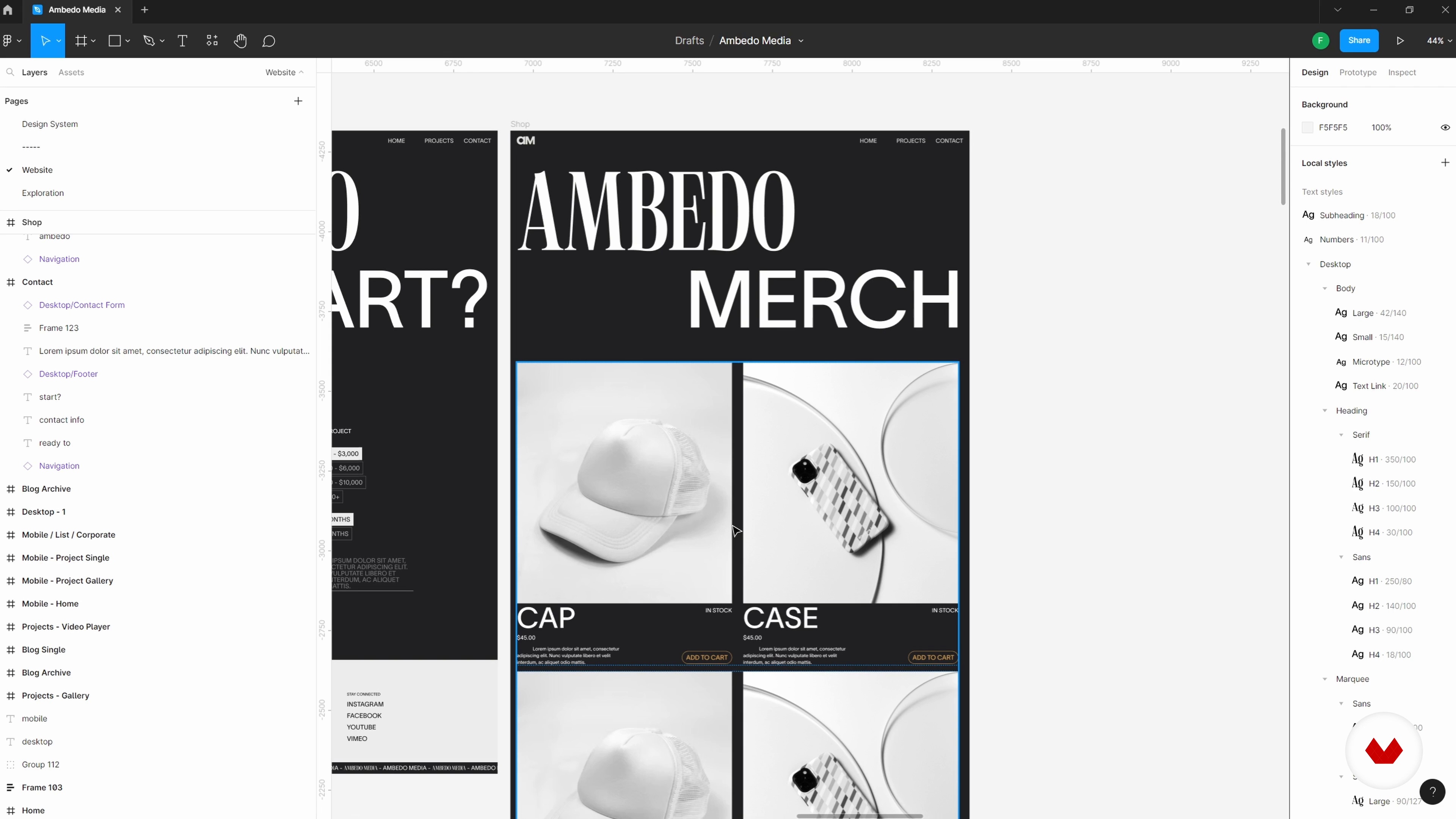
Here you will see how I create the final additional page, which is the shop page or product gallery.
20m
 19
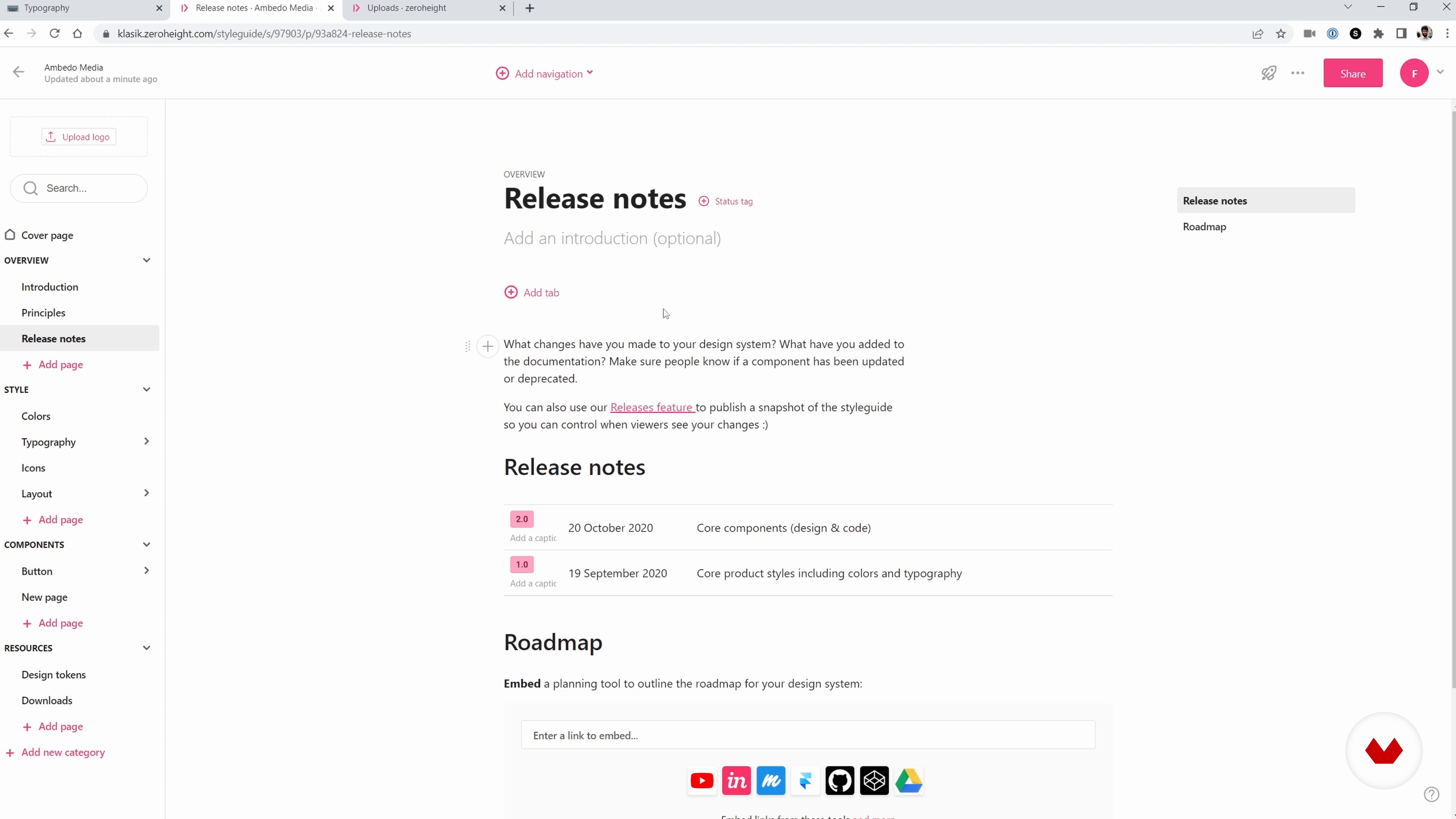
19How to Approach Creating Documentation for the Design System
In this lesson, I will go over two examples of creating documentation for a design system, using Notion and zeroheight.
9m
 20
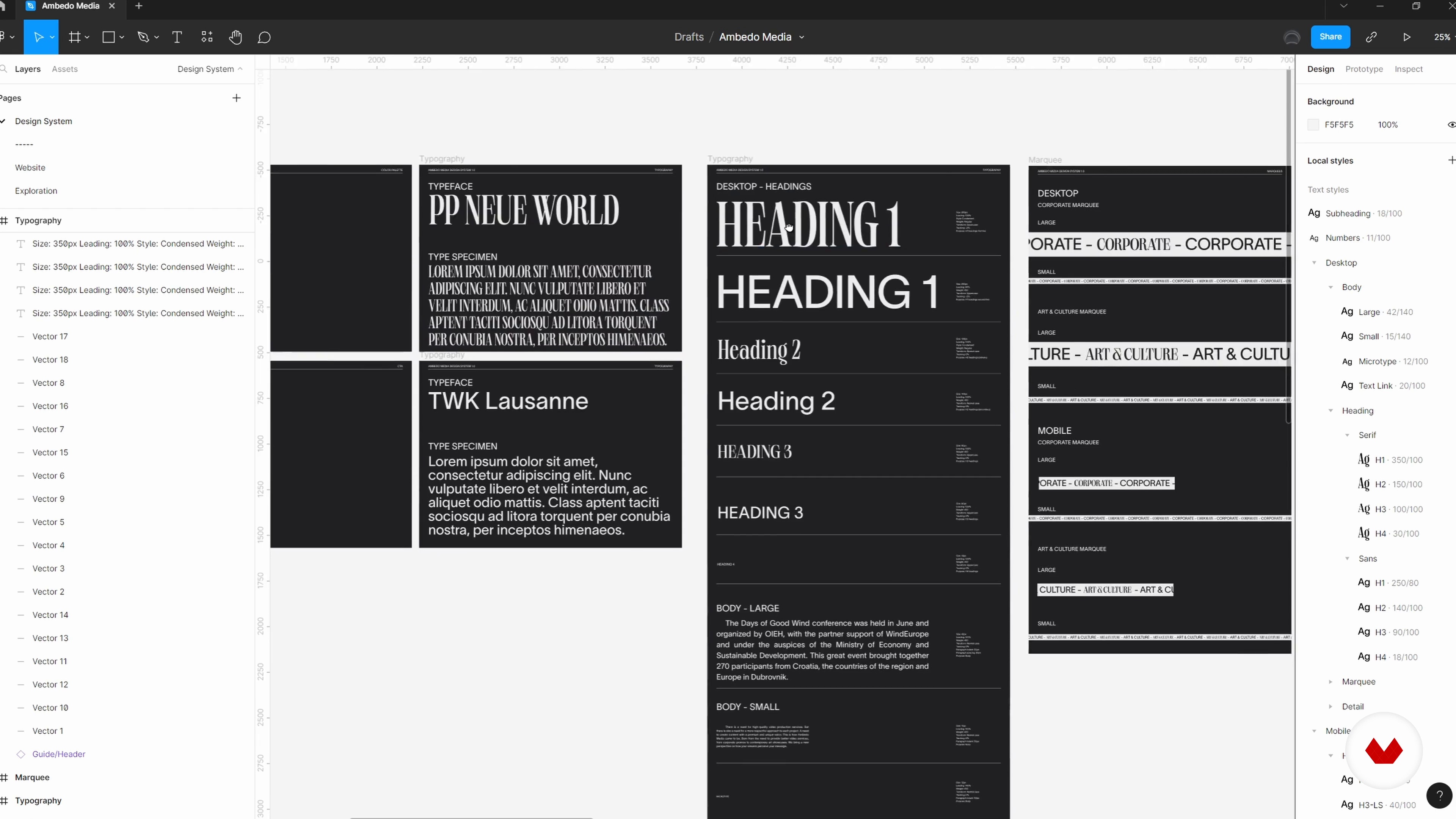
20Cleaning up and Using an Auto Layout
We will take a bit of time at these final stages to go over the website and design system and make sure everything is correctly set up and is using our standard notes.
12m
 21
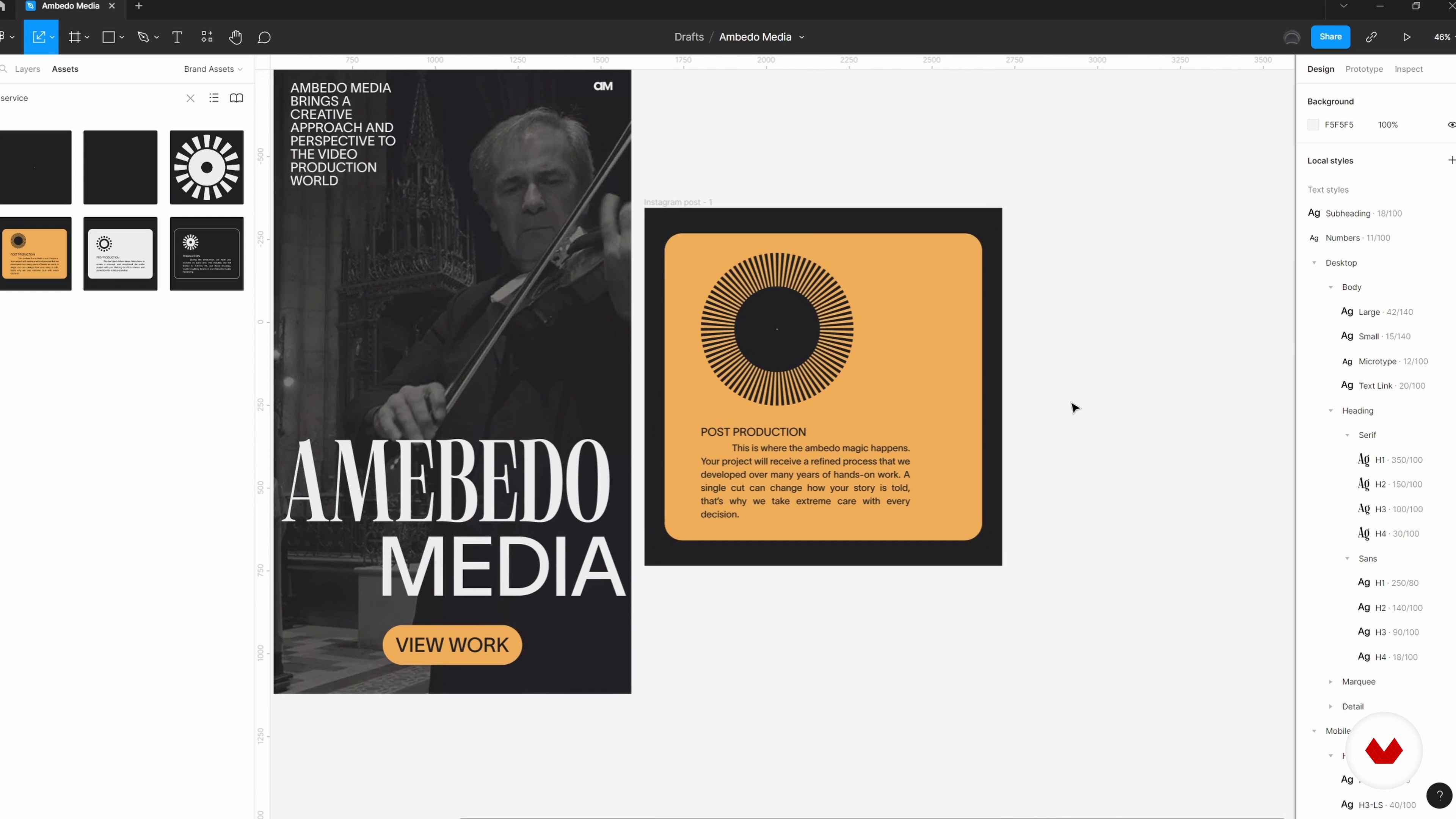
21Utilizing the Design on Further Brand Elements
Our design system doesn't have to stop at a website. In this lesson, I will show you a few examples of using the design system I have built as a starting point in creating additional brand elements such as social media posts and stationery.
13m
 22
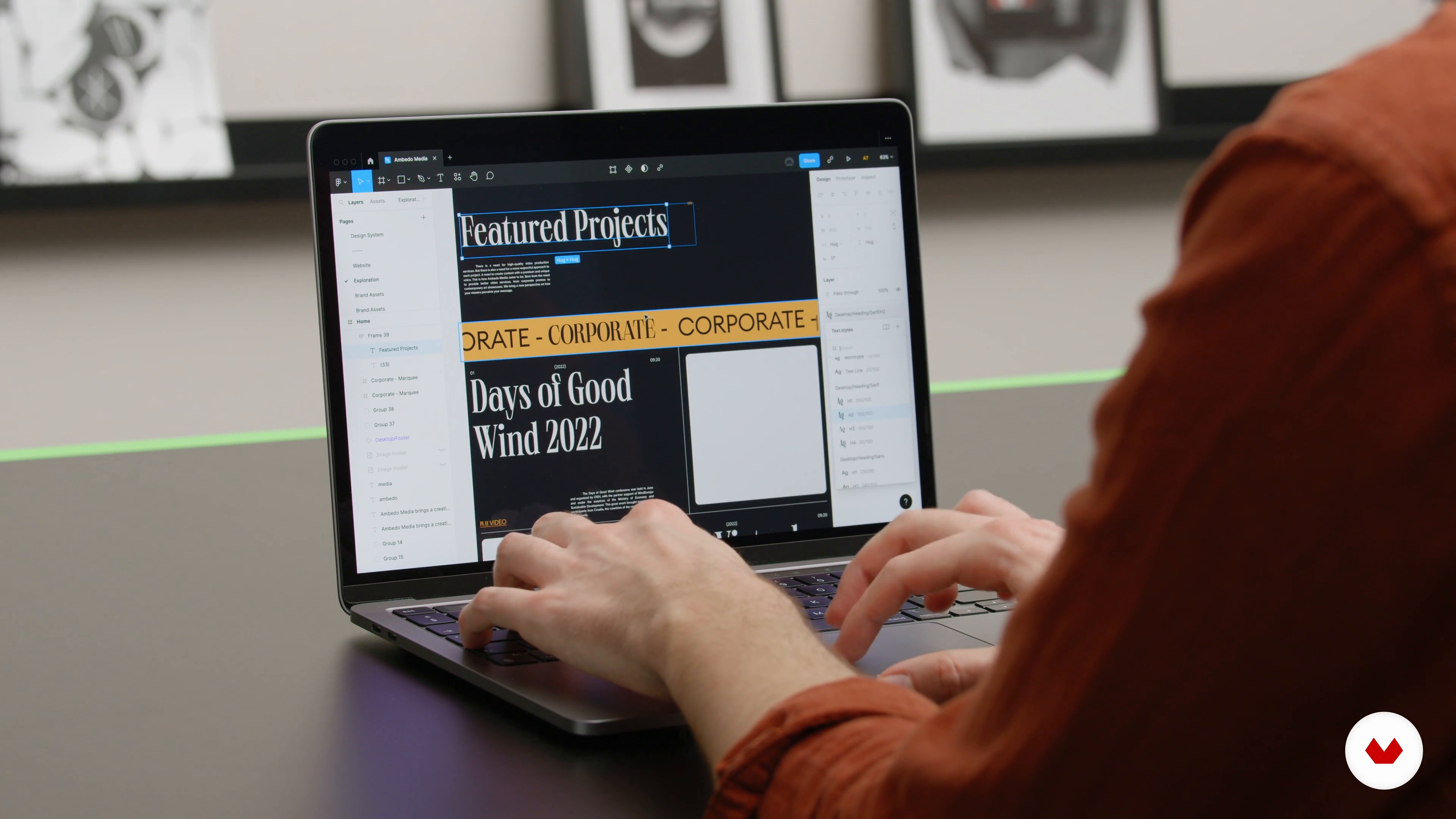
22Final Thoughts
And that's a wrap! In this lesson, I will go over a few additional thoughts on this whole process.
2m
 3
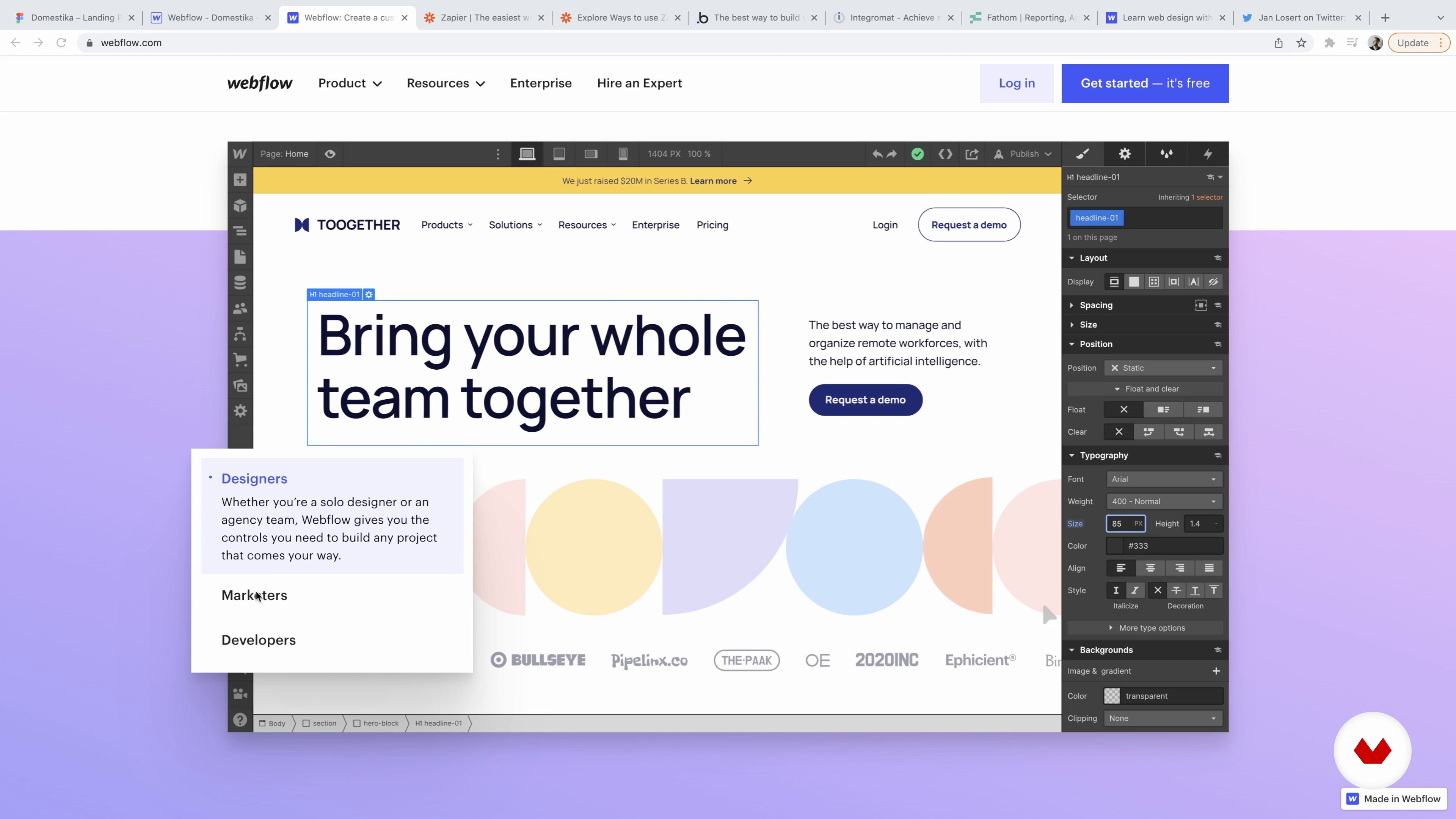
3Introduction to No-Code
In this lesson, I will discuss how websites are created, and you'll explore Webflow and the resources library on Webflow University.
10m
 4
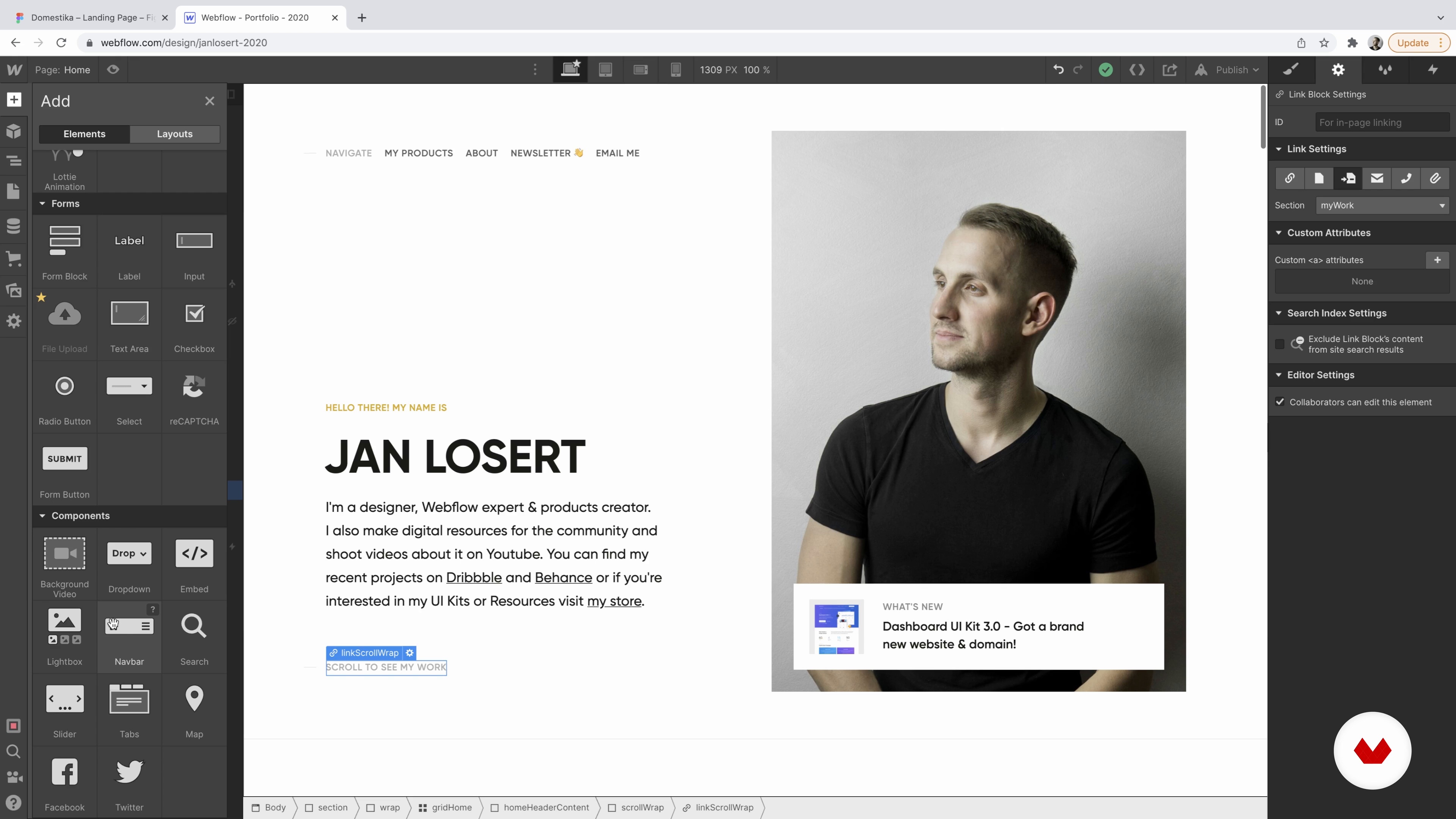
4Webflow Core Features
Let's explore all the panels and features Webflow provides and create a blank project to start this course's creative journey.
17m
 5
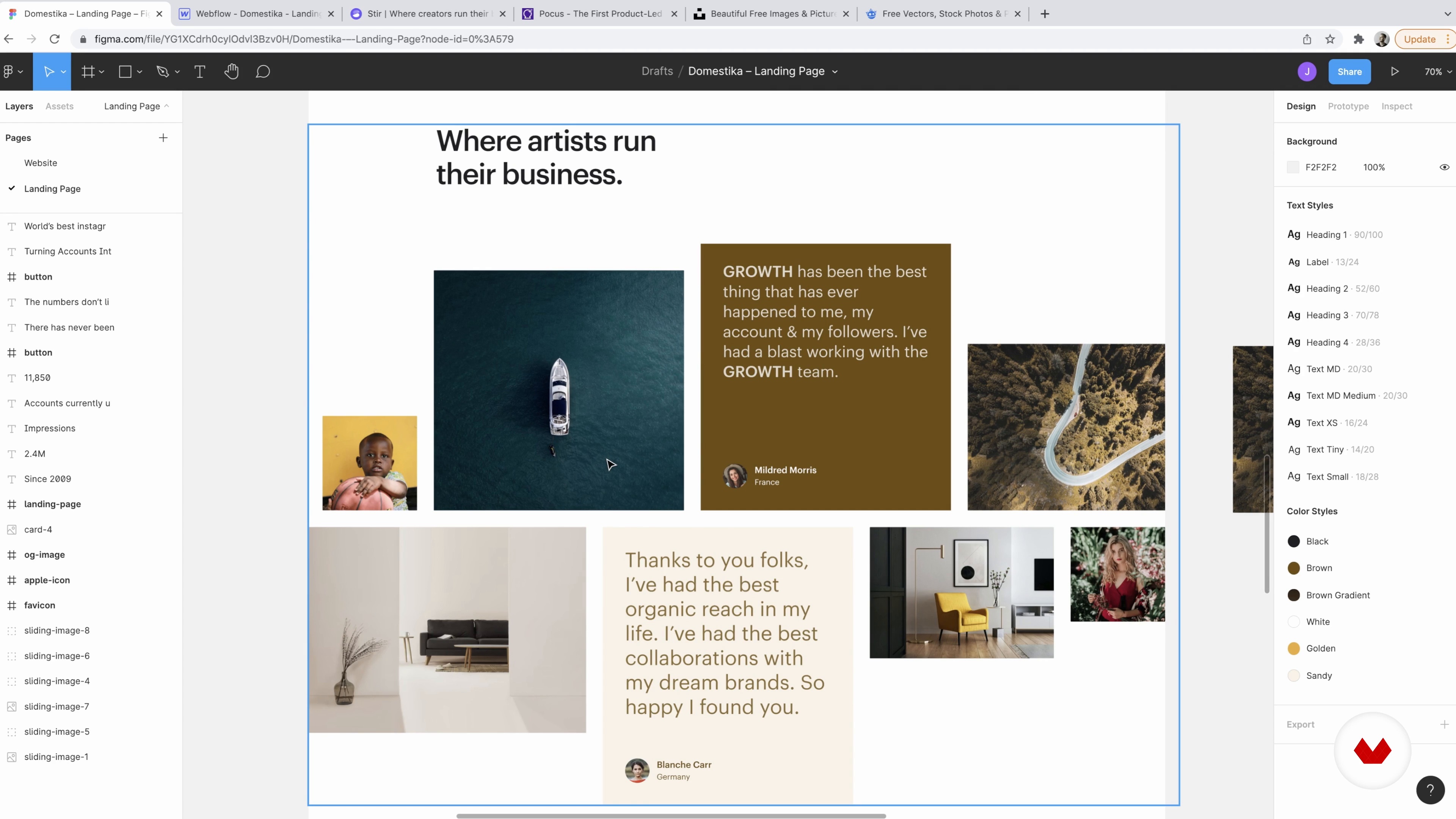
5Design
We will look at the design and discuss what is essential to focus on before the project kick-off. Then, I will cover where to get royalty-free images for your project.
7m
 6
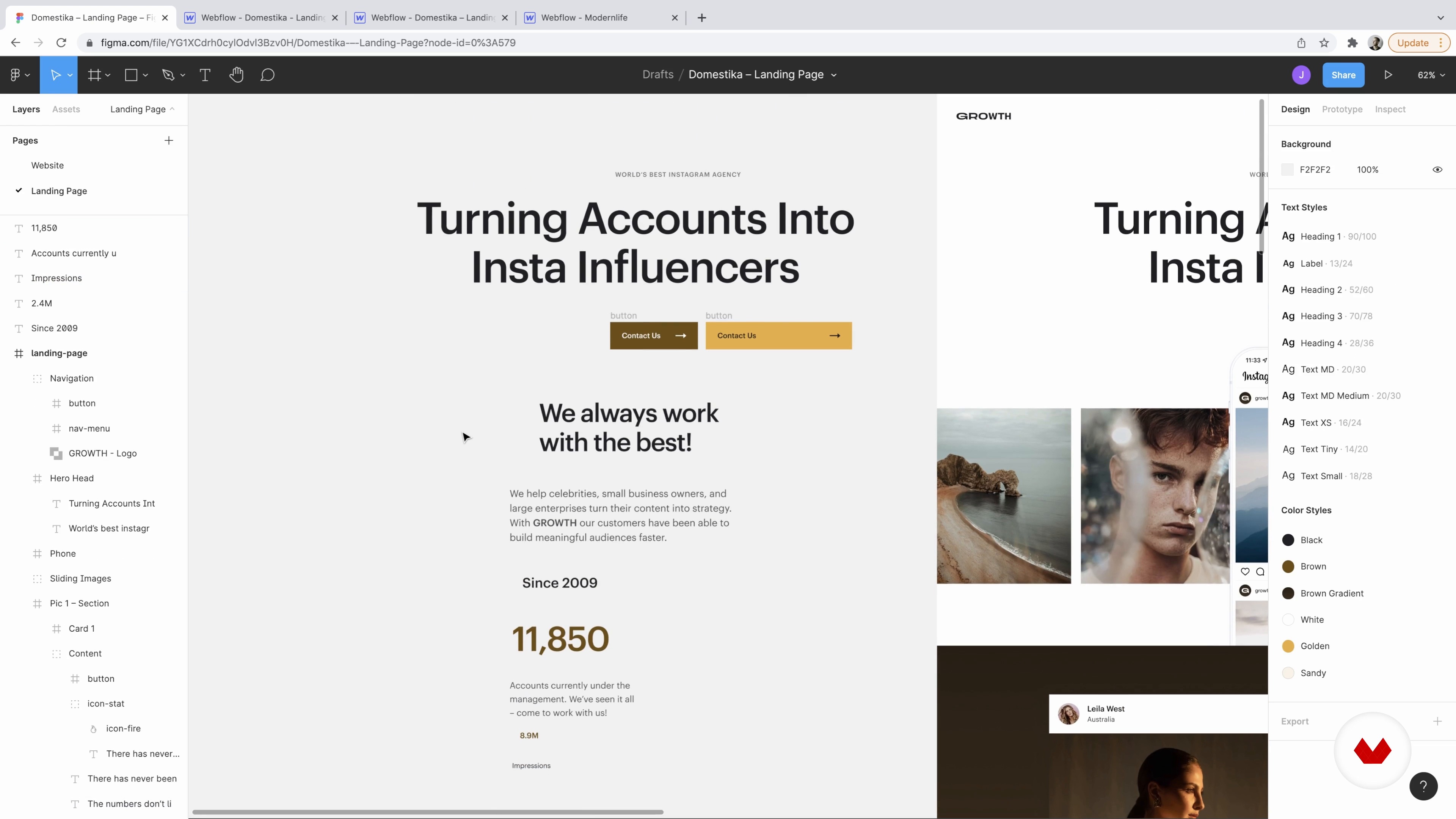
6Style Guide
In this lesson, I will discuss why to set up a foundation at the start of every project and add fonts to the blank project.
11m
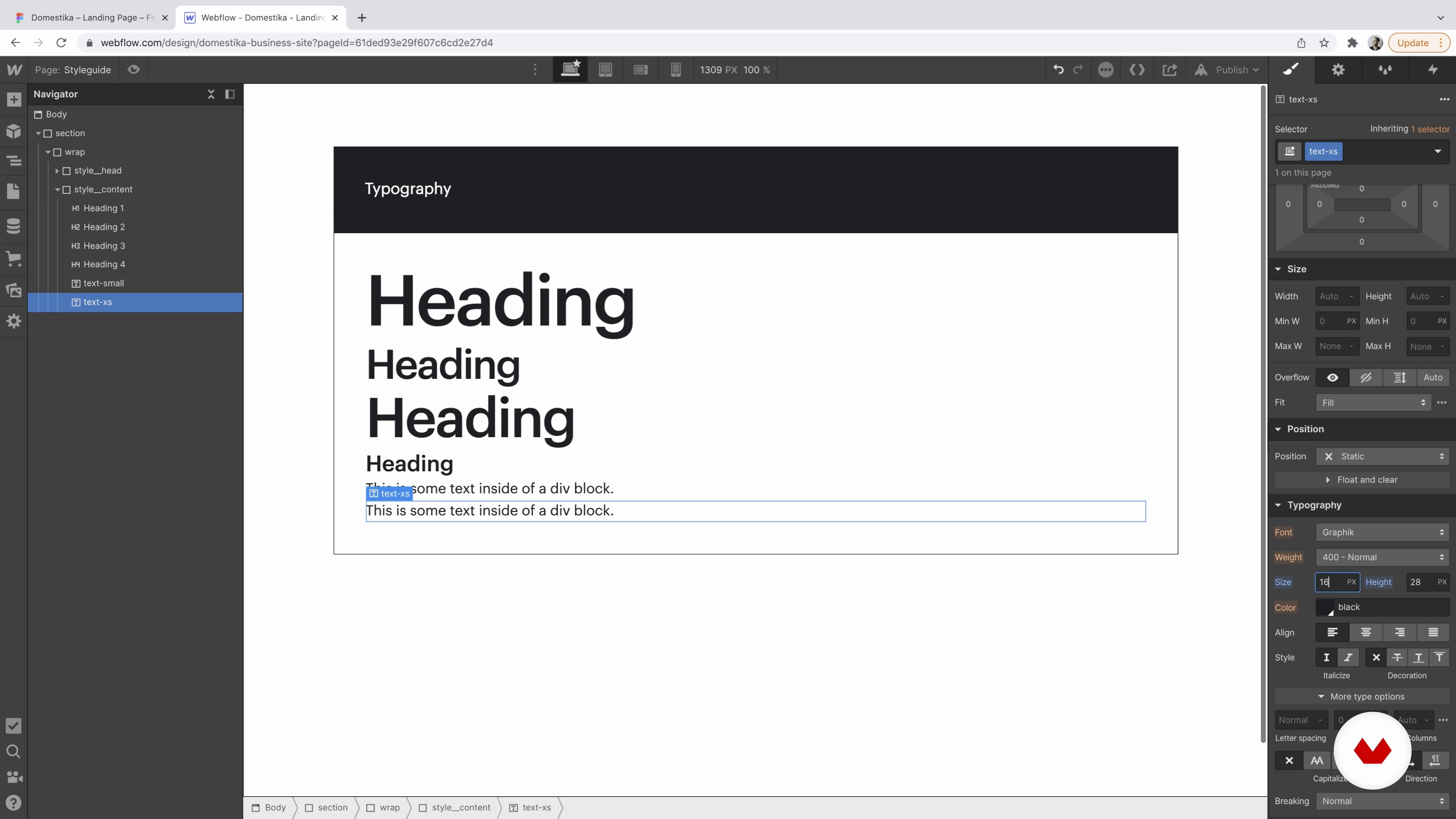 7
7Style Guide Creation 1
In this lesson, we start creating! First, we will set up all the initial elements, such as buttons and typography.
18m
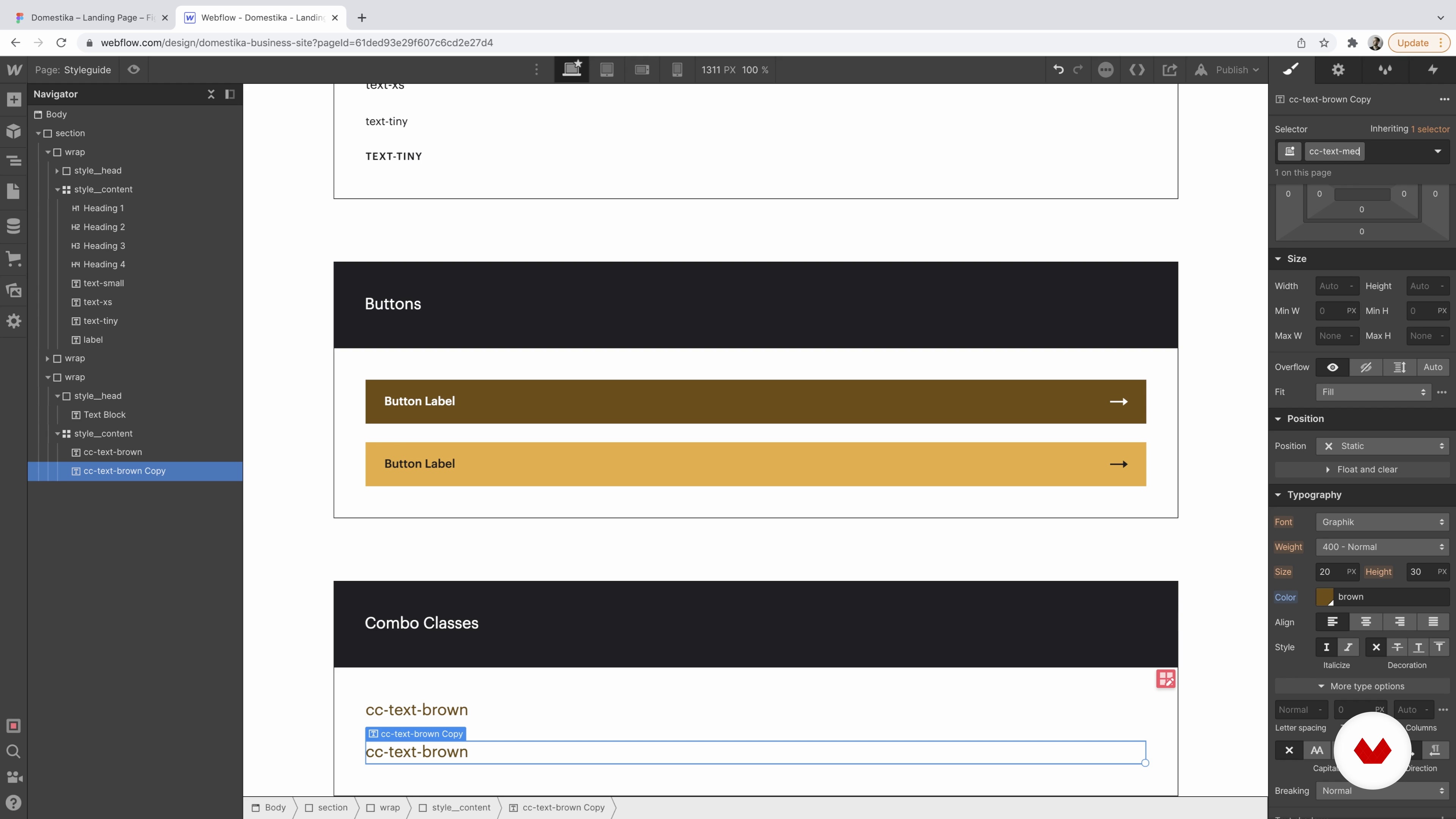 8
8Style Guide Creation 2
Now we will continue exploring some buttons and combo classes.
16m
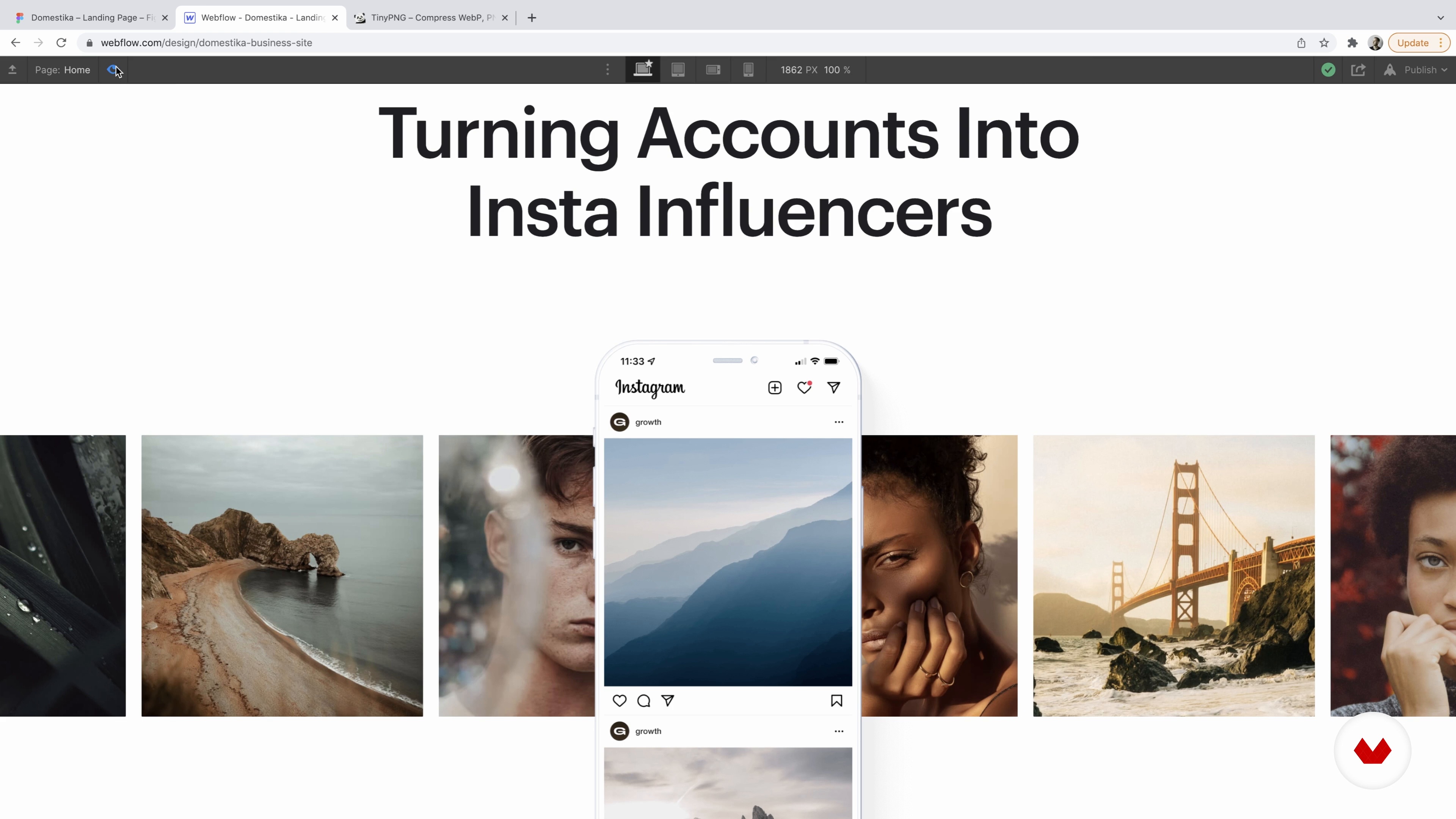 9
9Hero Section
Let's begin by creating the top section of our website with a phone and a row of images.
18m
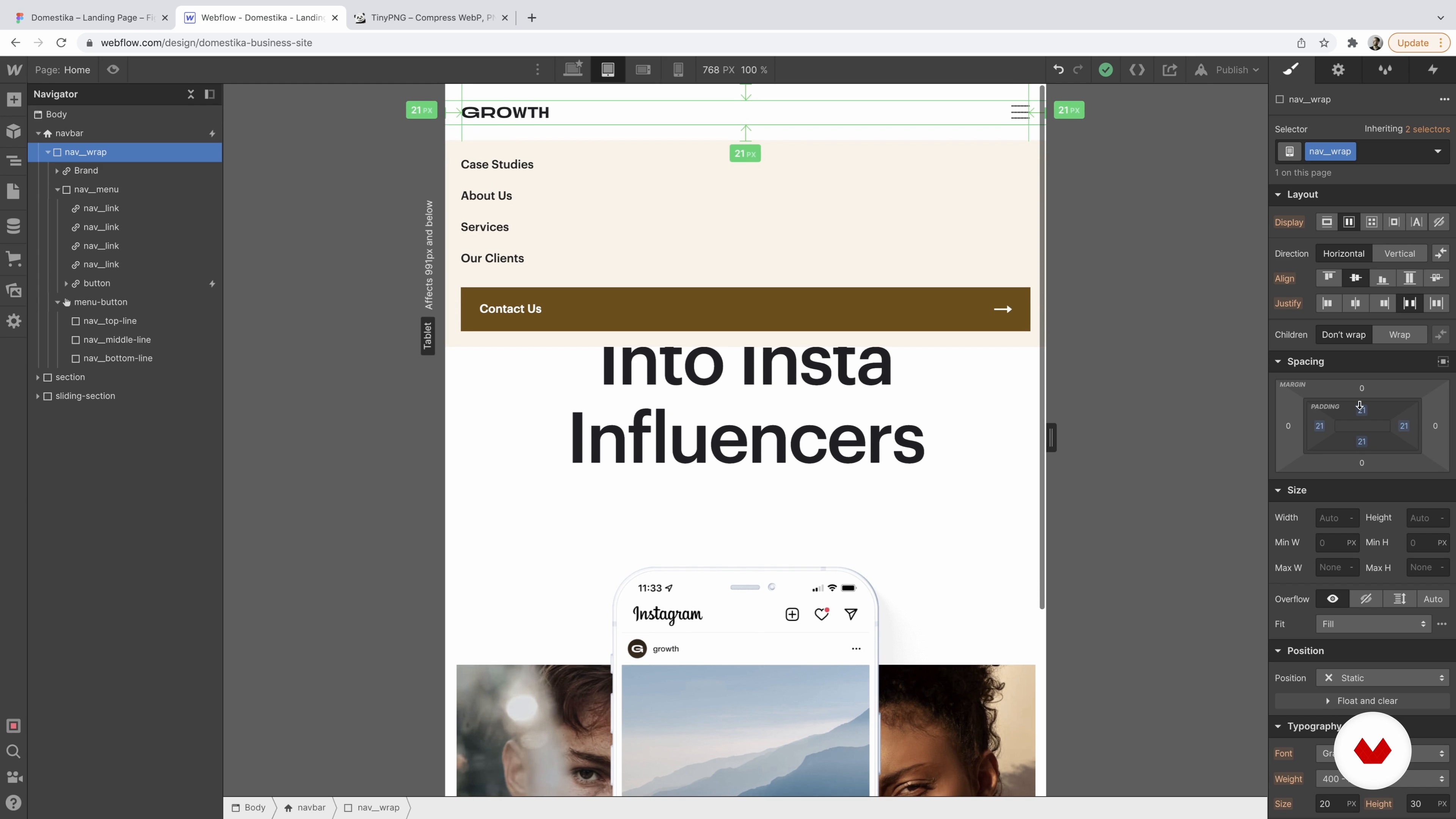 10
10Navigation
In this lesson, I'll talk you through the building of the navigation menu for the website and how to make it responsive. We will be styling the component called Navbar.
20m
 11
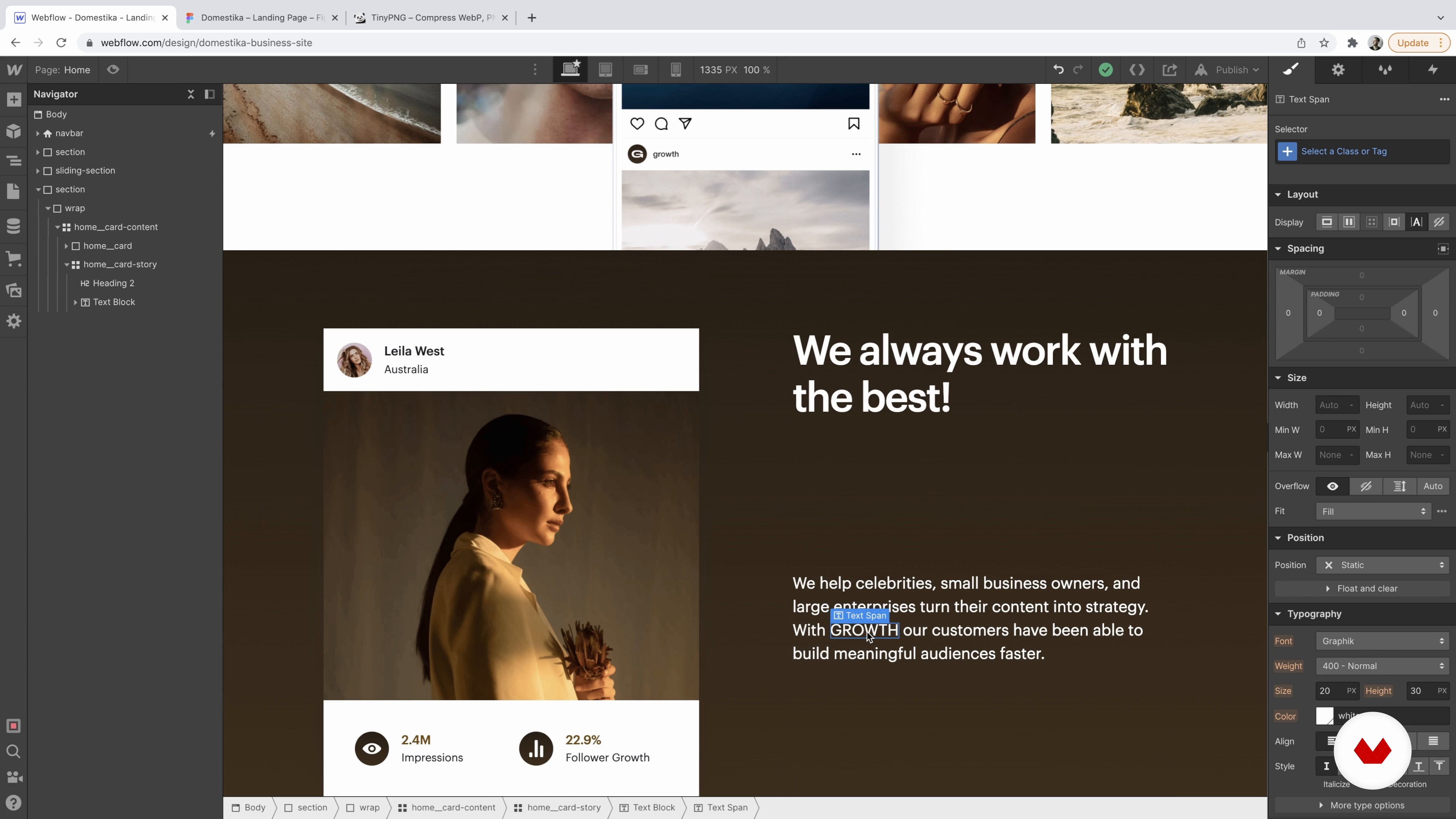
11Case Study Sections 1
Now, we'll create picture cards representing case studies of the studio and sections with statistics of a business.
16m
 12
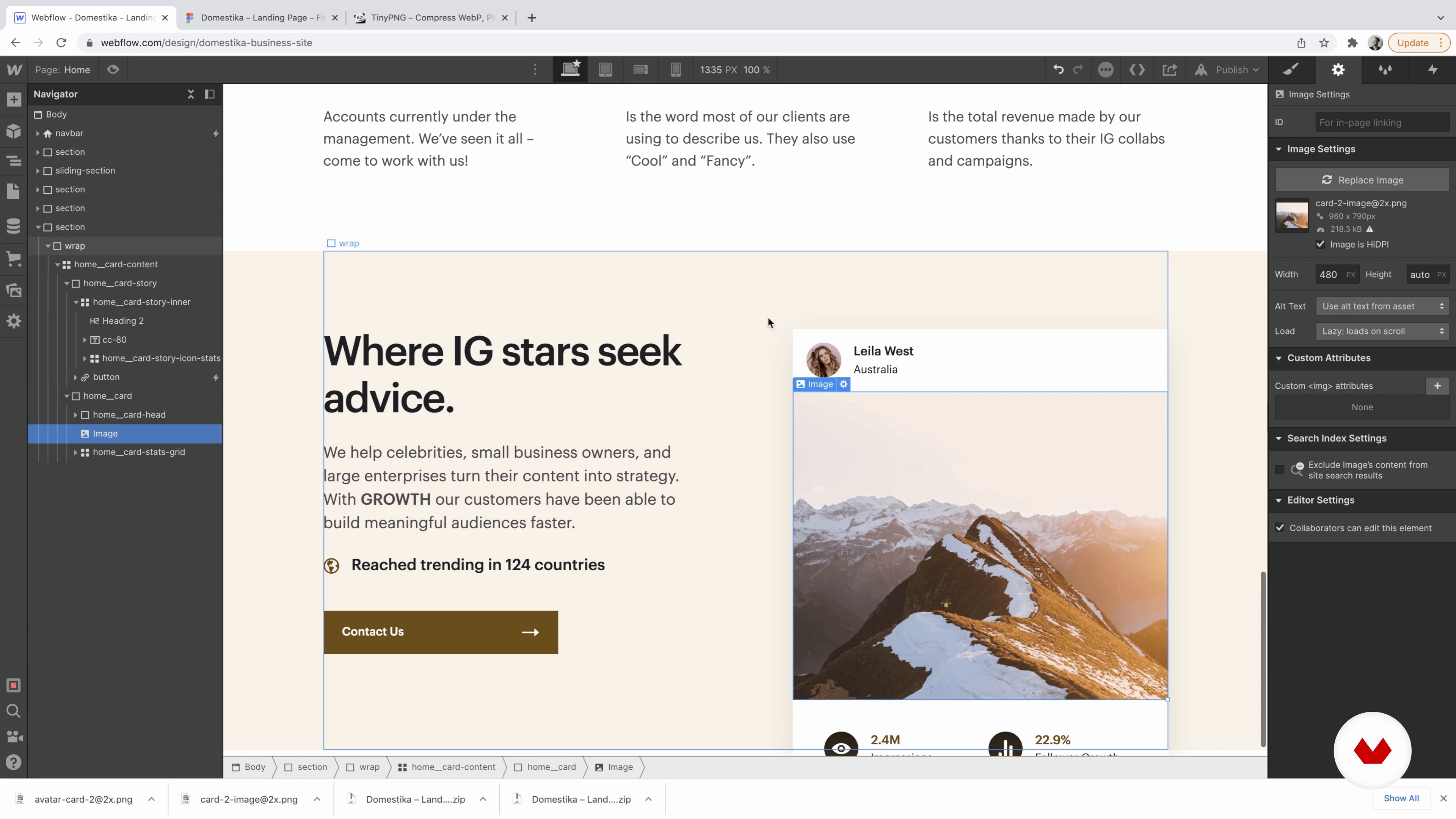
12Case Study Sections 2
We will continue adding elements to the case study bloc.
20m
 13
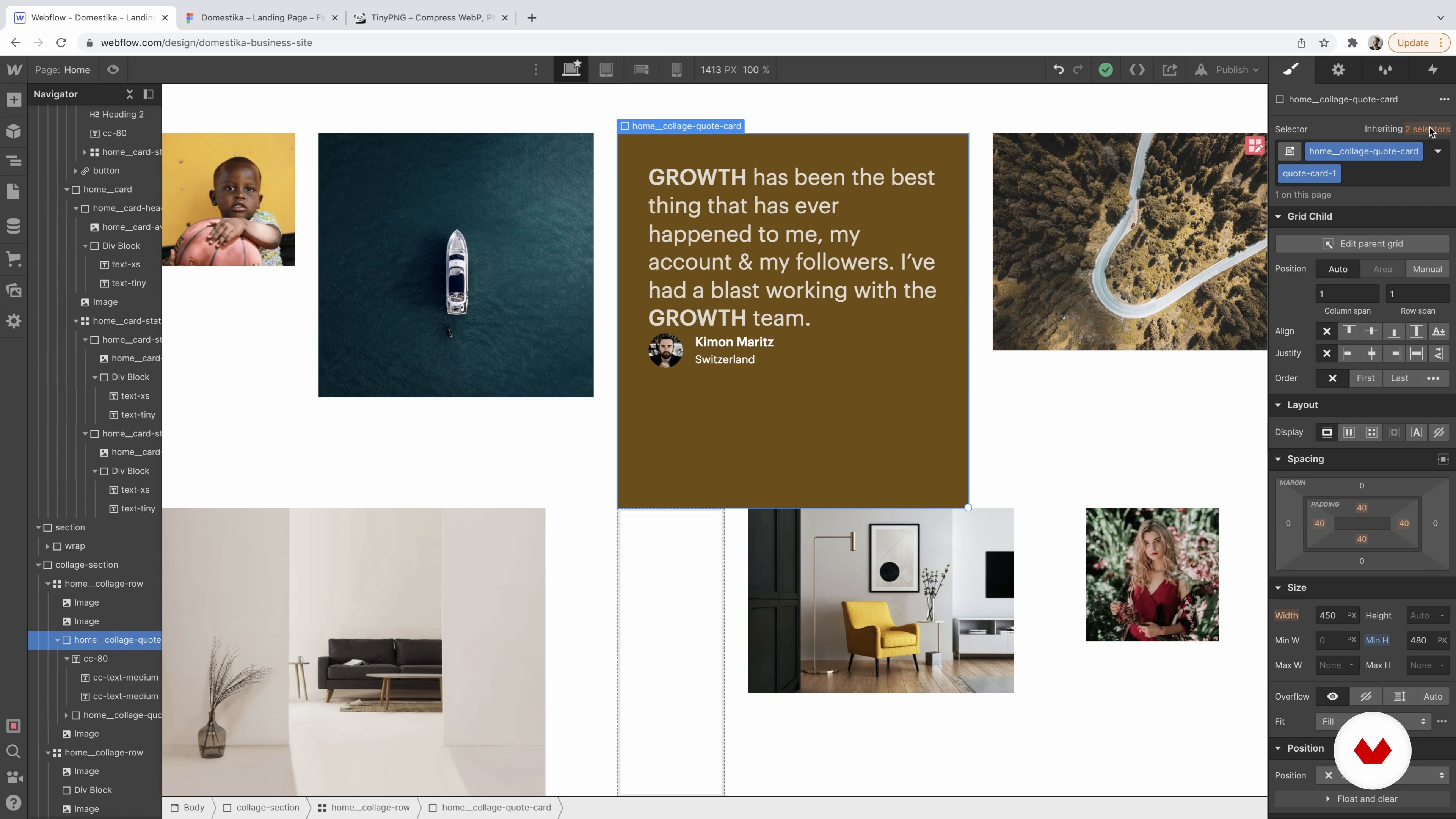
13Collage Section 1
I'll teach you how to create a collage section with pictures and testimonials in this lesson.
11m
 14
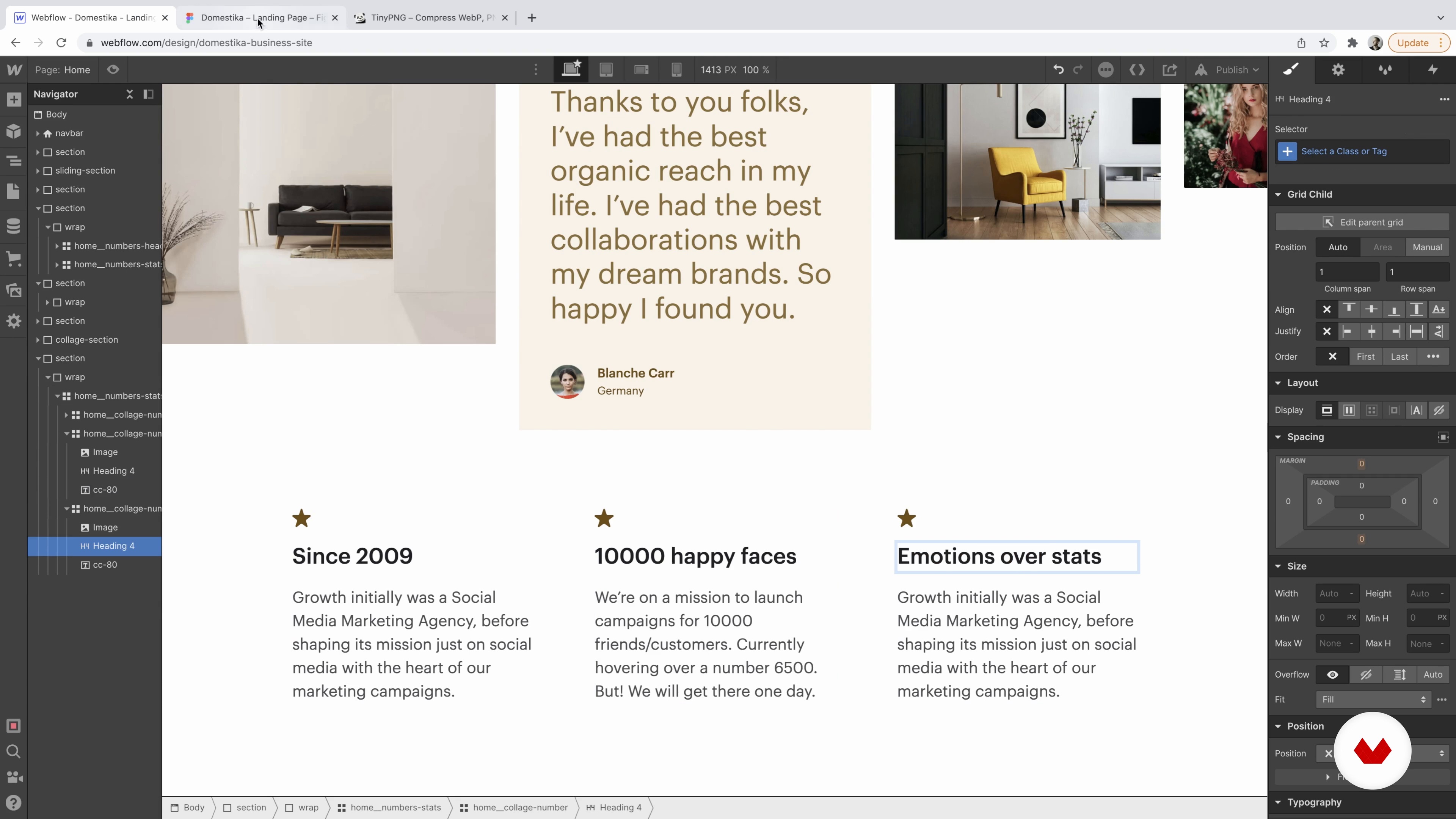
14Collage Section 2
We will reuse the three-column section to create a bloc with the business's principal values.
10m
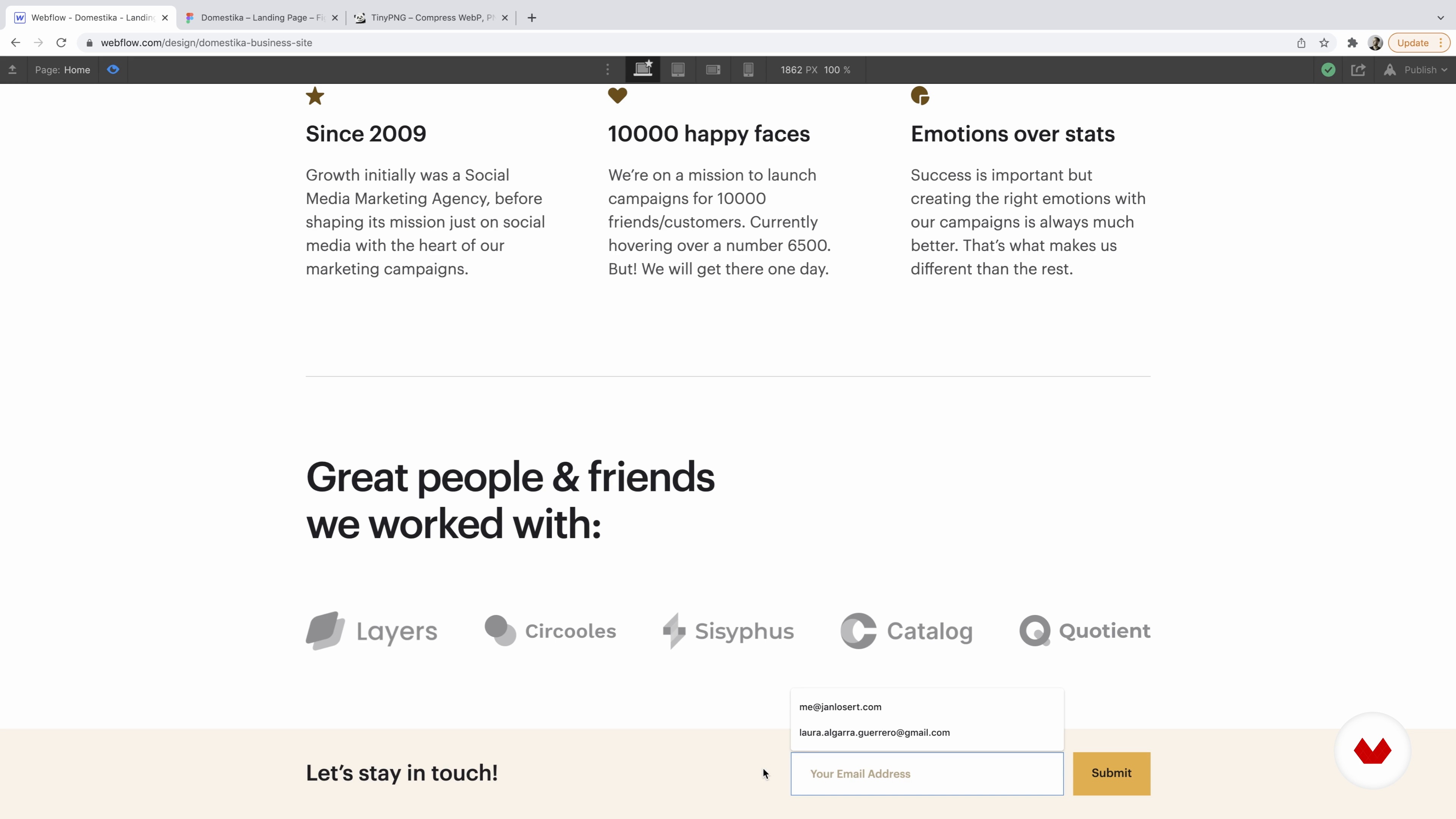 15
15Customers Section and Simple Newsletter Form
This lesson will look at creating a "we worked with" customers section.
14m
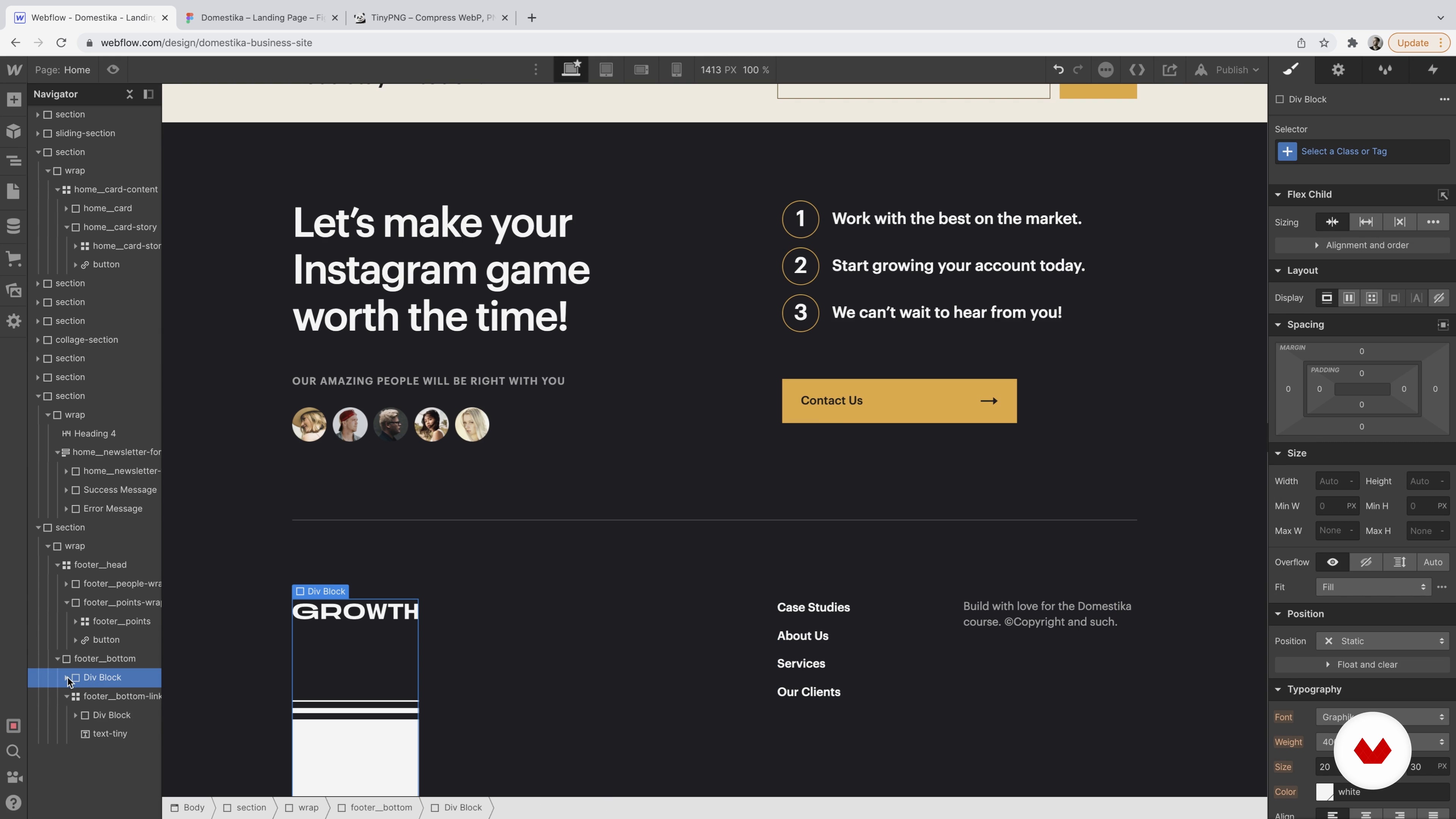 16
16Footer
Time to build the final section of the site – the footer.
20m
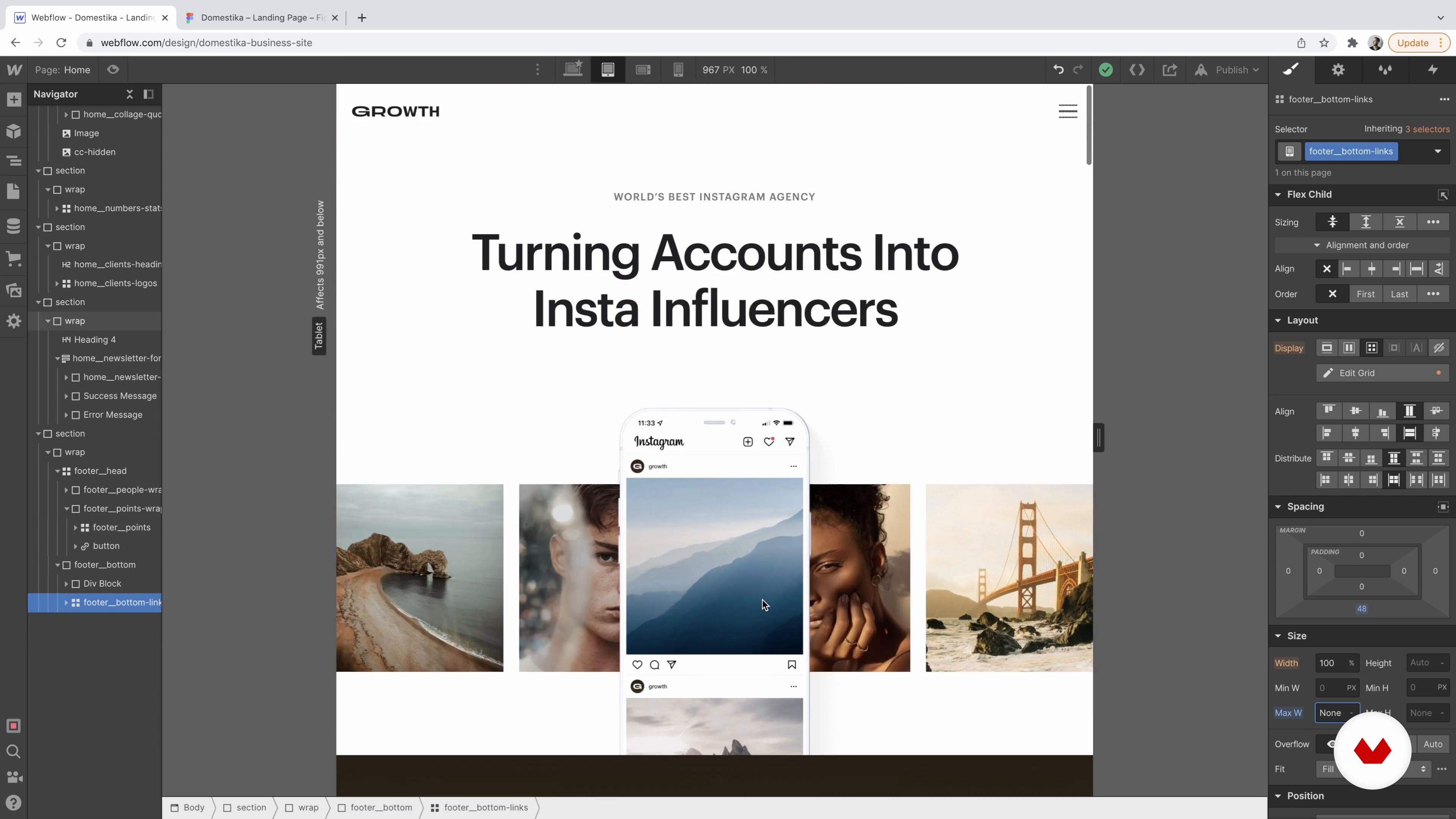 17
17Tablet Viewport
We'll prepare the site for smaller viewports in this lesson, starting with the tablet view. I will also share some tips to make your life easier by using more strict rules for the width of our container and wrap class.
20m
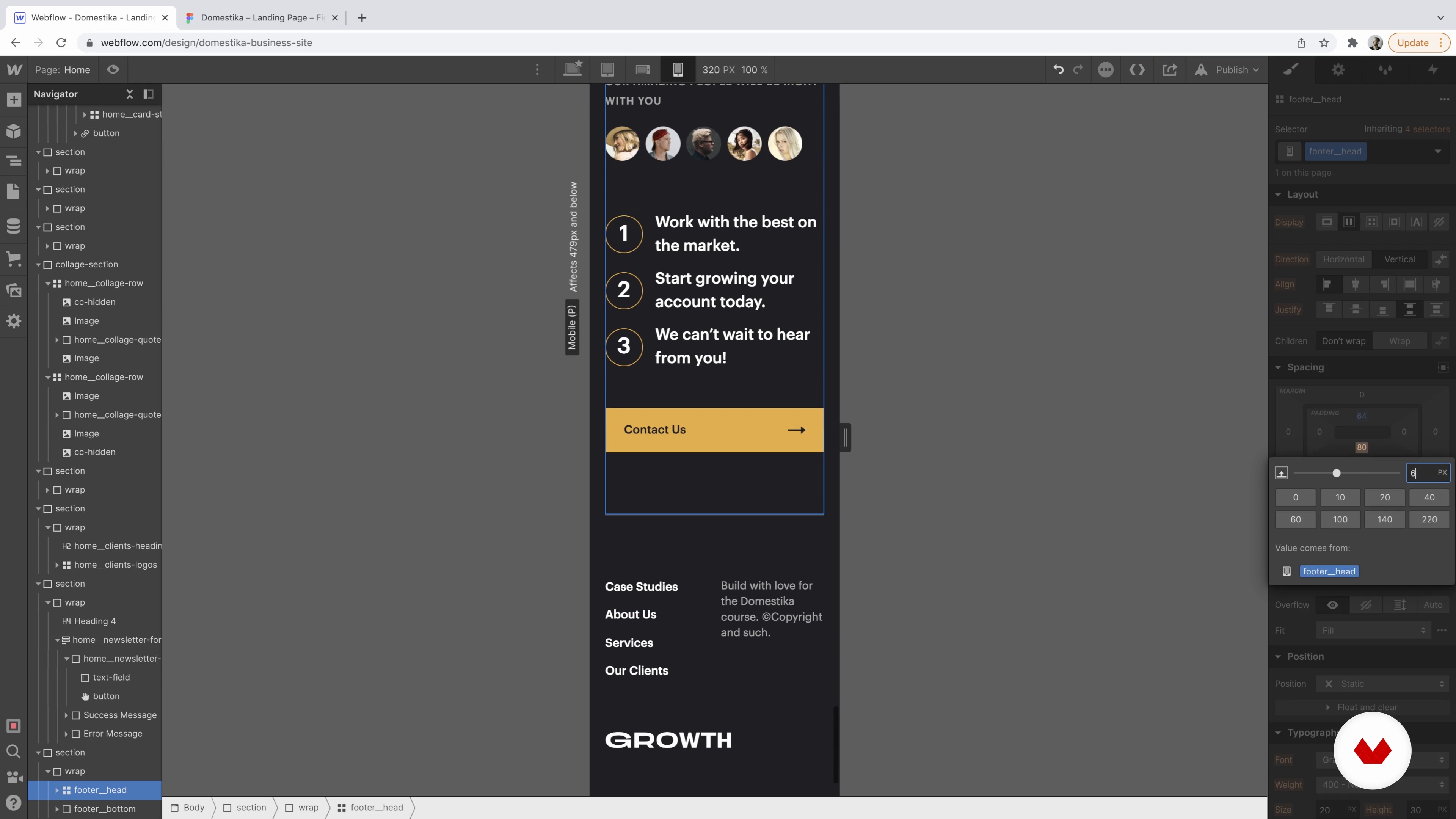 18
18Mobile Landscape and Portrait Viewport
We will make everything even more narrow and make sure the site looks great on mobile portrait and landscape.
13m
 19
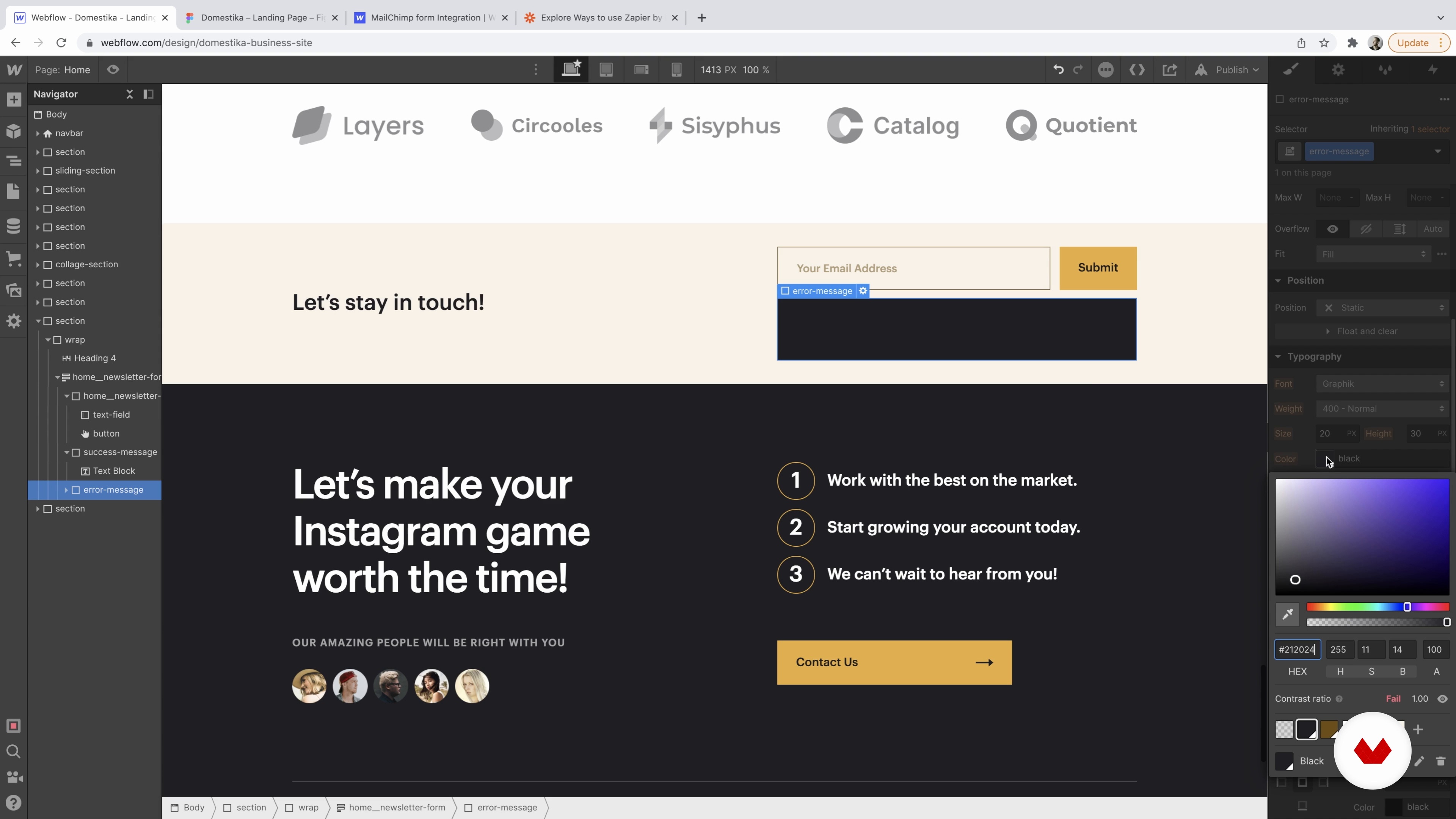
19Testing Forms
We'll explore forms even further and style success and error states. And then, I'll show you where to find the form submissions and what can you do with them.
7m
 20
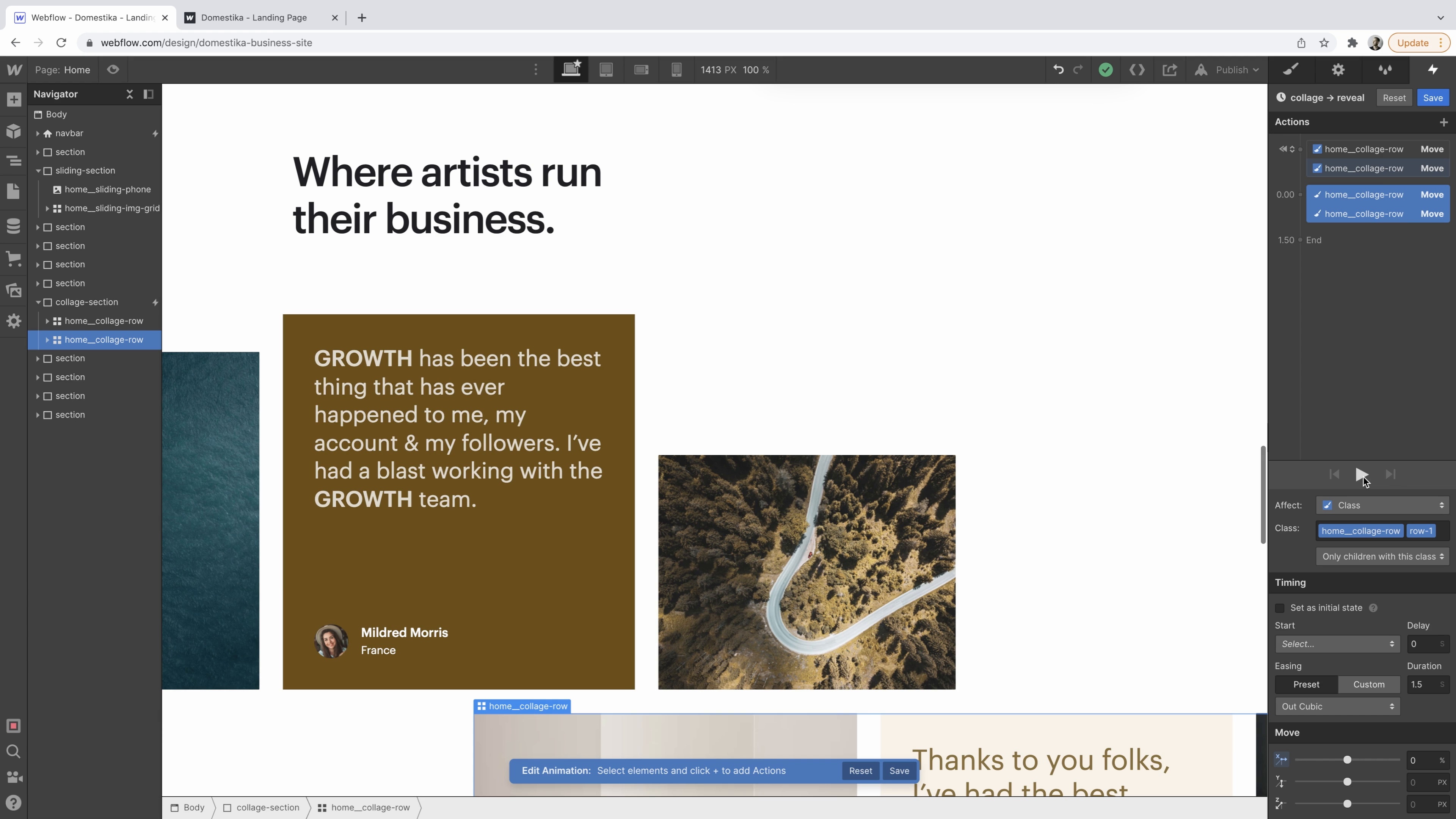
20Interactions
Finally, let's make the site more playful by adding subtle interactions for the hero section. Then, I will cover the difference between "Page Load" vs "Scroll in View" interactions.
13m
 21
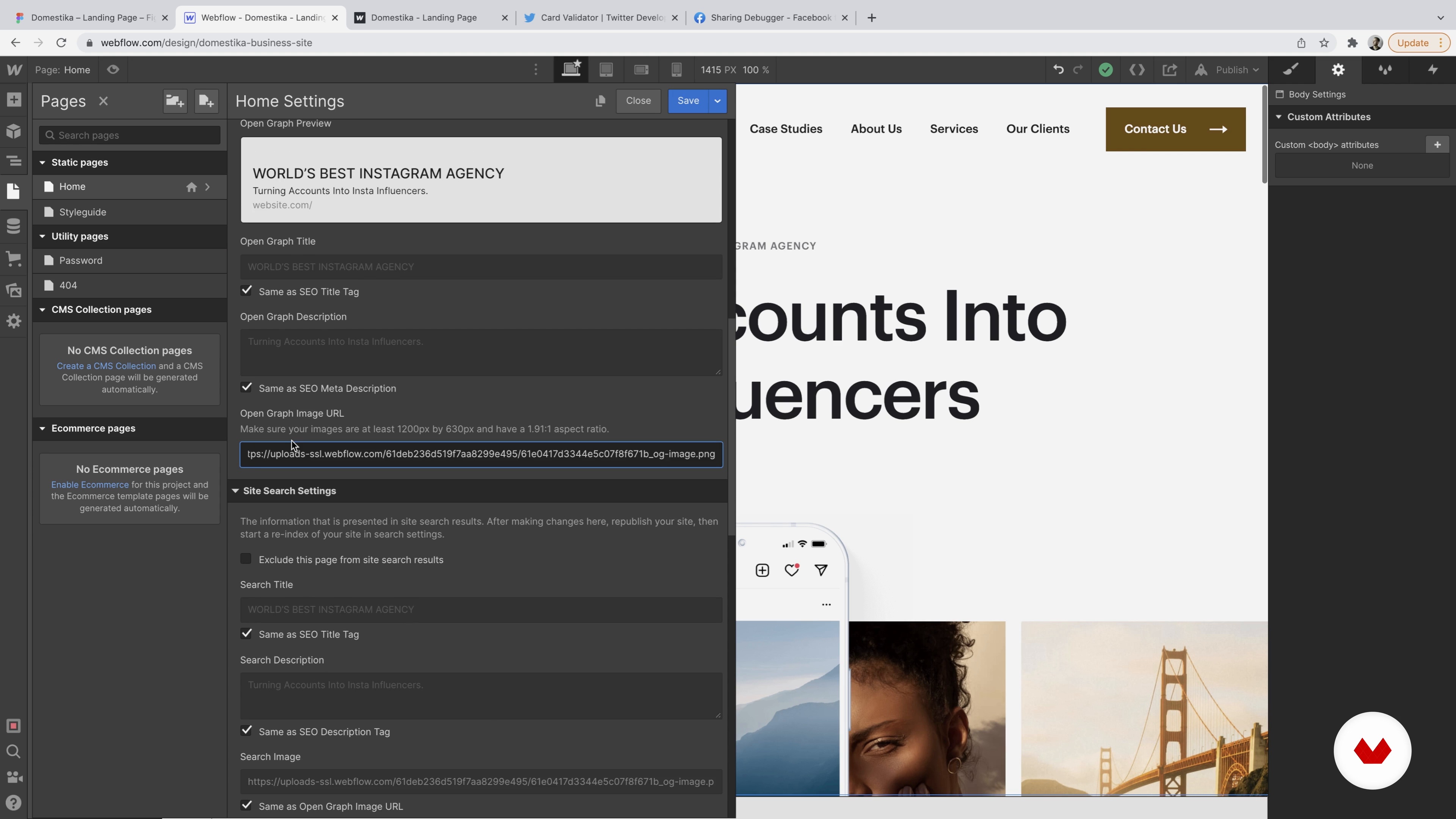
21SEO Optimization and Hosting
In this lesson, we will look at setting your SEO tags favicon and then putting our site live with a Webflow hosting plan.
10m
 22
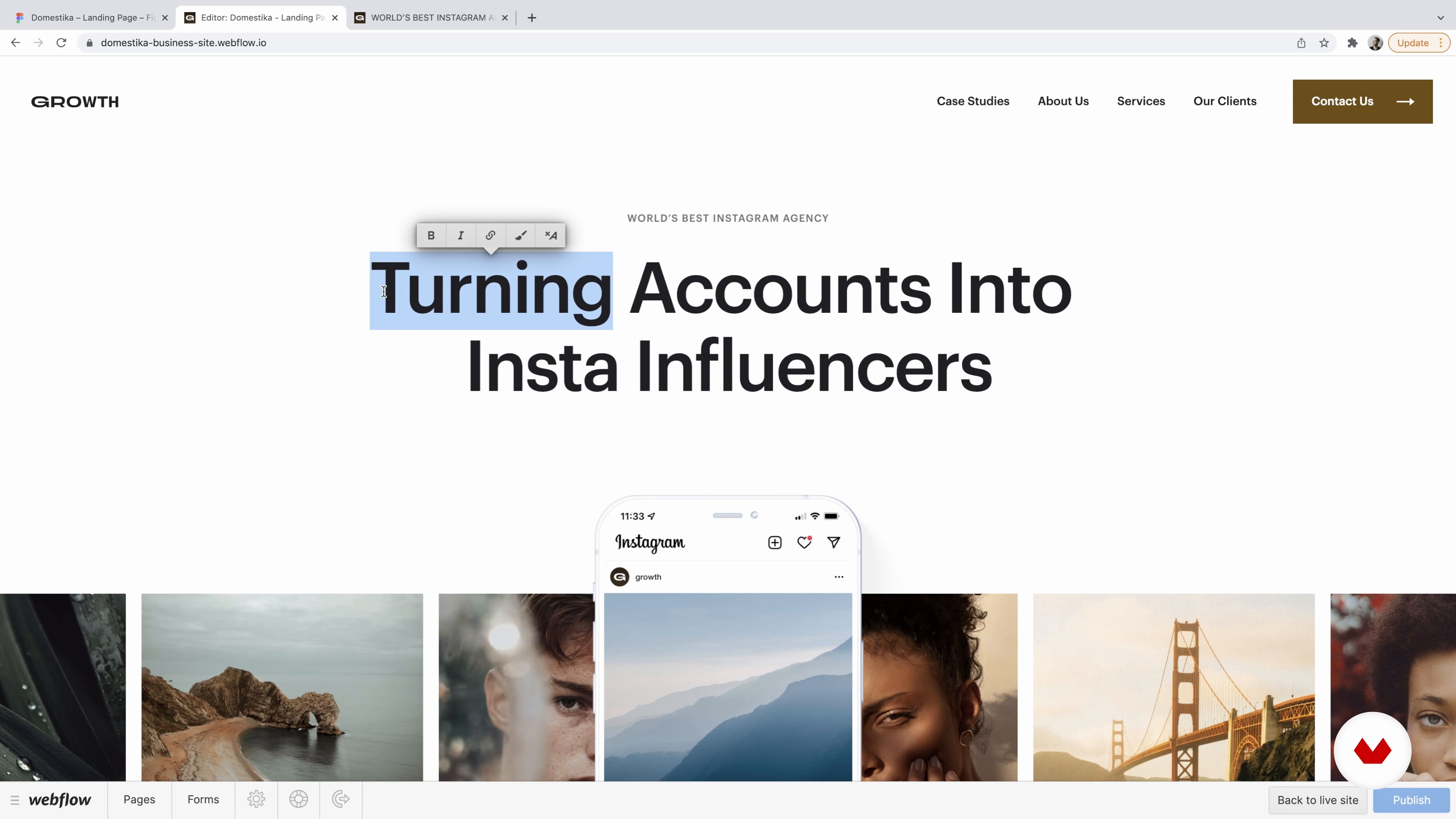
22Maintenance, Editor and Assets Panel
Let's talk about maintenance. I'll show you how to prepare the site if you would like to work with more people in the future and keep your project tidy and organized.
9m
 23
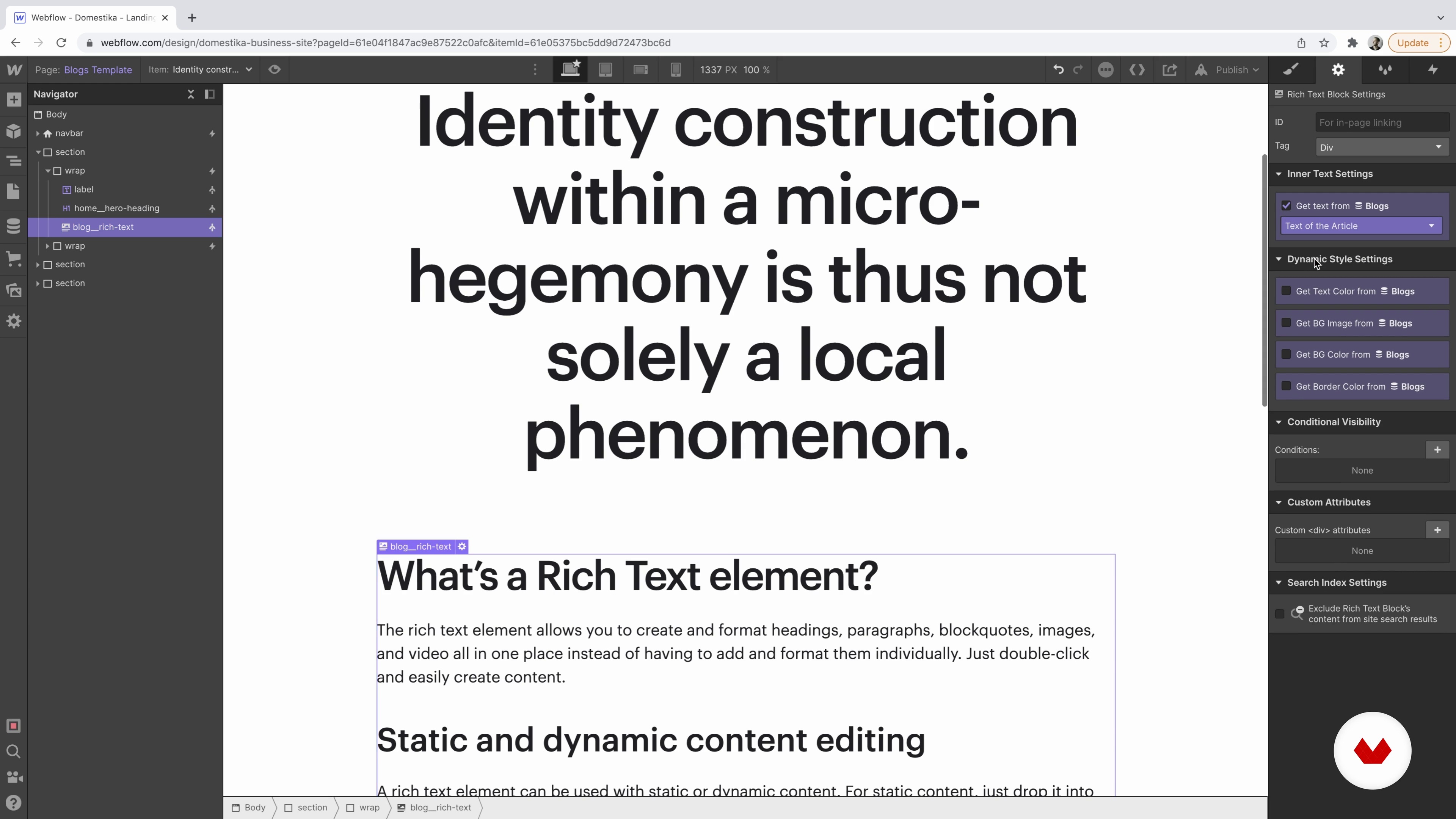
23Explore CMS
I will show you how CMS works in the Webflow toolkit on a simple blog. Then, I will discuss how to build collections and use the dynamic data on static pages versus collection templates.
12m
 4
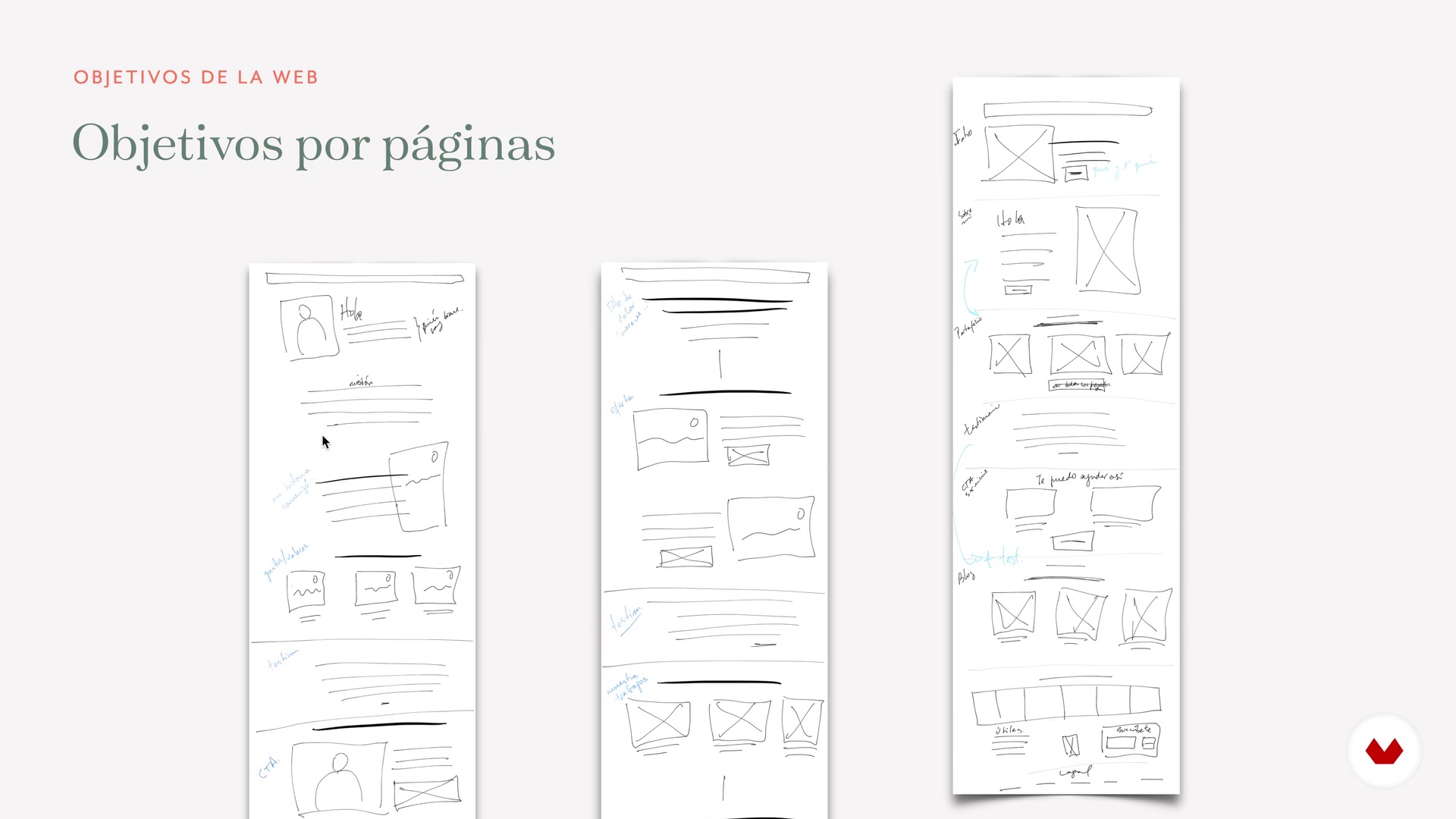
4Defining the objective and structure of our website P1
To design a functional website (as well as attractive) it is important to be very clear about what objective we want it to help us achieve, because it will be based on this that we will organize the structure of the website and each of the pages.
12m
 5
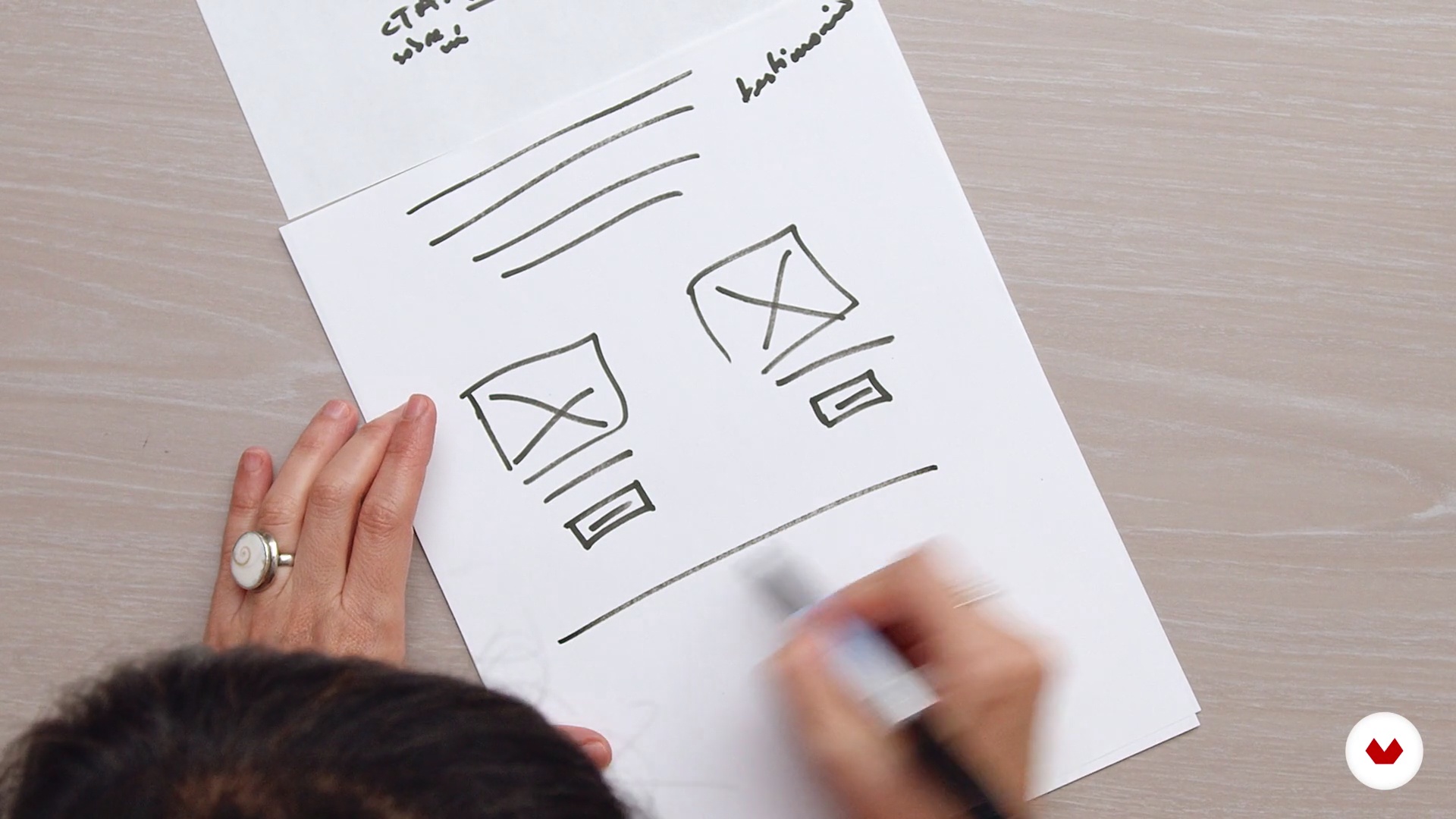
5Defining the objective and structure of our P2 website
In this lesson we are going to see examples of how these objectives correspond to design decisions within the web and the elements that we decide to include in our design (which ones and how).
10m
 6
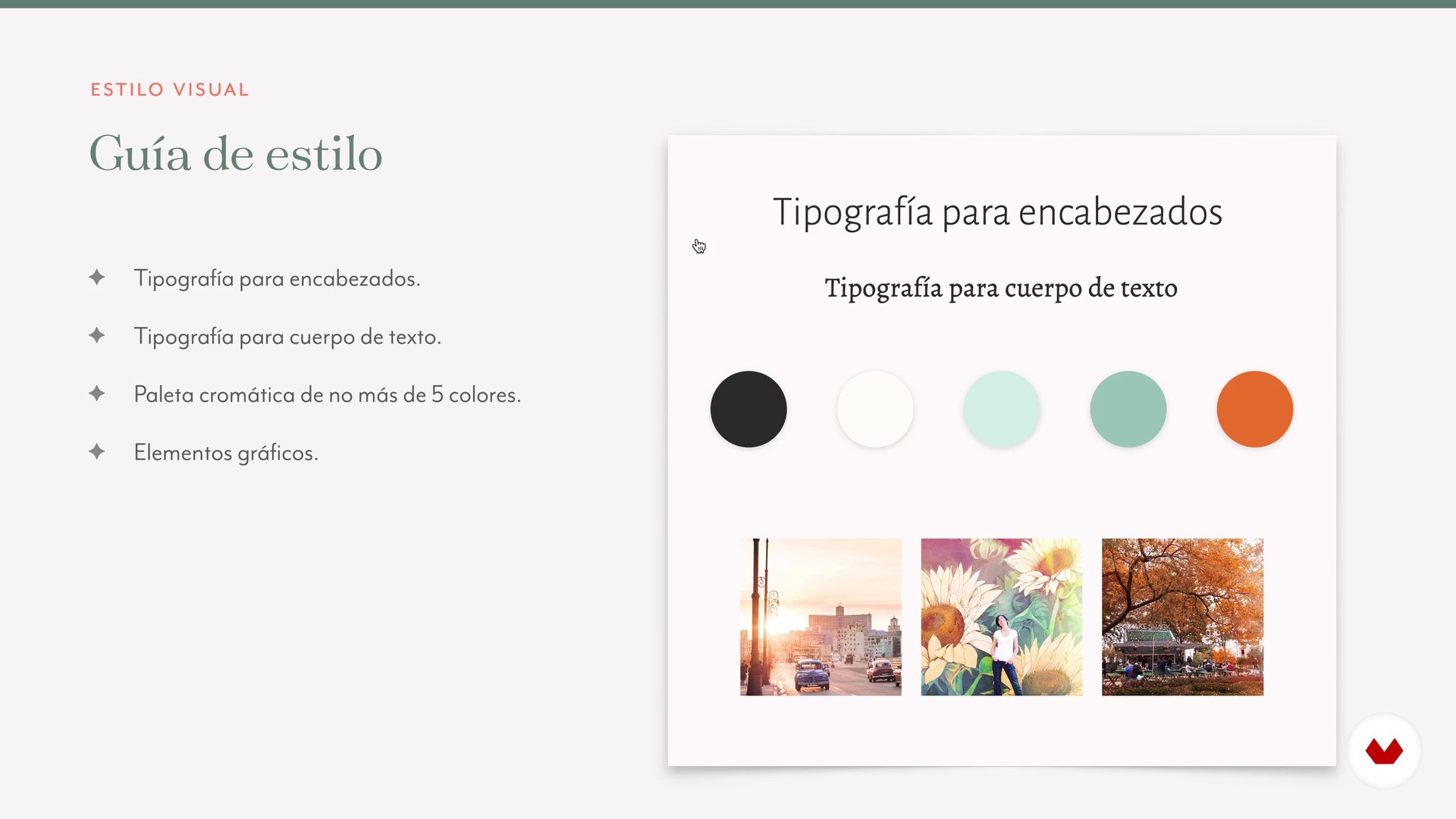
6The general style of our site
Now that we have created the structure of the web, we are going to broadly define the visual style that we want it to have. We are going to see, in a very simple way, how to combine fonts and colors, and I am going to give you examples of how you can use them to create a visual style for your website. I'm also going to give you some resources where you can look for inspiration.
14m
 7
7Creation, organization and preparation of graphic files
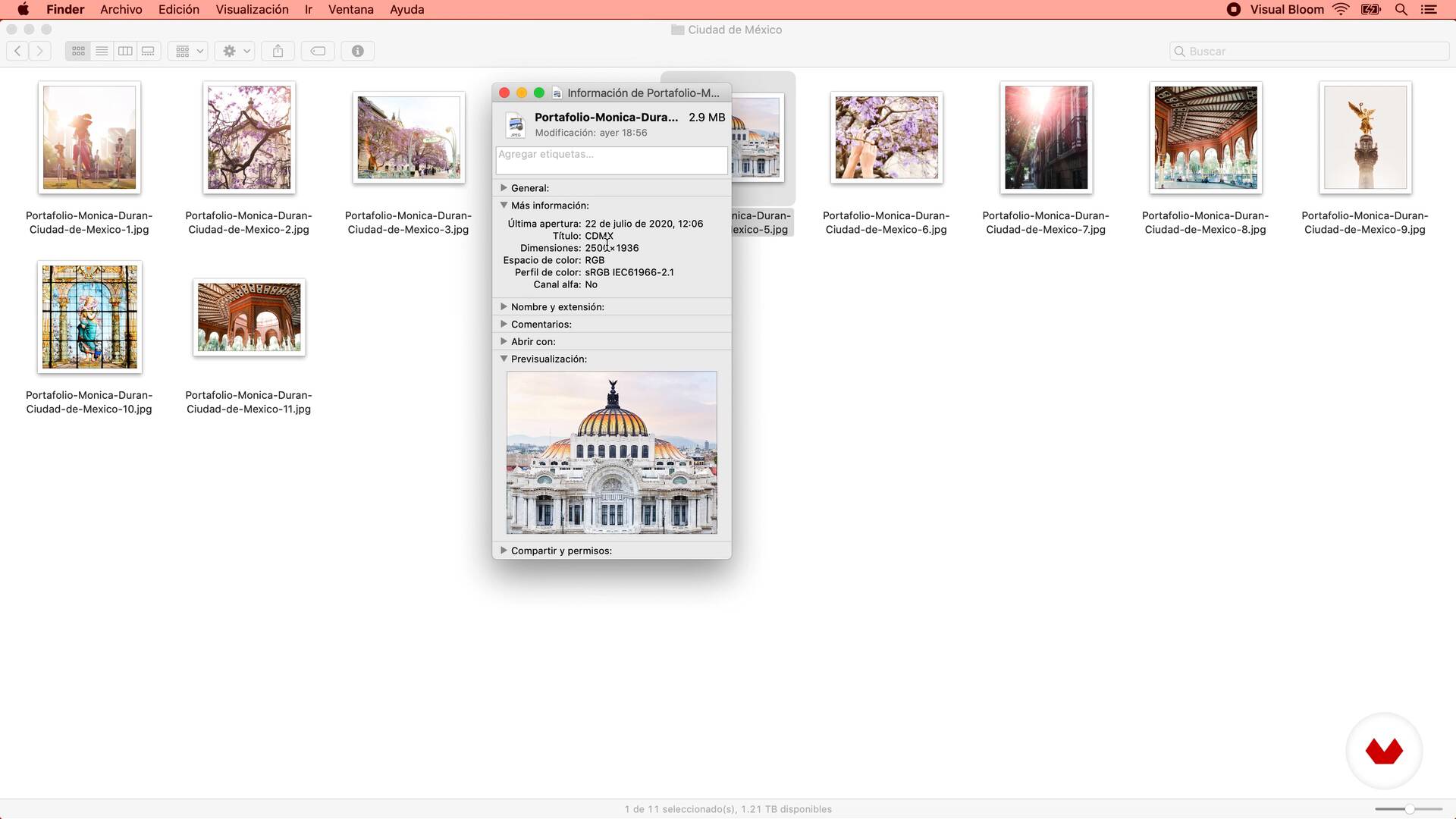
We already have all the graphic resources that we will use on our website, and a general outline of the design of each page ... now we have to prepare all the files that we will use so that they are optimized for use on the web, and organized so that we can easily find them when we are designing in Squarespace.
7m
 8
8Changes to the Squarespace content block interface
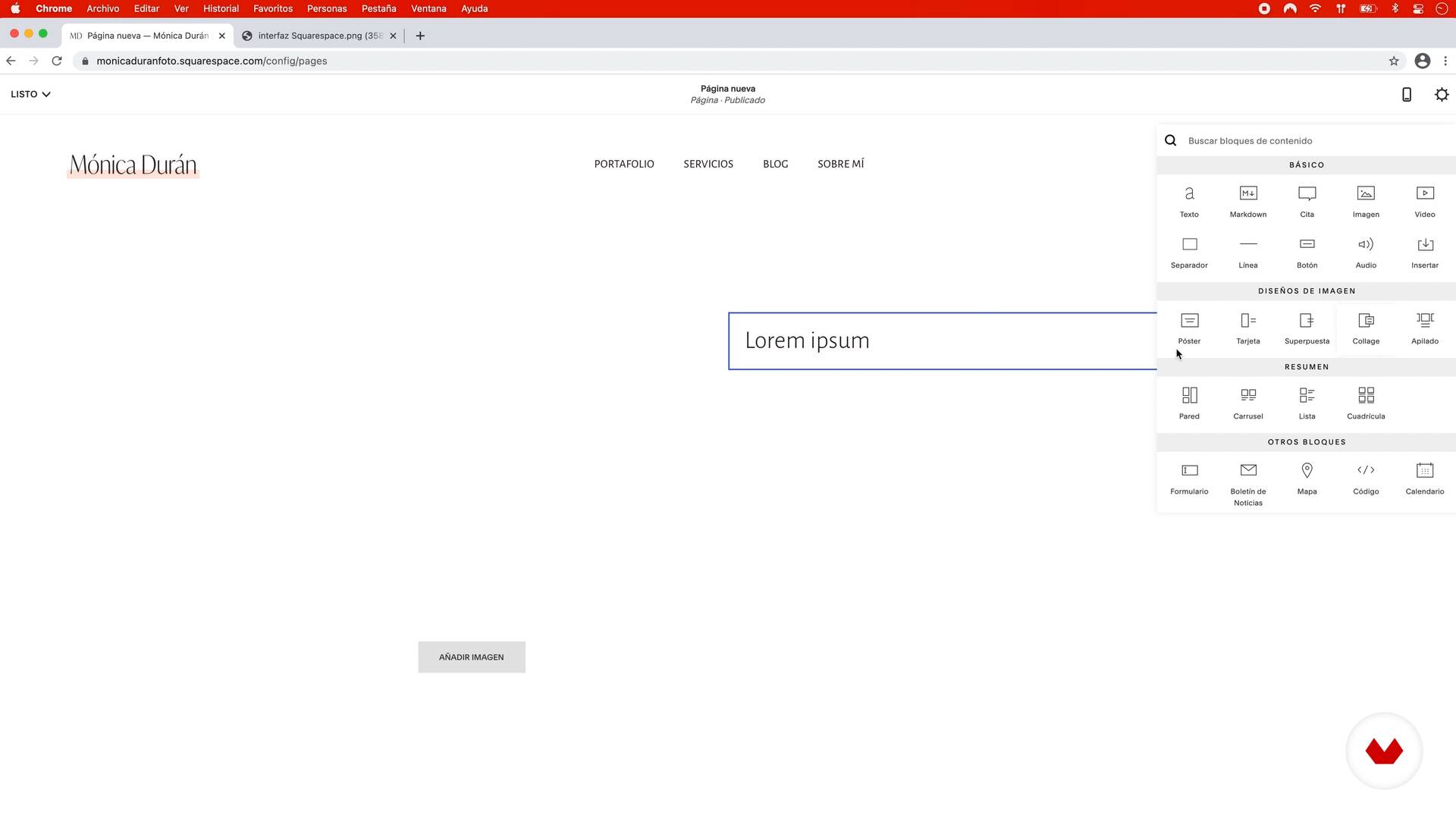
In this lesson I briefly explain some recent changes to Squarespce so that you know the differences between what you will see in the interface of the following lessons, and the interface that you will see on your Squarespace site when you are creating it.
3m
 9
9How to choose the template for your website
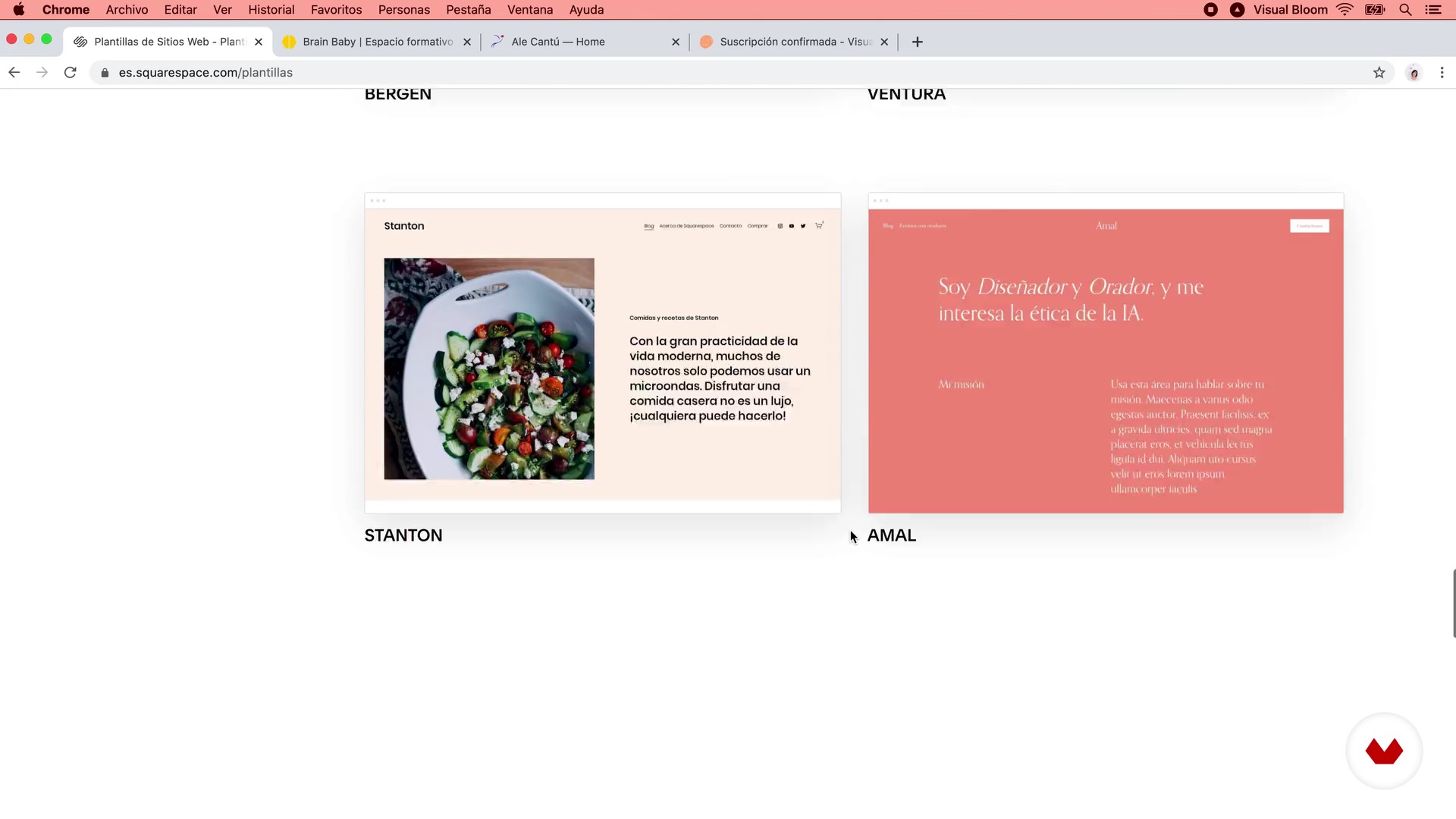
In this lesson we are going to take a tour of the different templates that we find in Squarespace when we are going to create a new website. We will see what characteristics they have and what you should take into account when choosing the right one for your project.
9m
 10
10Initial settings in Squarespace
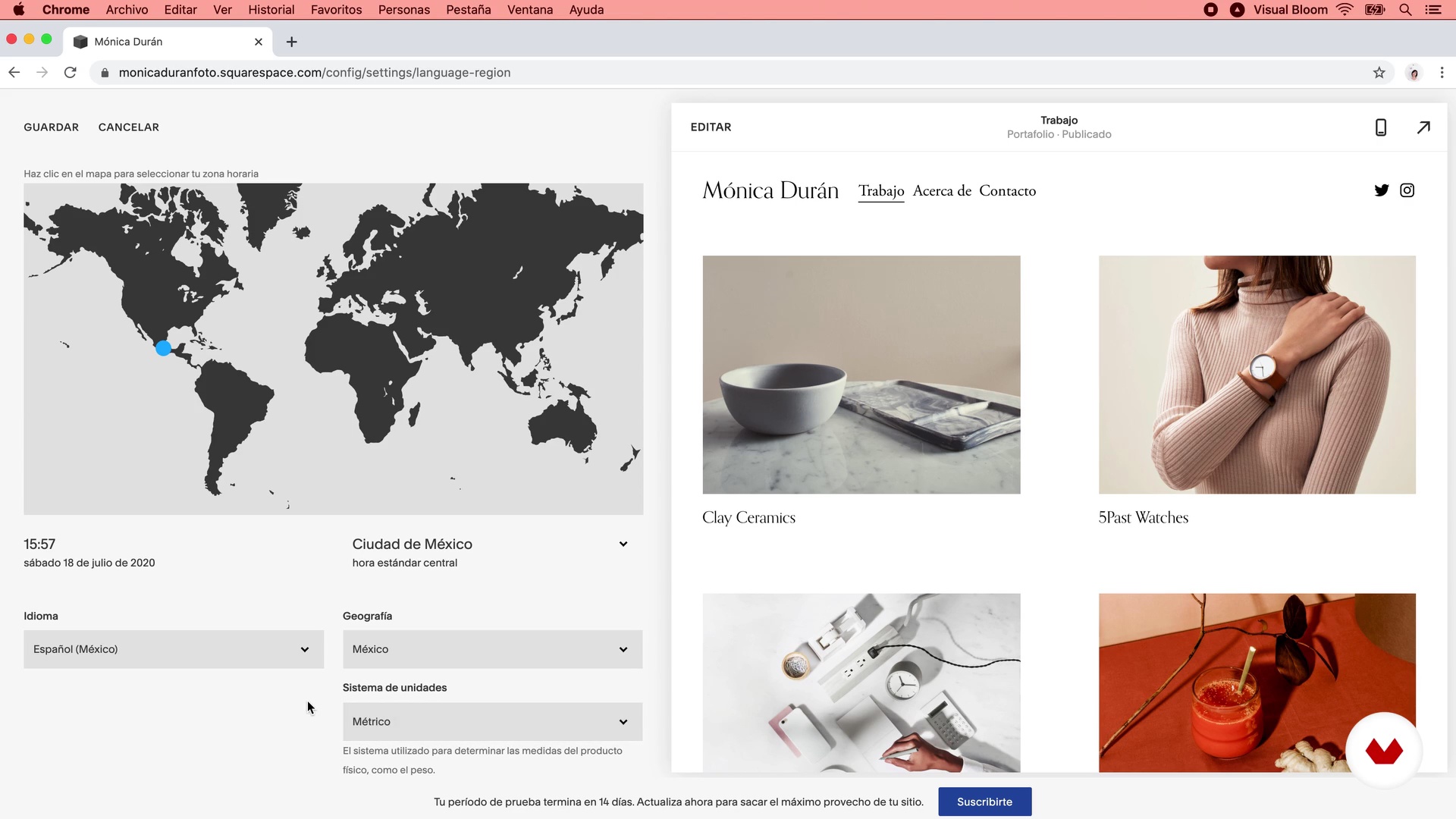
With the account created we will take a tour of the entire Squarespace administration panel so that you become familiar with the different sections: Pages, Design, Commerce, Marketing, Analytics, Comments, Settings and Help. [textbox type=alert]Important note: After recording the lessons for this course, Squarespace released a new section in the admin panel, called Profiles or Profiles . This section is not particularly relevant for the course content, but it is worth exploring it a bit since from here you will be able to view and manage the profiles of: - Customers: people who have bought on your website, if you have an online store set up (and that is something we don't see in the course). - Subscribers: people who subscribe to your mailing list if you use the native Squarespace option. If you use an external email marketing tool (such as Mailchimp or Mailerlite) you will not be able to manage them from here. You can find more information about this new section of the Squarespace administration panel at this link.[/textbox]
12m
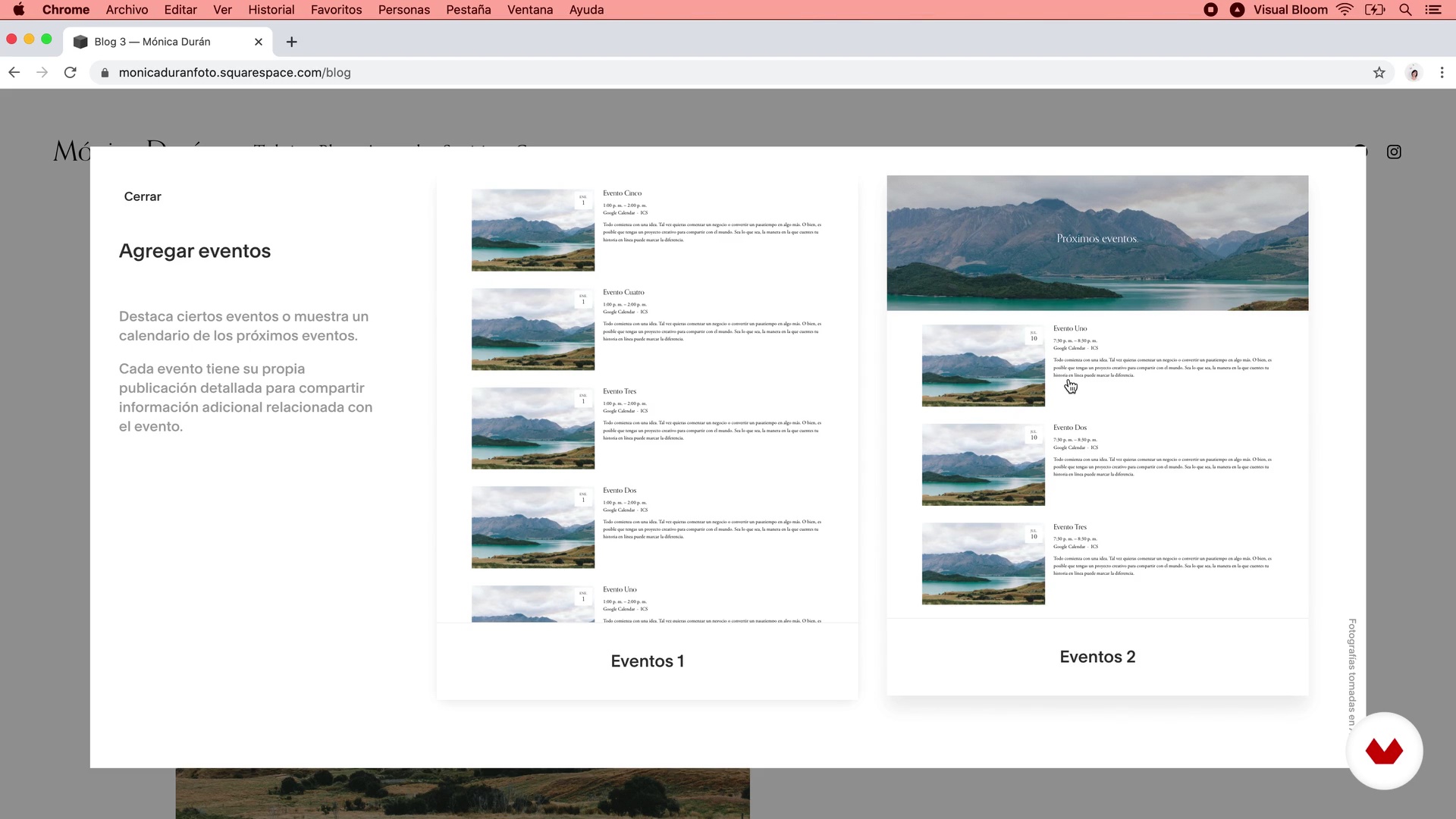 11
11Creating pages in Squarespace: their properties and settings
In this lesson I am going to explain the different types of elements that we have in Squarespace to create the “architecture” of the website: Pages, Collections (or Collection Pages), Folders and Links, since each one has different functions and characteristics.
18m
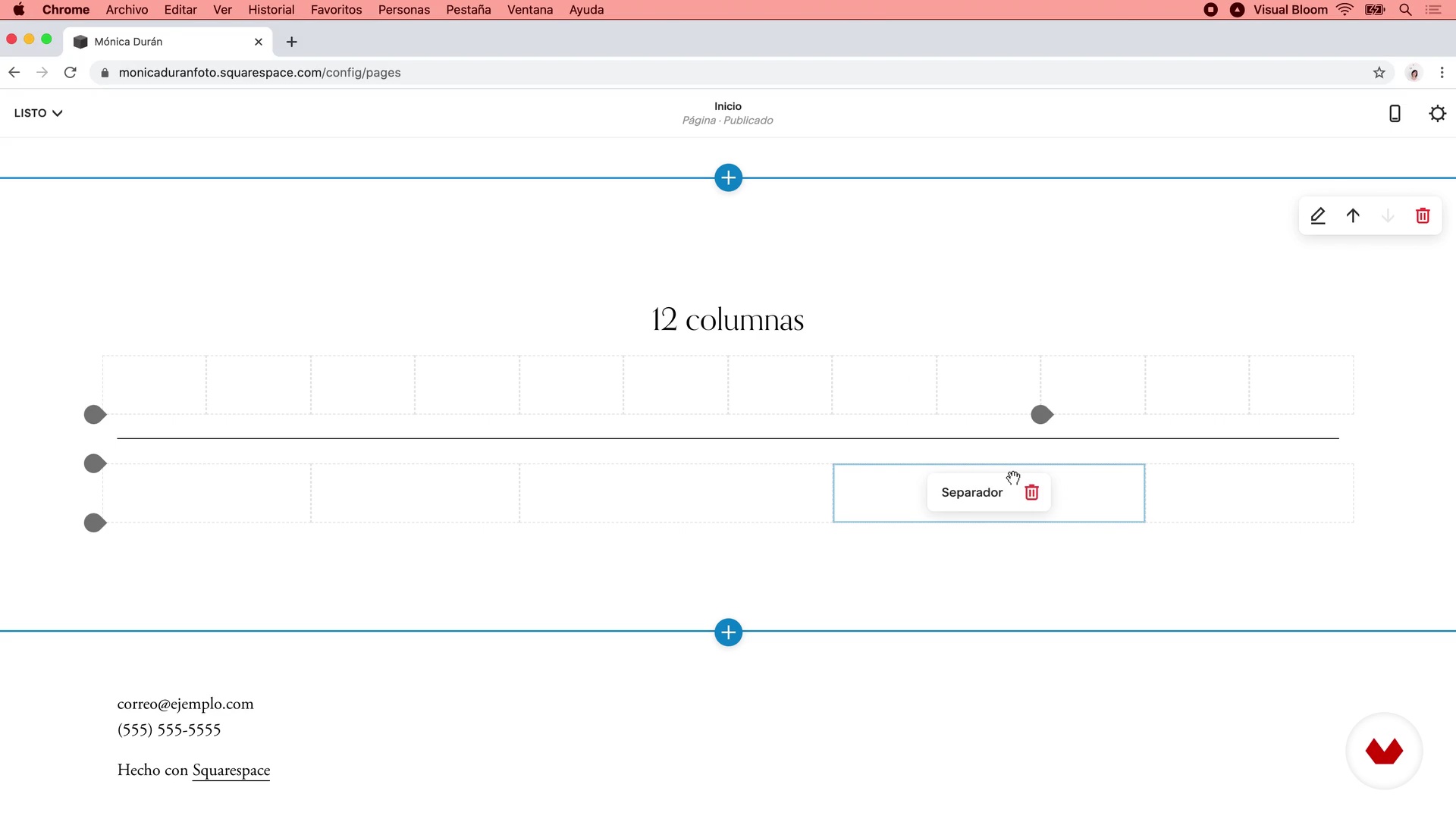 12
12The content blocks in Squarespace
Now that you know how the general structure of a website works in Squarespace, we are going to see how the structure of each of the pages is created and to explain better we are going to create a page to which we will add different Content Blocks, which are the elements that make up the design of any page in Squarespace.
8m
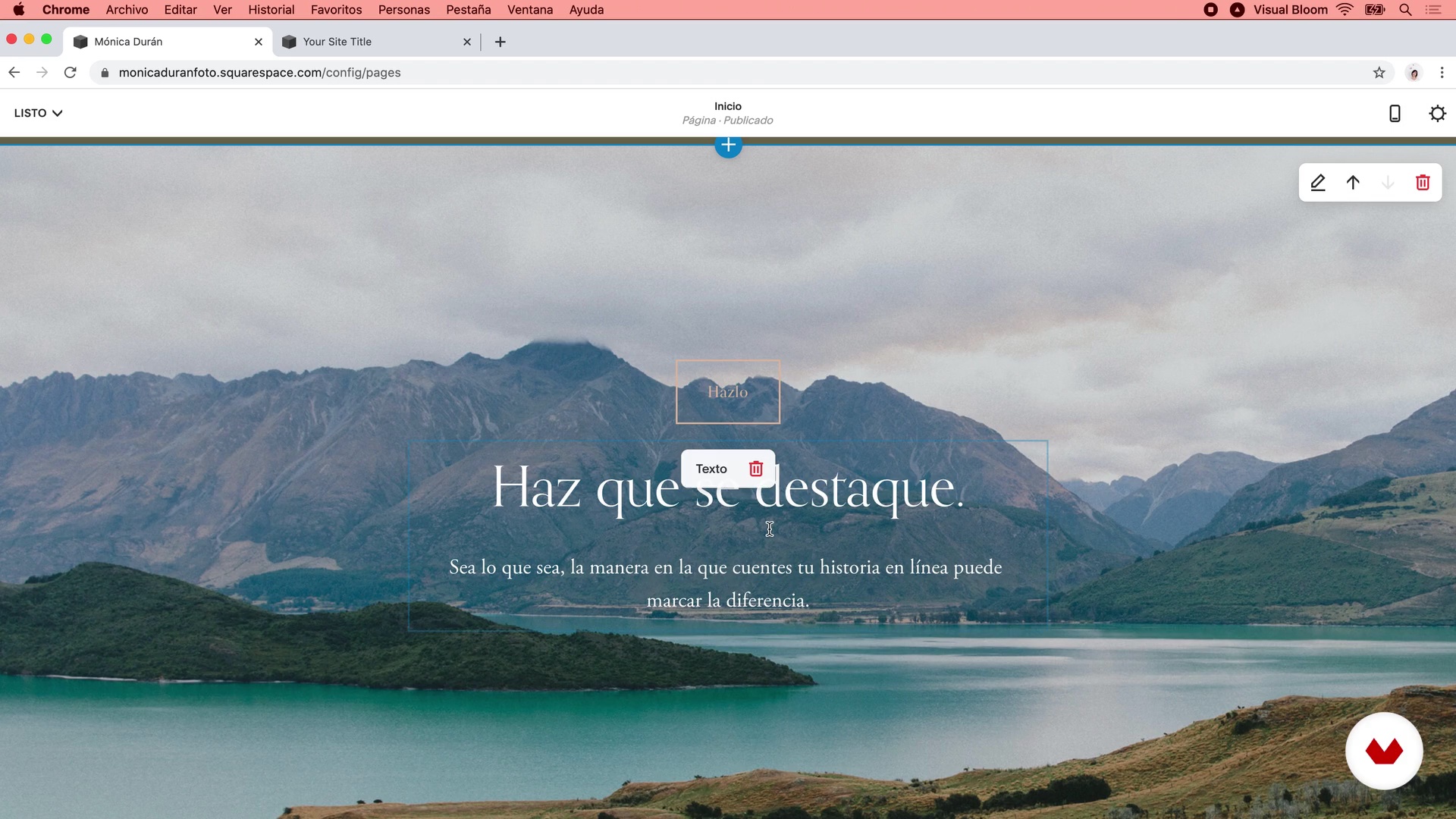 13
13The page sections in Squarespace
Now that we know what are the content blocks that we have in Squarespace, let's see how to integrate them with sections of pages to create the design of each of the web pages.
17m
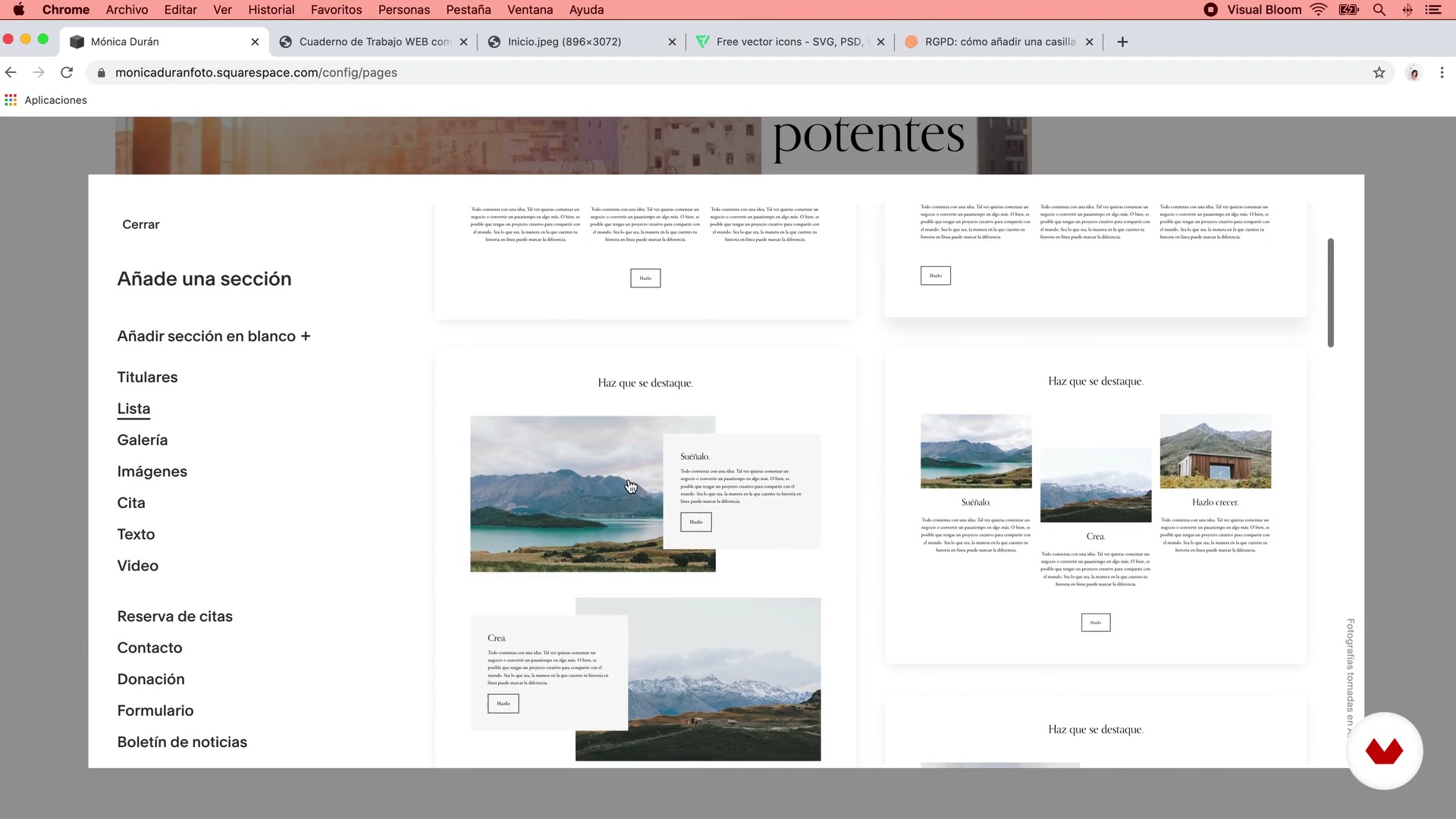 14
14Design and configuration of the Home, Services, About Me and Contact pages P1
Using the sketches we made in Unit 2 and the content we added in our workbook, we'll create the Home, About Me, Services, and Contact pages, with all their sections, text, and images.
17m
 15
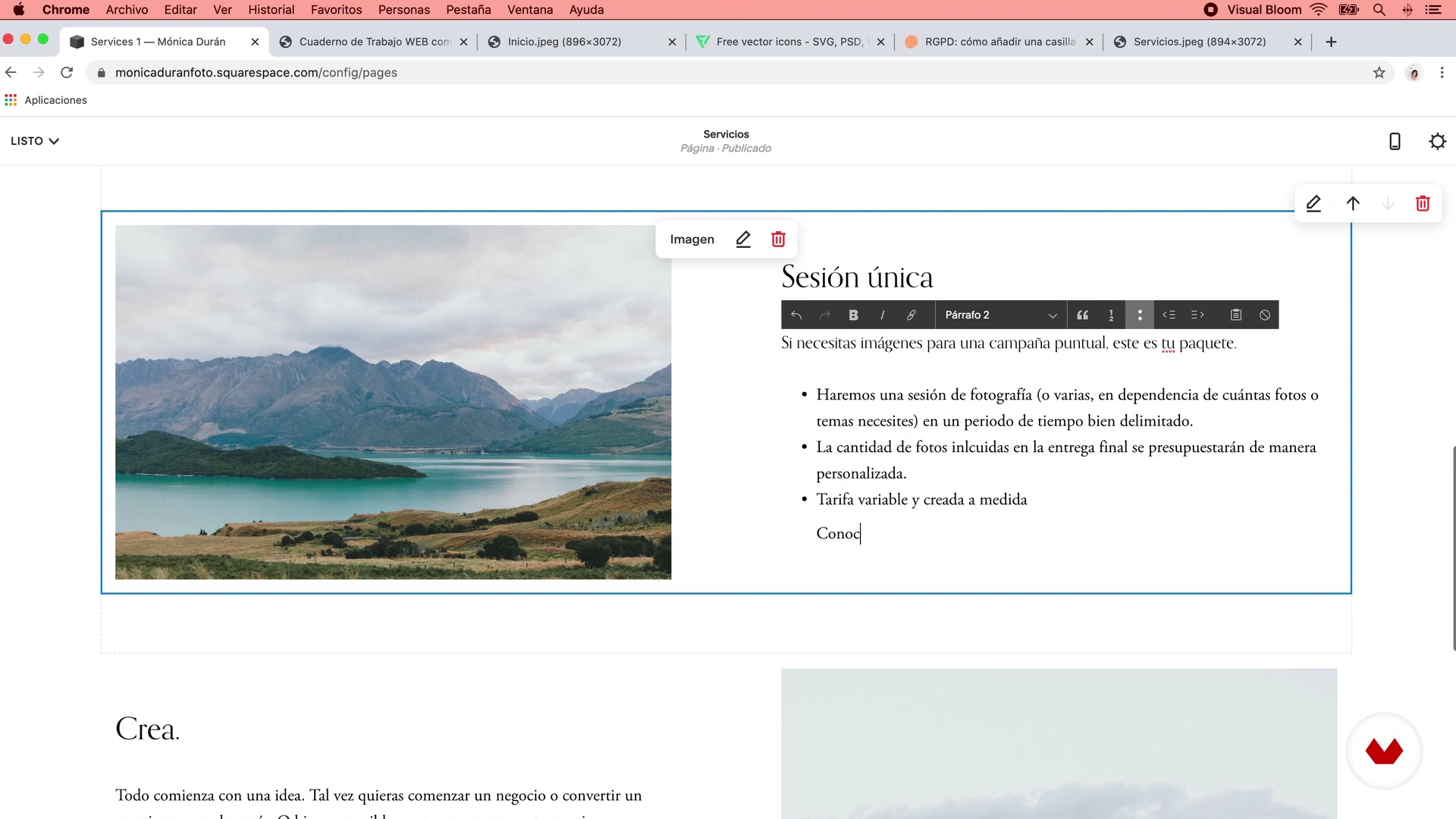
15Design and configuration of the Home, Services, About me and Contact pages P1
From the sketches we made in Unit 2 and the content we added in our workbook, we are going to create the Home, About me, Services and Contact pages, with all their sections, texts and images. For the moment, don't worry about colors or fonts, since we'll adjust that later: now the important thing is to create the structure of the pages.
16m
 16
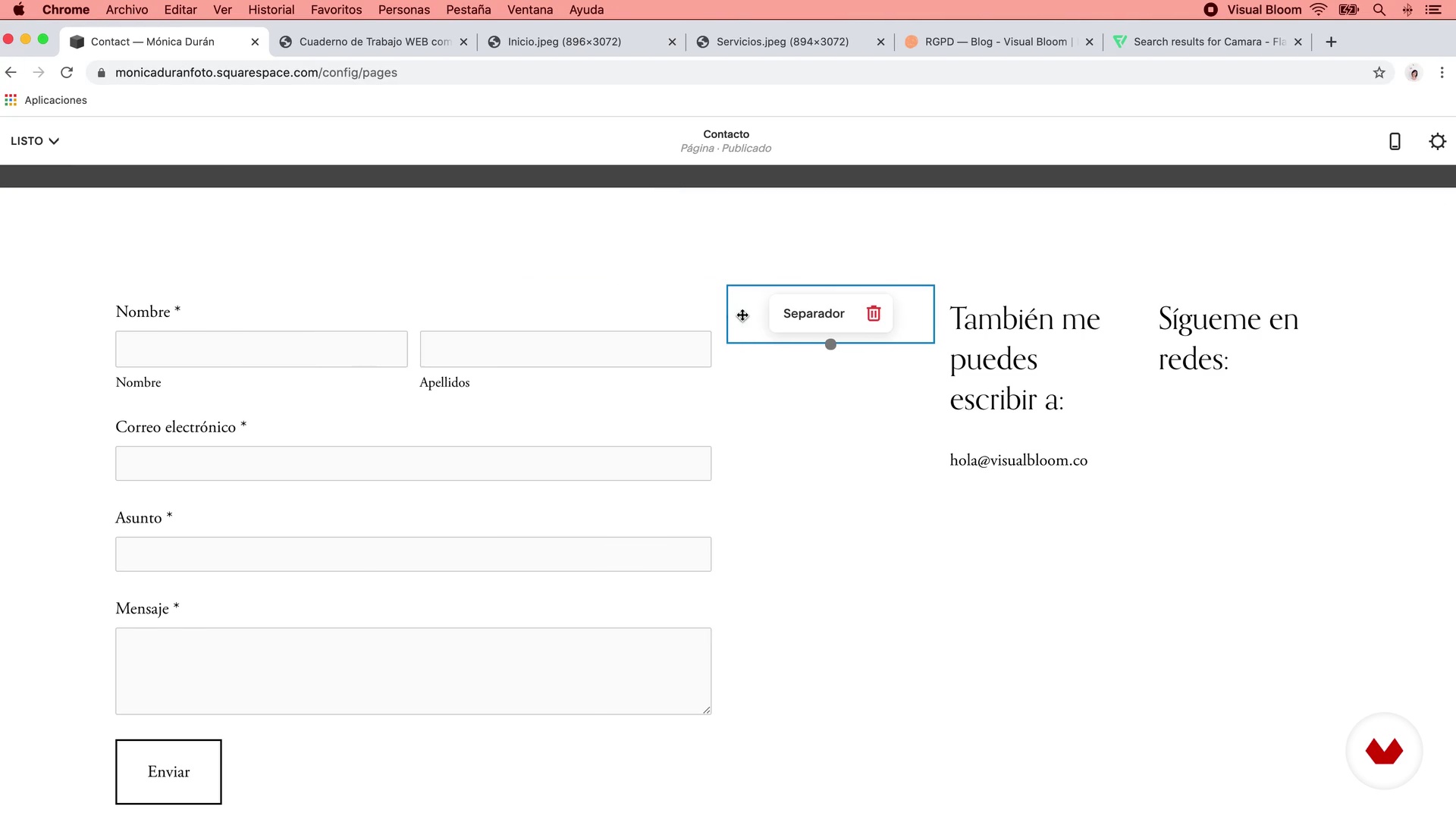
16Design and configuration of the Home, Services, About me and Contact P2 pages
On the contact page I will show you how to add a form and what you must do to include the text and the necessary box to comply with the RGPD (General Data Protection Regulation).
16m
 17
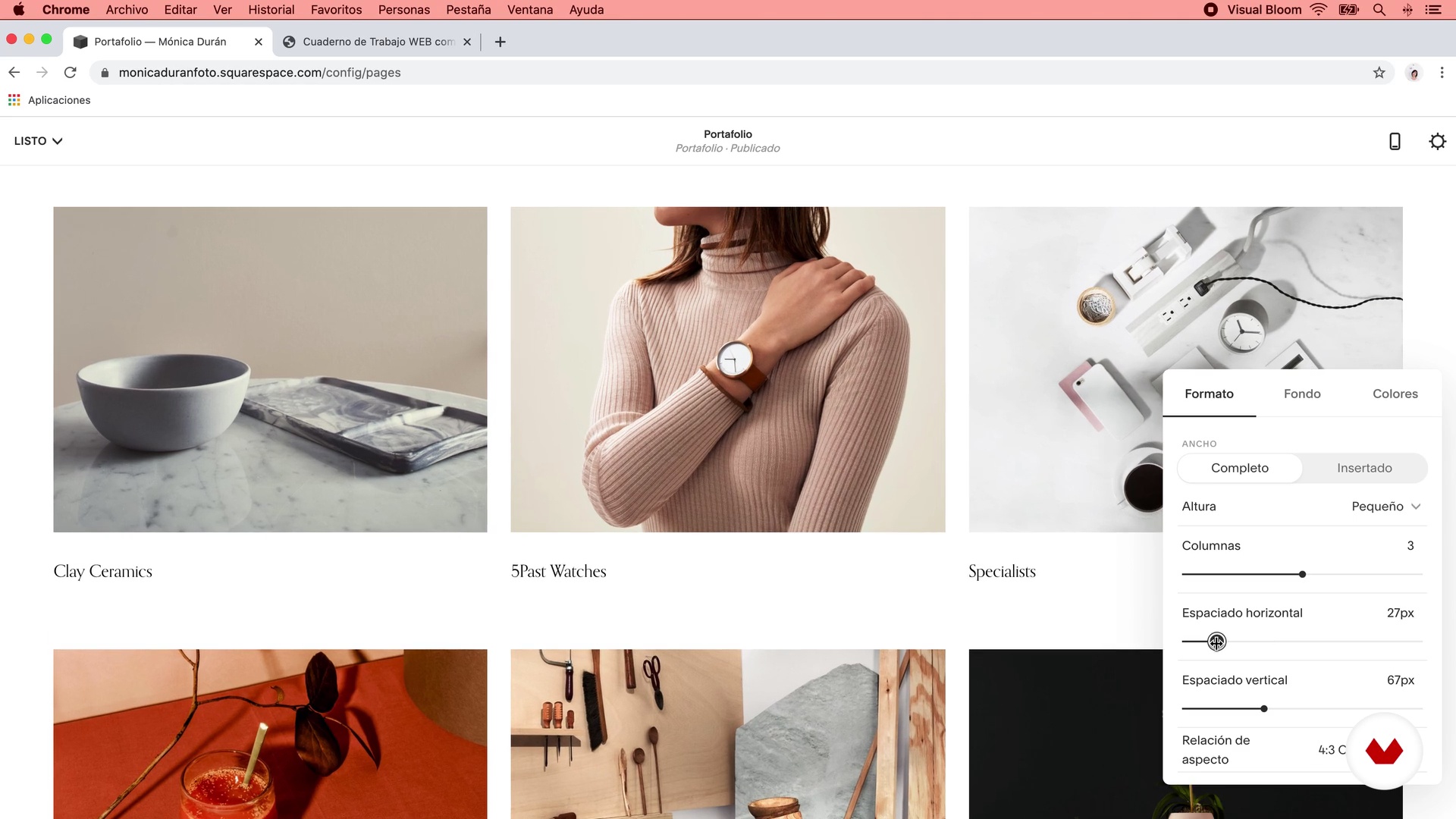
17Portfolio P1 Page Settings
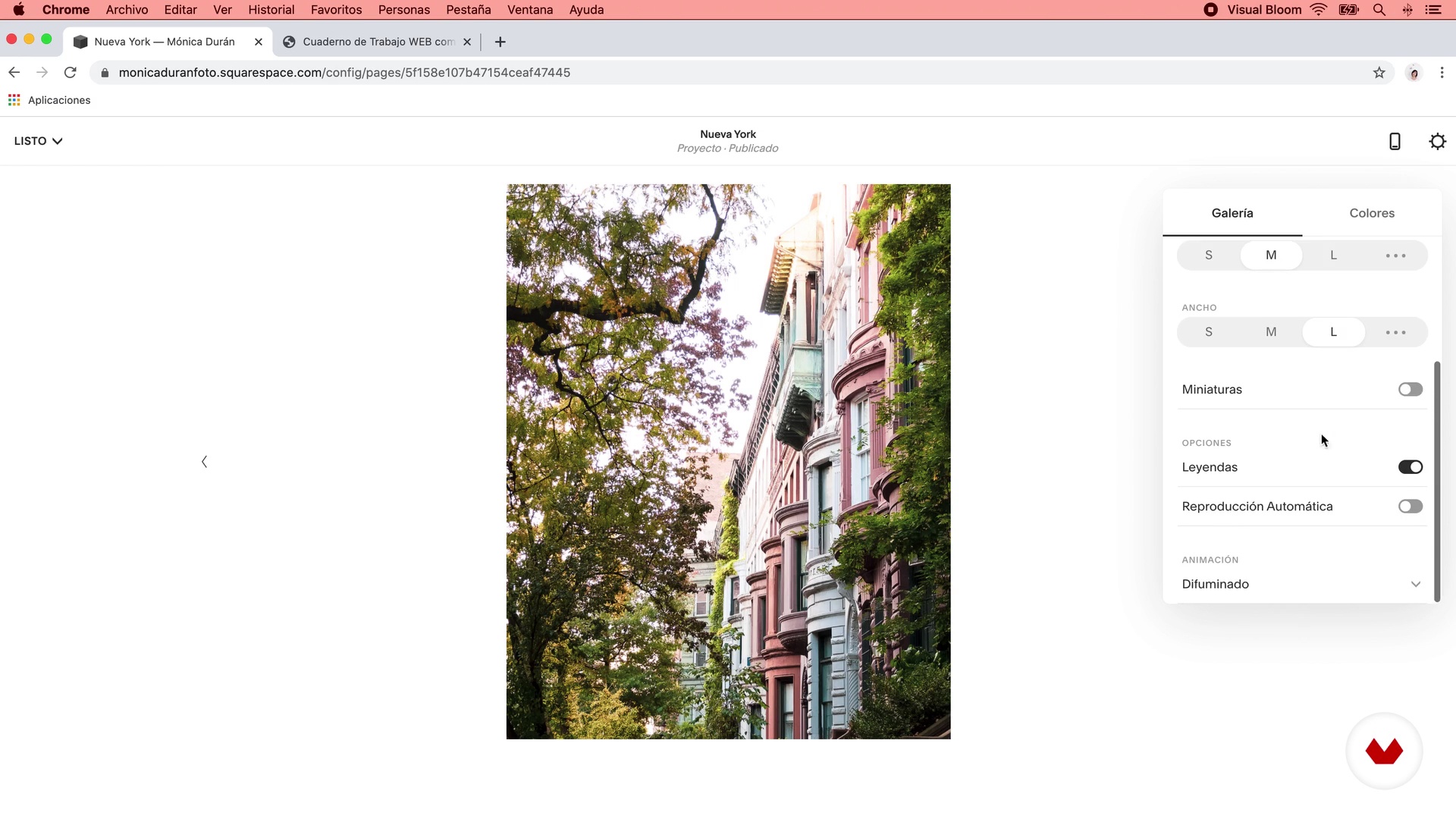
In this lesson we will see how to add a portfolio with projects to the web. I'll show you the different design options you have for your main portfolio page, how to add new projects, and the different adjustments you can make to individual projects.
12m
 18
18Portfolio P2 Page Settings
16m
 19
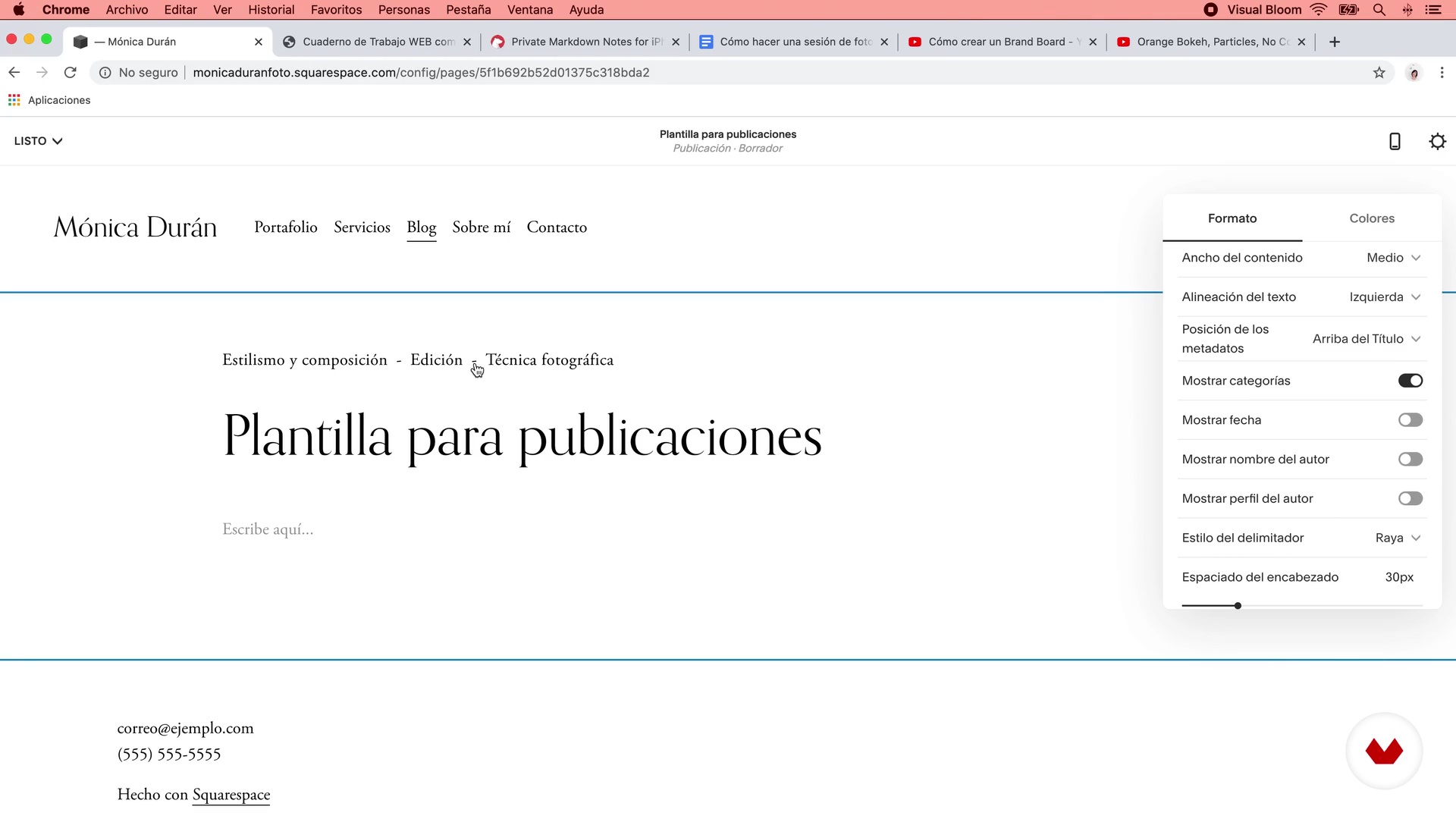
19P1 Blog Settings
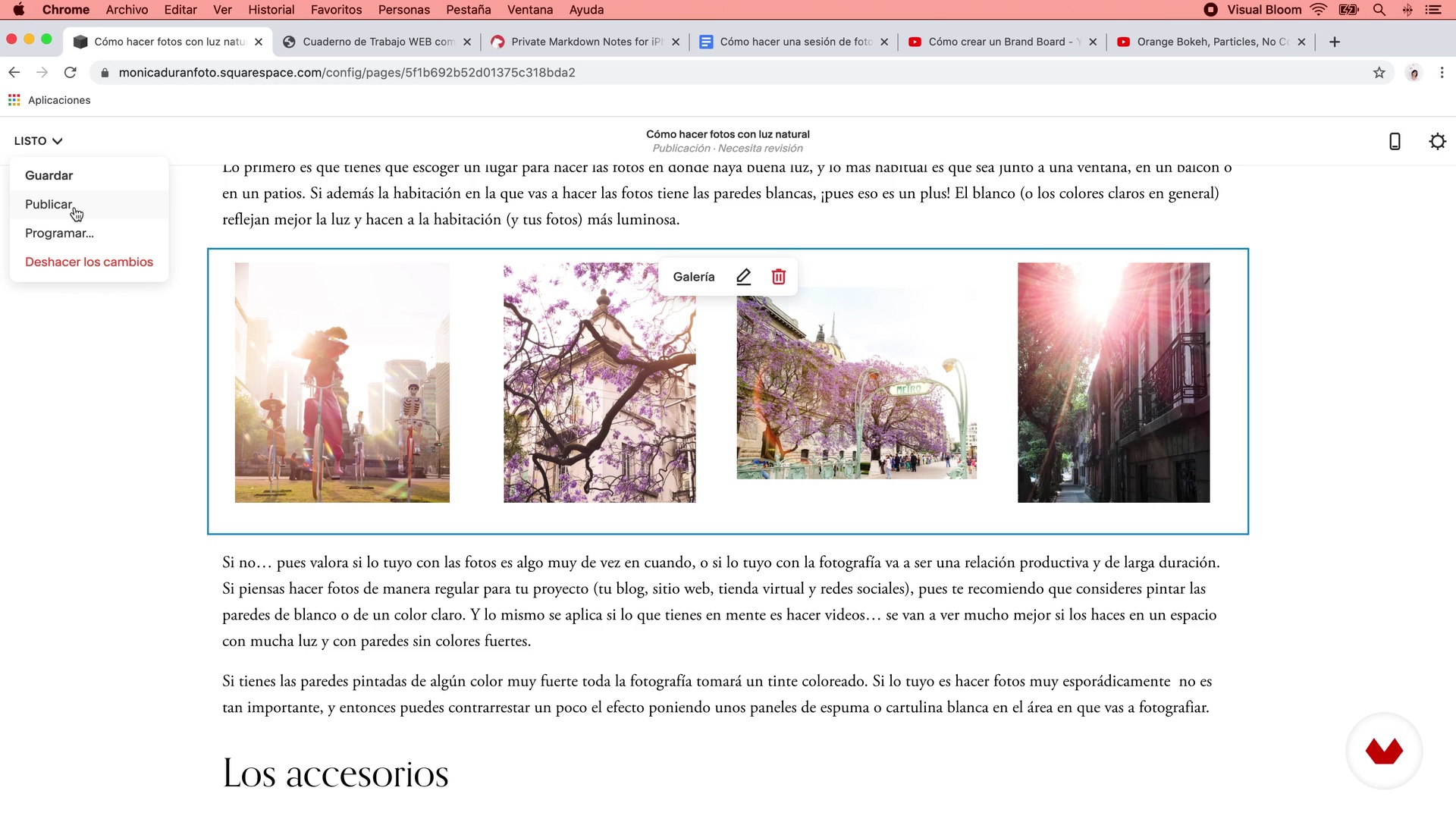
Now we will see how to configure a Blog for your website. I will show you the different design options you have for the main Blog page, how to add new posts and the different general adjustments that you must make to each post before publishing it.
16m
 20
20P2 Blog Settings
18m
 21
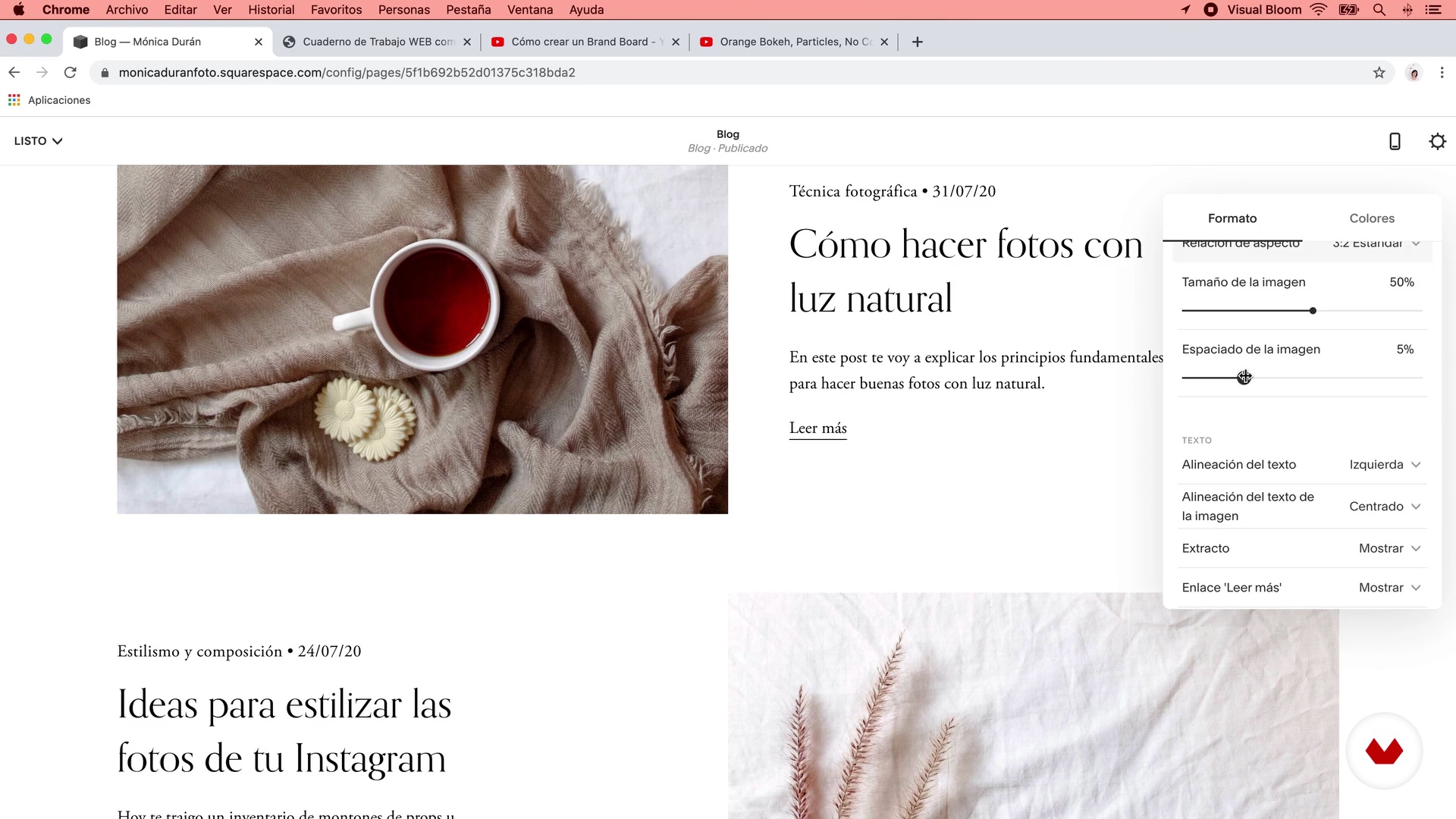
21P3 Blog Settings
11m
 22
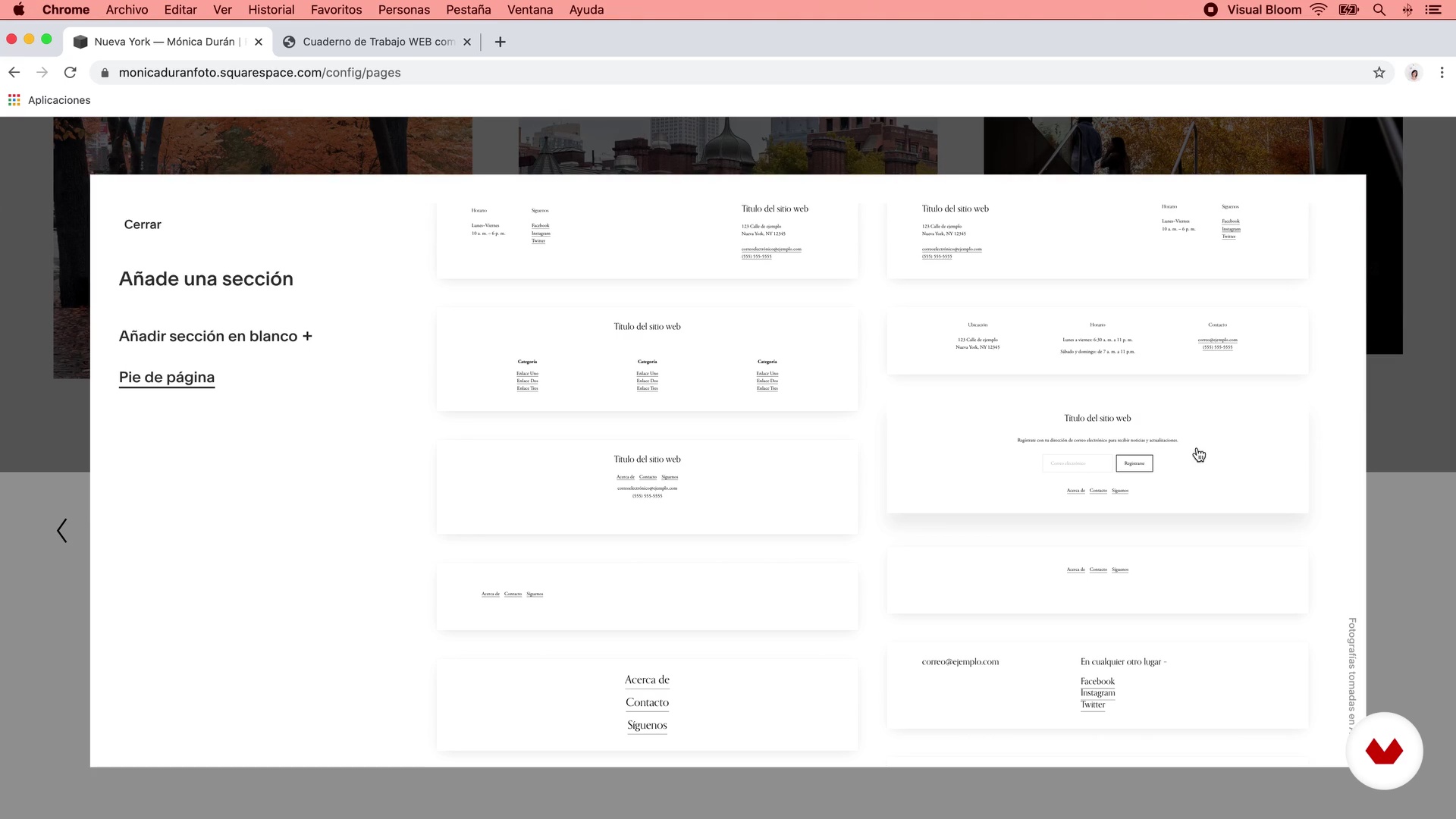
22Footer creation and main navigation adjustments
In this lesson I am going to teach you how to configure the footer of the web to include everything that we defined in Unit 2. You will see that it is very simple and very flexible to make changes to the footer of your site, now that You are already proficient in Squarespace's sections and content blocks.
18m
 23
23Setting the fonts and colors of the site P1
In this lesson I am going to show you the different options you have to define the style of the titles, subtitles and body text of the site. You will learn to change the fonts that the template brings by default, and to make some additional adjustments to modify styles differently from the default ones.
20m
 24
24Setting the fonts and colors of the P2 site
12m
 25
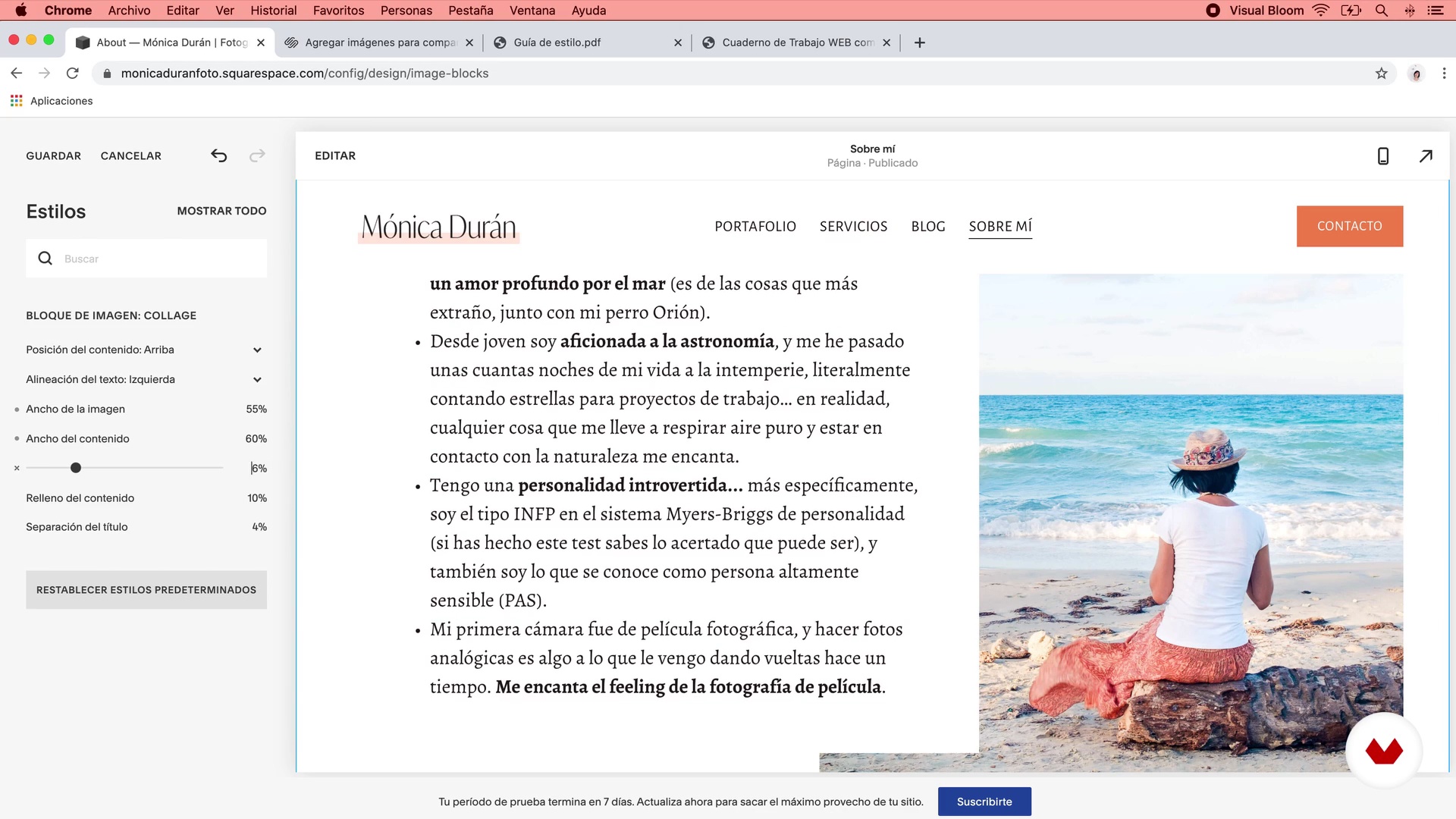
25Image Settings and Other Settings
With colors and fonts ready, we are now going to take care of making image adjustments and other details such as general site animations, spacing, buttons, browser icon (favicon), image for social networks, special page styles, among others.
13m
 26
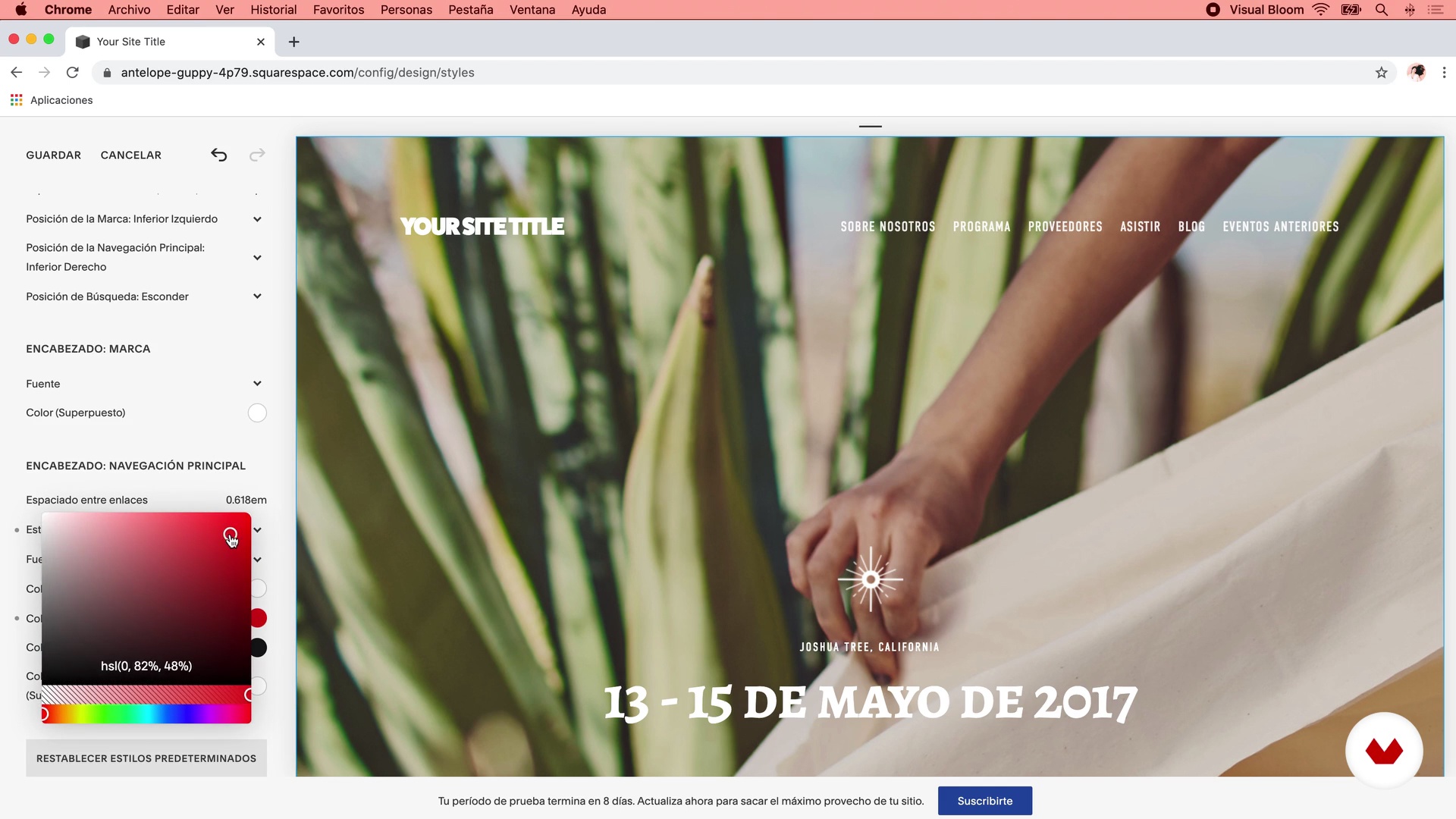
26Bonus: Web Styles in Squarespace 7.0
This lesson is for people who have Squarespace version 7.0 only. Here we will see how to make adjustments to fonts, colors and other elements of the web on a site designed in the old version of Squarespace.
10m
 27
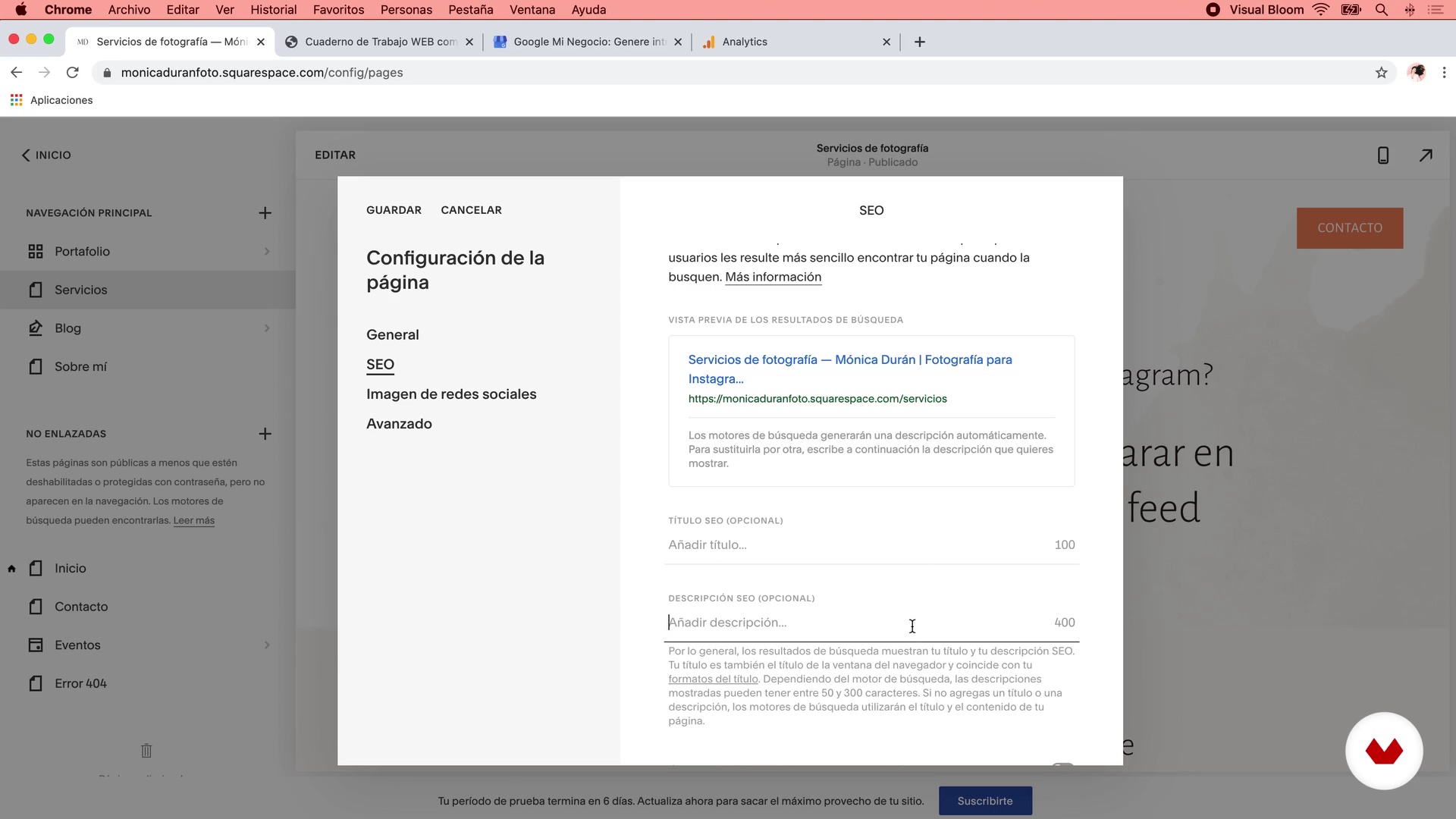
27Marketing settings
We are going to see the elements that we have within the Squarespace Marketing panel and I will show you how to configure an advertisement bar for the web, as well as a pop-up window that you can use to promote some information or attract subscribers.
13m
 28
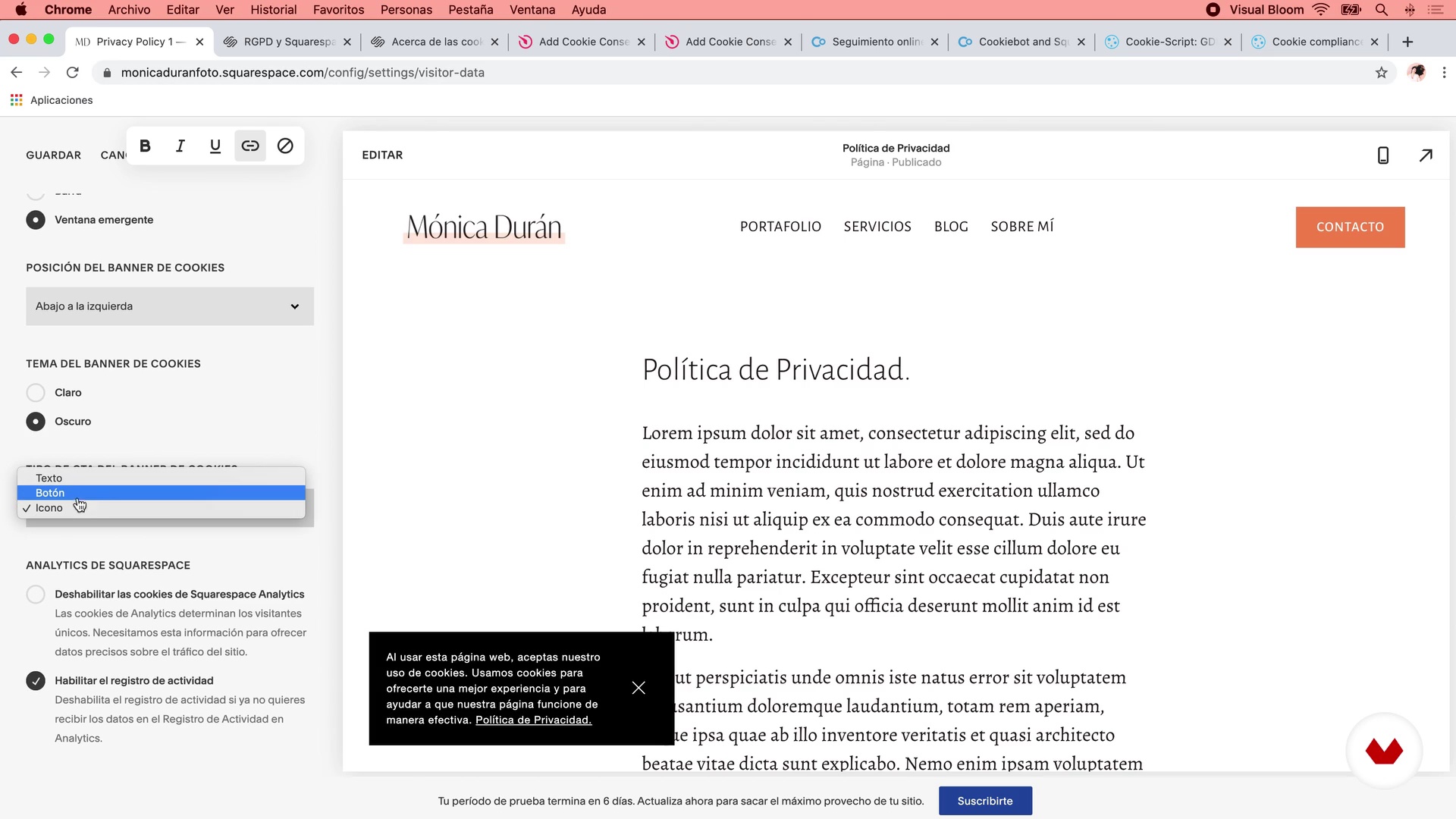
28General privacy settings
In this lesson I will teach you how to create the legal pages of the site and link them in the footer. I will also show you how to configure the cookie ad bar and the settings you must make to it, and I will give you an alternative option in case you need a more advanced cookie bar if you are going to load additional cookies on your website.
8m
 29
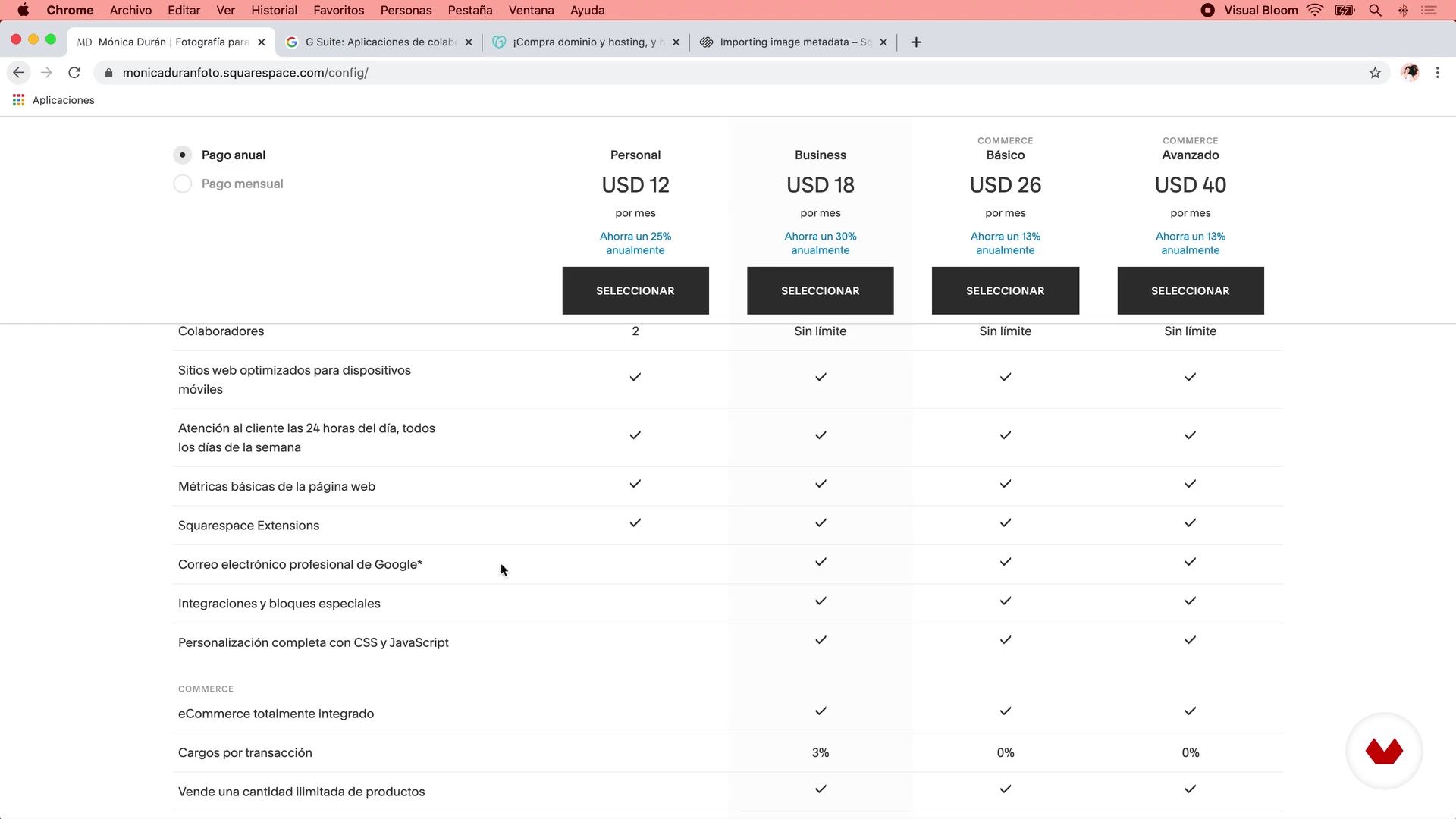
29Let's make the P1 public site
Finally, we will see the steps necessary to make your website public: the different payment plans that Squarespace has, their characteristics, and which one I recommend for a website like the one we will do in the course.
16m
 30
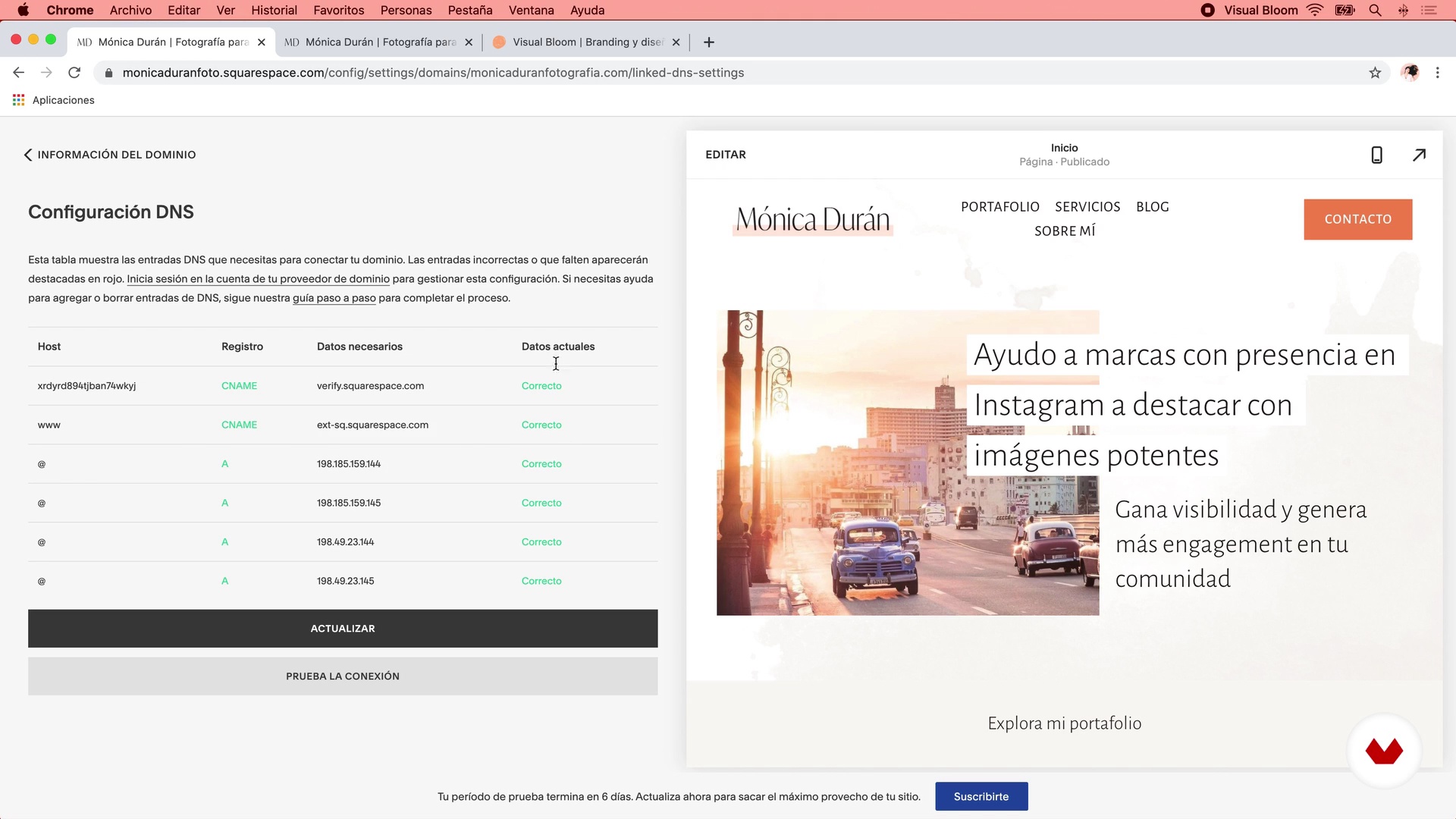
30Let's make the P2 public site
6m
 31
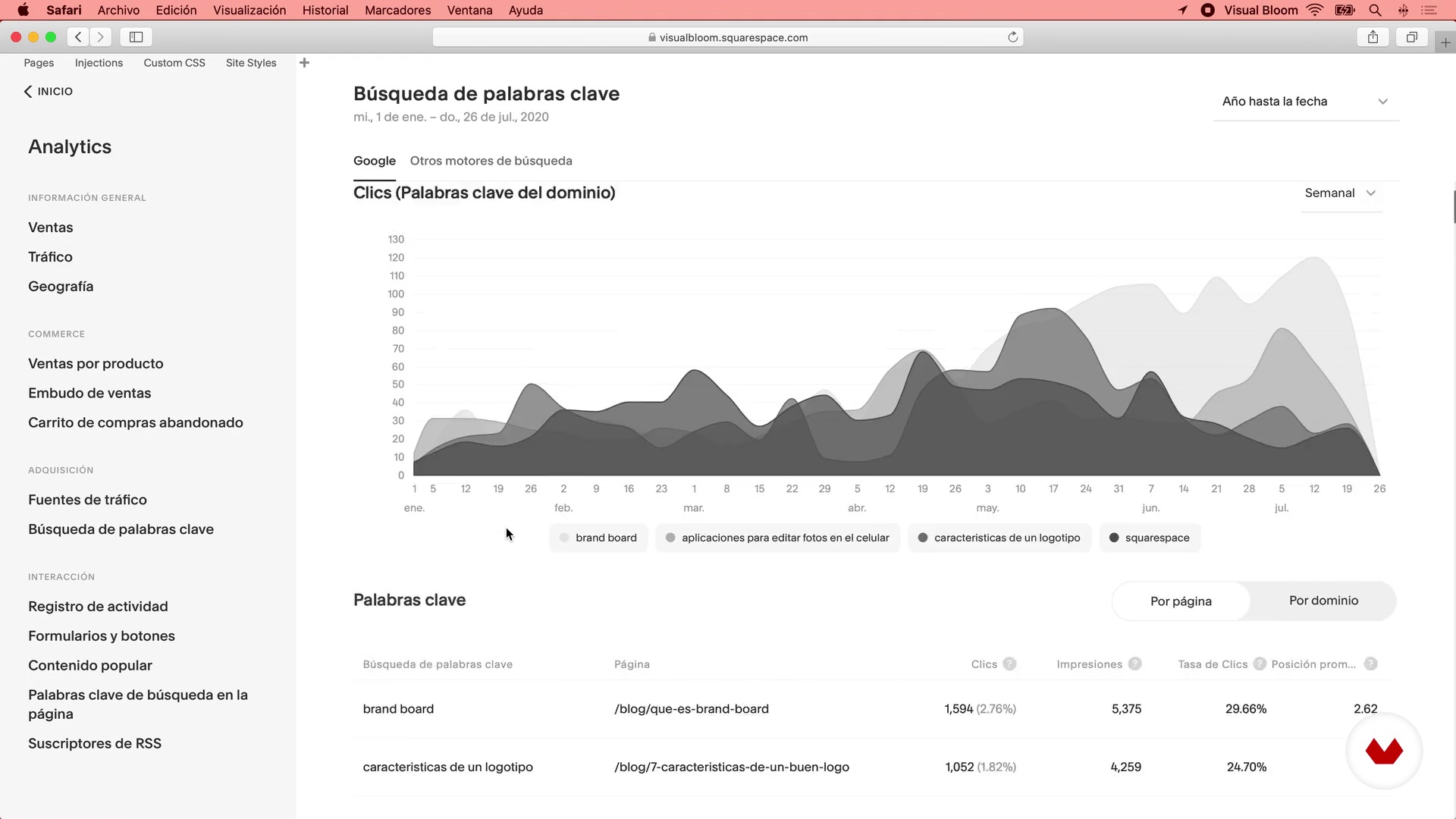
31Site analytics tracking
Finally we will explore the Analytics panel of the site: I will give you a tour of its sections and I will give you my recommendations to get the best out of it.
10m
 3
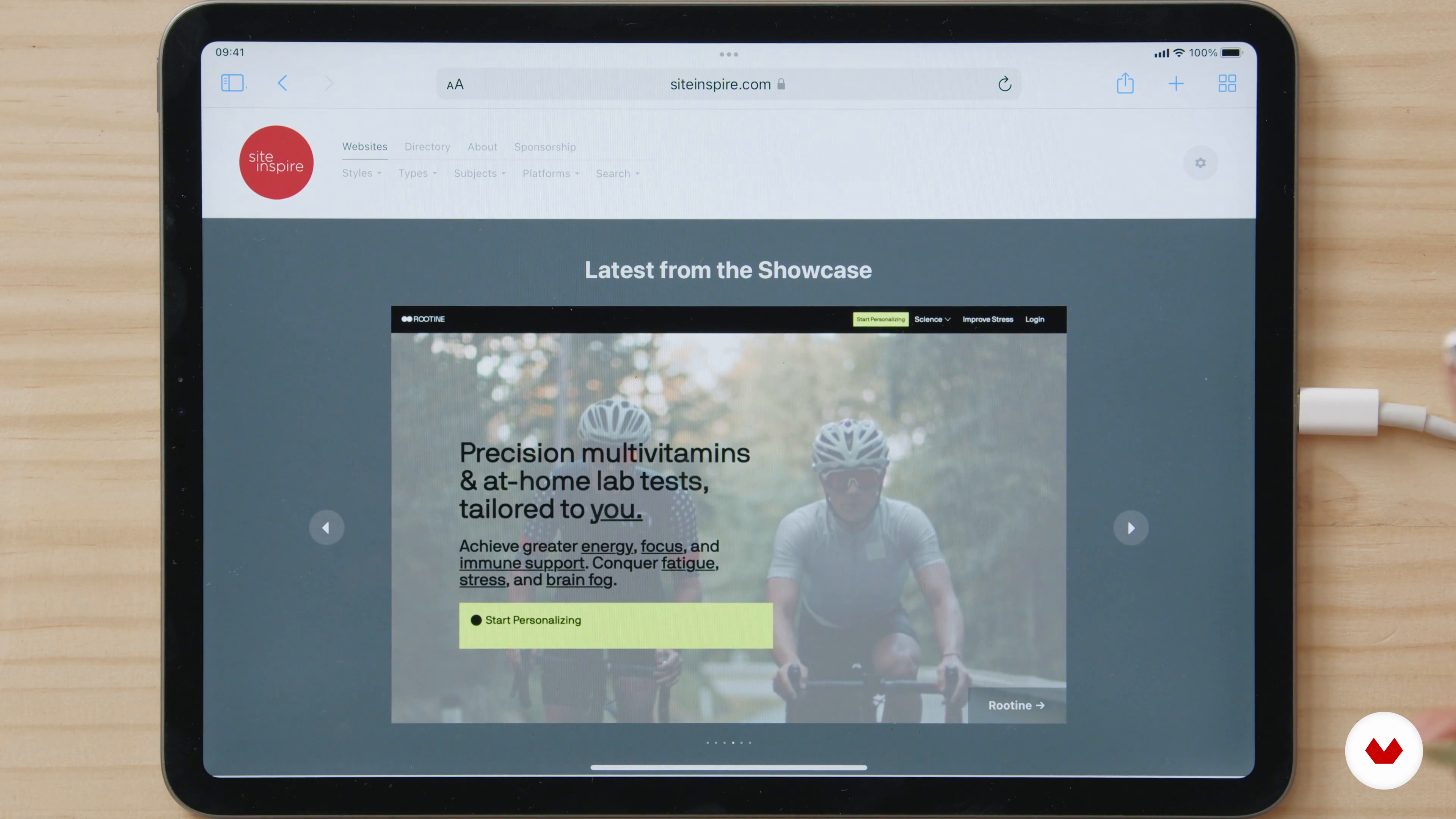
3Visual references: where to look for inspiration
In this lesson I want to tell you how important it is for me to look for visual references that inspire me when developing a web design project. I will also tell you where I find and keep those references to always keep them in mind during the entire site design process.
6m
 4
4Site map and style guide
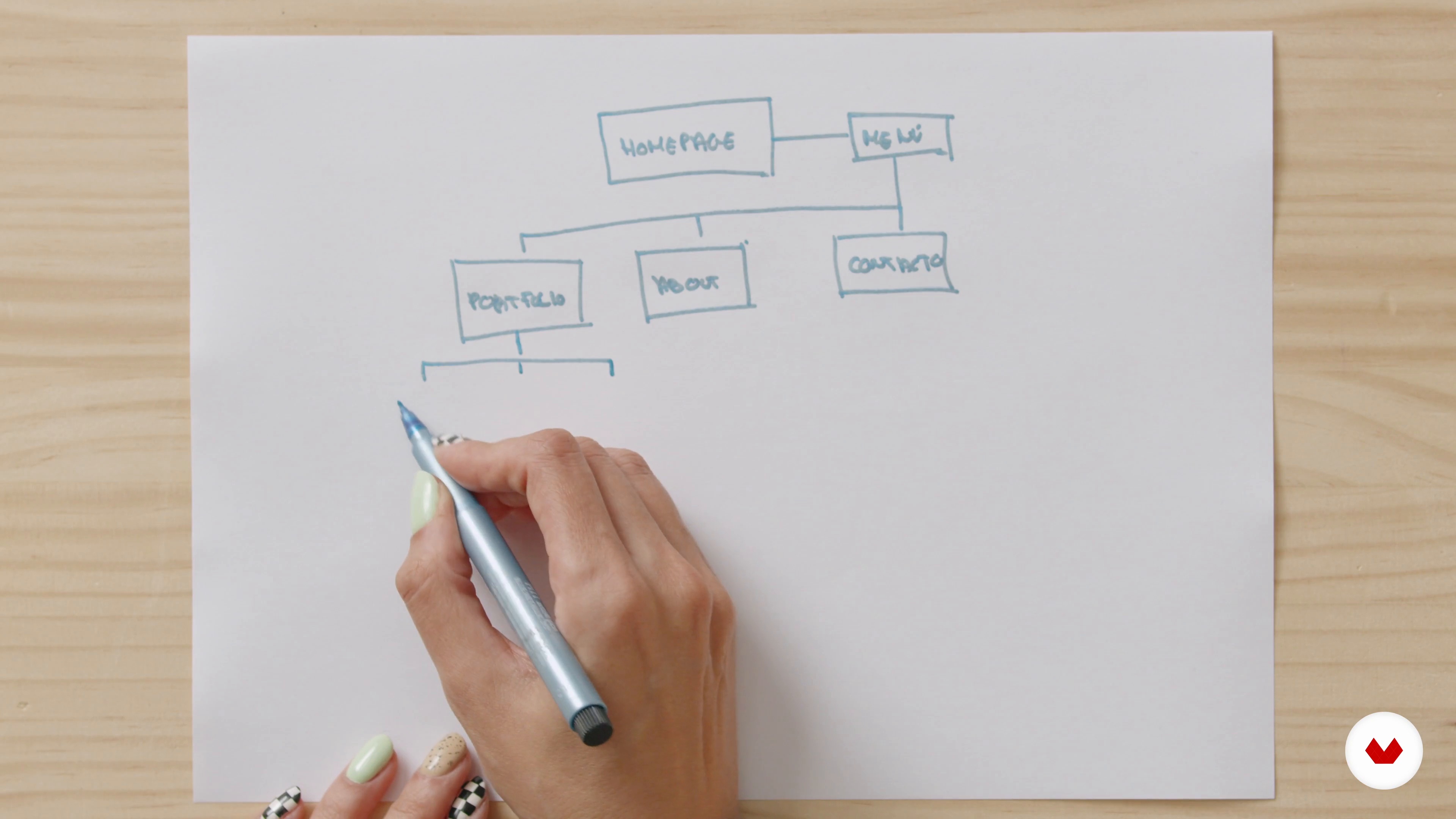
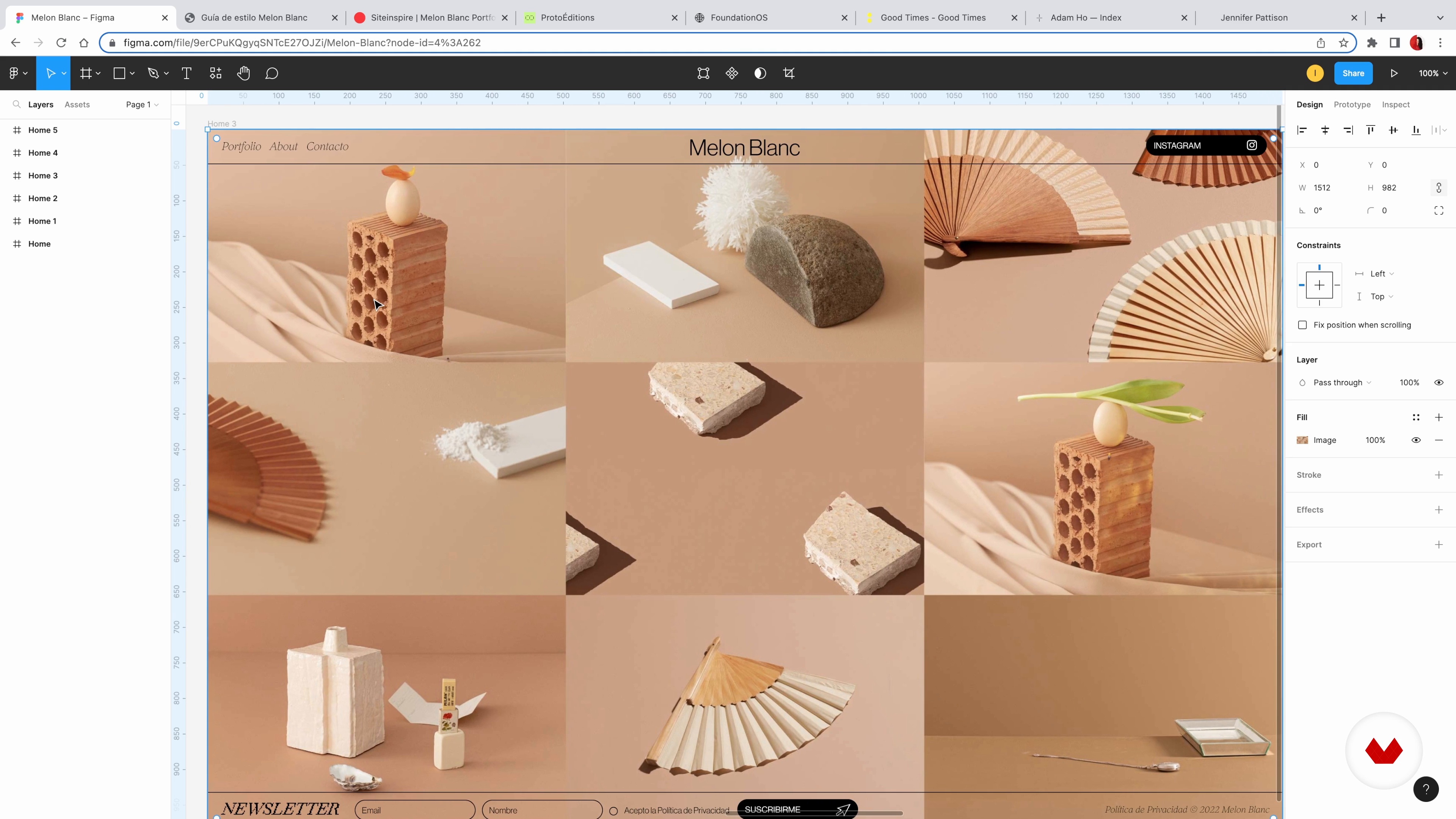
Now I am going to teach you how to trace the route that the user will take once they land on your website, that will give you a clearer idea about which pages you have to design and how they are linked to each other. We will also see how to create a small style guide in which to gather the general elements and styles that we want for the web.
6m
 5
5Preparation of the design proposal 1
Once we have created the entire visual concept of the web, we are going to prepare the design proposal. This is one of the most exciting parts of the process! I'll start by designing the header, footer, and my home page.
16m
 6
6Preparation of the design proposal 2
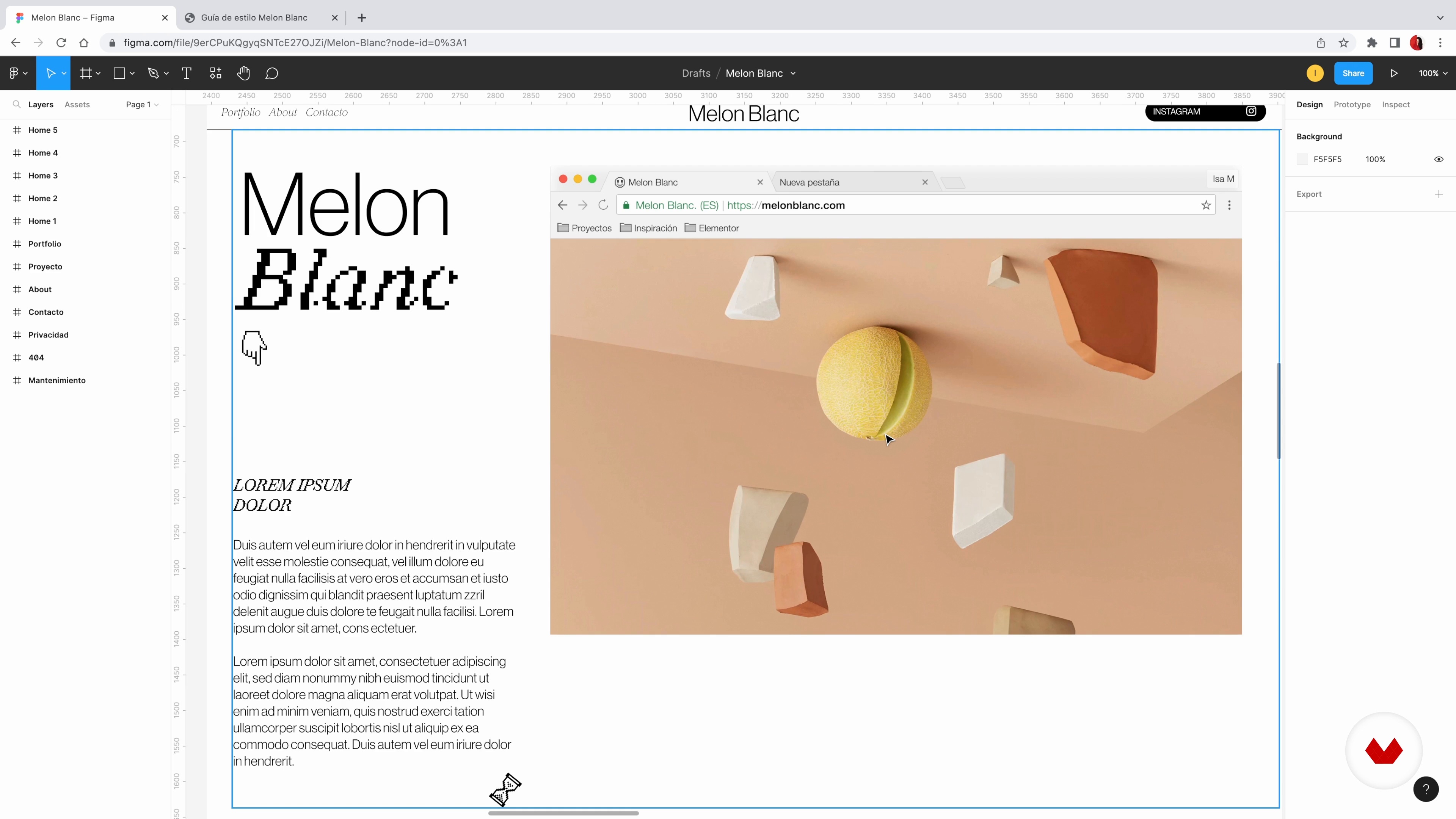
I continue to design in Figma the rest of the sections that I defined in the website map. During this process, remember to keep your references in mind!
10m
 7
7First steps in WordPress
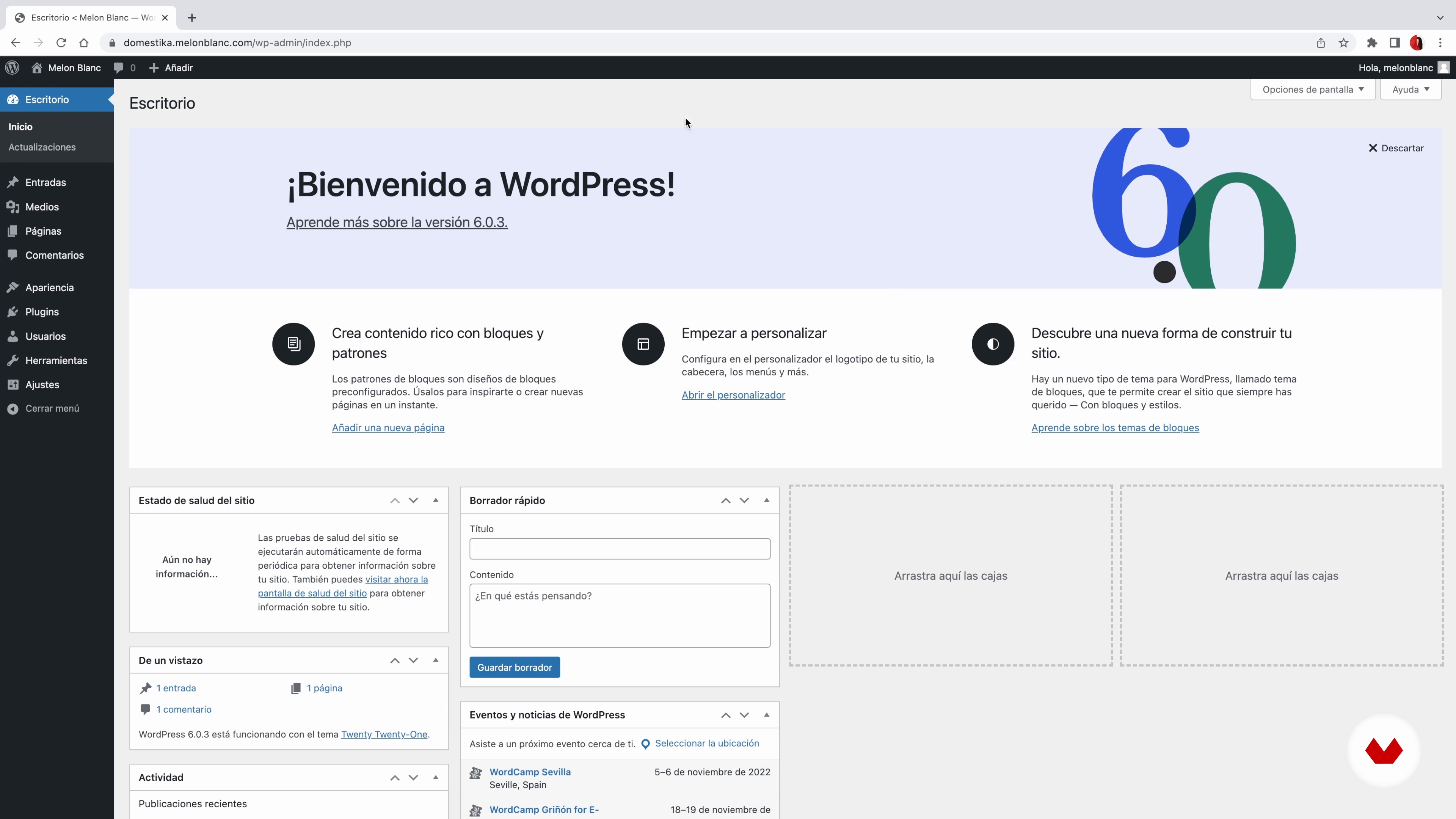
In this lesson I am going to teach you how to install WordPress and what its basic operation is. This way you will be able to familiarize yourself with the full potential of this software.
10m
 8
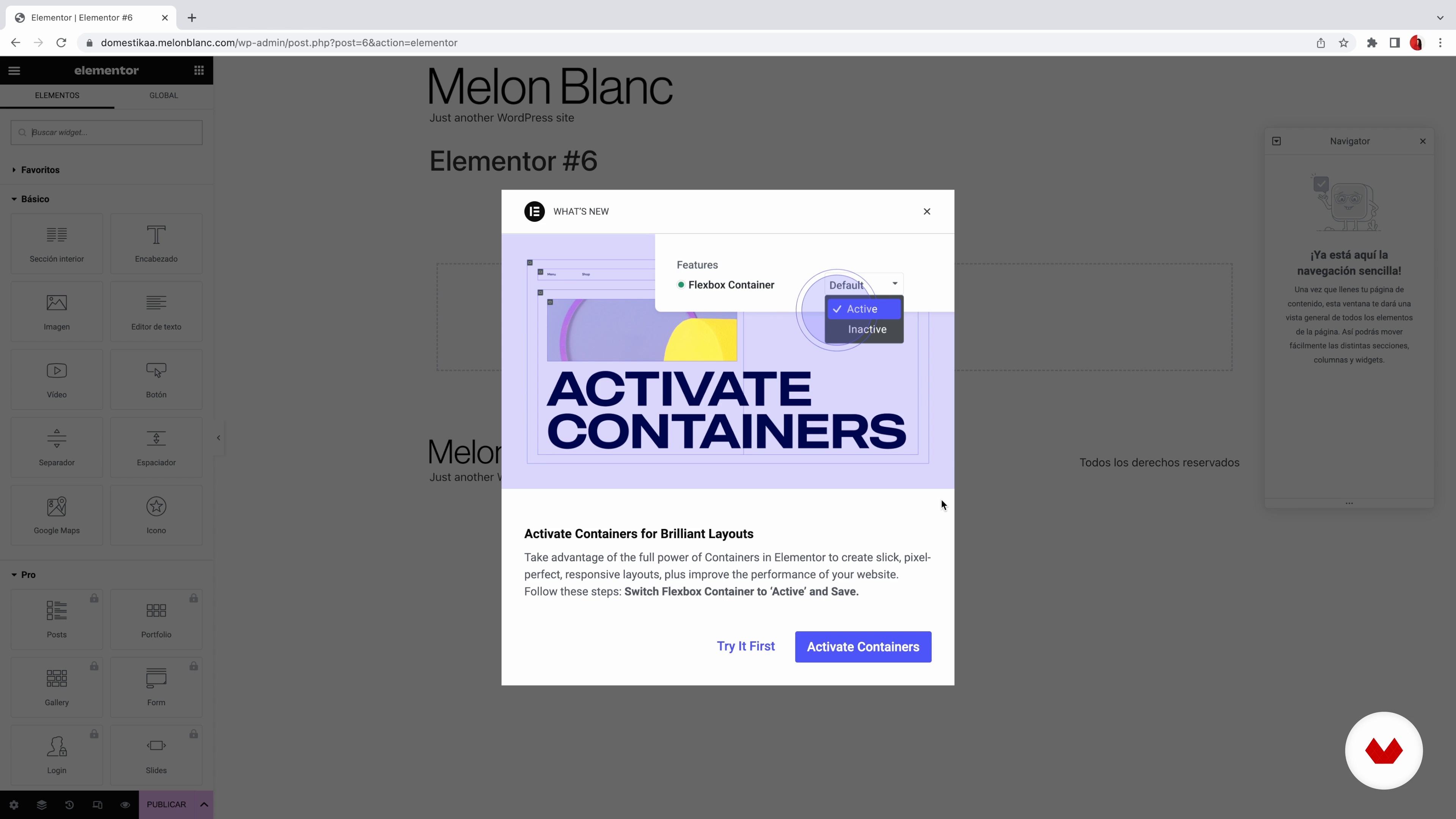
8Install Elementor
Now we are going to install Elementor, which is the tool with which we are going to build all the web design without the need to write a single line of code.
9m
 9
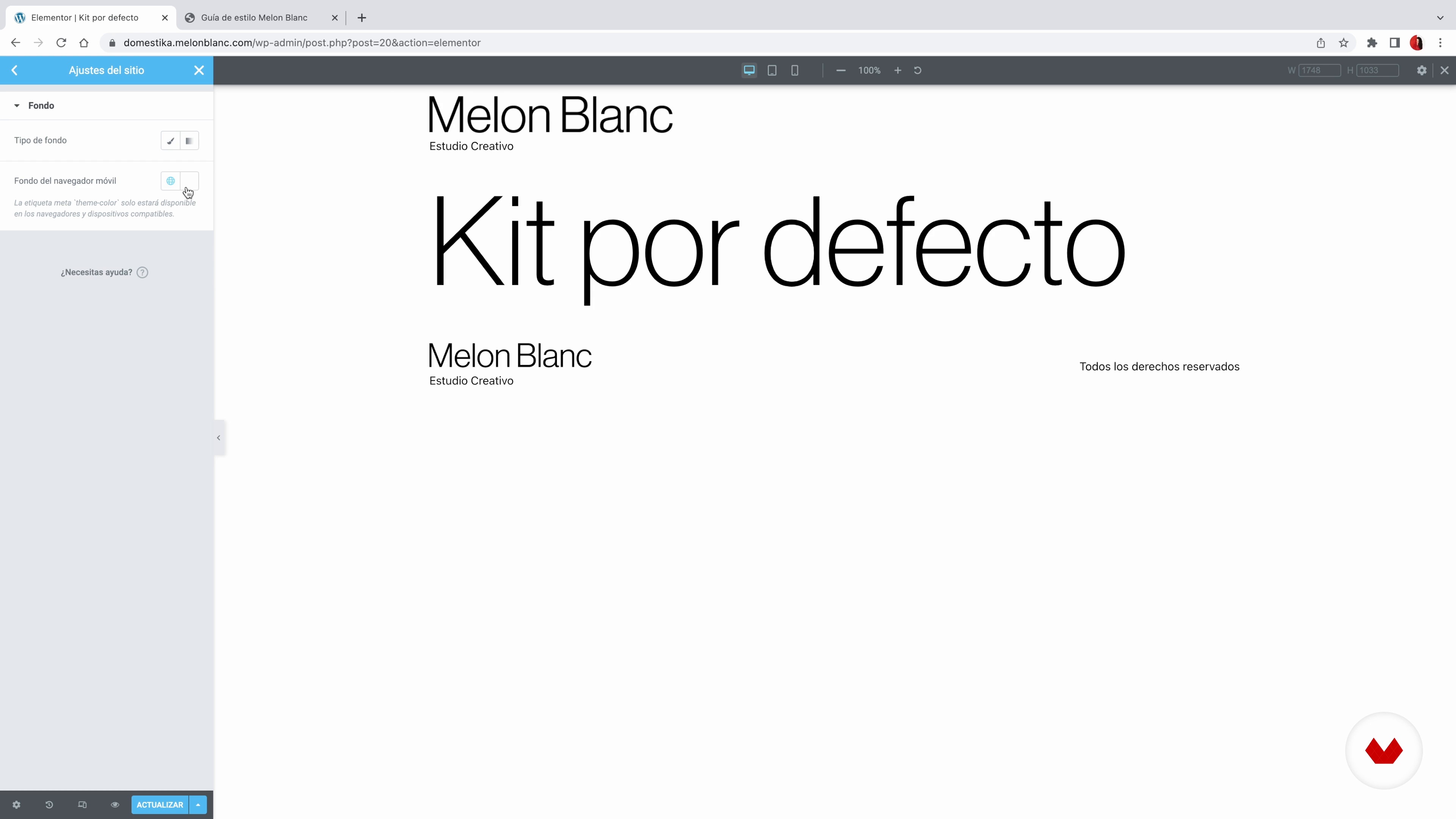
9Knowing Elementor 1
We are going to transfer to Elementor all the elements and general styles that we defined in the style guide. Since we already have everything thought out and defined in our guide, the process will be very easy!
8m
 10
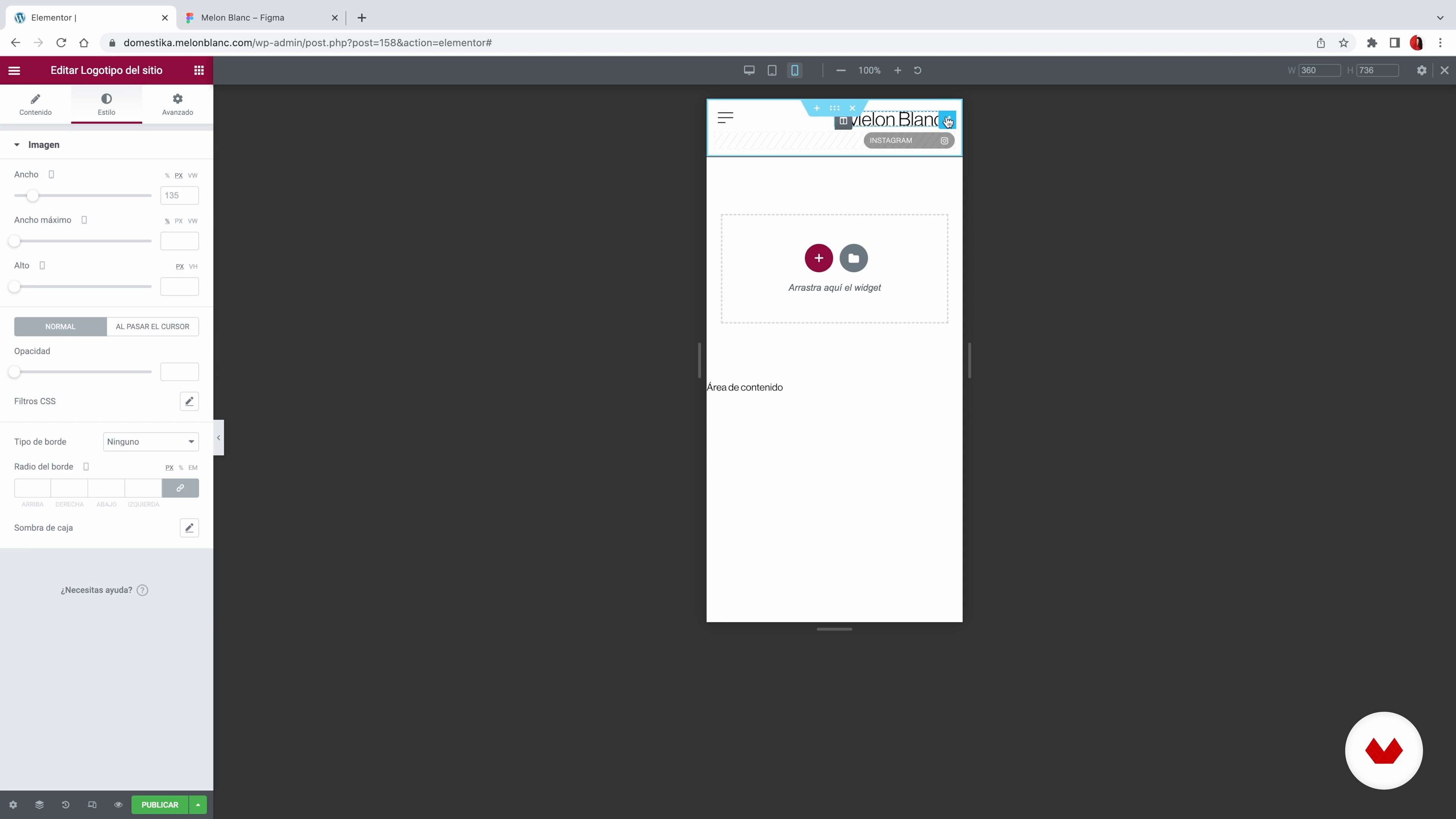
10Knowing Elementor 2
Now I am going to make a brief summary of the configurations that I showed you in the previous video. Afterwards, we will continue configuring and customizing other options such as the font set.
17m
 11
11Header and footer 1
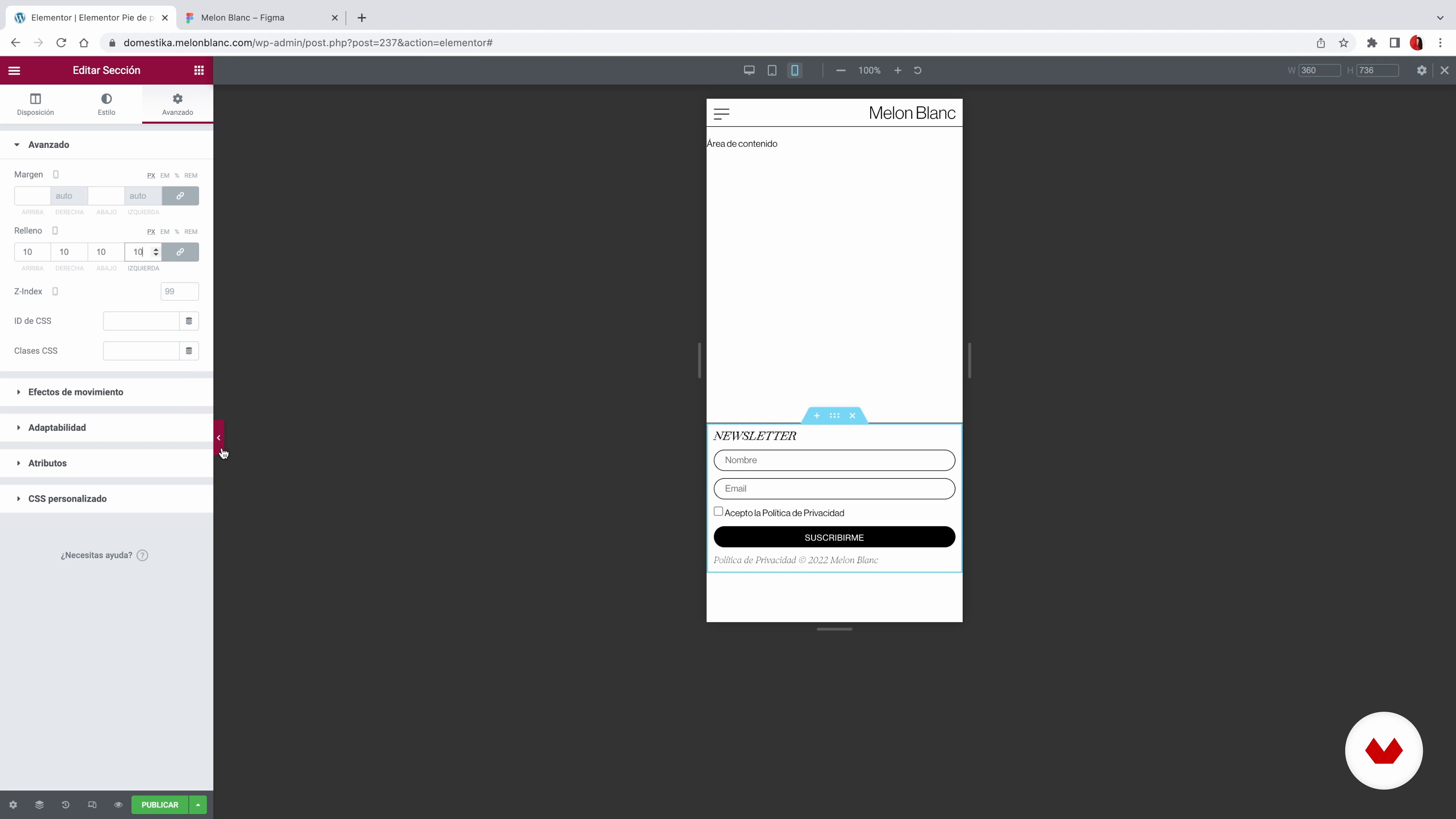
In this lesson I am going to explain what the Elementor theme builder is and why I am such a fan of it. Also, I will teach you how to use it to design the header of your website.
19m
 12
12Header and footer 2
Now I am going to show you how I build the footer of my website with Elementor. Do you see how fast it is to work with this program?
10m
 13
13Homepage
It is time to design the first section of the web. The homepage is probably the first page they will see on your site, so this is where I always like to be most creative and visual.
10m
 14
14Template for projects 1
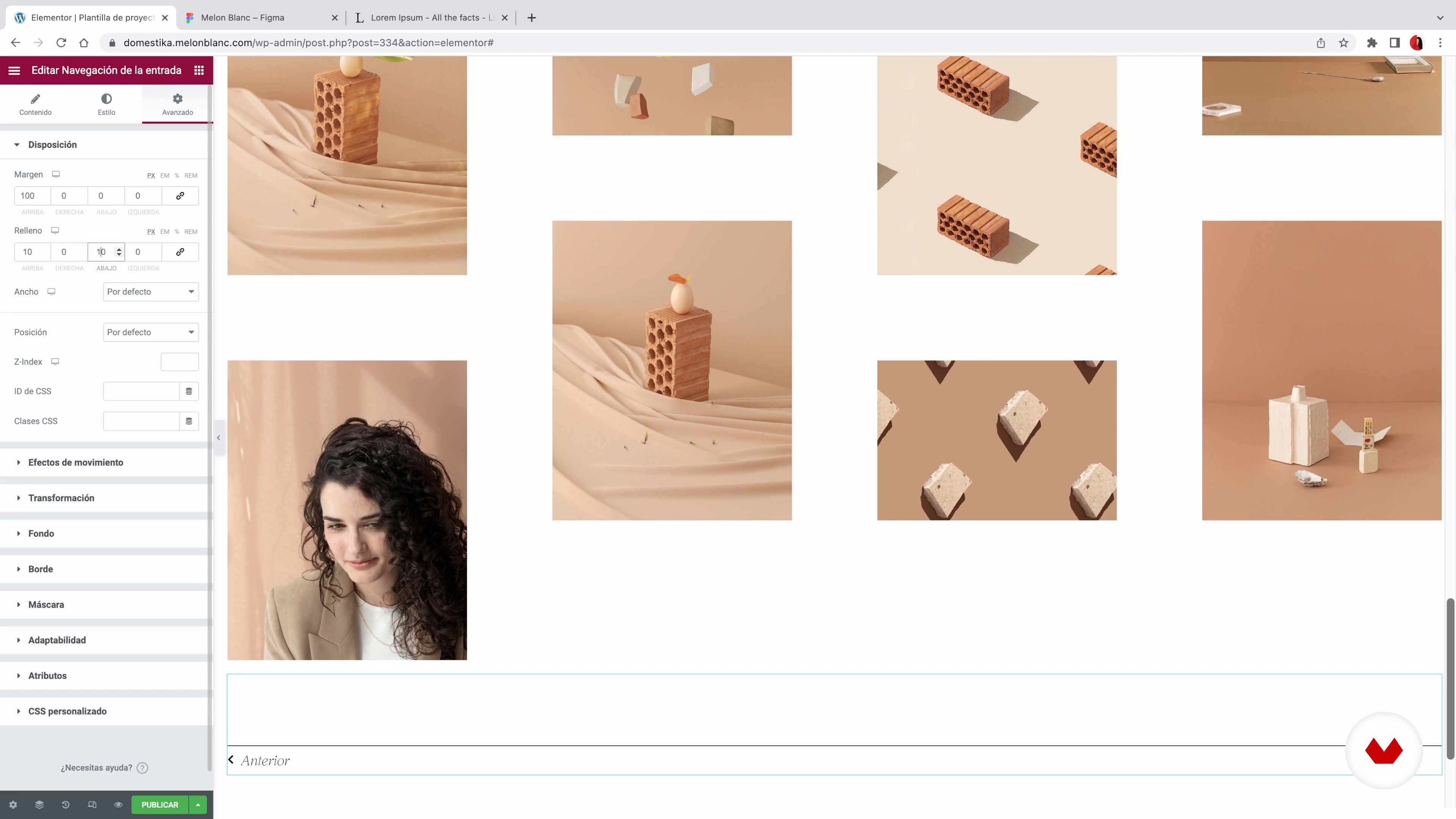
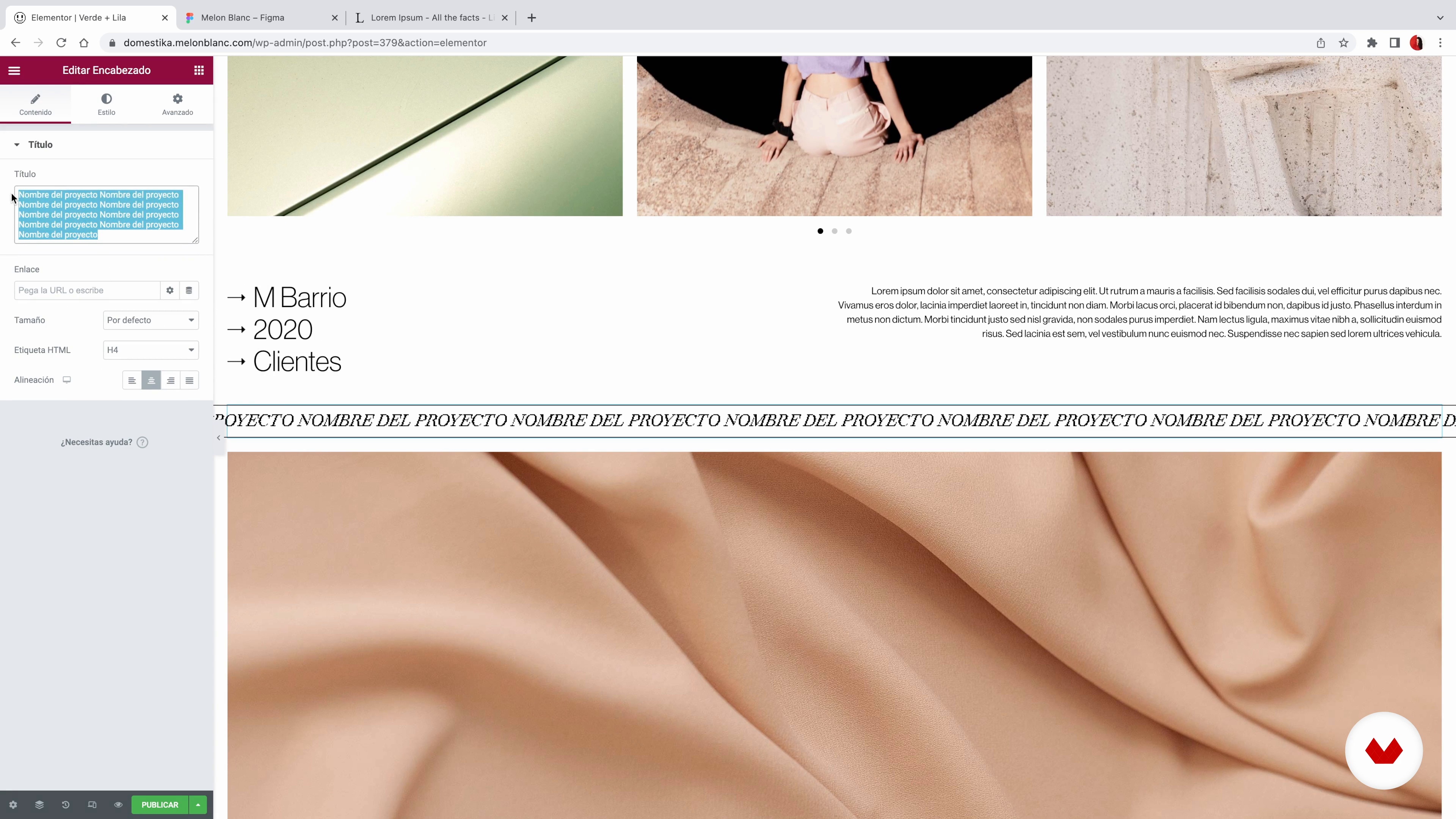
In this lesson we are going to work with Elementor's template options to create the individual project page layout. And, incidentally, I will also include all the projects in my portfolio.
19m
 15
15Template for projects 2
Now I'm going to show you how I get to work with the responsive version of my project template.
10m
 16
16Project archive
The next thing that I am going to teach you how to design is the main page of the portfolio, which is where all the projects that we upload to the web will be archived.
6m
 17
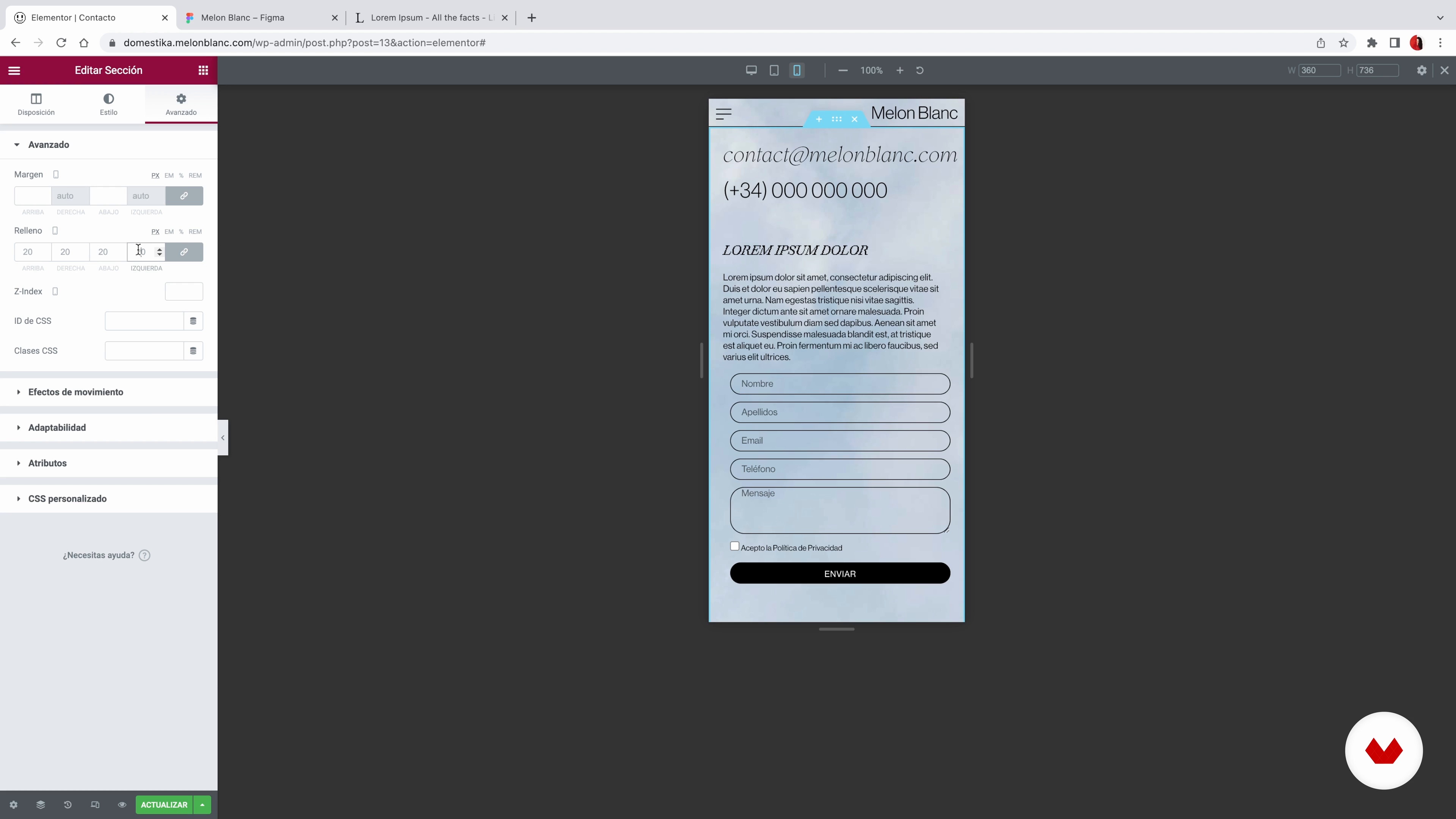
17"About" and "Contact"
Finally, we are going to work on two essential sections on any website: the "About" page and the "Contact" page.
15m
 18
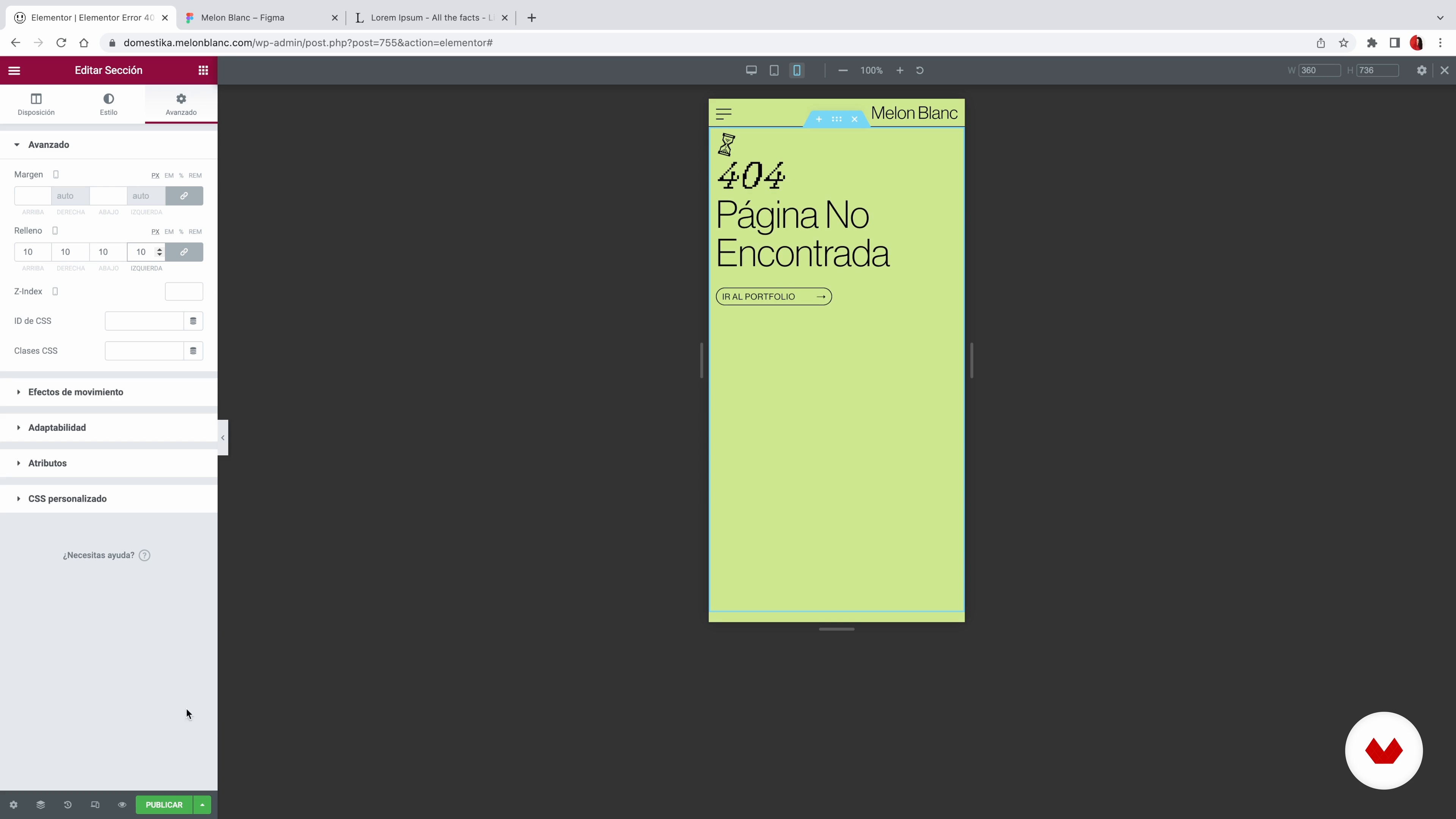
18Secondary pages: privacy, 404 and maintenance
In this lesson I am going to talk about some secondary sections of your site, which are not visible a priori, but are still there. And I will also teach you how to put your website in maintenance mode.
13m
 19
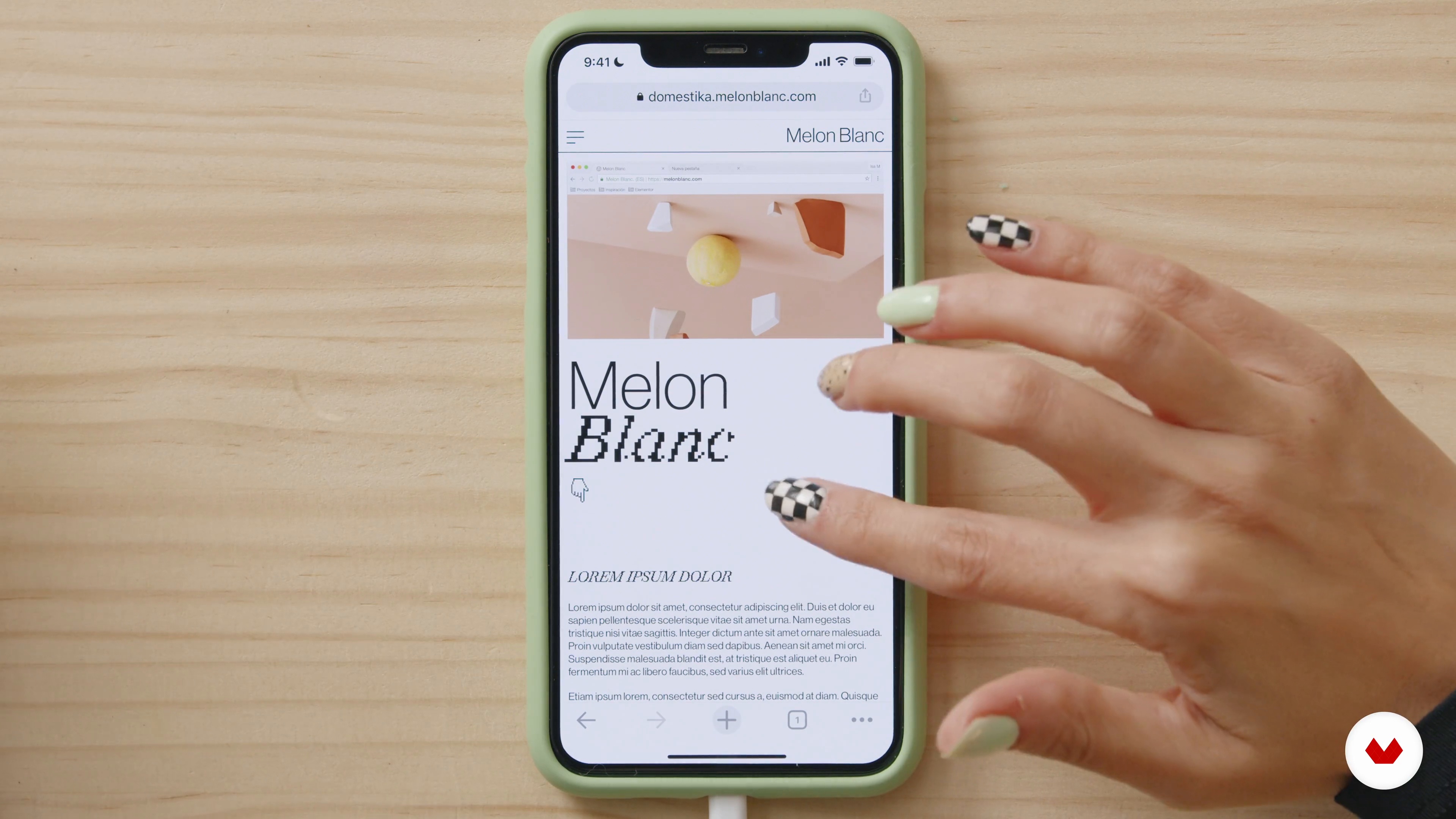
19Test and launch the website
Before launching the web to the world, we are going to test it to verify that everything works and looks as we want. I teach you how to do it!
8m
 20
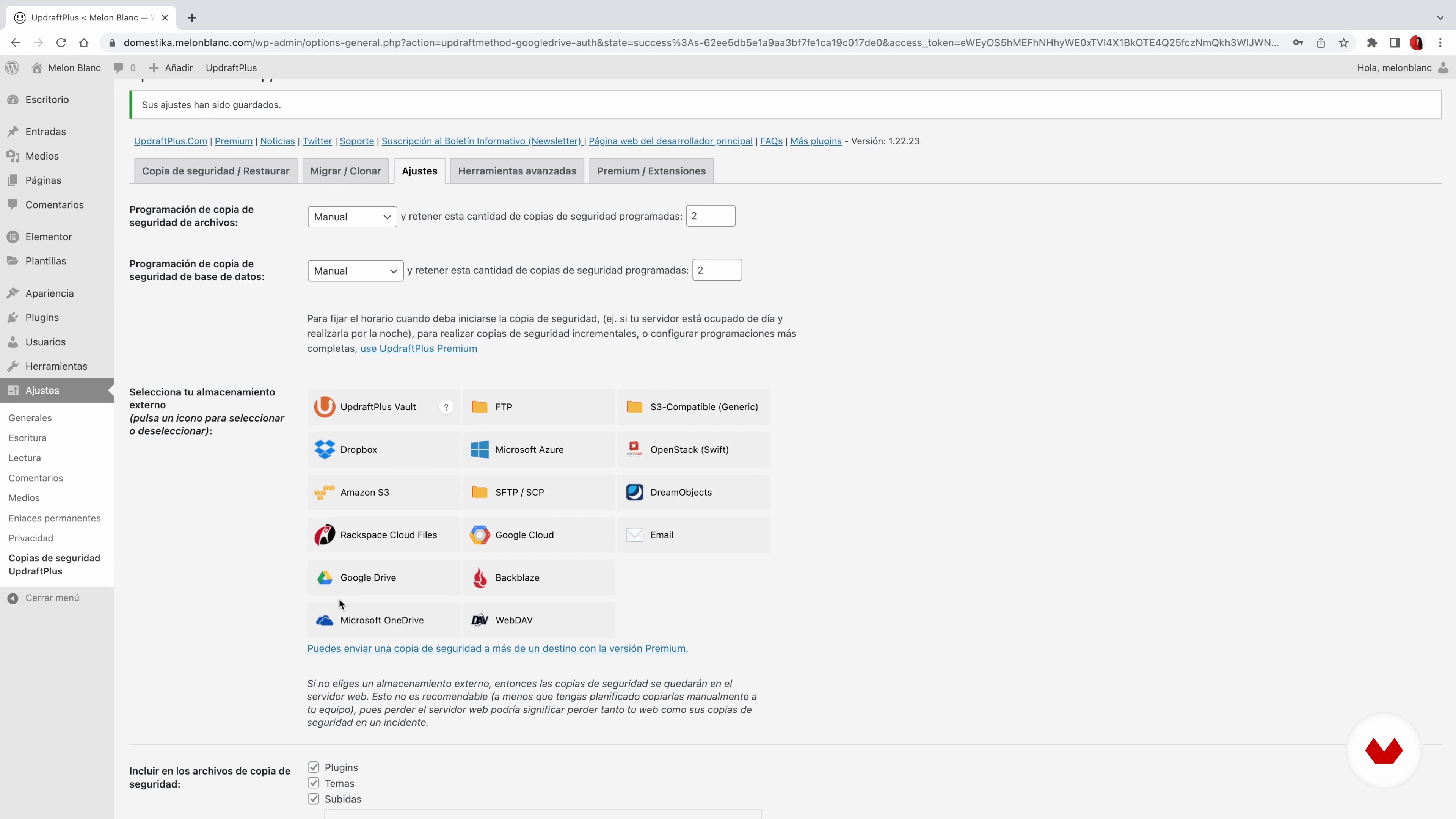
20Site update
In this last lesson I want to show you how important it is to make backups before updating your website.
3m
What is this course's project?
Create a landing page that tells a unique brand story and optimizes user conversion through visual storytelling. Participants will research and design a cohesive narrative, utilizing Figma to gather elements and bring the landing page to life.
Who is this specialization for?
This online course is ideal for designers and entrepreneurs eager to create professional websites without programming knowledge. Perfect for those wanting to master no-code tools and methodologies to develop impactful digital experiences and enhance their web design skills.
Requirements and materials
No extensive prior knowledge is required, but familiarity with digital tools enhances the experience. Access to a computer, internet connection, and basic understanding of design concepts like UX/UI and design systems are beneficial. Enthusiasm for web design is a plus.
Reviews
- 2 months ago
Very good! This specialization is one of the best I’ve done in Domestika. It really touches the various parts of no code web design. The part about design systems in Figma was specifically useful and insightful.
Select to get to know your teachers in this specialization course


What to expect from this specialization course
Learn at your own pace
Enjoy learning from home without a set schedule and with an easy-to-follow method. You set your own pace.
Learn from the best professionals
Learn valuable methods and techniques explained by top experts in the creative sector.
Meet expert teachers
Each expert teaches what they do best, with clear guidelines, true passion, and professional insight in every lesson.
Certificates
PLUSIf you're a Plus member, get a custom certificate for every specialization course. Share it on your portfolio, social media, or wherever you like.
Get front-row seats
Videos of the highest quality, so you don't miss a single detail. With unlimited access, you can watch them as many times as you need to perfect your technique.
Share knowledge and ideas
Ask questions, request feedback, or offer solutions. Share your learning experience with other students in the community who are as passionate about creativity as you are.
Connect with a global creative community
The community is home to millions of people from around the world who are curious and passionate about exploring and expressing their creativity.
Watch professionally produced courses
Domestika curates its teacher roster and produces every course in-house to ensure a high-quality online learning experience.
FAQs
Yes, this course is designed for intermediate-level designers who want to deepen their skills in Webflow, Figma, and modern web design techniques, including responsive layouts, animation, and workflow automation.
You’ll need access to Webflow, Figma, and a web browser like Chrome. Familiarity with basic web design concepts will help you get the most from the course.
You’ll learn advanced color, typography, and gradient techniques, how to structure responsive layouts, animate web elements, automate workflows, and build scalable design systems using Webflow and Figma.
Yes, the course includes step-by-step guidance on translating Figma layouts into fully responsive Webflow websites.
The course teaches you to design and implement subtle hover states, revealing animations, and microinteractions using Webflow’s visual tools.
Yes, you’ll discover how to automate tasks, such as sending Webflow form data to Google Sheets and integrating with third-party tools like Zapier.
You’ll learn to extract, catalog, and standardize design elements, create style guides, and manage reusable classes to ensure consistency and scalability in your projects.