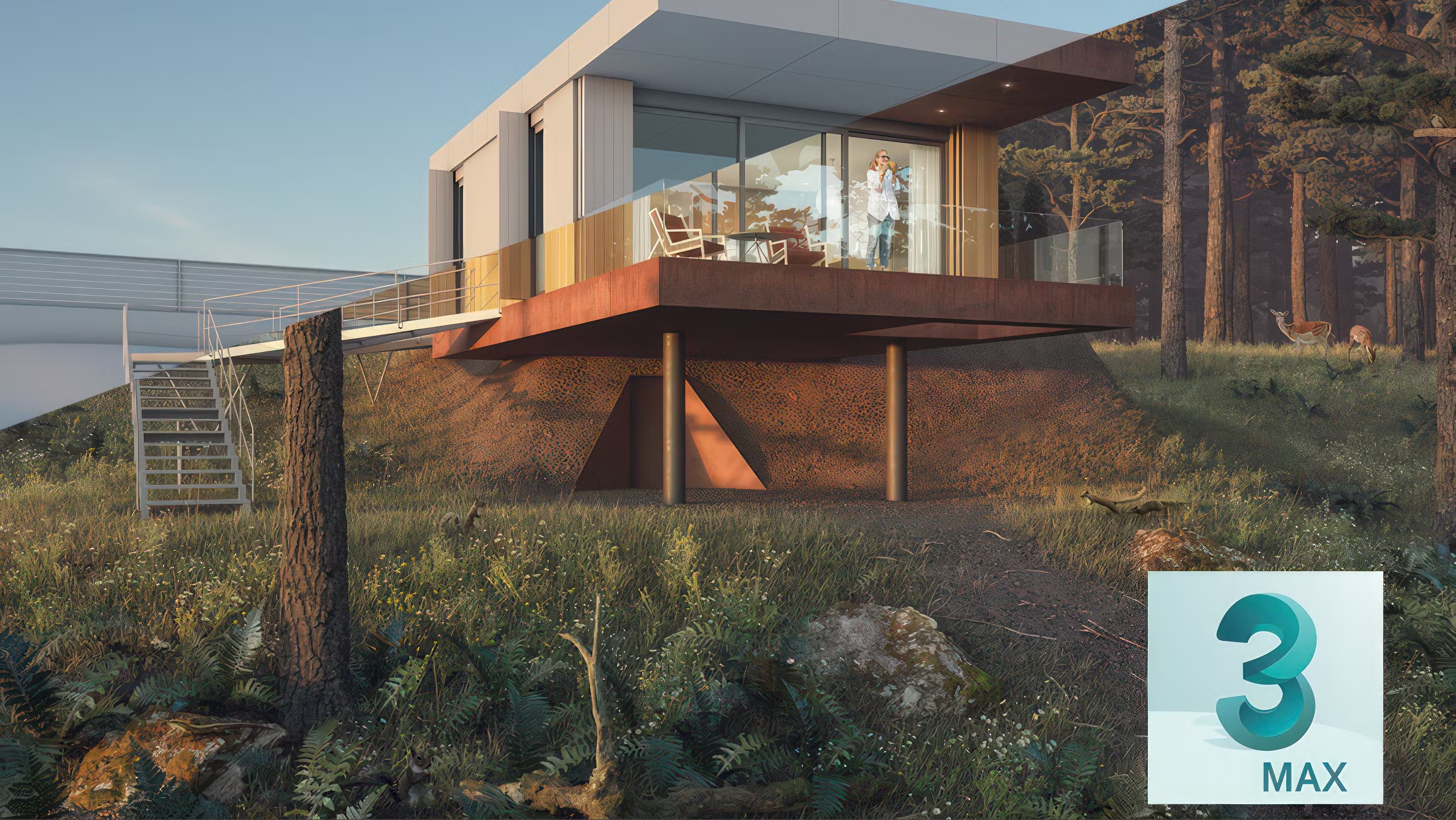


Specialization

3D Architectural Visualization Specialization

Master ArchViz techniques with parametric design, 3D modeling, photorealistic rendering, and animation for stunning architectural presentations

Specialization · 6 modules

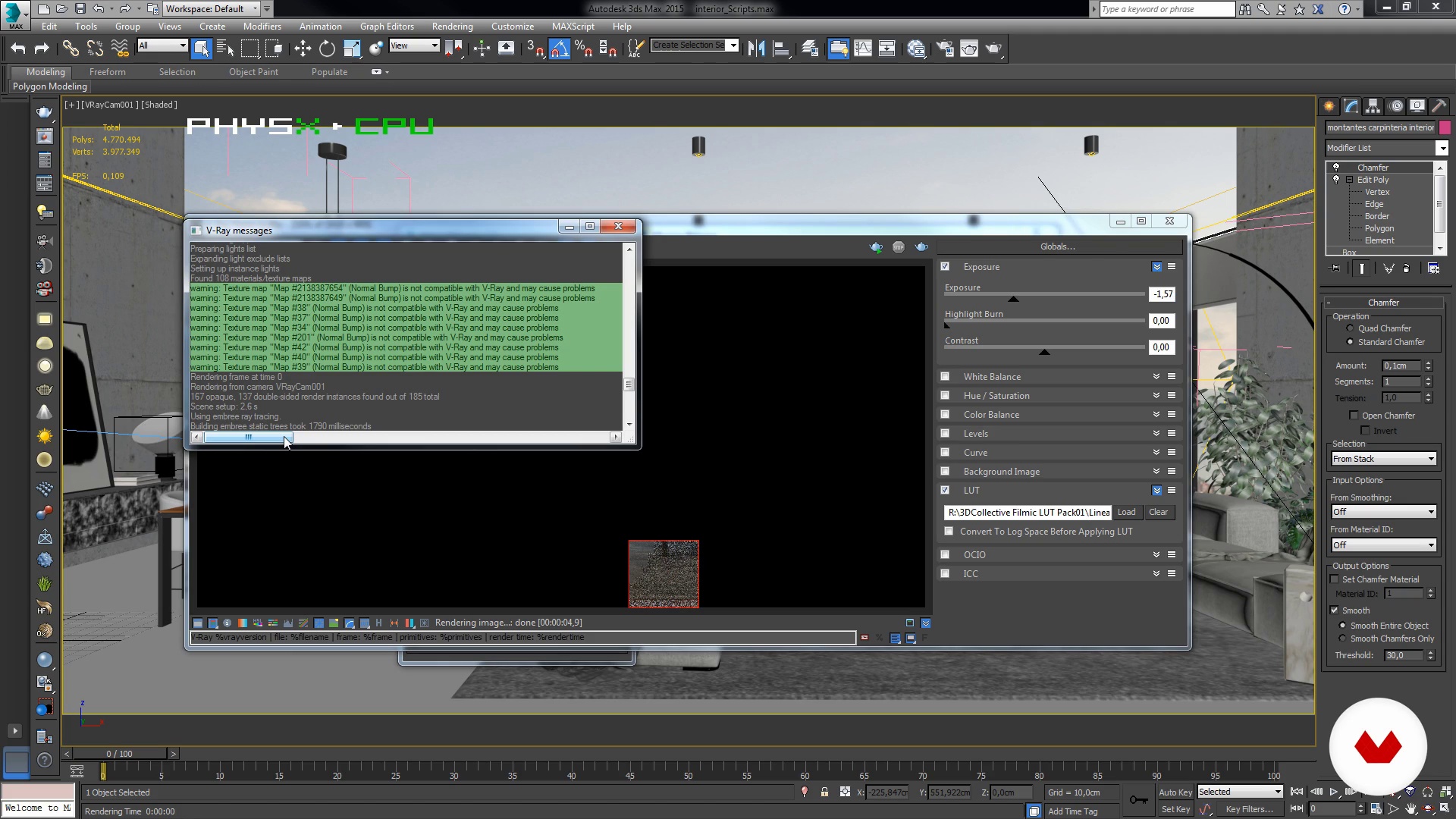
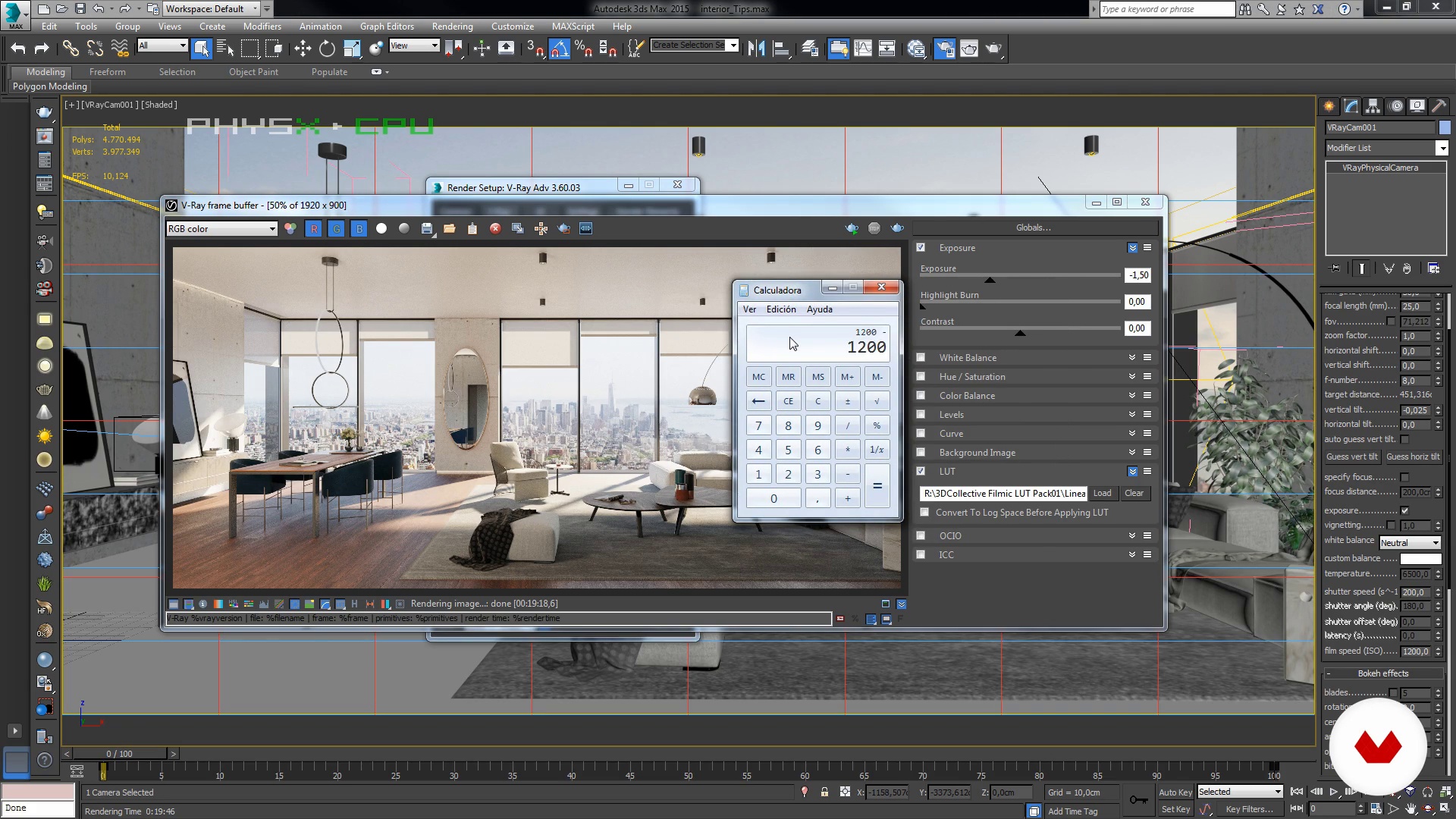
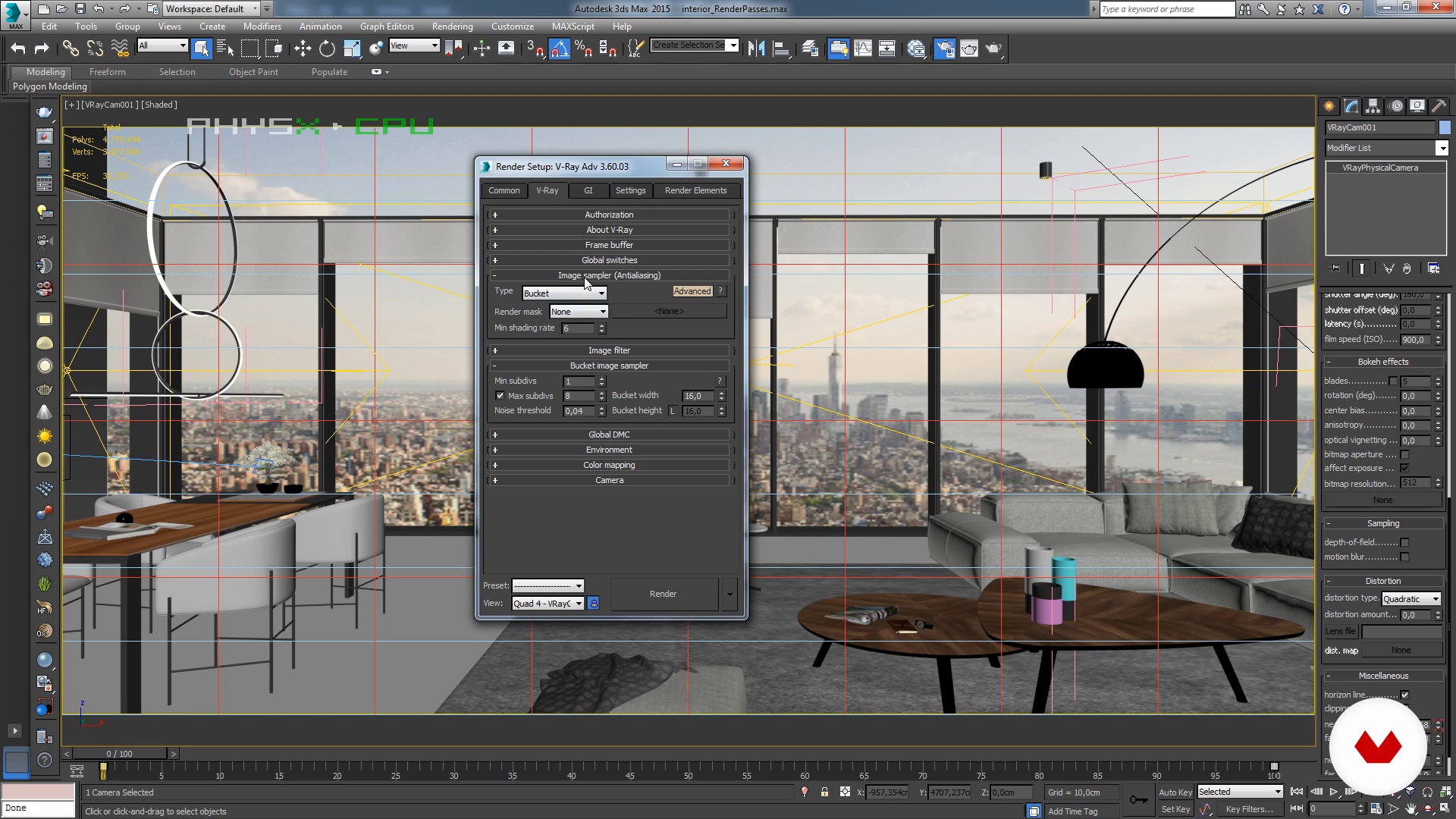
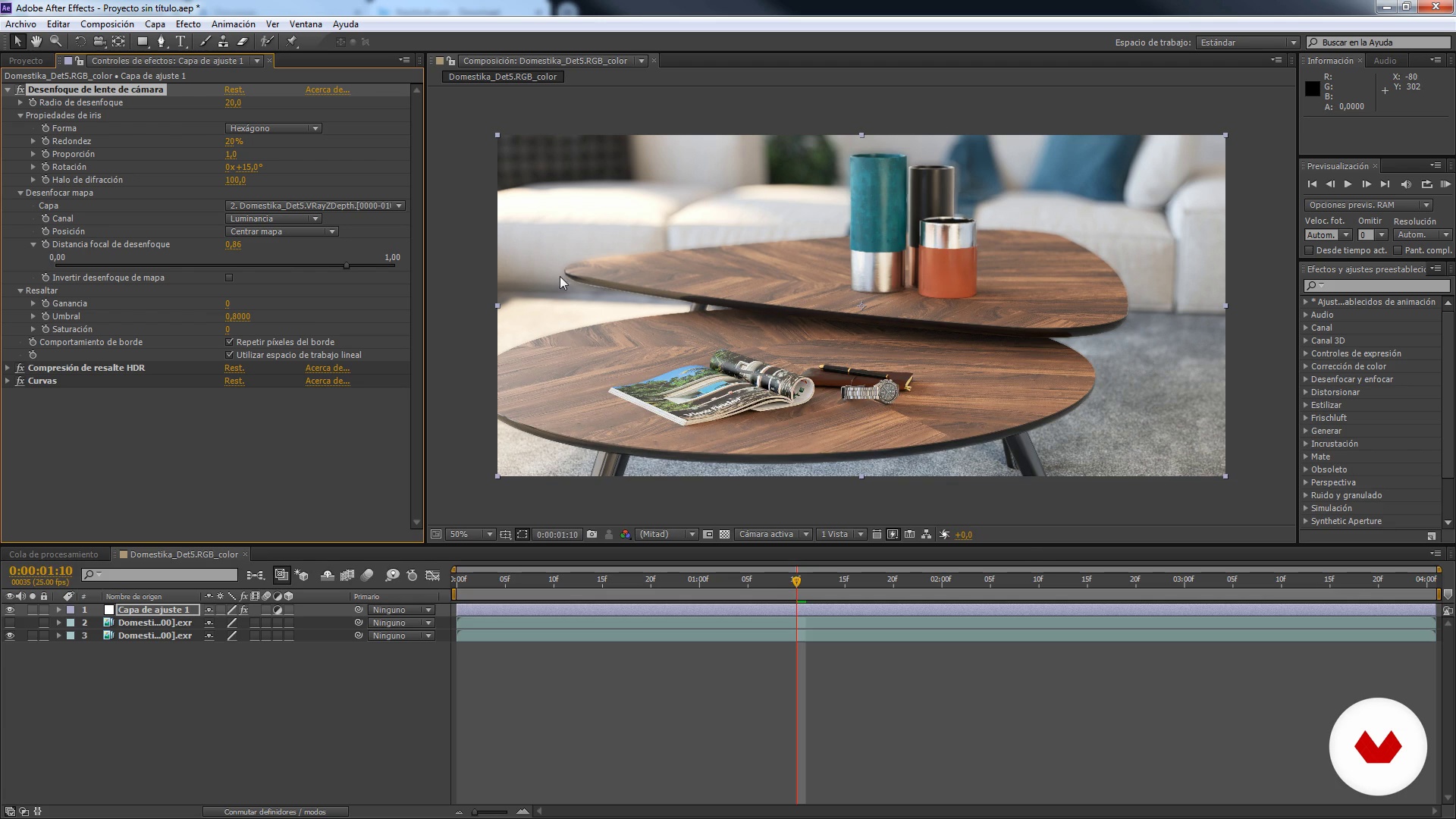
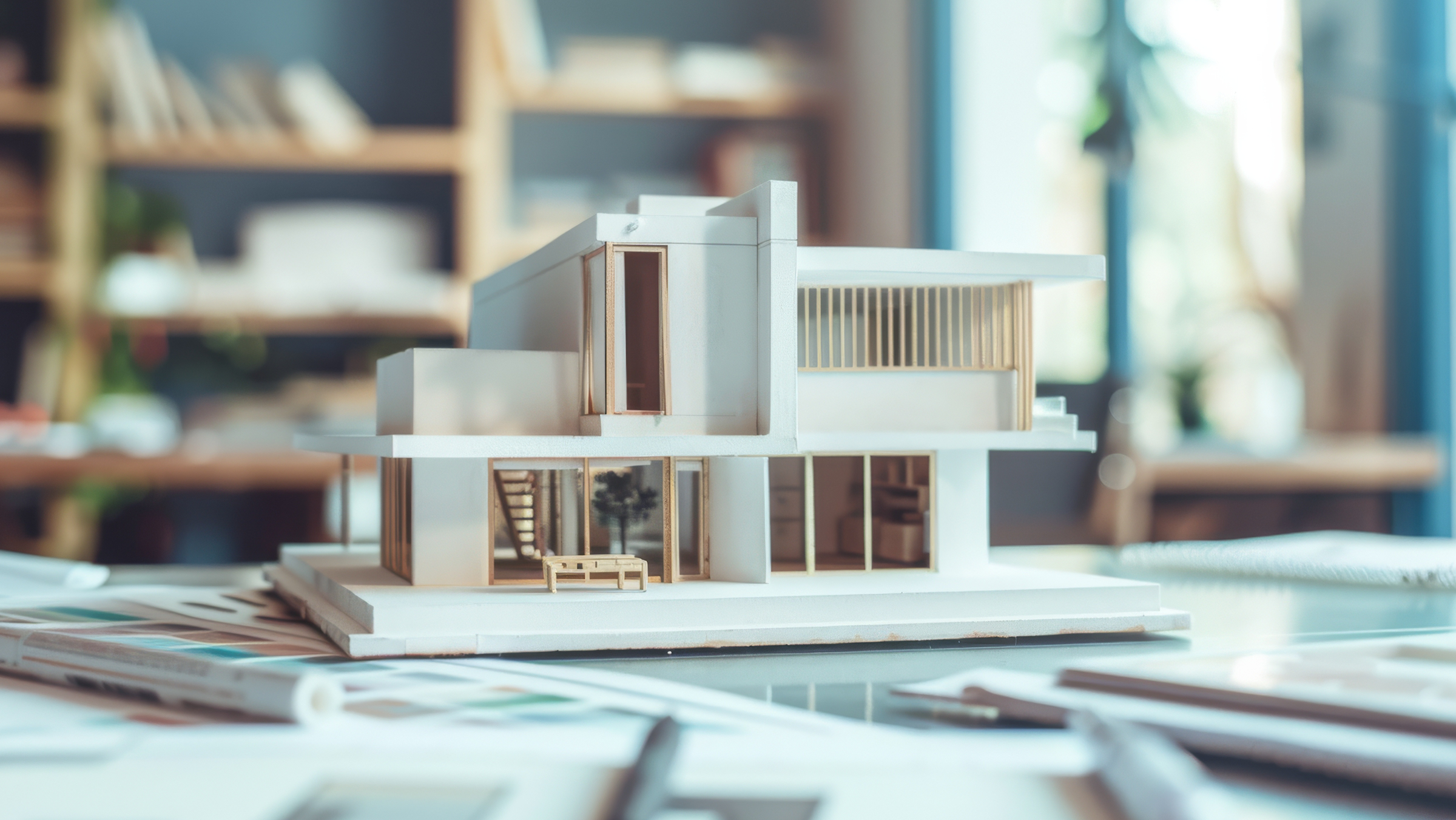
Discover the transformative world of 3D architectural visualization with this comprehensive specialization designed for architects, designers, and 3D artists. Dive into the essentials of ArchViz, from the foundational principles of parametric design to advanced animation techniques. This journey will lead you through a range of tools and methodologies, equipping you with the skills to create visualizations that not only depict spaces but also tell compelling and commercially successful architectural stories.

Embark on a learning experience across different software platforms guided by industry experts BIM it, María Alarcón, Milan Stevanović, Sonny Holmberg, and AMO 3D Visual. Gain mastery in technical modeling with Revit, produce photorealistic renders using SketchUp and V-Ray, and craft detailed interior scenes with 3ds Max. Elevate your presentations with visual storytelling techniques and dynamic 3D animations. By the end of this specialization, you'll have the expertise to transform architectural concepts into extraordinary visual experiences, ready to lead projects in architecture studios or as an independent freelancer.

Read more ↓

What will you learn in this specialization?
A total of 6 modules and 92 lessons
A total of 17h 57m of vídeo lessons
Taught by 5 selected expert teachers
image
3
Building Conditions
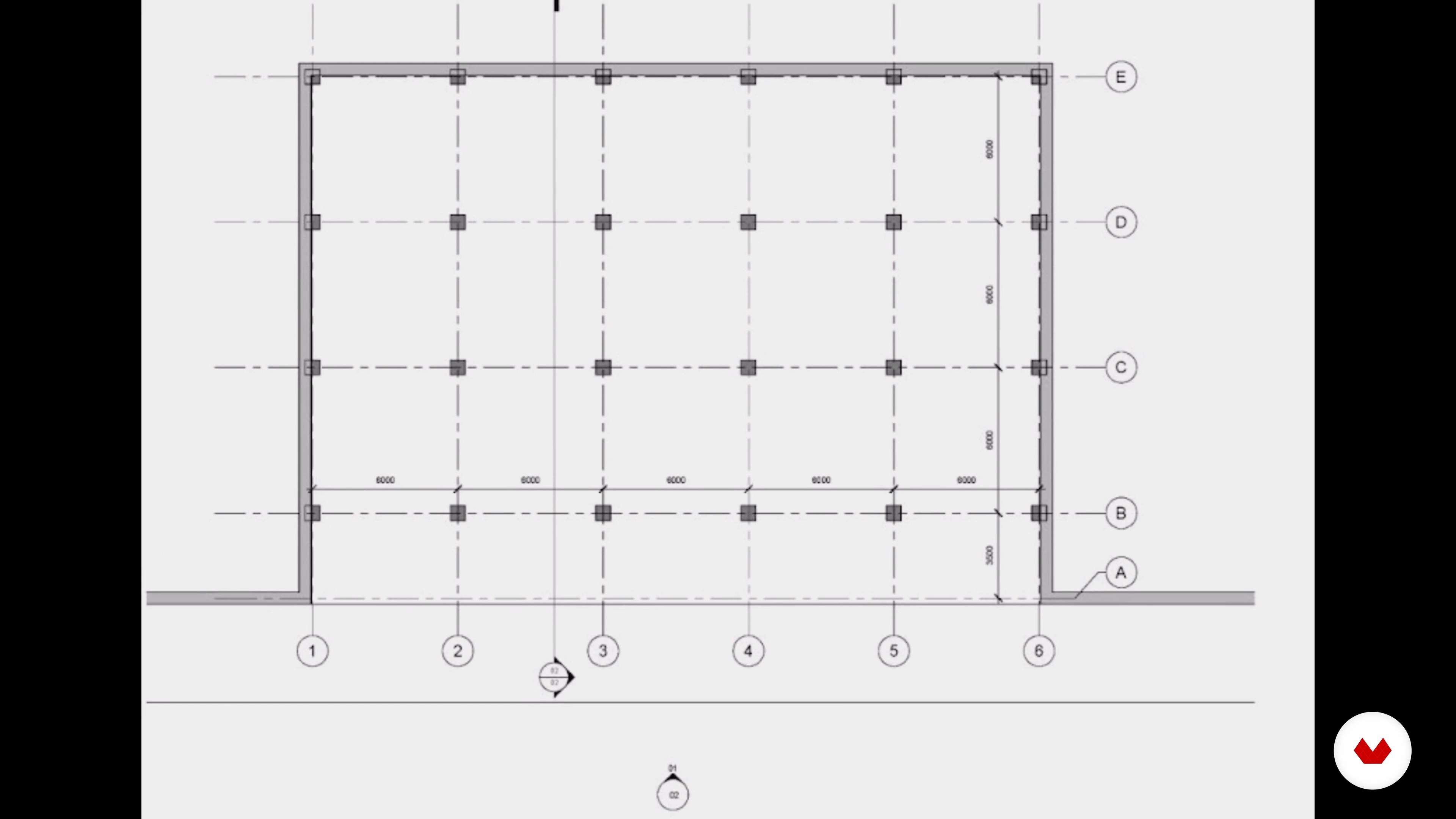
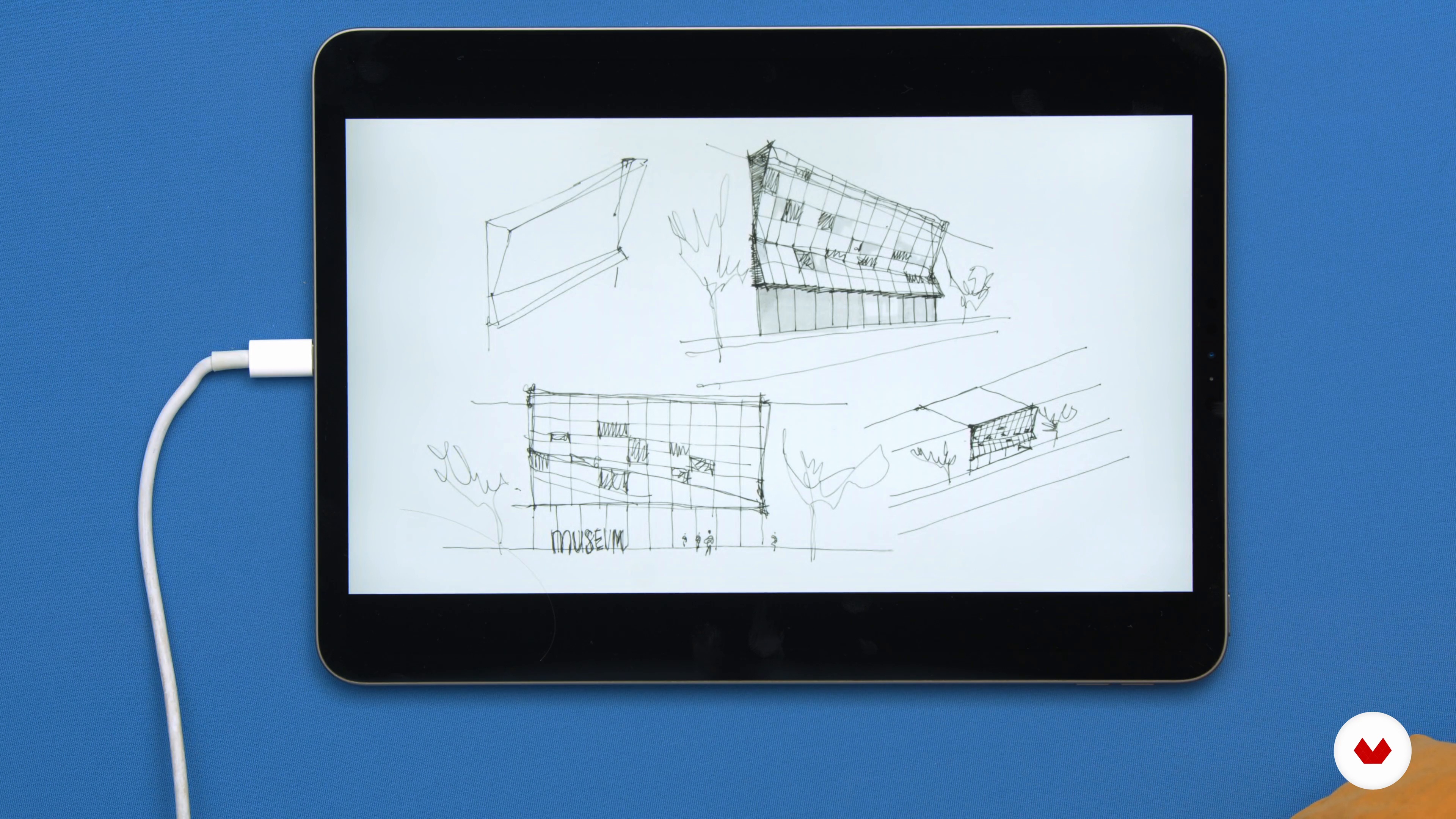
Let us first show you the building that we will be using throughout the course to design some facade options for it. You can download the model we prepared for you, or you can use your own!
2m
image
4
Analyzing Options
Now, we will take a look at our design proposals from a modeling perspective. You will have an initial idea of how to approach them, always keeping in mind the purpose of the model and its flexibility, so they can evolve easily.
3m
image
5
Extrusions 1
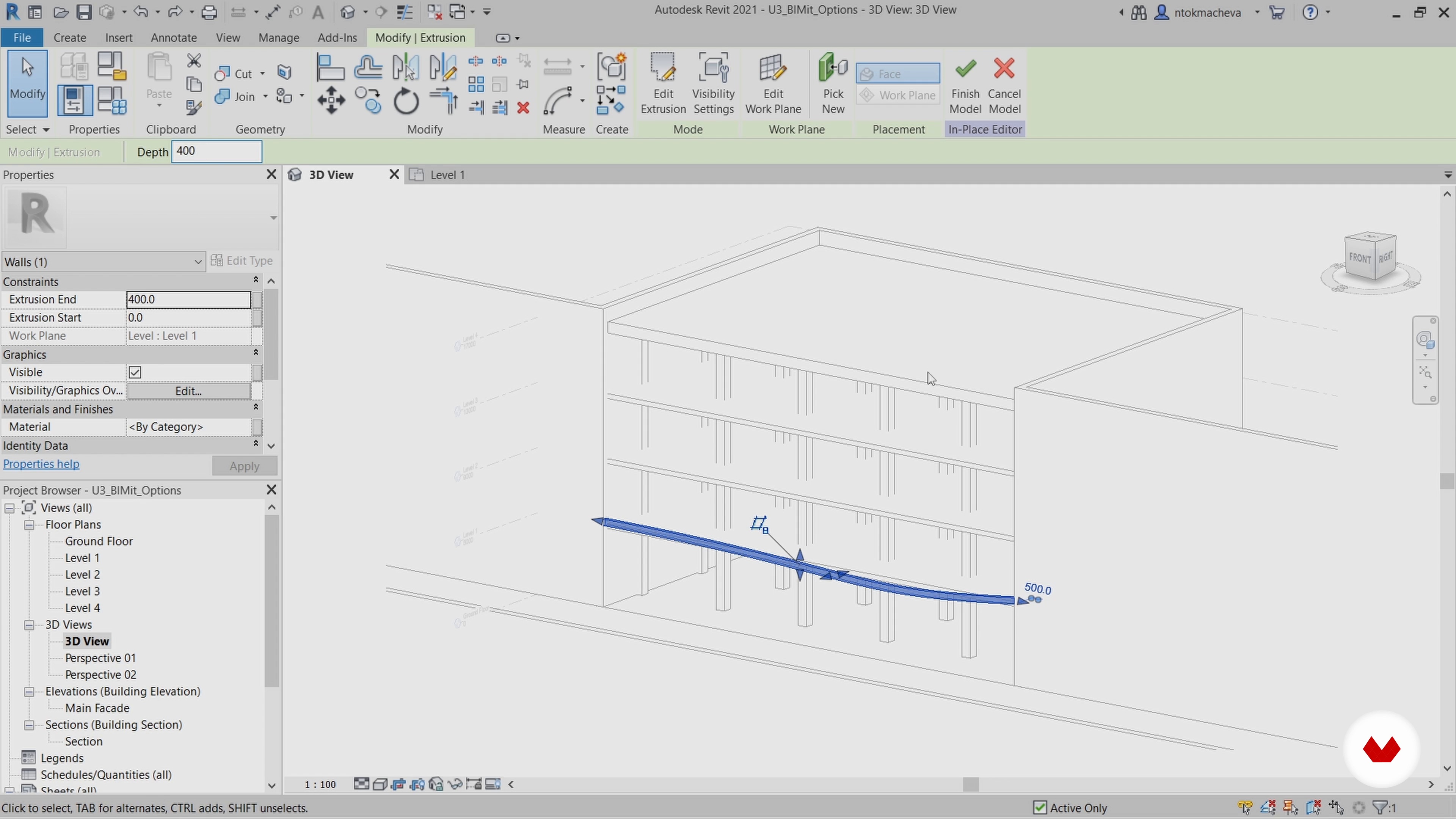
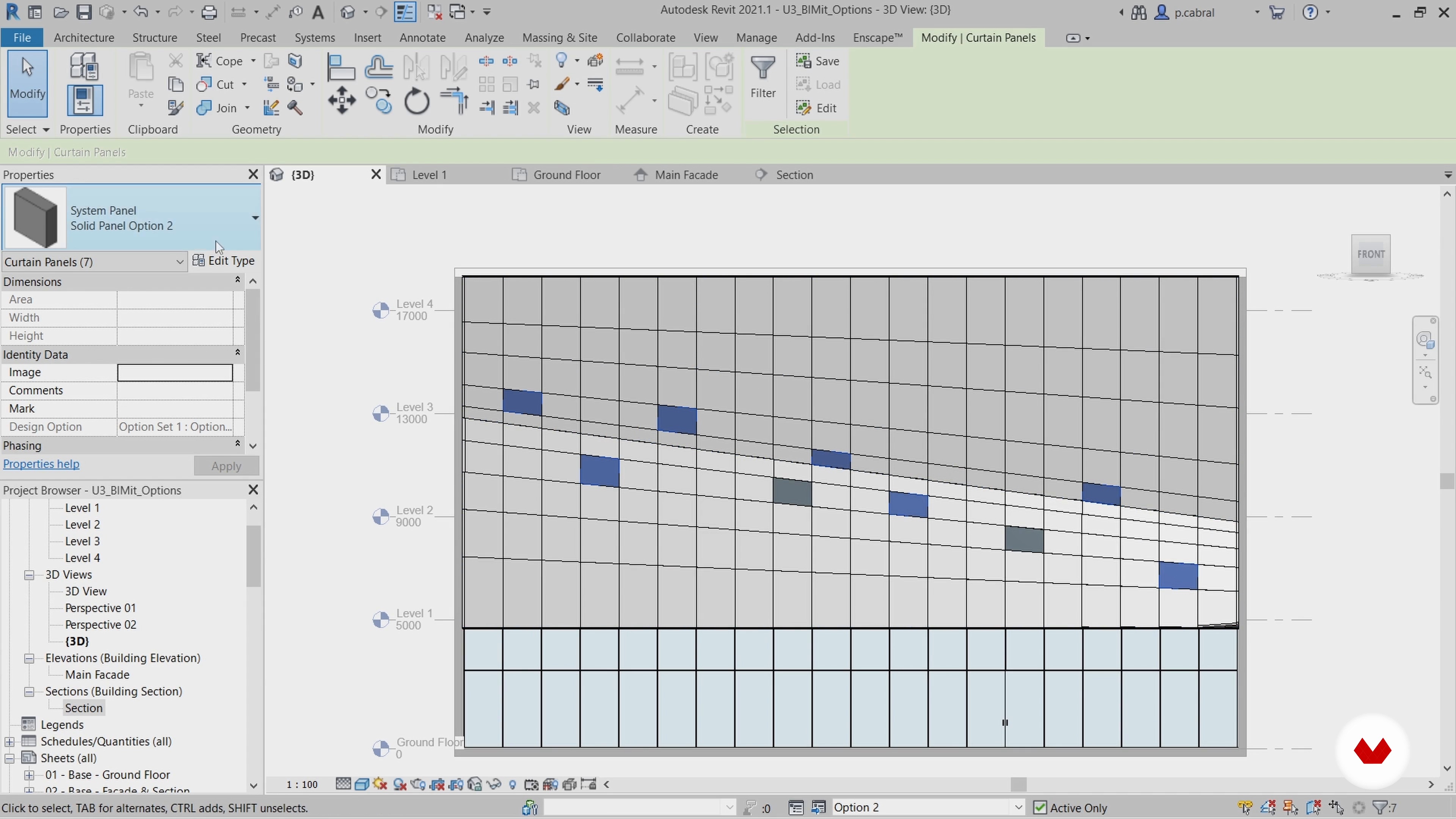
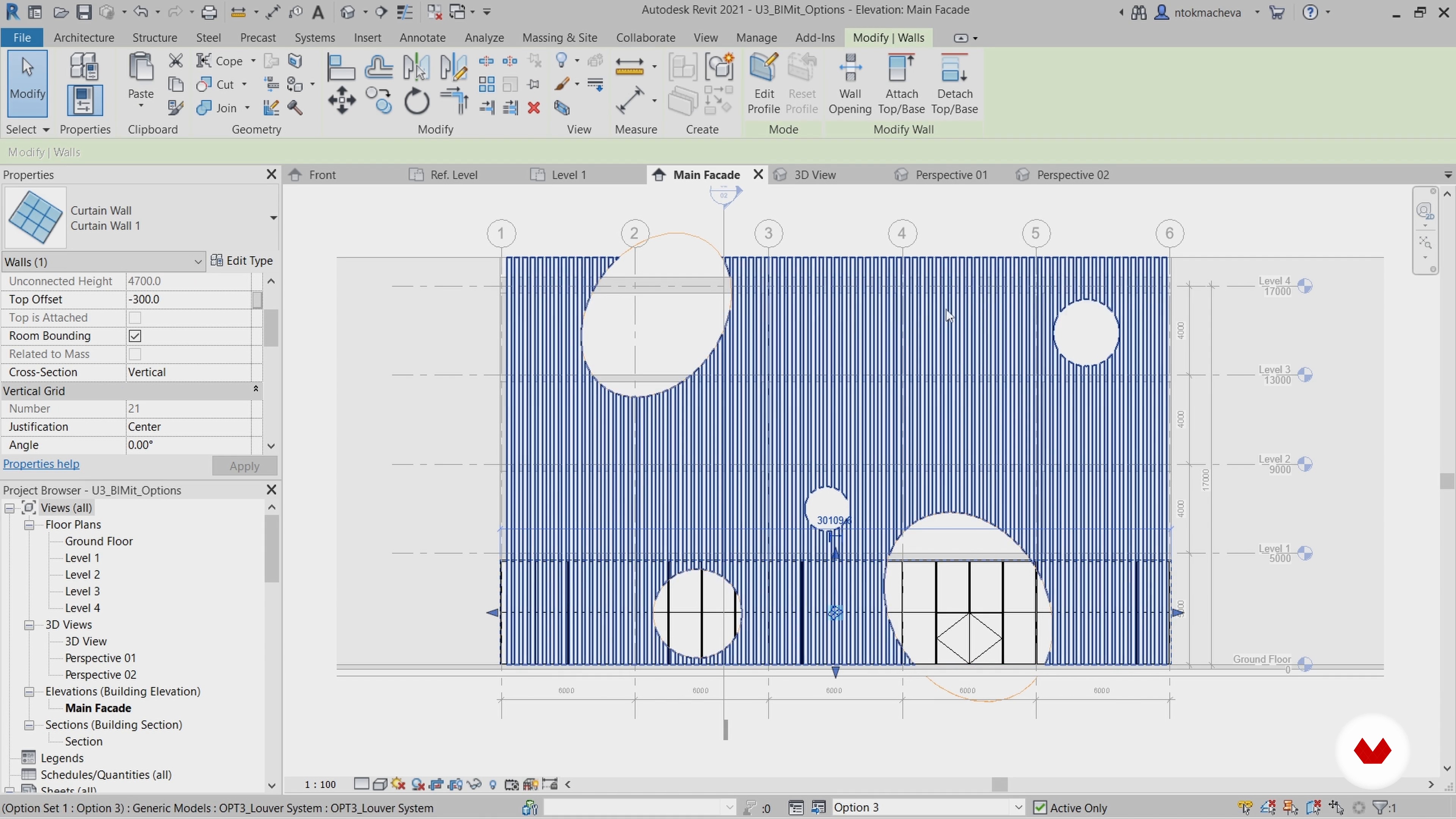
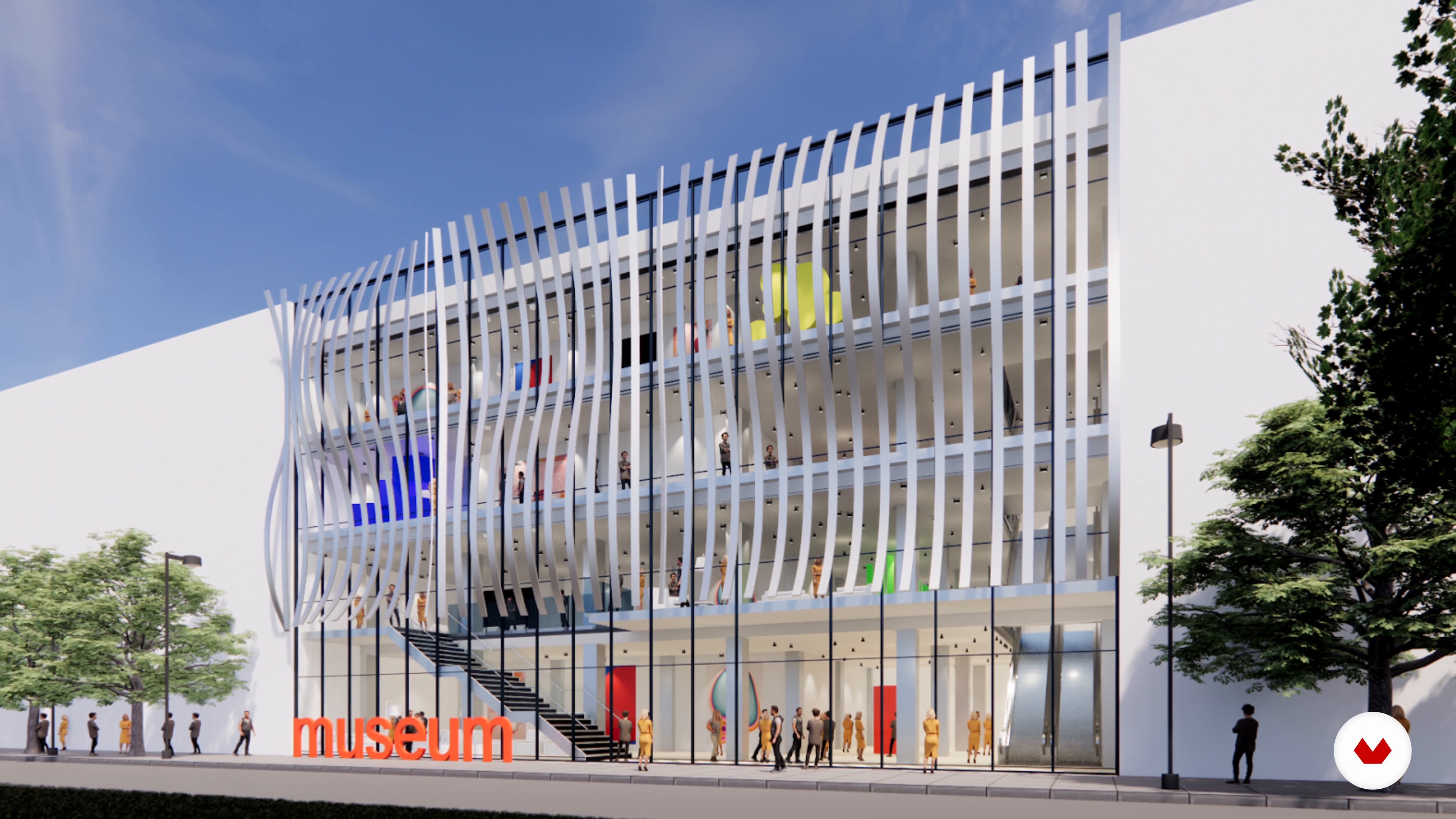
We will start our conceptual modeling journey by working on a first architectural option with simple tools. We will use various types of Extrusions to create different shapes of the facade. For working on complex projects with different options, the Design Options tool in Revit is really useful, as it allows us to work in the same file without creating too many models. We will show you how to use it.
11m
image
6
Extrusions 2
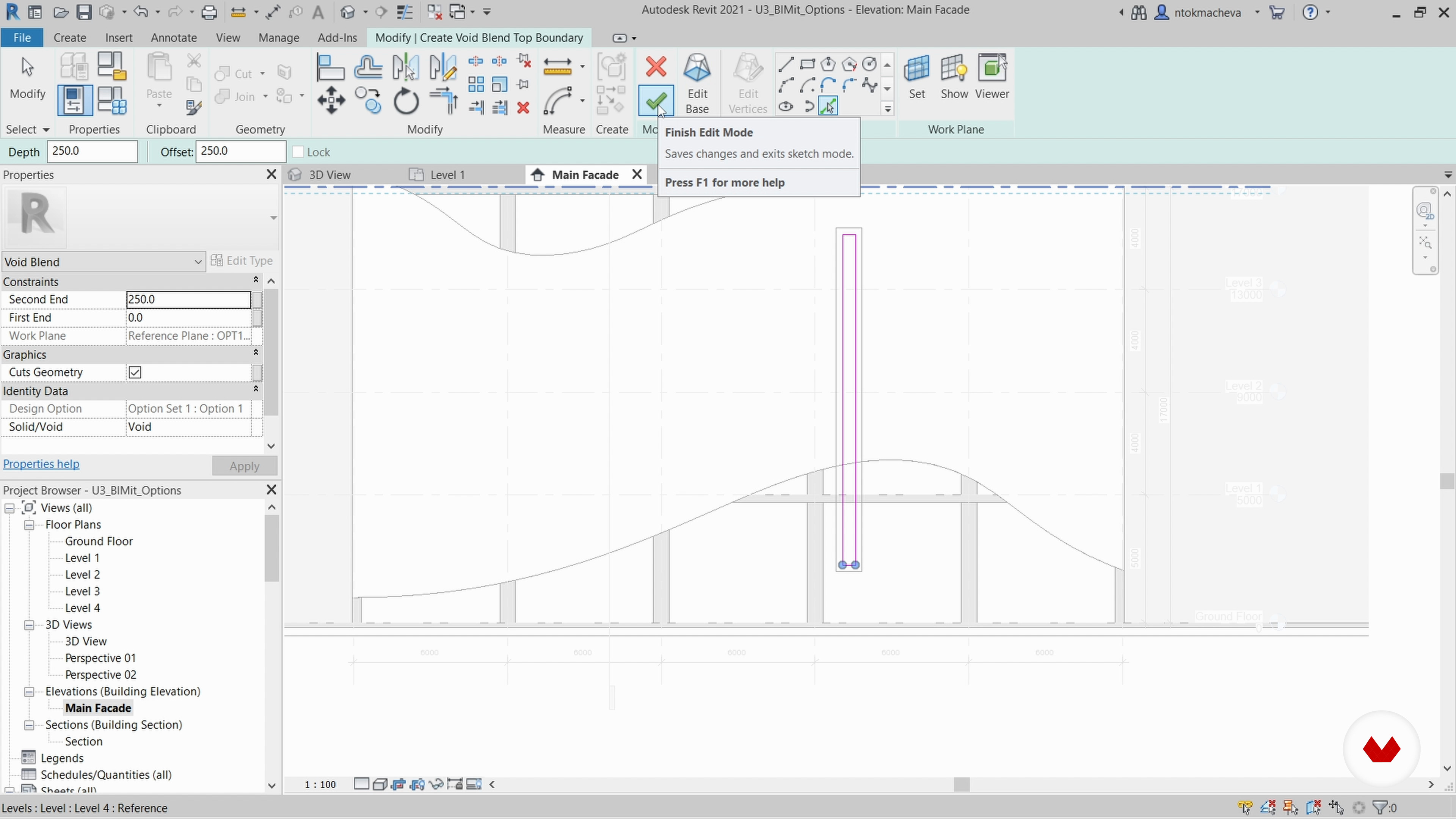
The next step is to model the wave-shaped void form, which will be based on the vertical surface and will cut the main waved facade volume, and then create the window openings.
13m
image
7
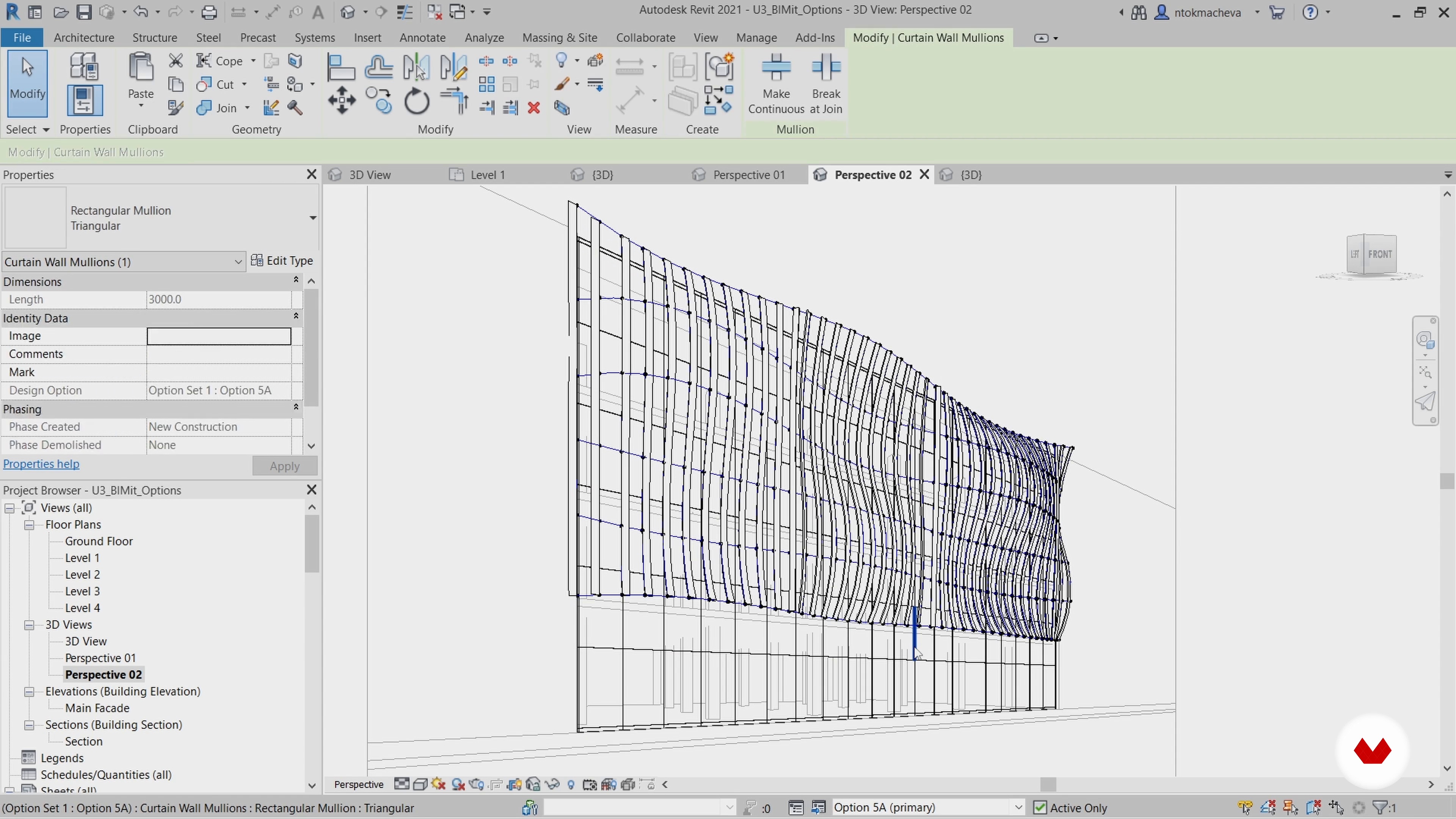
Curtain Walls and Curtain Systems 1
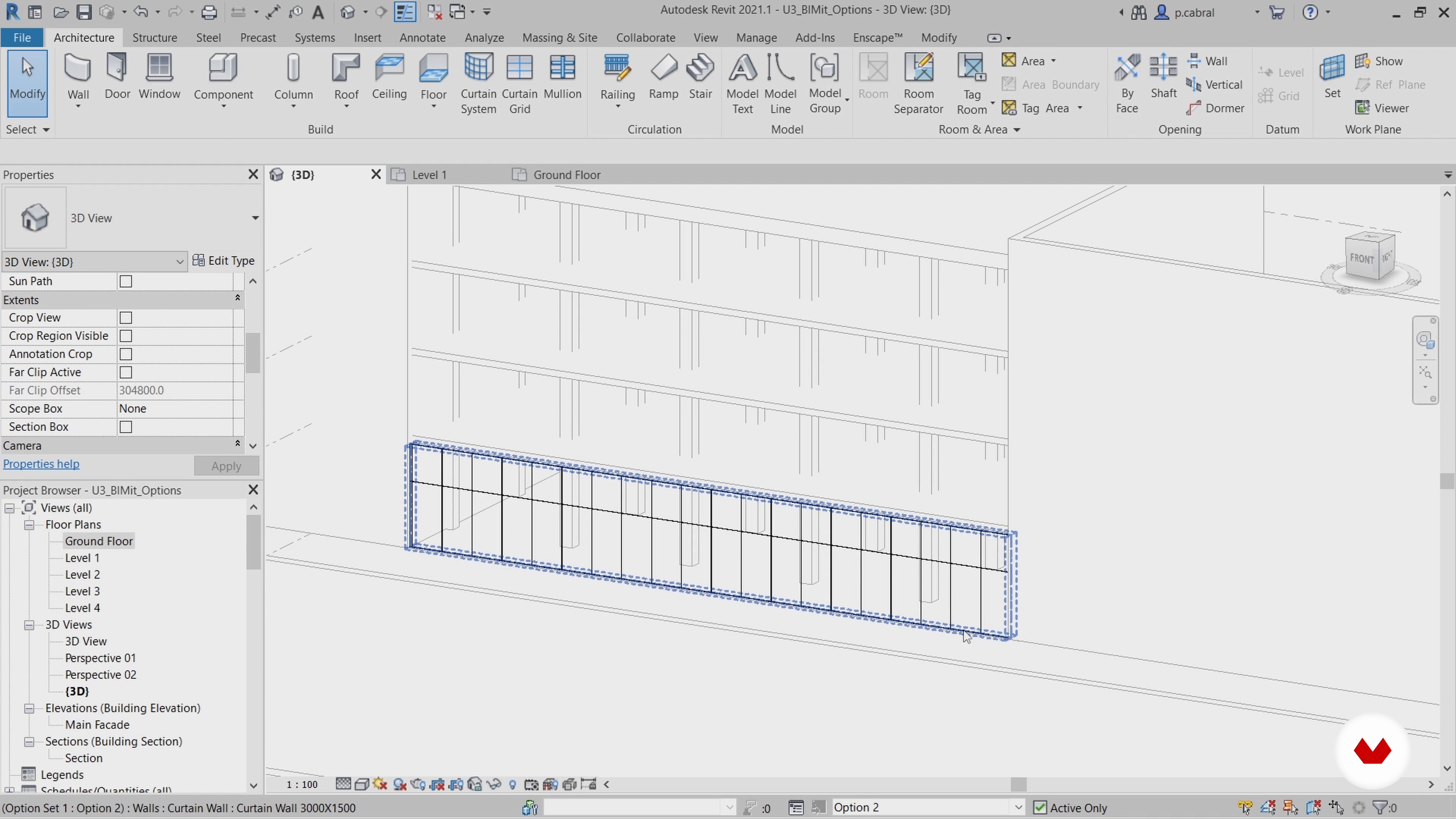
In this lesson, we will see different ways of using Curtain Walls and Curtain Systems. You will learn how to work with such an important system family, set reference planes, and edit all its elements to achieve the best results.
17m
image
8
Curtain Walls and Curtain Systems 2
After showing you how to create a glazed wall and use Curtain Walls, let's continue exploring the Curtain Systems to model the upper part of the facade.
16m
image
9
Parametric Loadable Families 1
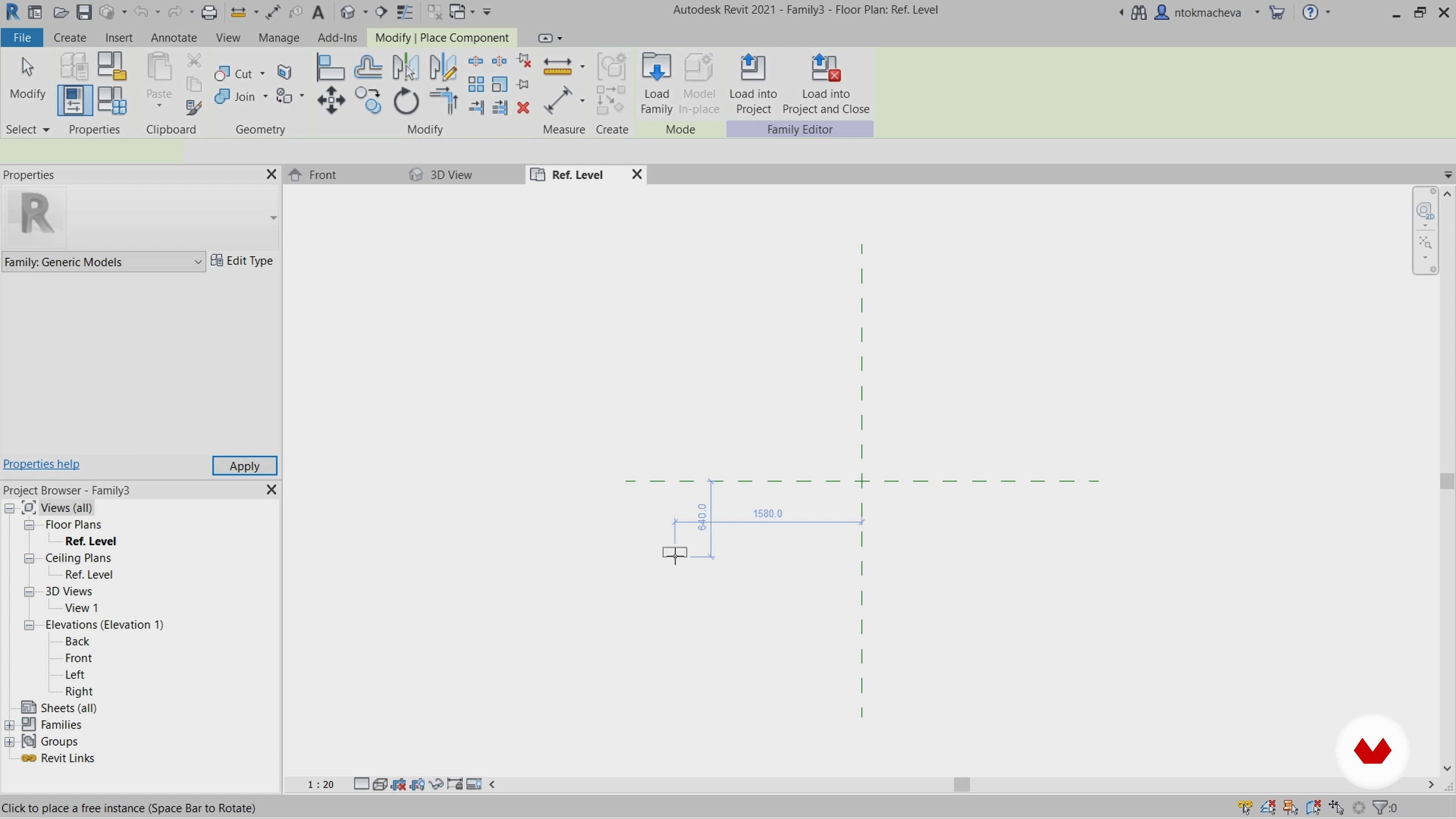
The most interesting technique in Revit, which is also quite complex, is setting up your own parameters for elements. We will focus on that in this lesson. You will learn to create different loadable families, parametrize them as well as manage and edit these parameters in the project.
17m
image
10
Parametric Loadable Families 2
We will also need to apply the voids to the facade, and for this, we will create a loadable family with voids as well. Let's see how it's done!
12m
image
11
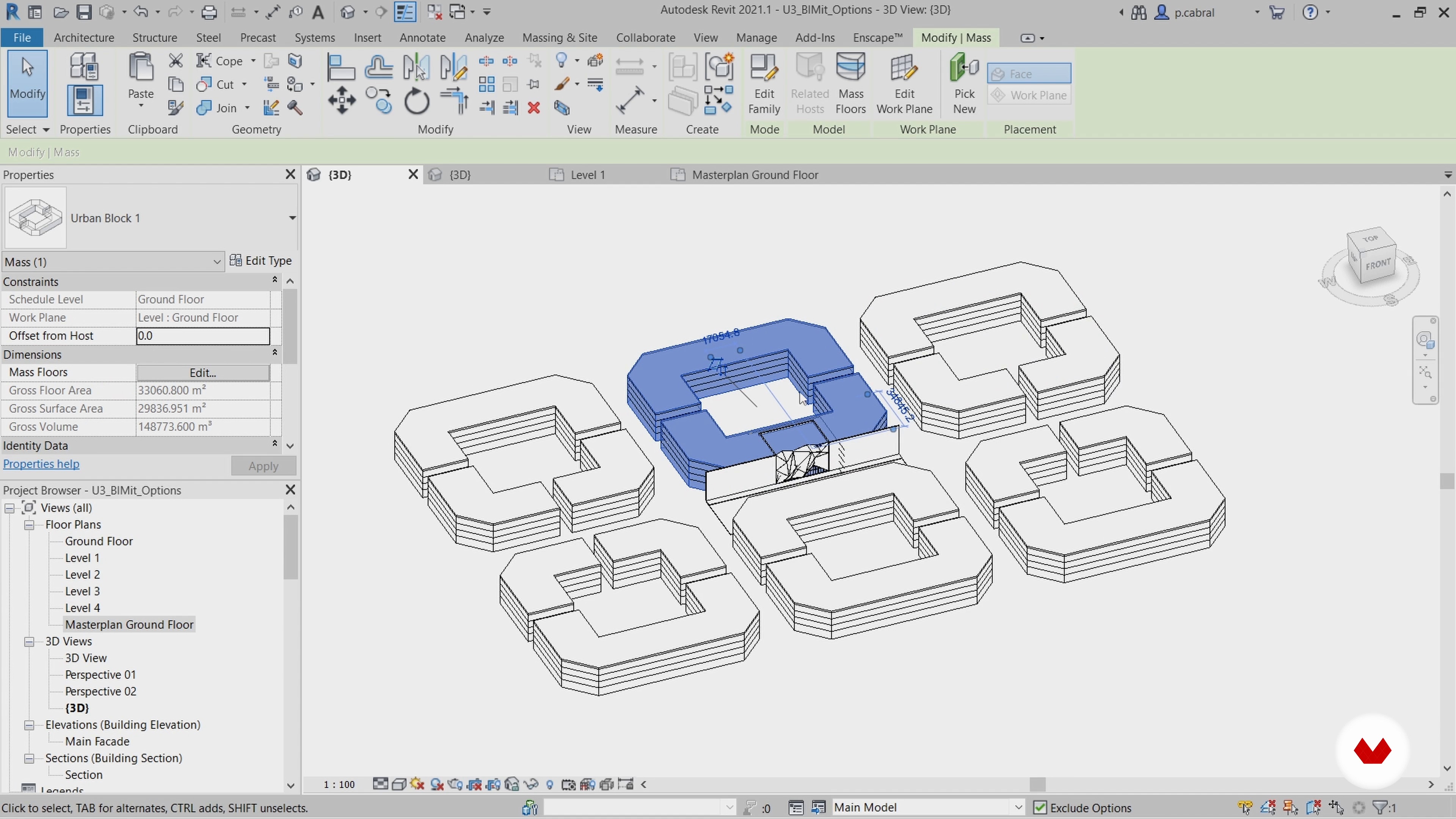
Mass 1
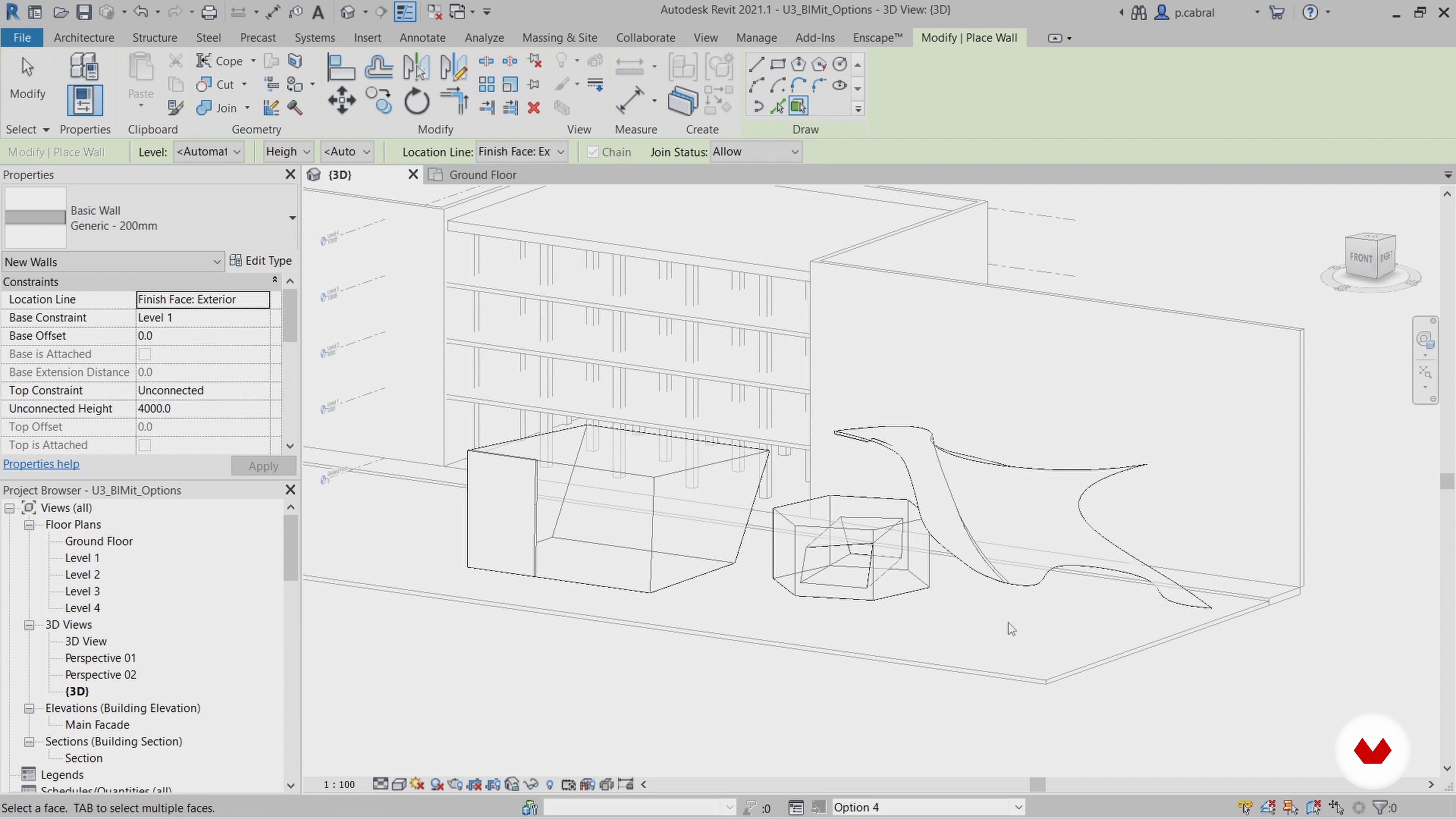
In this lesson, we will show you how to use the Mass tool to create complex and irregular shapes. You will learn how to edit, update, and control any type of shape easily.
17m
image
12
Mass 2
The Mass tool is so flexible that you can create any shape you like. You can use it to model in different ways, depending on the shape and geometry of your project. So, be creative and test with different masses and geometries! Just remember to always keep in mind the flexibility of the model.
18m
image
13
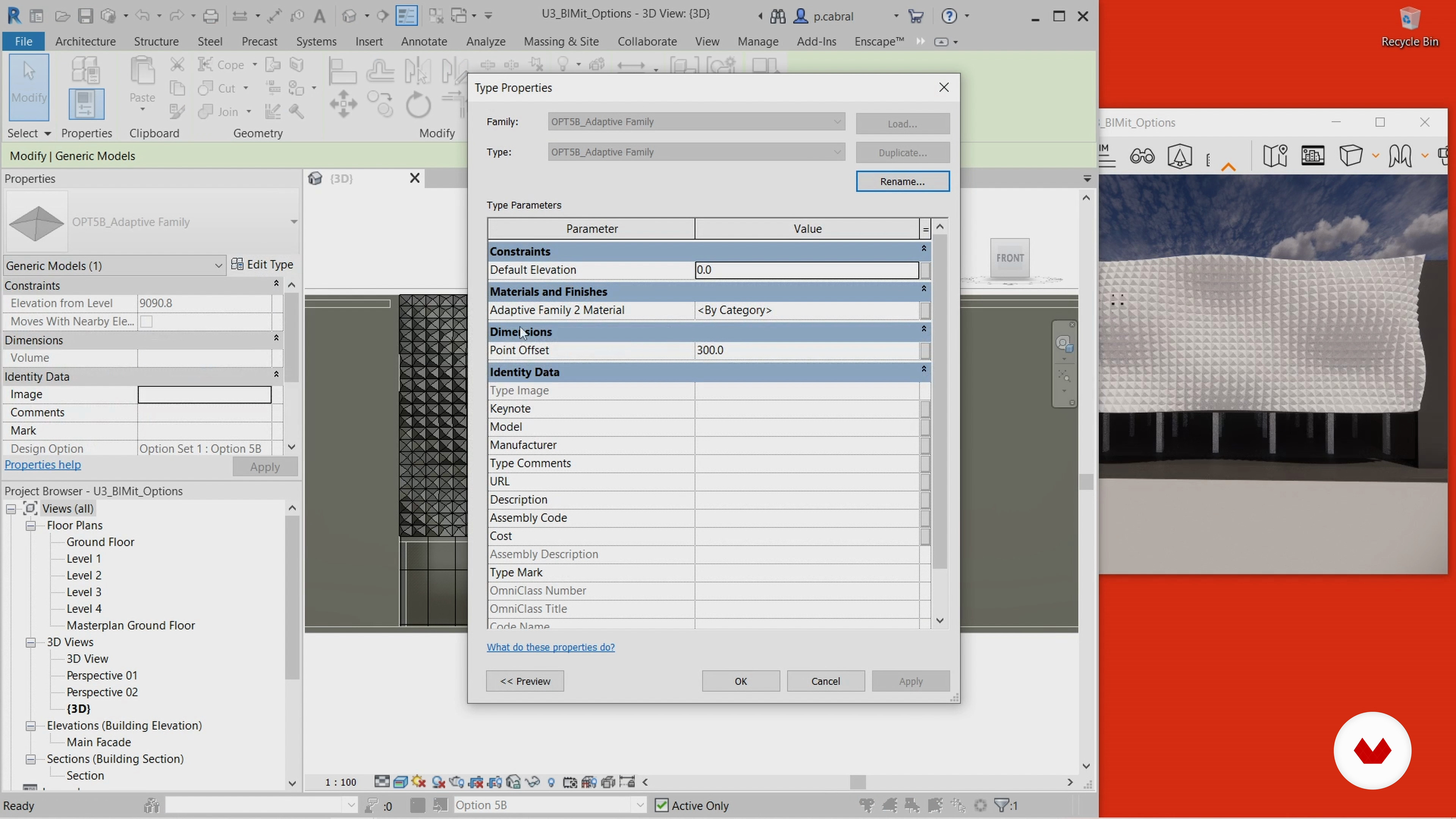
Adaptive Components
For our last design option, we will create two different adaptive families. You will see how beneficial it can be to use it when modeling complex 3D dimensional shapes.
16m
image
14
Final Touches and Materiality 1
In this lesson, you will learn how to improve your model's look in a fast and efficient way. We will show you how to apply materials to the elements of your model, such as wood, metal, glass, and perforation, and add some details and surroundings to the project.
12m
image
15
Final Touches and Materiality 2
Let's continue with the rest of our facade options. We will apply materiality and work on the details of each model.
9m
image
16
Context and Images
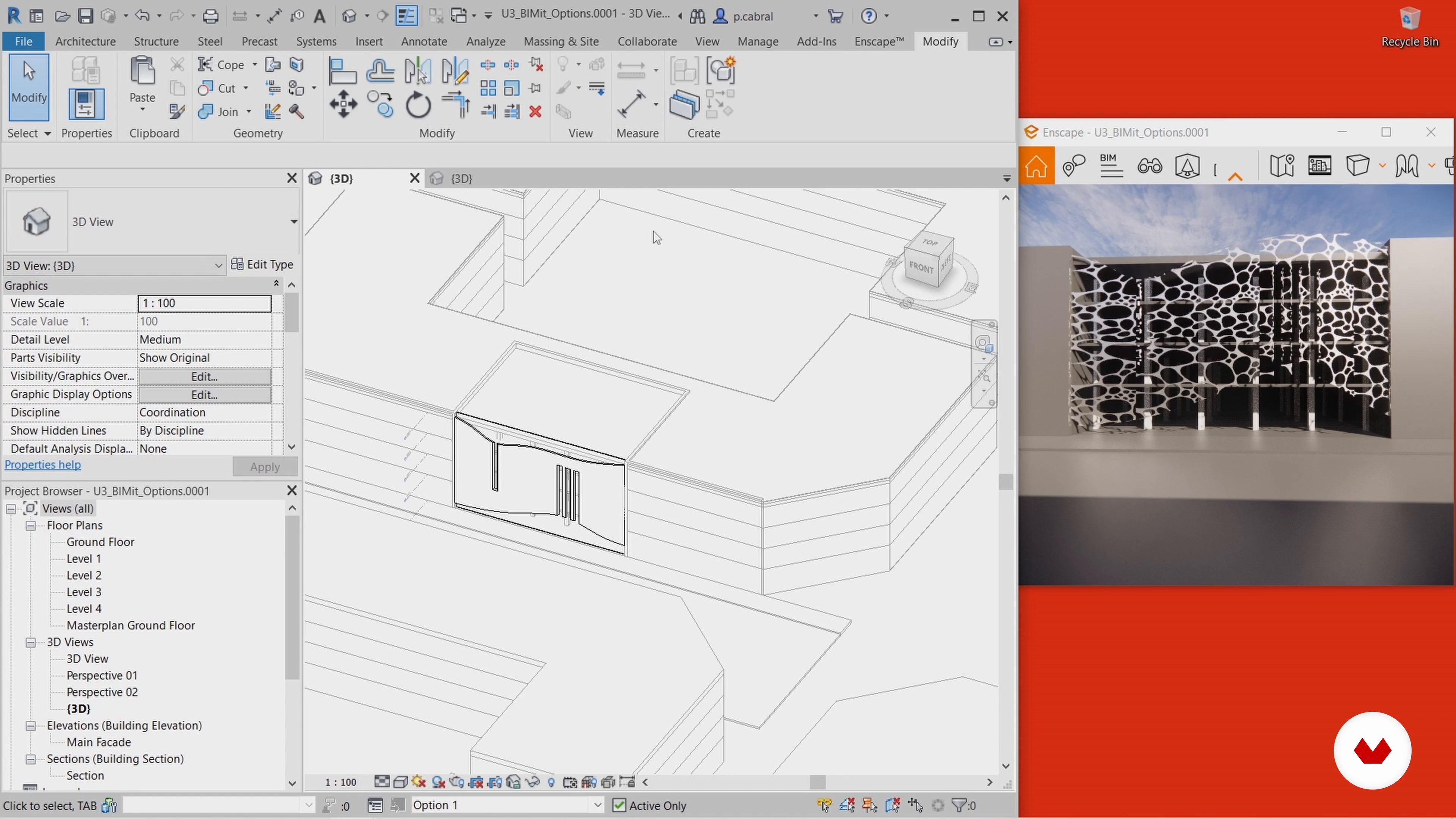
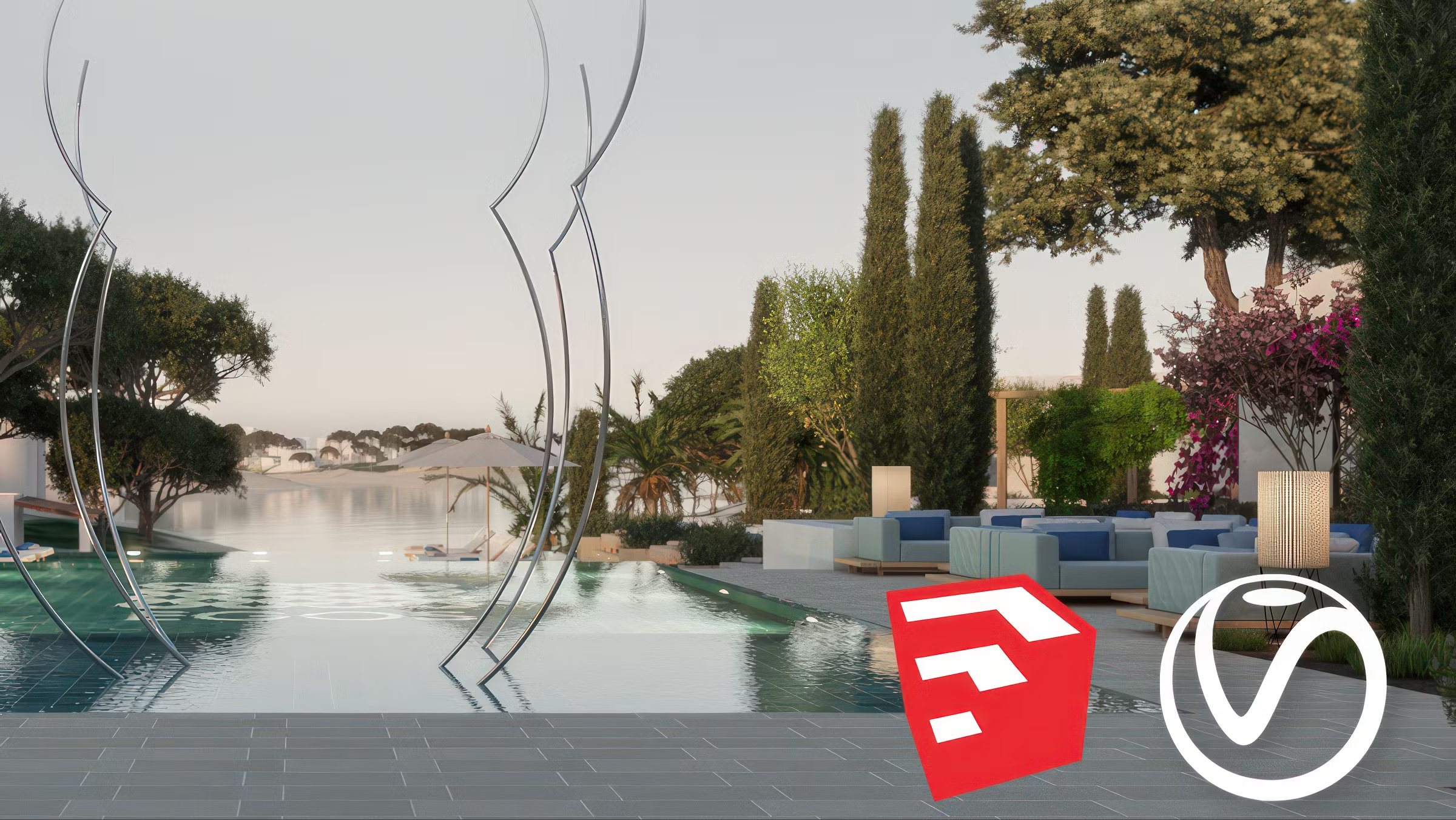
To create a context for the building, we will add some elements and families to the main model. We will also show you how to use the Enscape plug-in to play with materiality and lighting and export nice images!
16m
image
4
Organization of the SketchUp model
In this lesson, you will see how you can organize your SketchUp model into groups and labels to get the most out of your Vray workflow.
11m
image
5
Introduction to the V-Ray interface
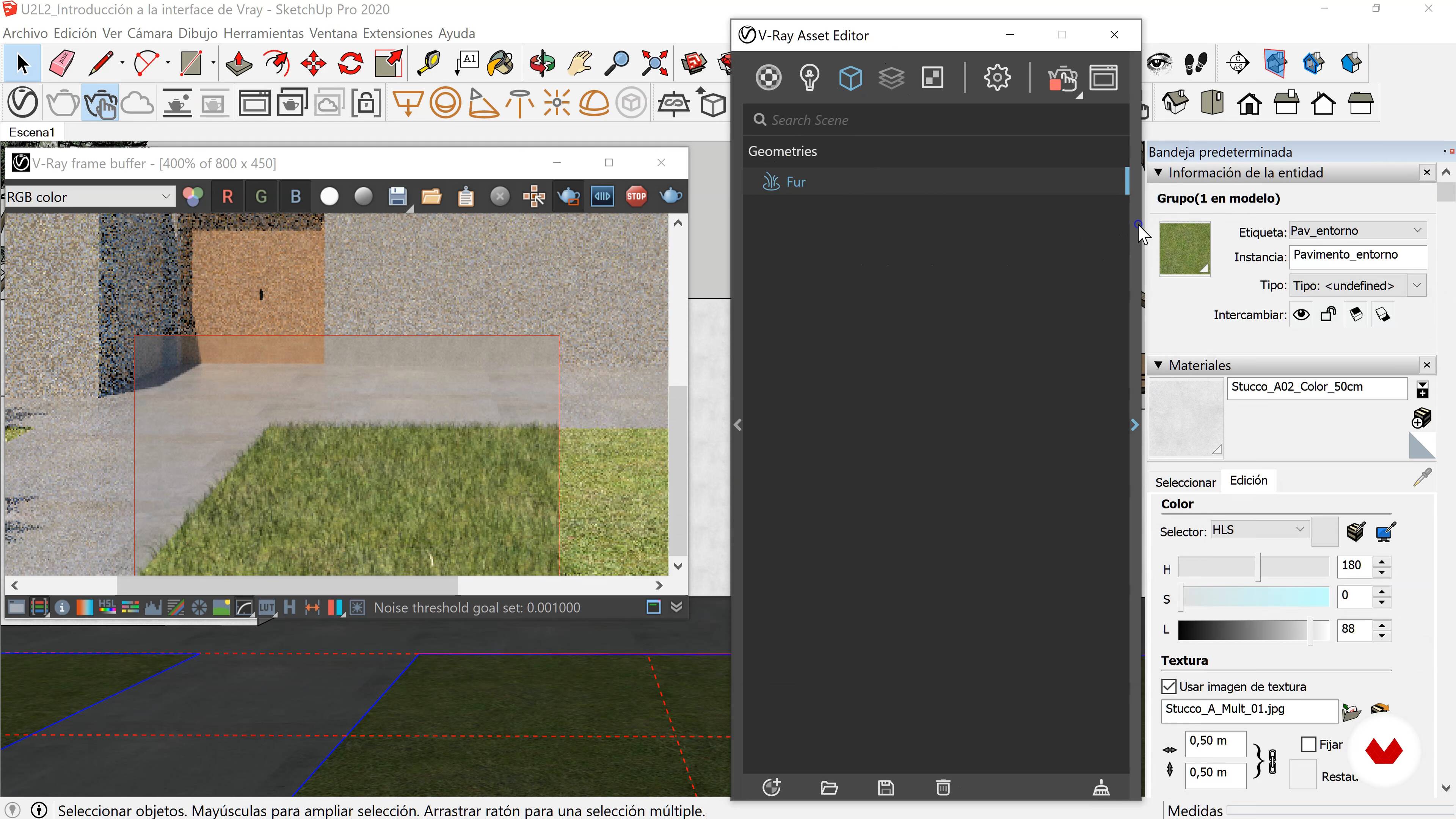
In this lesson we are going to explore the Vray toolbars and, above all, the main window, the "Asset editor", where we can control all the render parameters.
18m
image
6
Introduction to Lighting Tools in V-Ray Next
In this lesson, I'm going to show you how some must-have lighting tools from VRay work.
17m
image
7
Introduction to lighting tools in V-Ray 5
11m
image
8
Position the camera, create scenes
In this lesson we will see how to position the camera to create the viewpoint scenes that best explain the project. I leave you in the additional resources the initial file so that you can practice following the next lessons.
9m
image
9
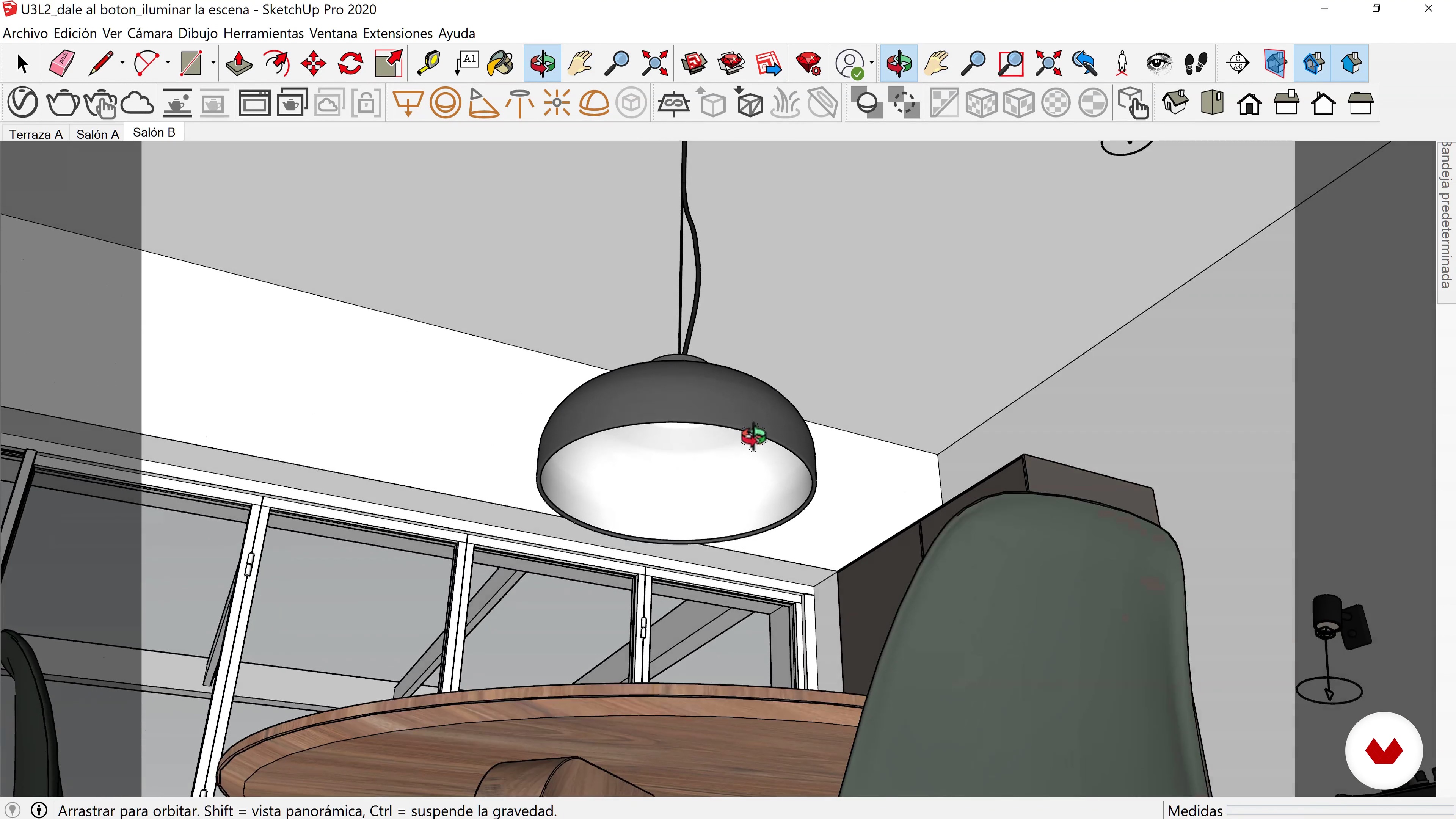
Light up the scene
In this lesson, we will adjust the camera settings and add lighting so that the image is visible both day and night.
18m
image
10
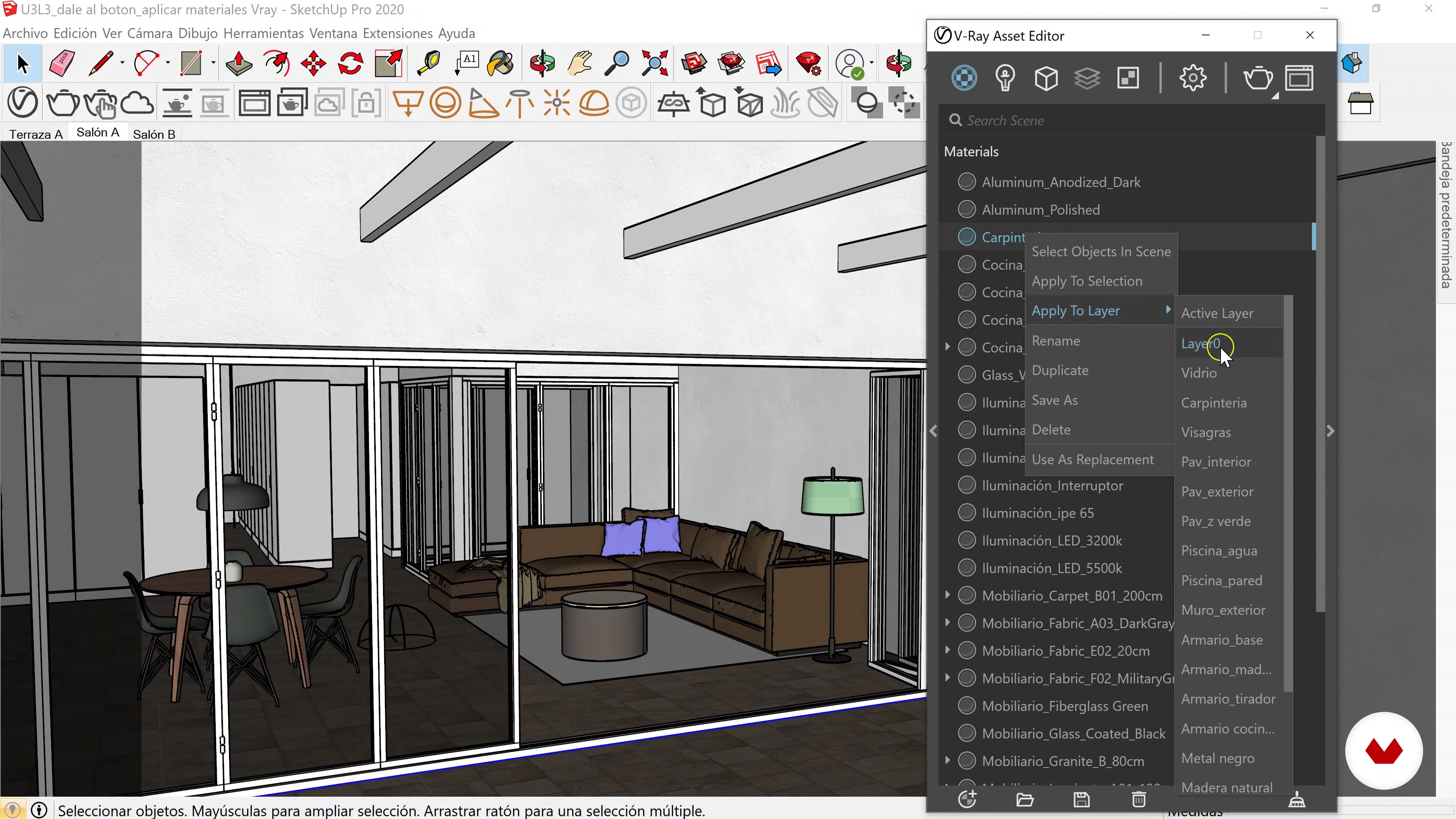
Apply Vray materials to the project
In this lesson you will learn to apply the materials from the Vray library to the model we are working on in SketchUp.
7m
image
11
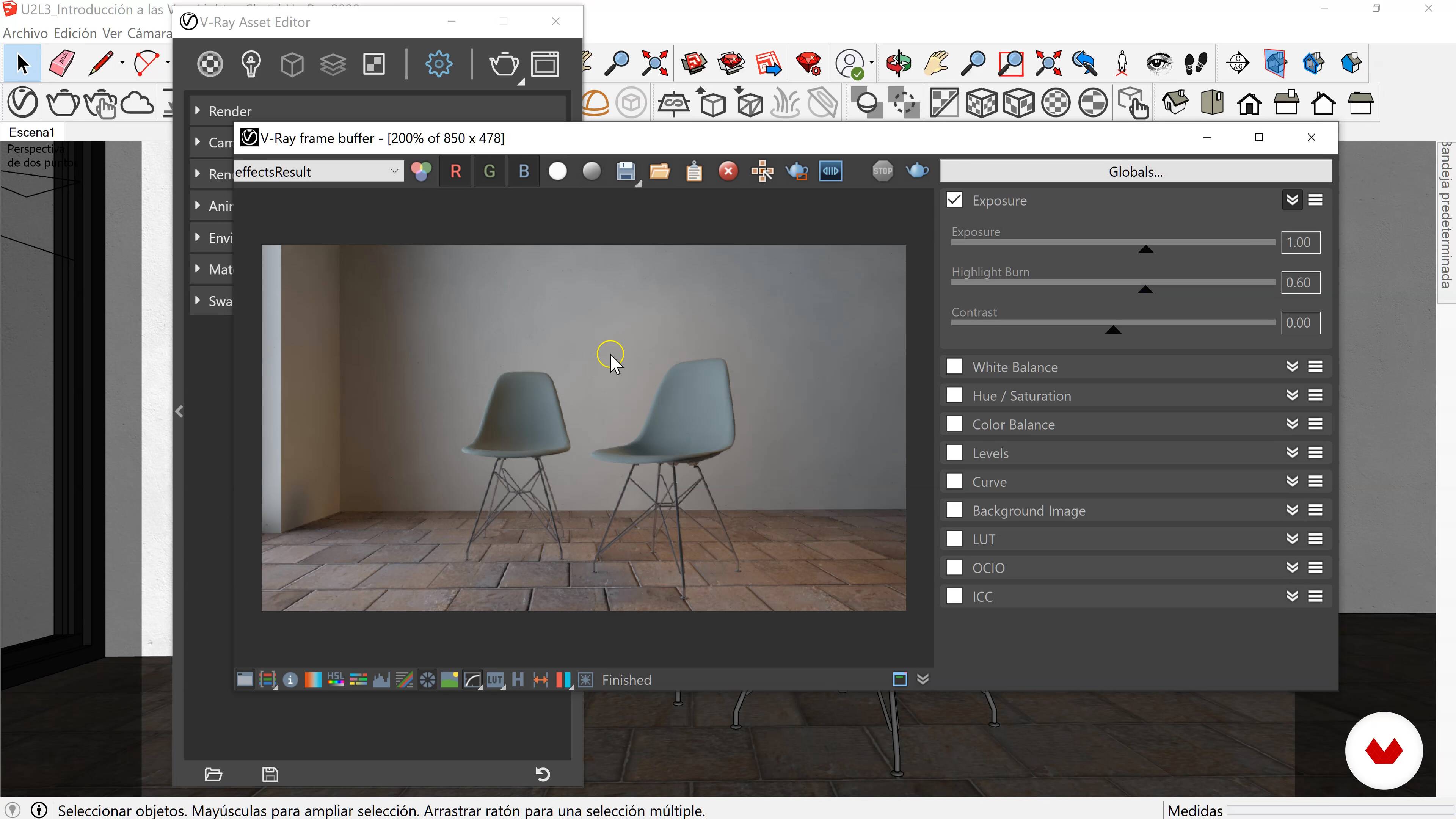
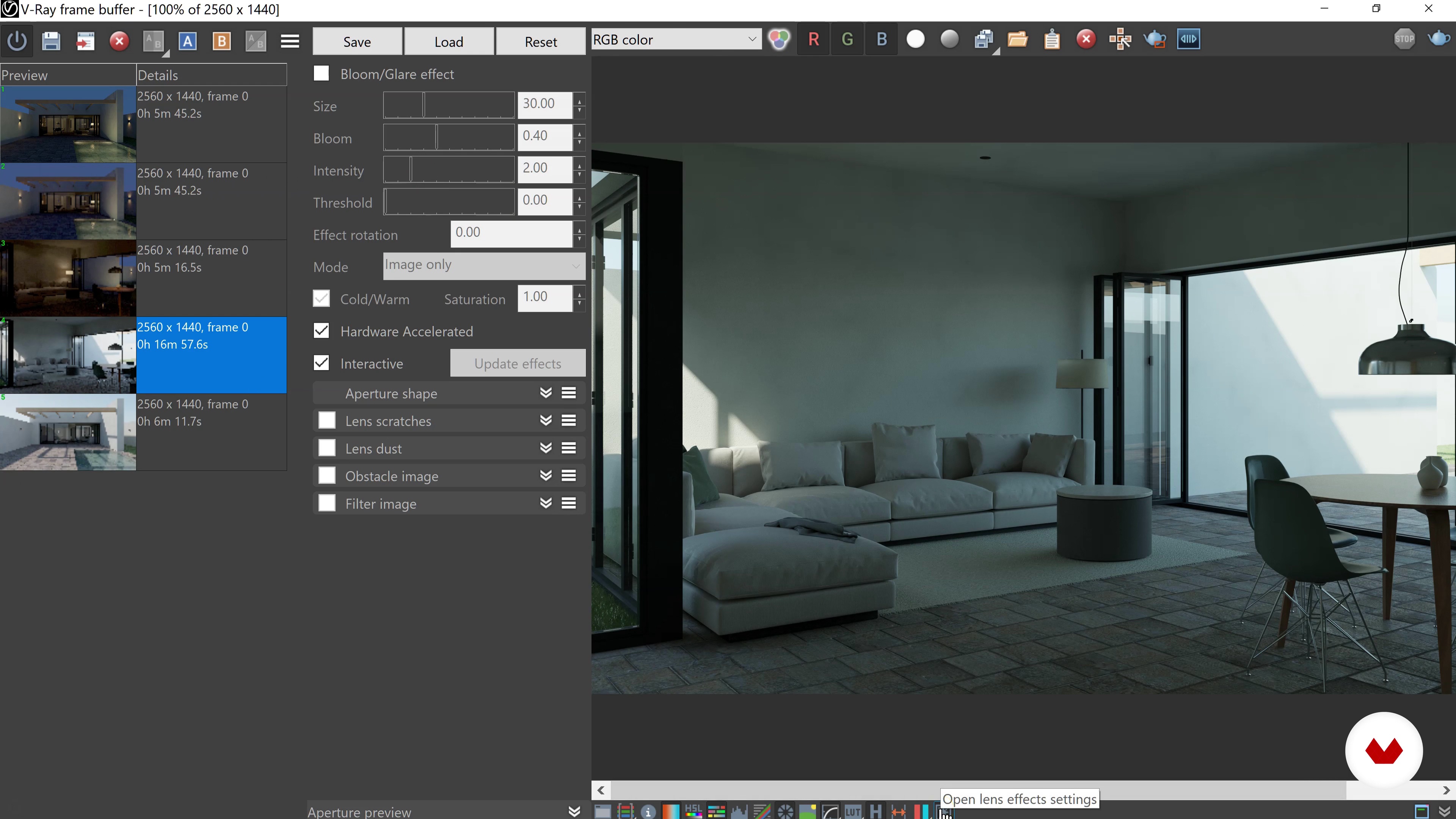
Edit the image through the V-ray Next viewer
In this lesson we will edit and save the image in the "Frame Buffer" with the correction control and we will add some lens effects.
4m
image
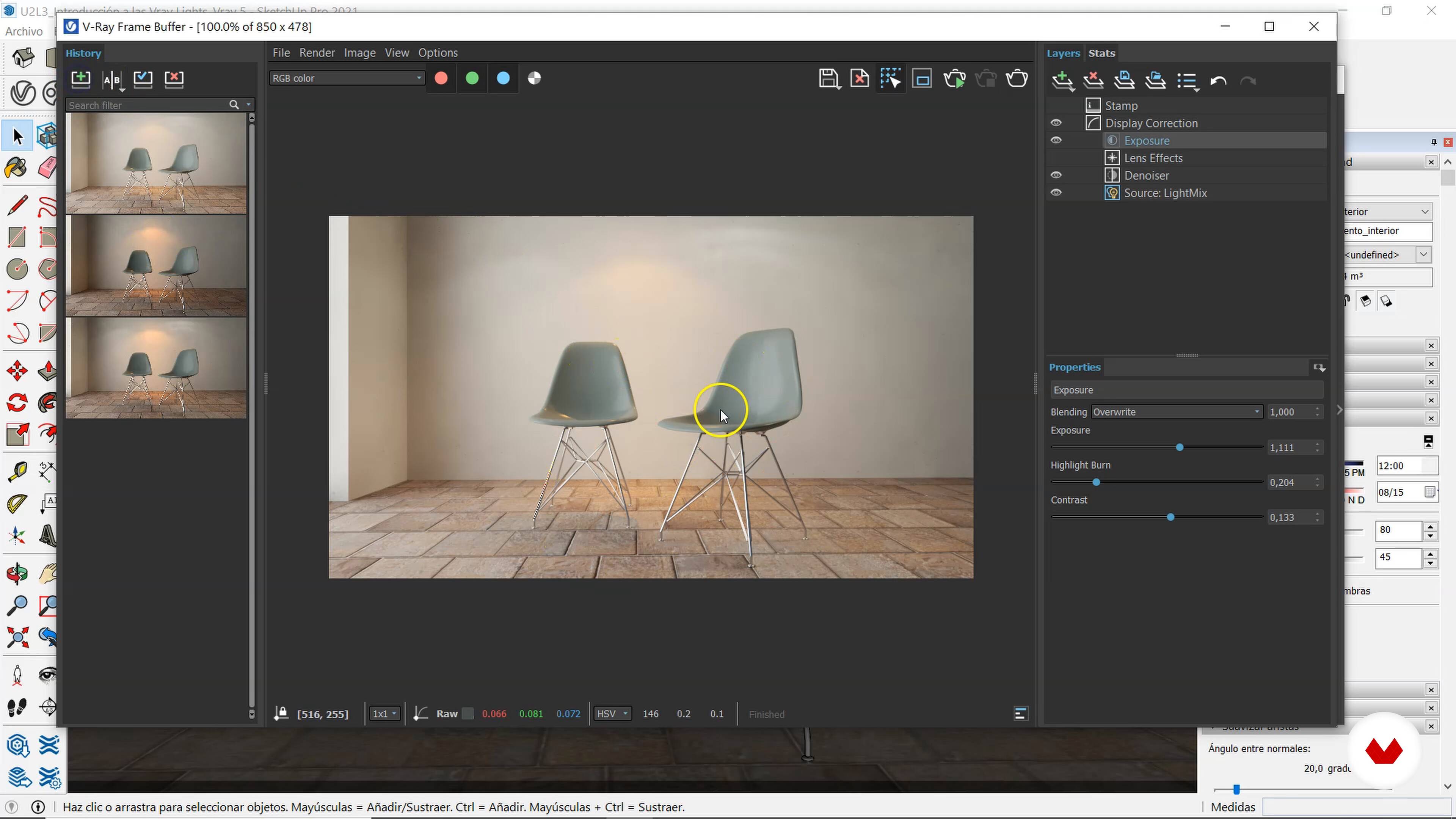
12
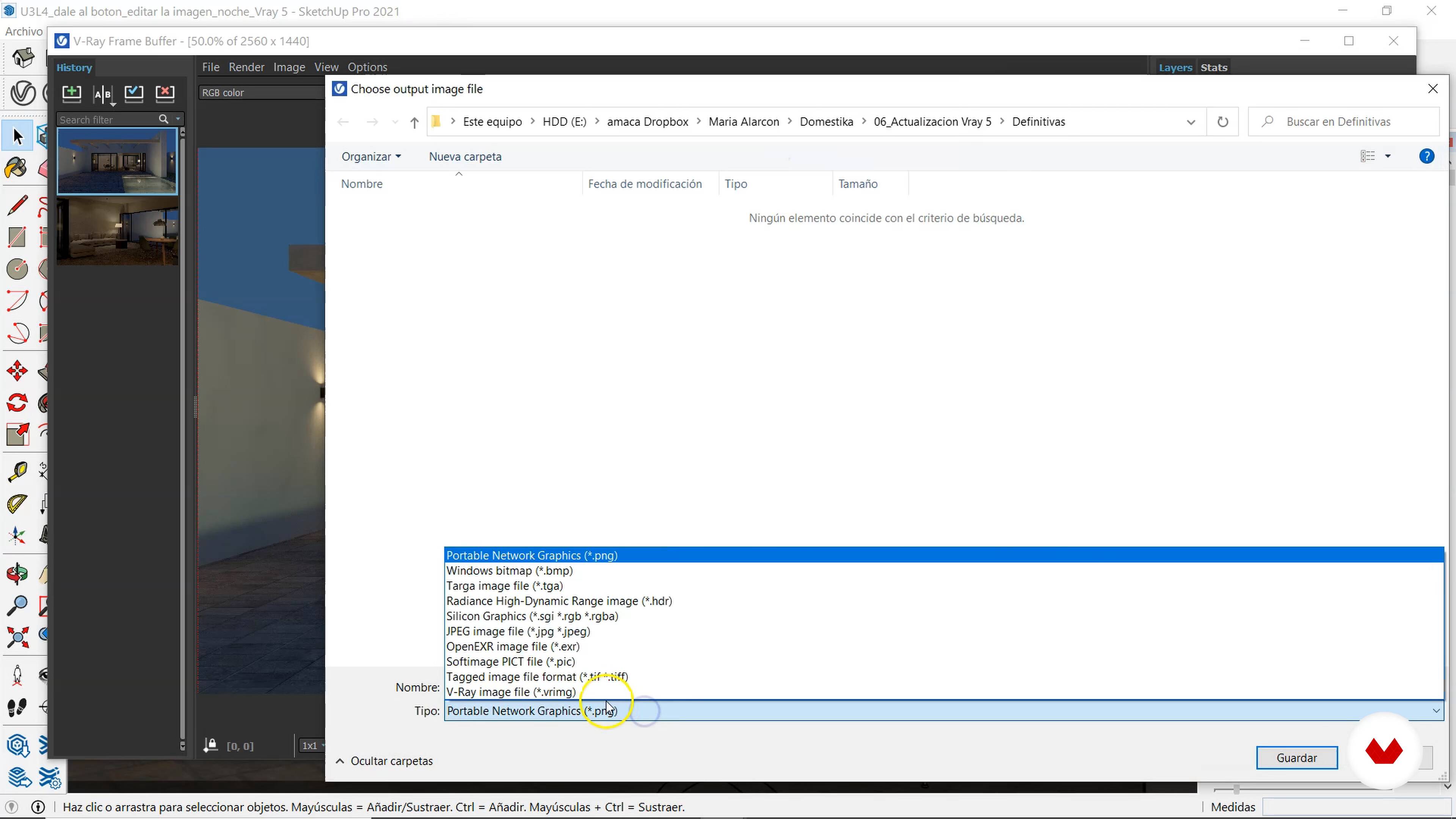
Edit the image through the V-ray 5 viewer
4m
image
13
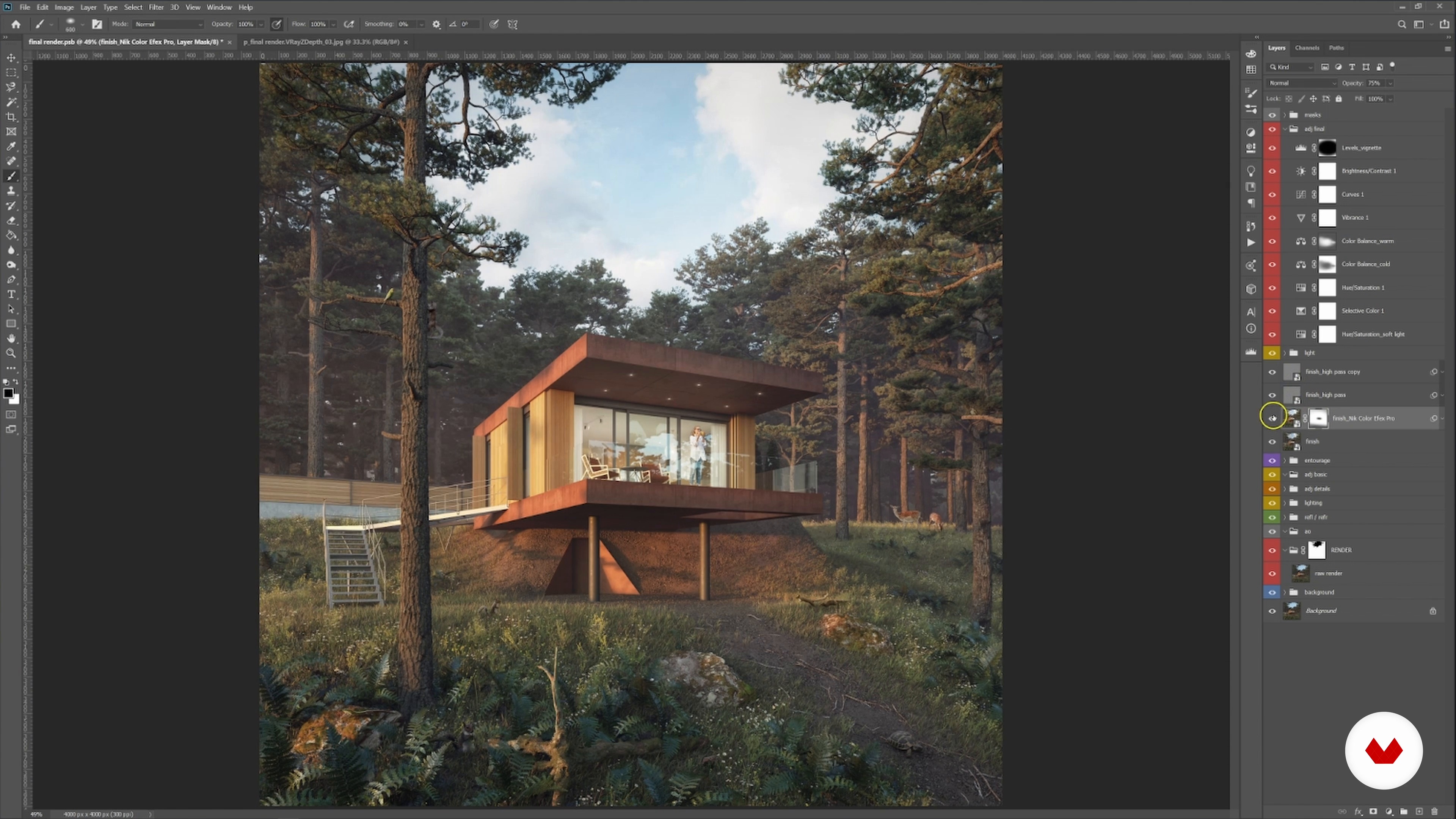
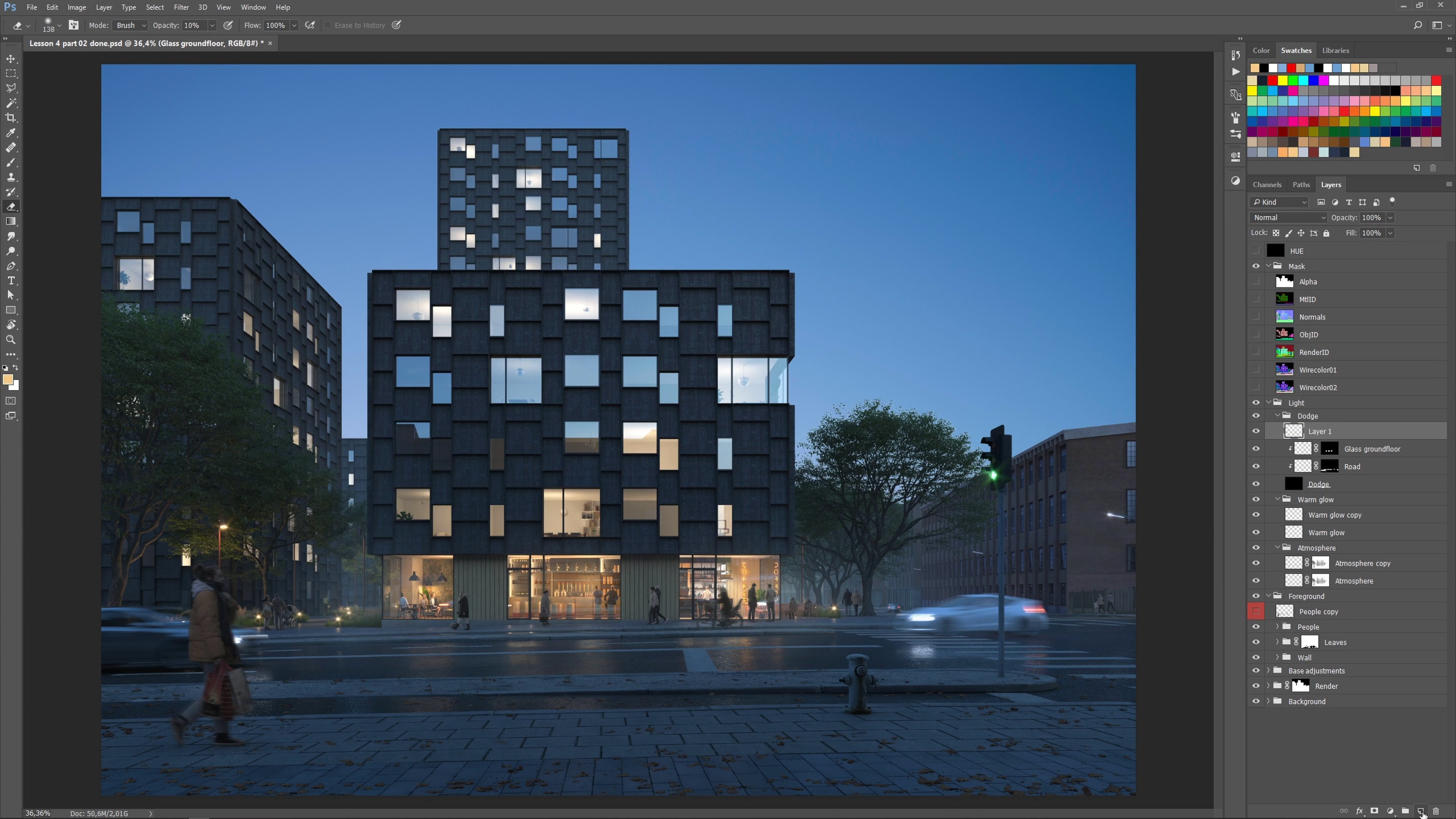
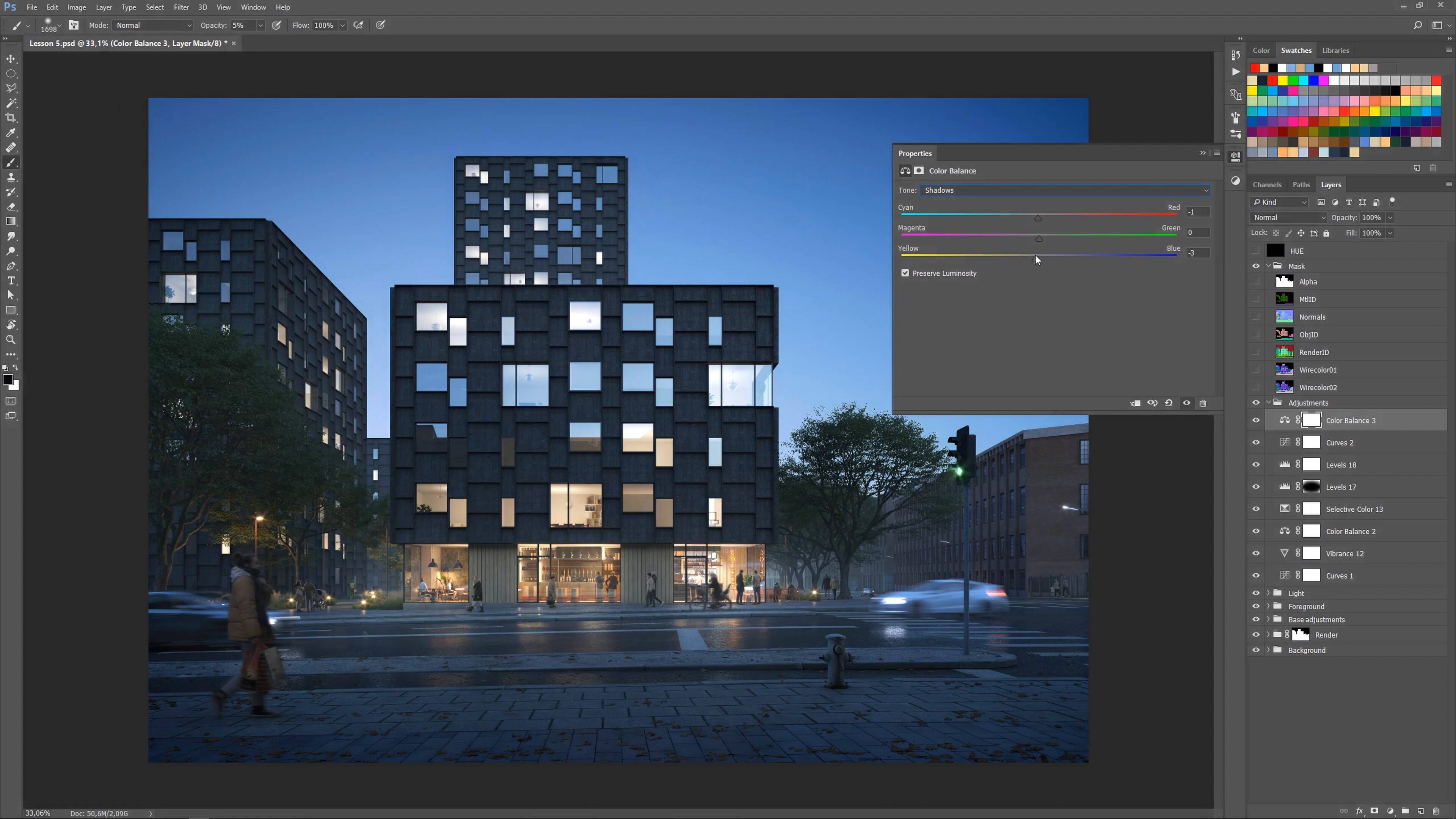
Work the final image in Photoshop
In this lesson we will work on the image in Photoshop, adding the render channels and editing the color and lighting corrections.
3m
image
14
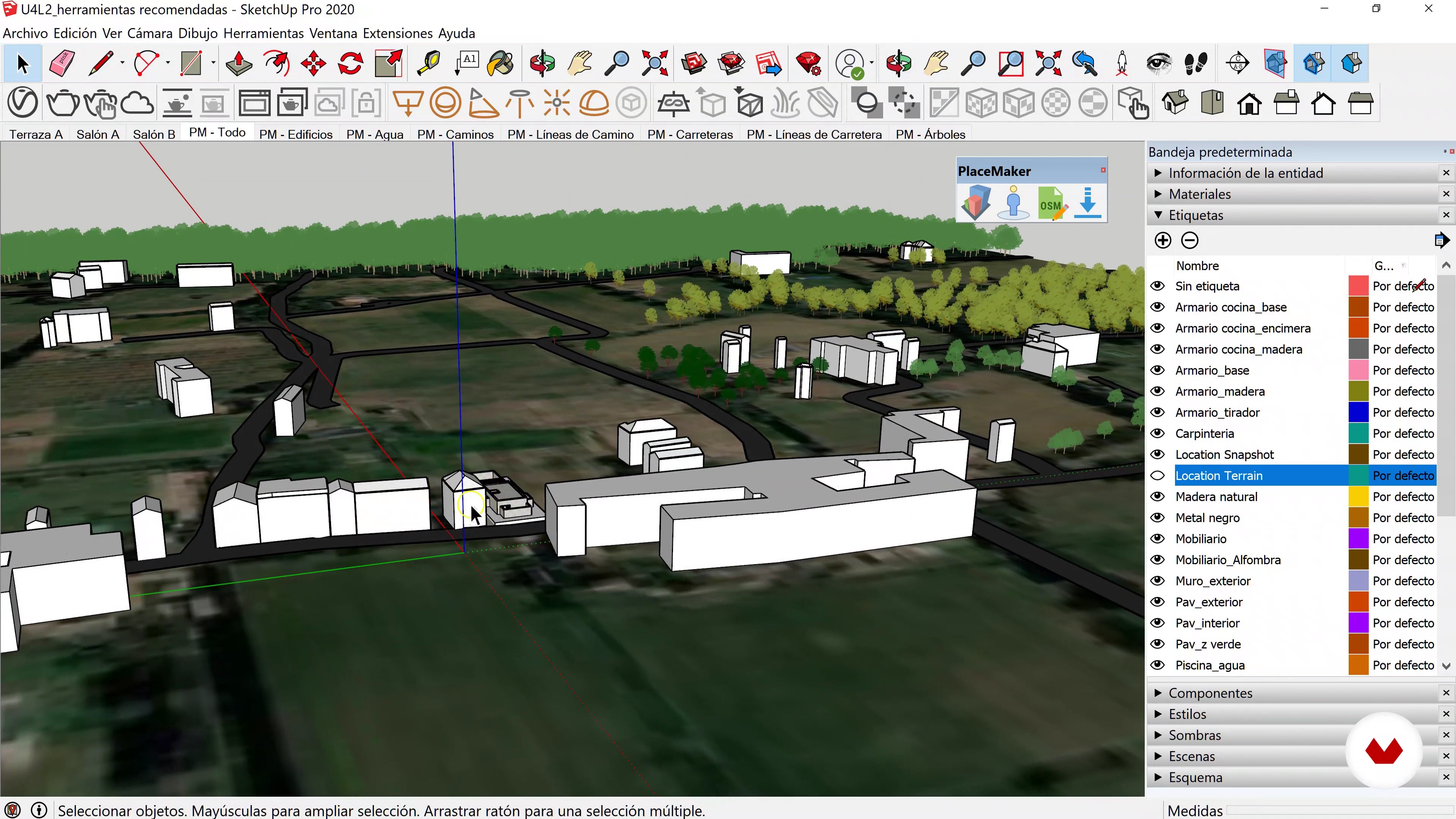
Some recommended tools
Finally, in this lesson I will teach you how to control sunlight, modifying the north or geolocating your project. I will recommend an plugin that with a single click models the environment
5m
image
3
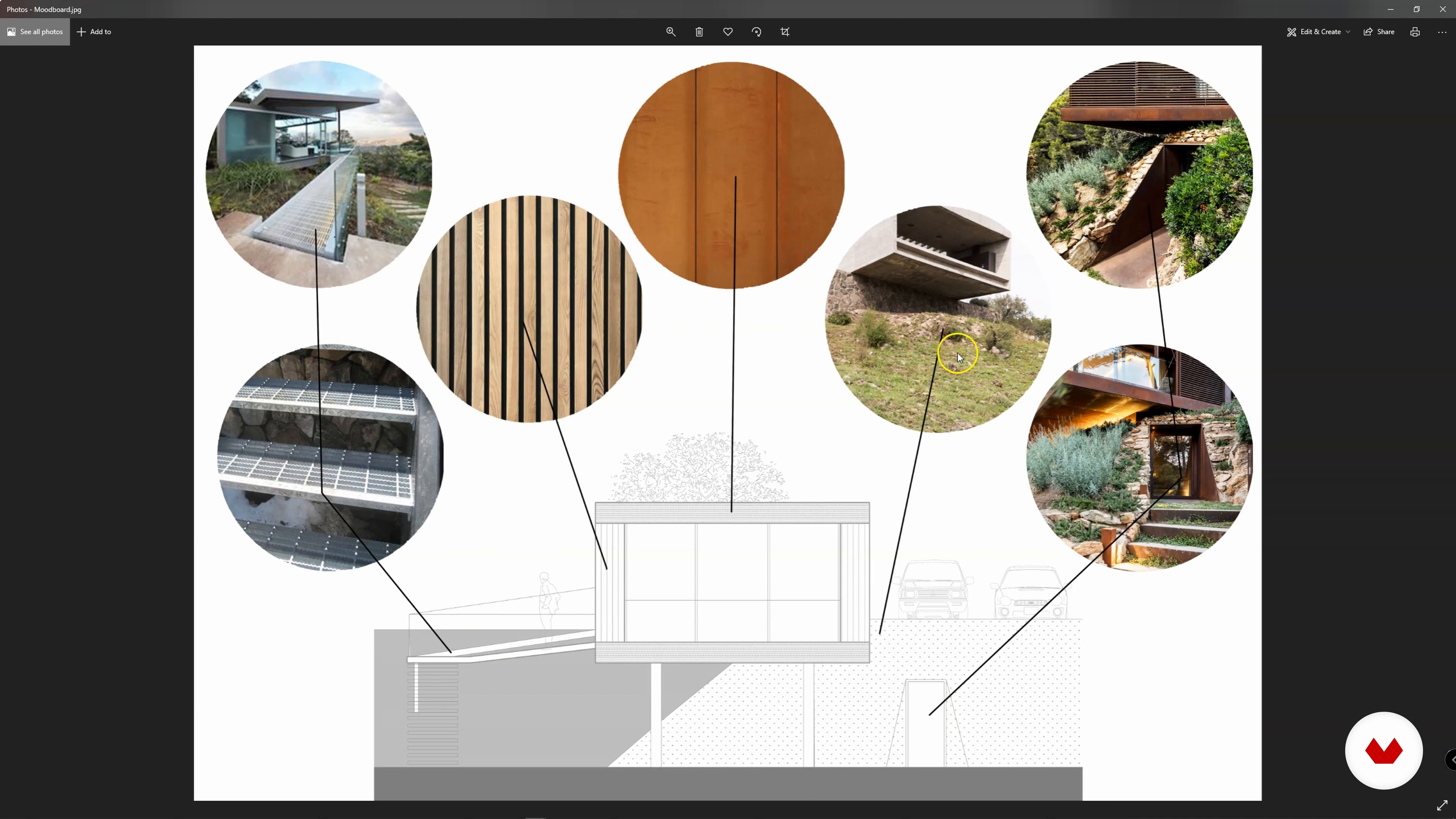
How to Understand the Brief
First, I will show you what to expect from the client's brief and how to understand it.
2m
image
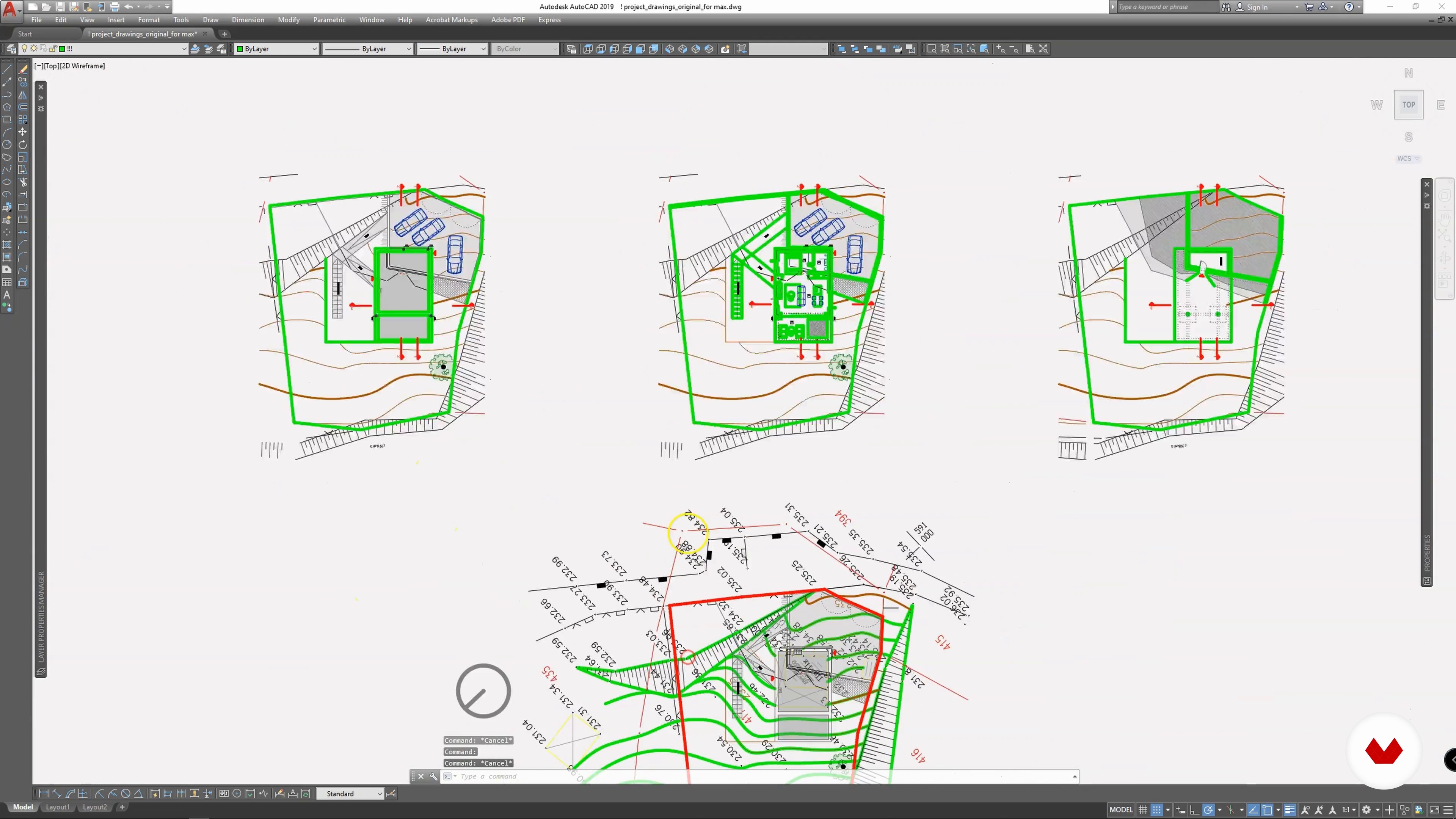
4
Preparing AutoCAD DWG for Import
Next, I will show you how to prepare the AutoCAD drawing for importing and share some tips to achieve easier workflow in 3ds Max.
17m
image
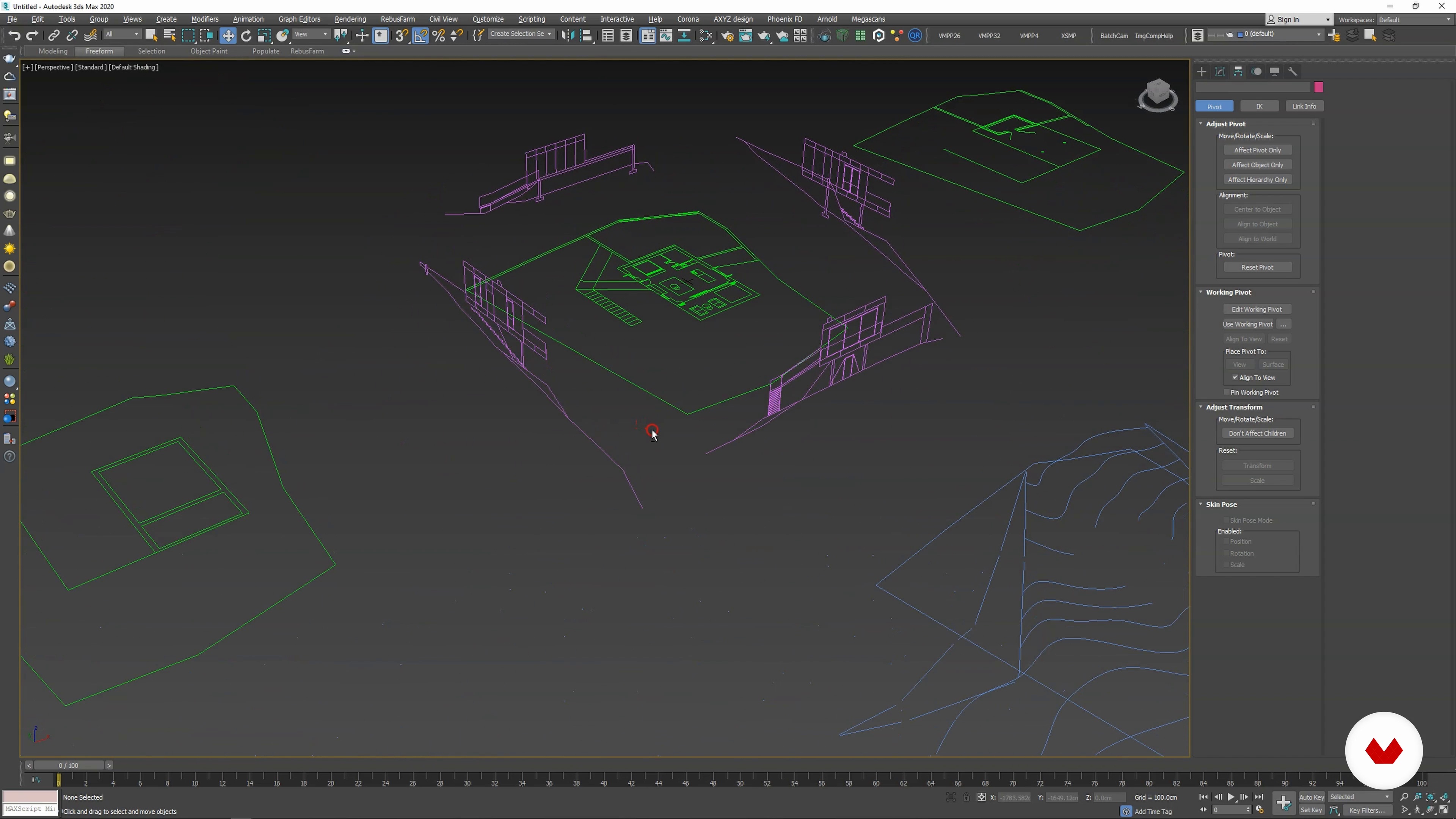
5
Importing and Positioning Drawing in 3ds Max
This lesson will show you how to import and position the line drawing in 3ds Max.
7m
image
6
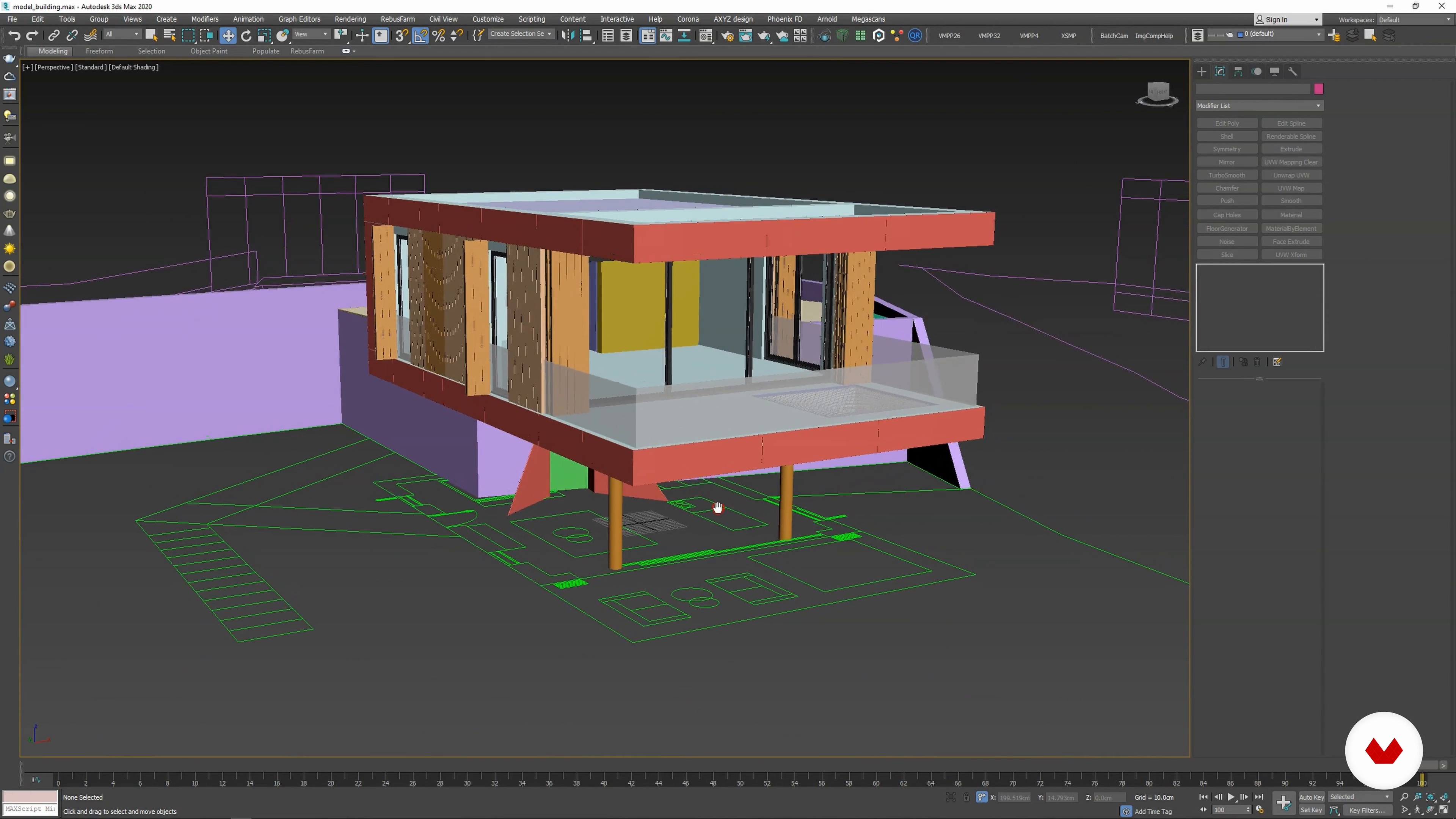
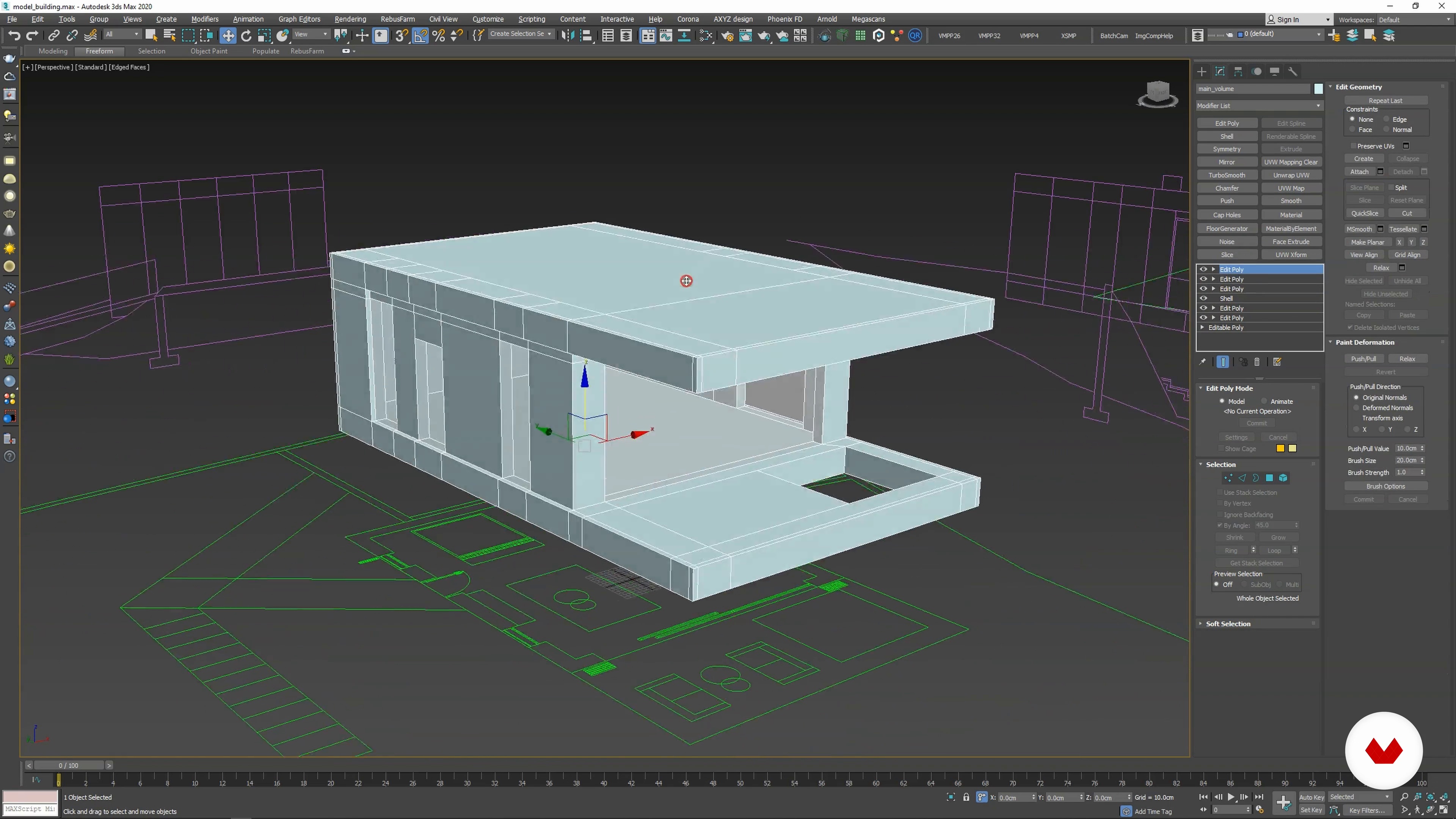
Modeling the Basic Volume
In this lesson, I will walk you through the first steps to start your 3D model, focusing on the basic volume of the building.
8m
image
7
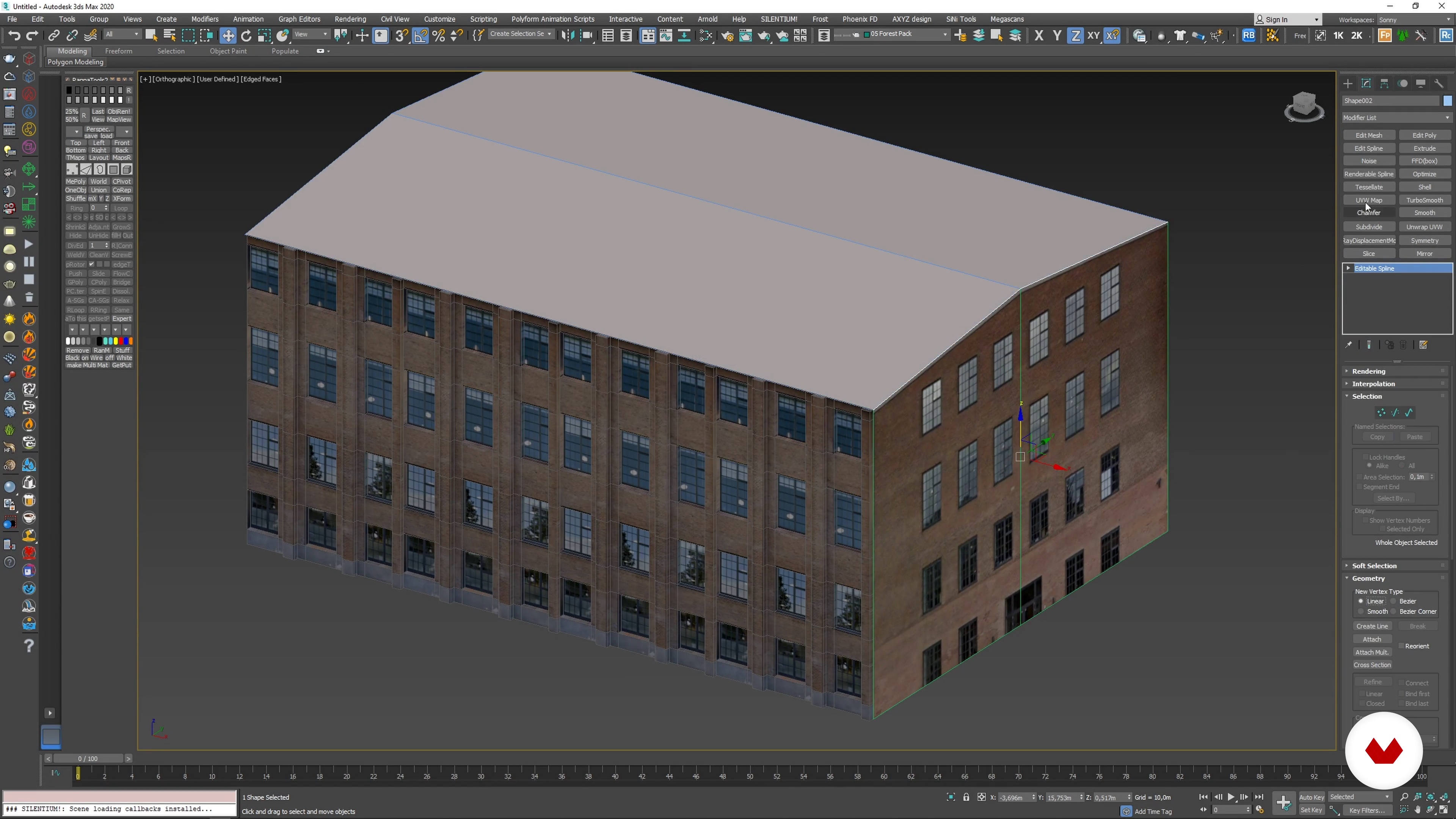
Modeling Corten Panels
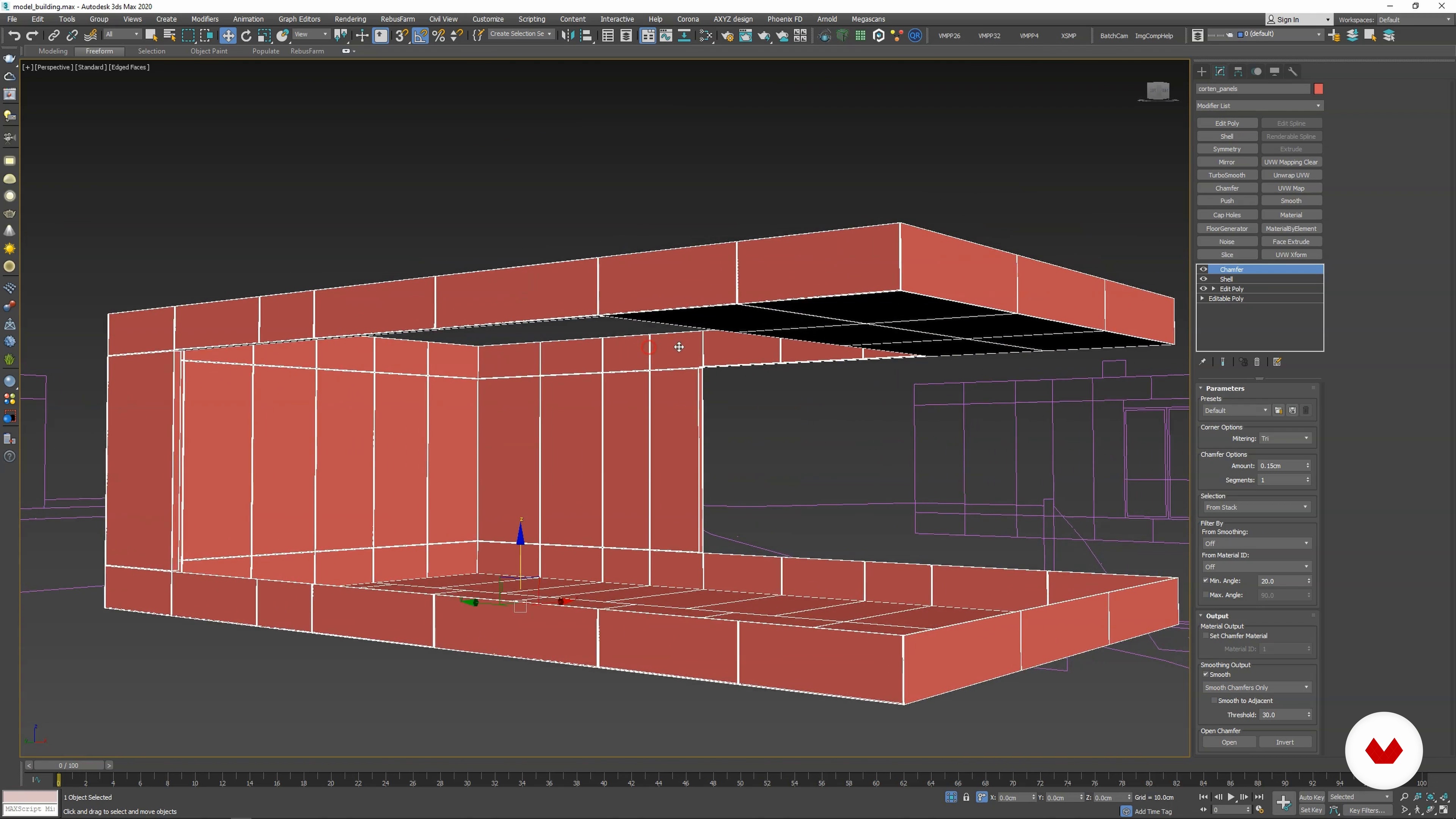
Here, you will learn how to use the existing basic volume geometry for modeling corten panels on the facade.
19m
image
8
Modeling Wood Cladding
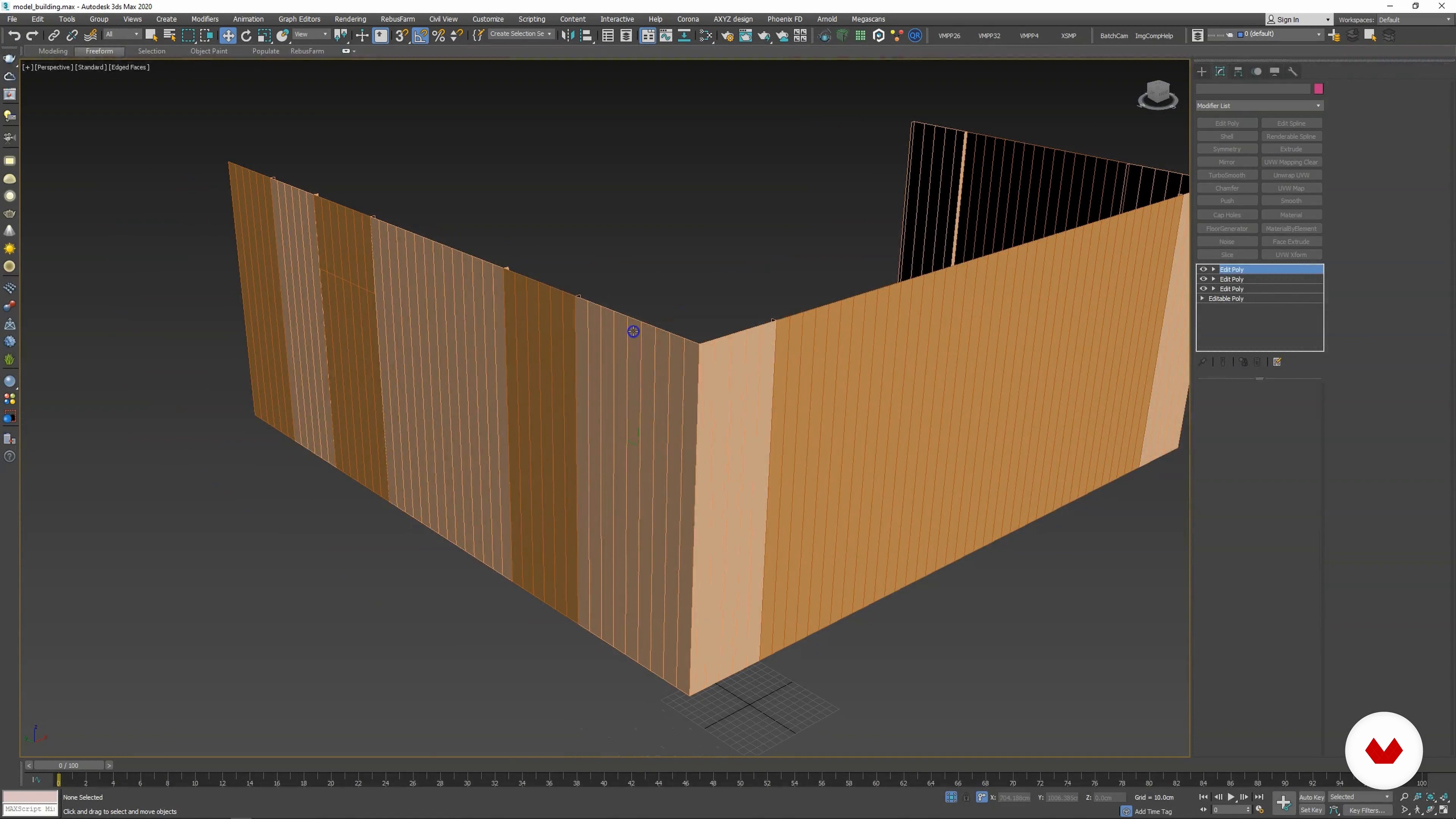
Continuing with the facade elements, this lesson will focus on cladding. Then, I will show you how to use modifiers to enhance the editability of the geometry you are working with.
11m
image
9
Modeling and Positioning Blinds
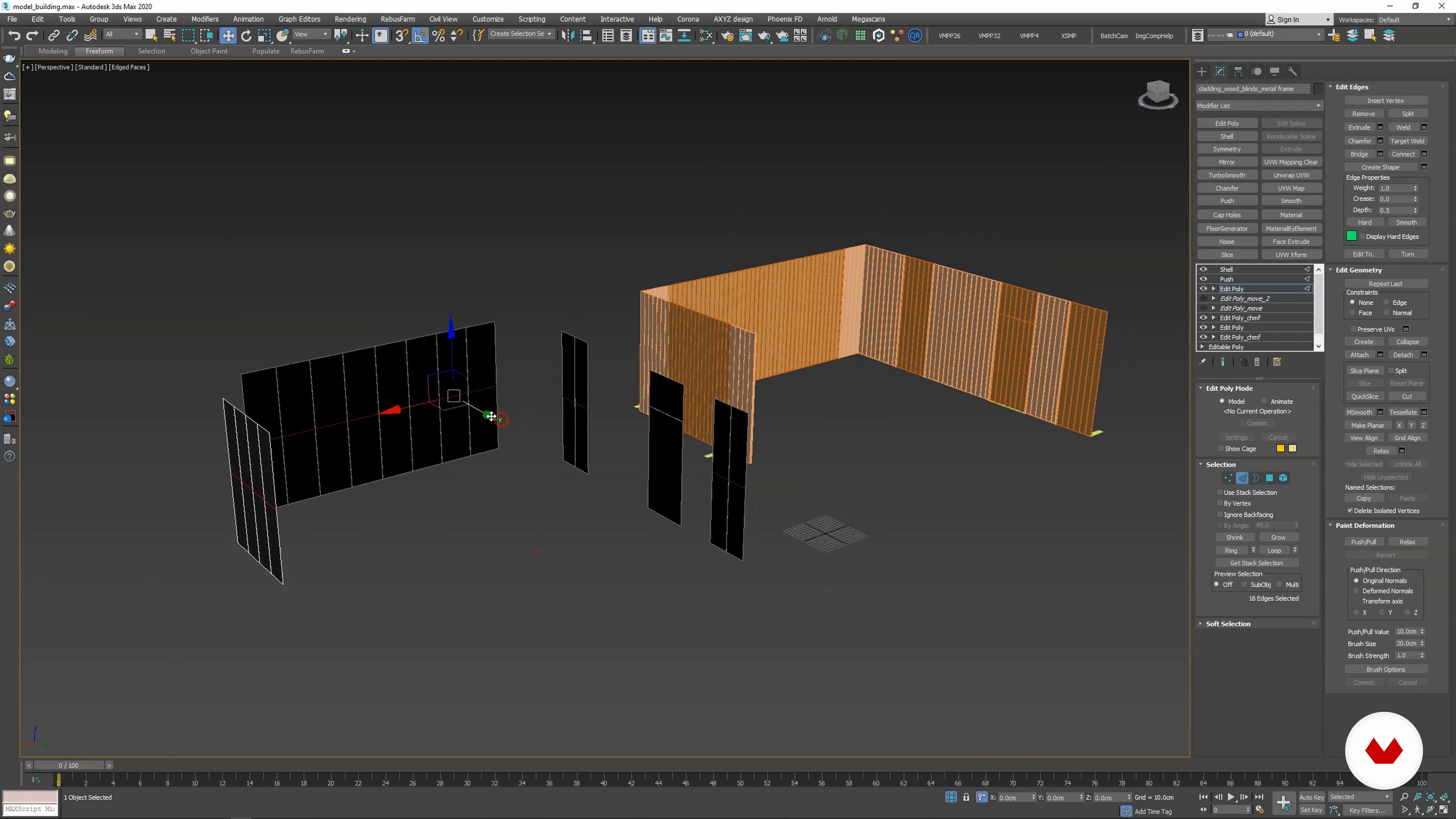
In this lesson, I will show you how to model the steel construction of the blinds and position them together with cladding elements using the Edit Poly modifier.
18m
image
10
Modeling Building Details
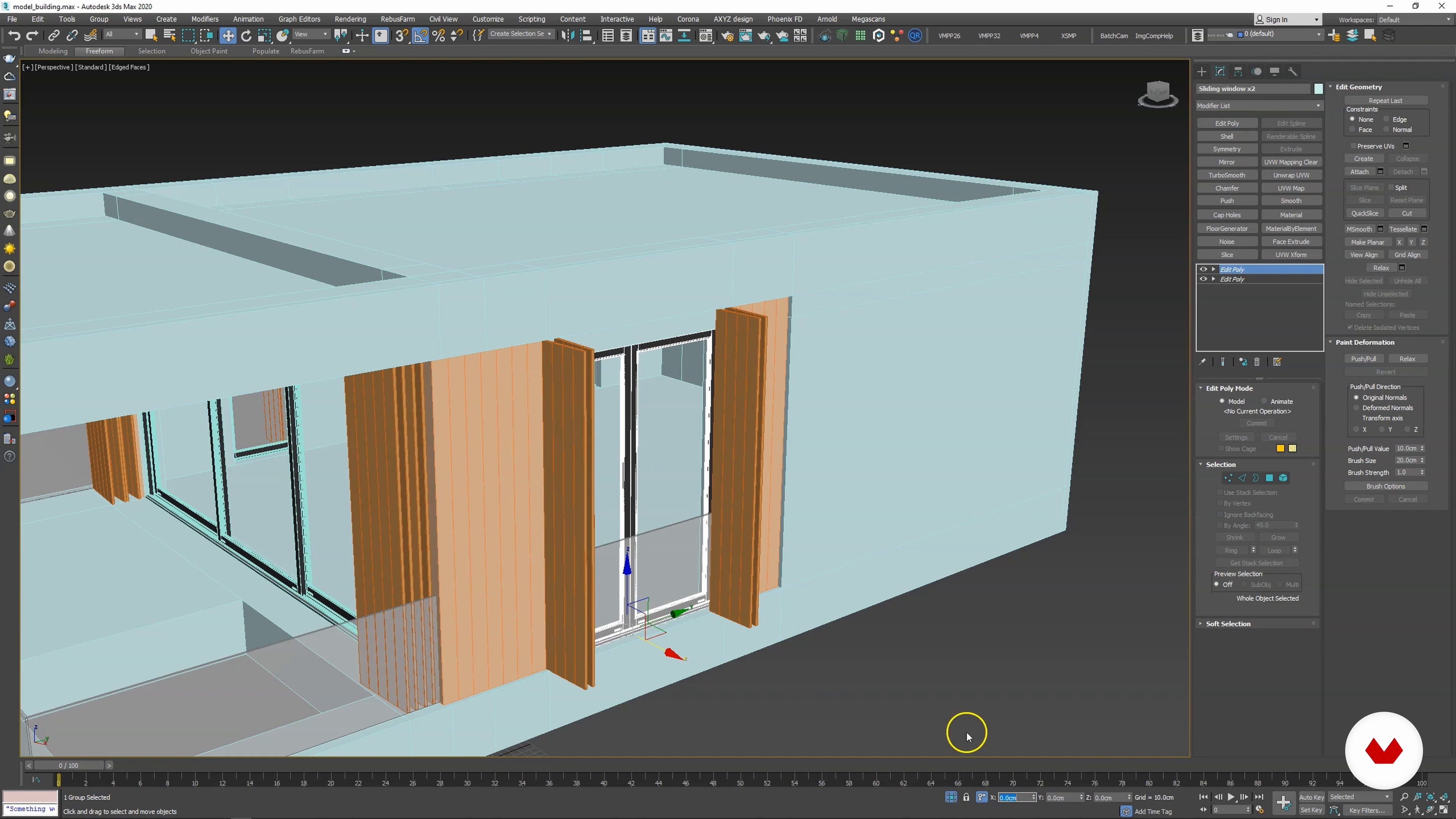
Finally, I will finish the details on the main volume of the building. Then, I will show you a quick and efficient way to model windows and doors, should you need to deal with large quantities.
20m
image
11
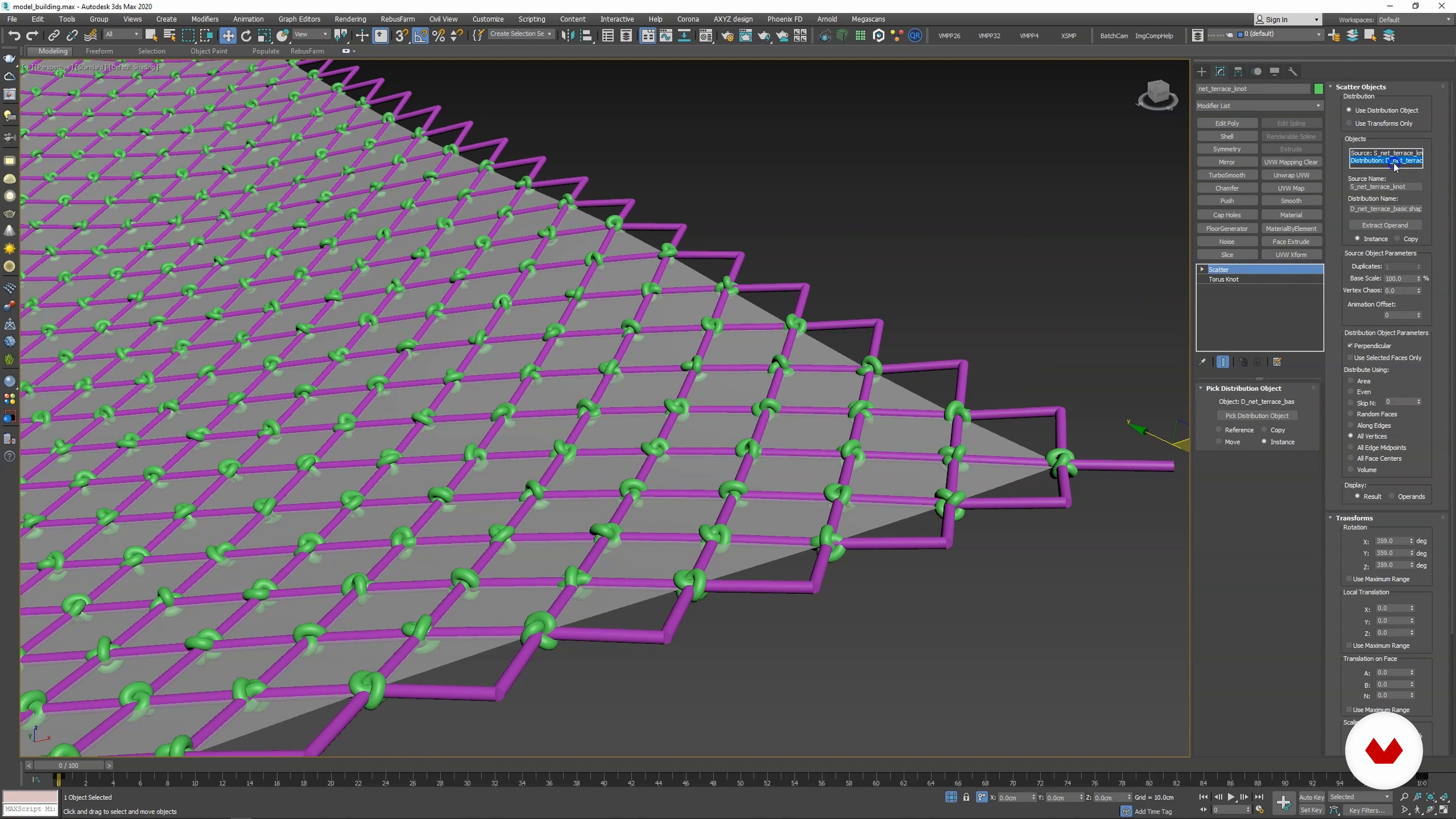
Modeling Net on the Terrace
In this lesson, I will show you how to model the resting net on the terrace starting from a simple plane object, using the native tools available on 3ds Max.
11m
image
12
Modeling the Basement Walls and Parking
This lesson will move forward with the modeling process. I will show you how to create the basement wall and parking areas around the house.
20m
image
13
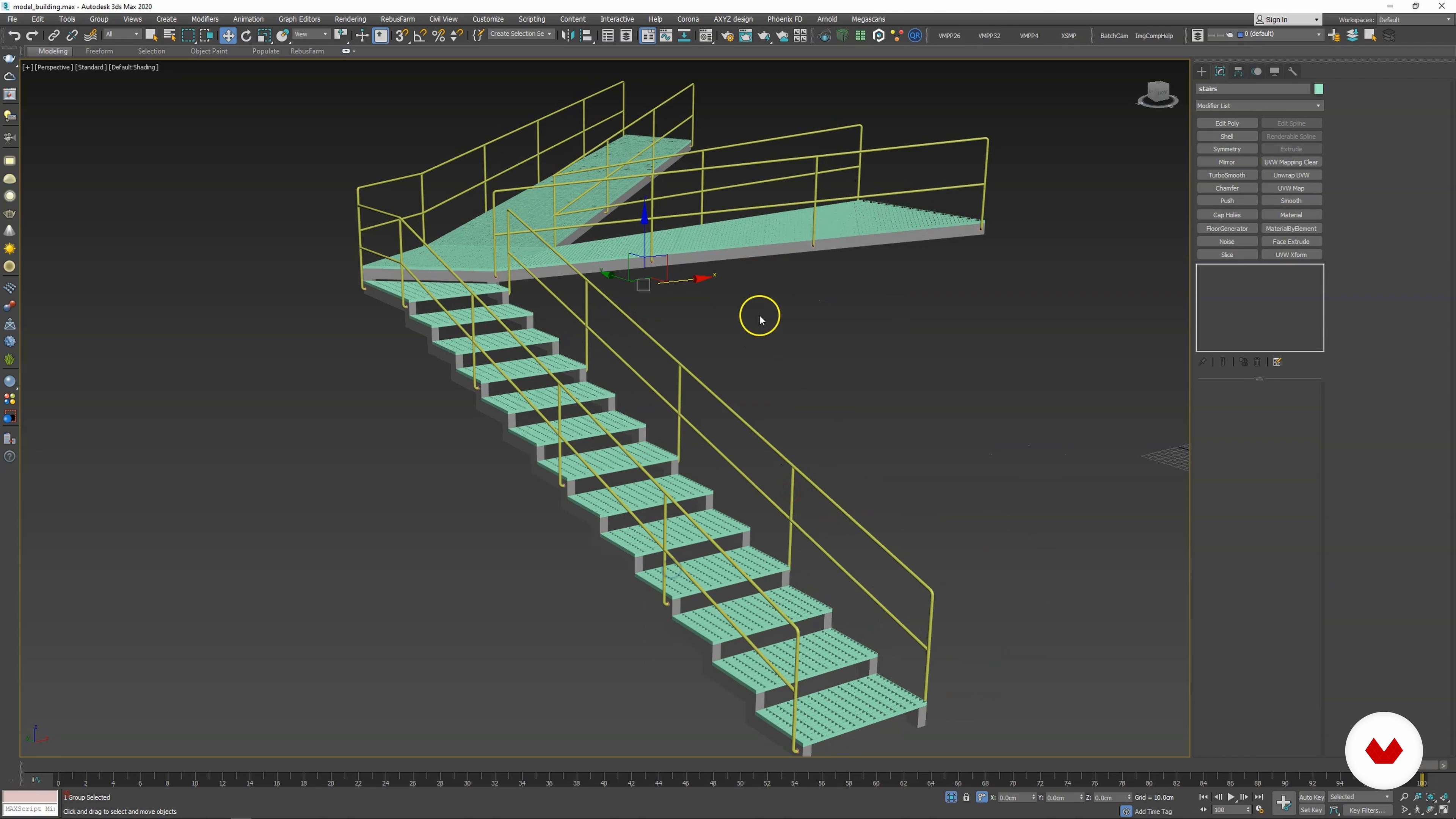
Modeling Outdoor Stairs 1
In this lesson, I will cover the modeling of the outdoor staircase. You will see how to approach architectural elements that are not strictly orthogonal and vertical.
19m
image
14
Modeling Outdoor Stairs 2
Here, I will continue with the theme of modeling the staircase.
19m
image
15
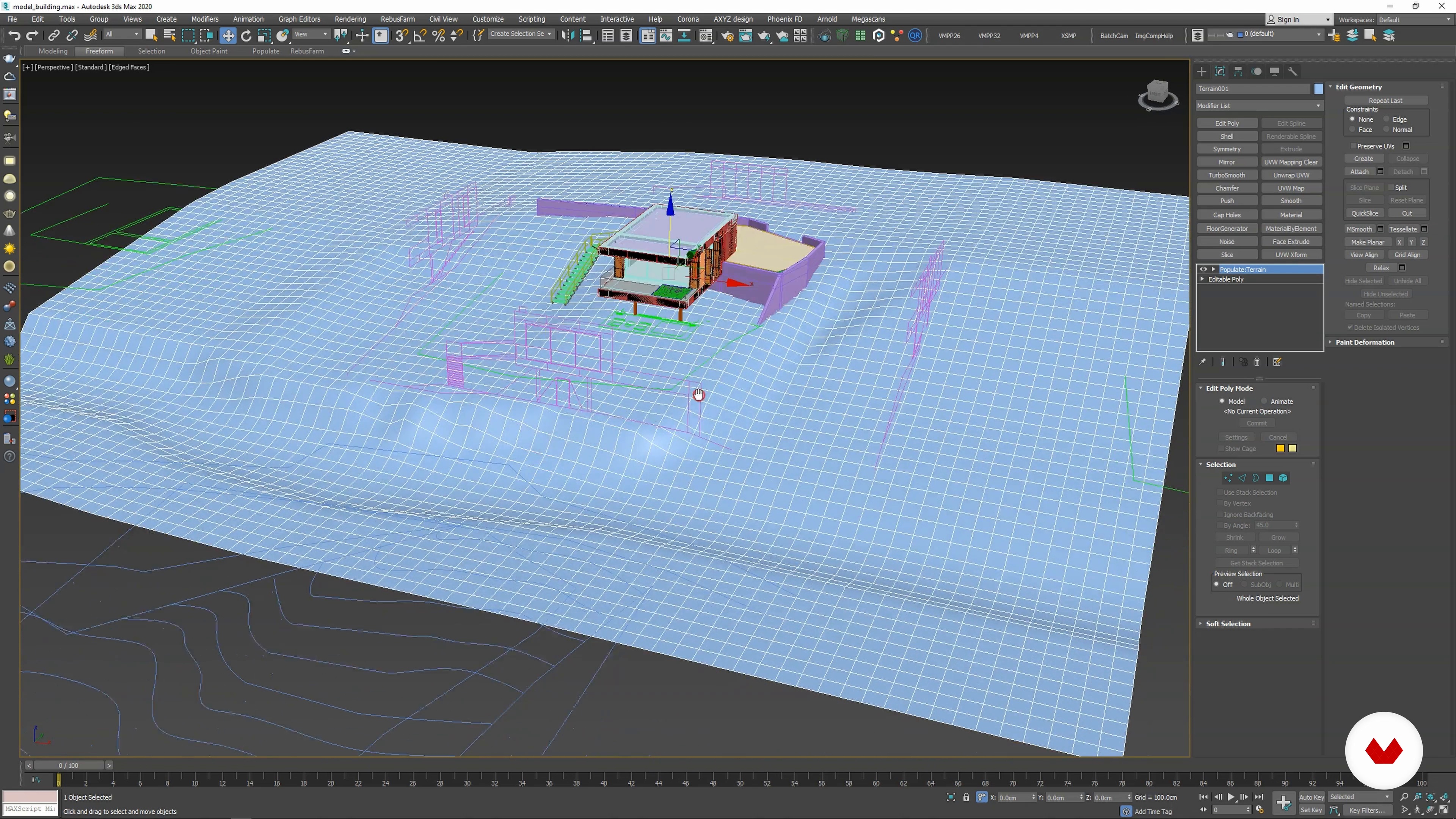
Modeling Terrain’s Existing State
In this lesson, we will cover the modeling of terrain. I will show you how to use isohypse lines and convert them into geometry.
10m
image
16
Modeling Terrain According to the Project
This lesson will expand upon the theme of modeling the terrain. I will use the geometry we created in the previous lesson and adjust it to the project's specifications, taking advantage of the freeform tools on the ribbon toolbar to add the final details.
20m
image
17
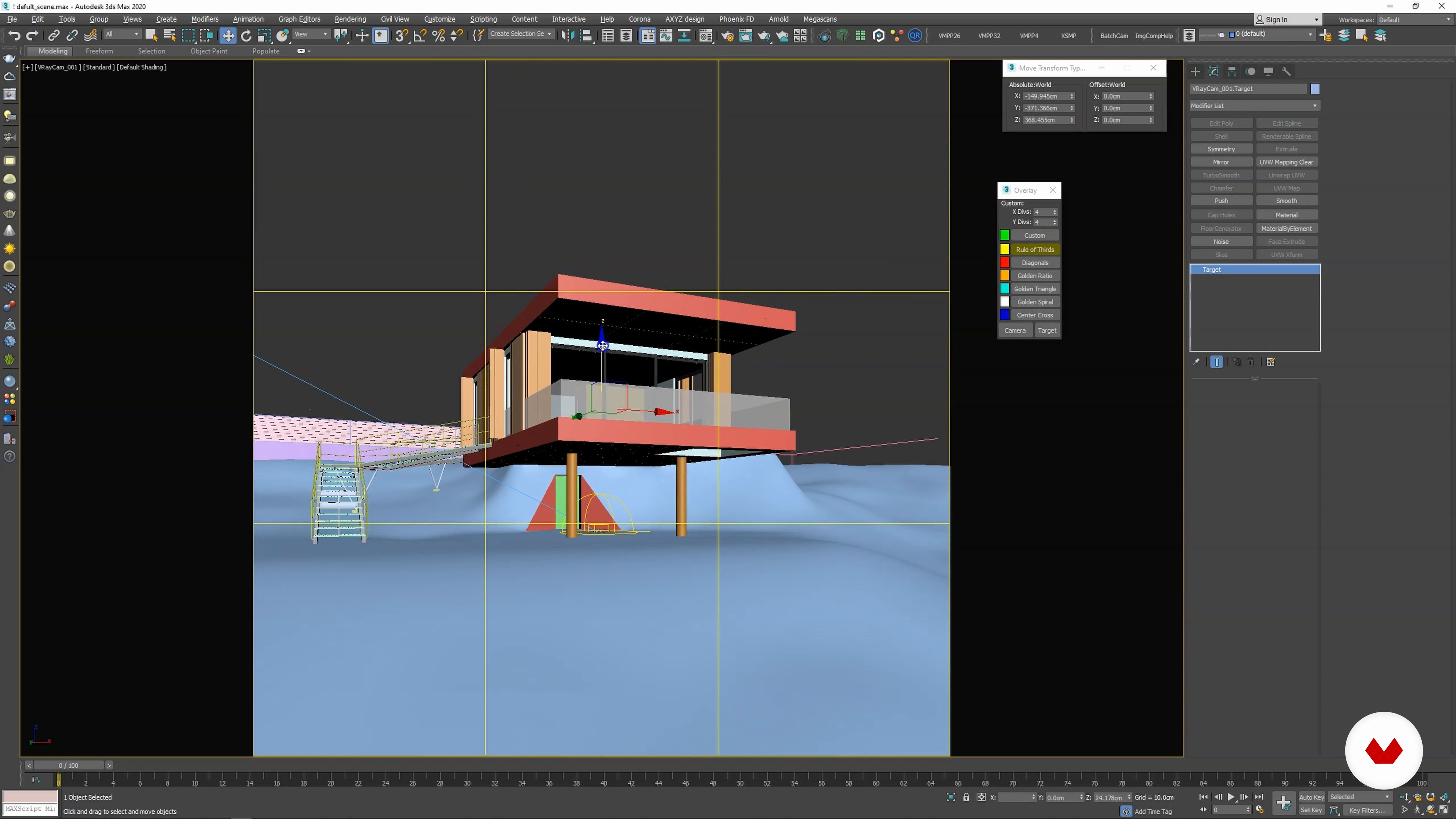
Default Scene and Importing a 3D Model
In this lesson, I will give you a brief overview of the default scene from which every render is started in our studio. I will also go through Quixel Bridge and how it works.
10m
image
18
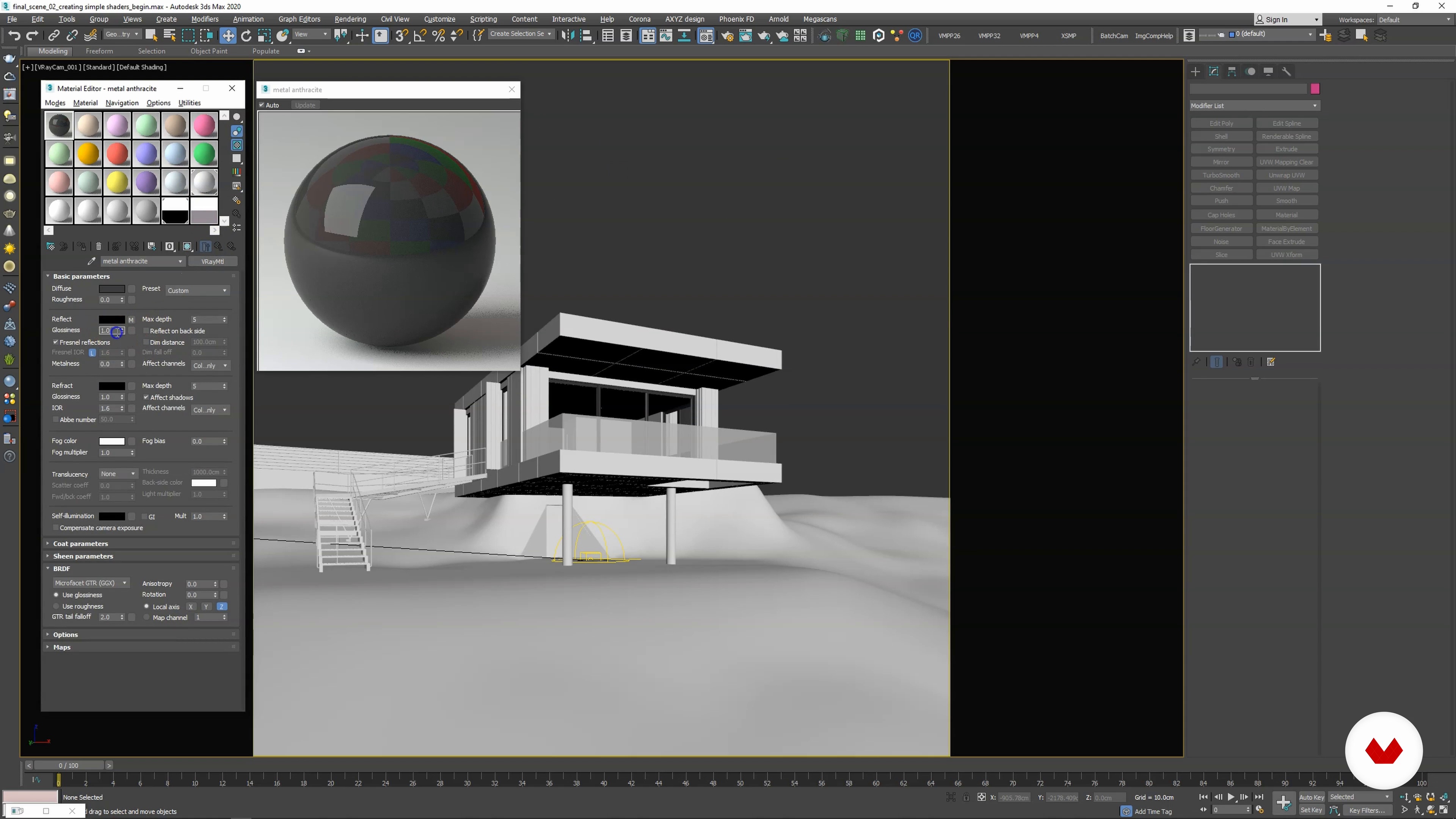
Basic Lighting Setup
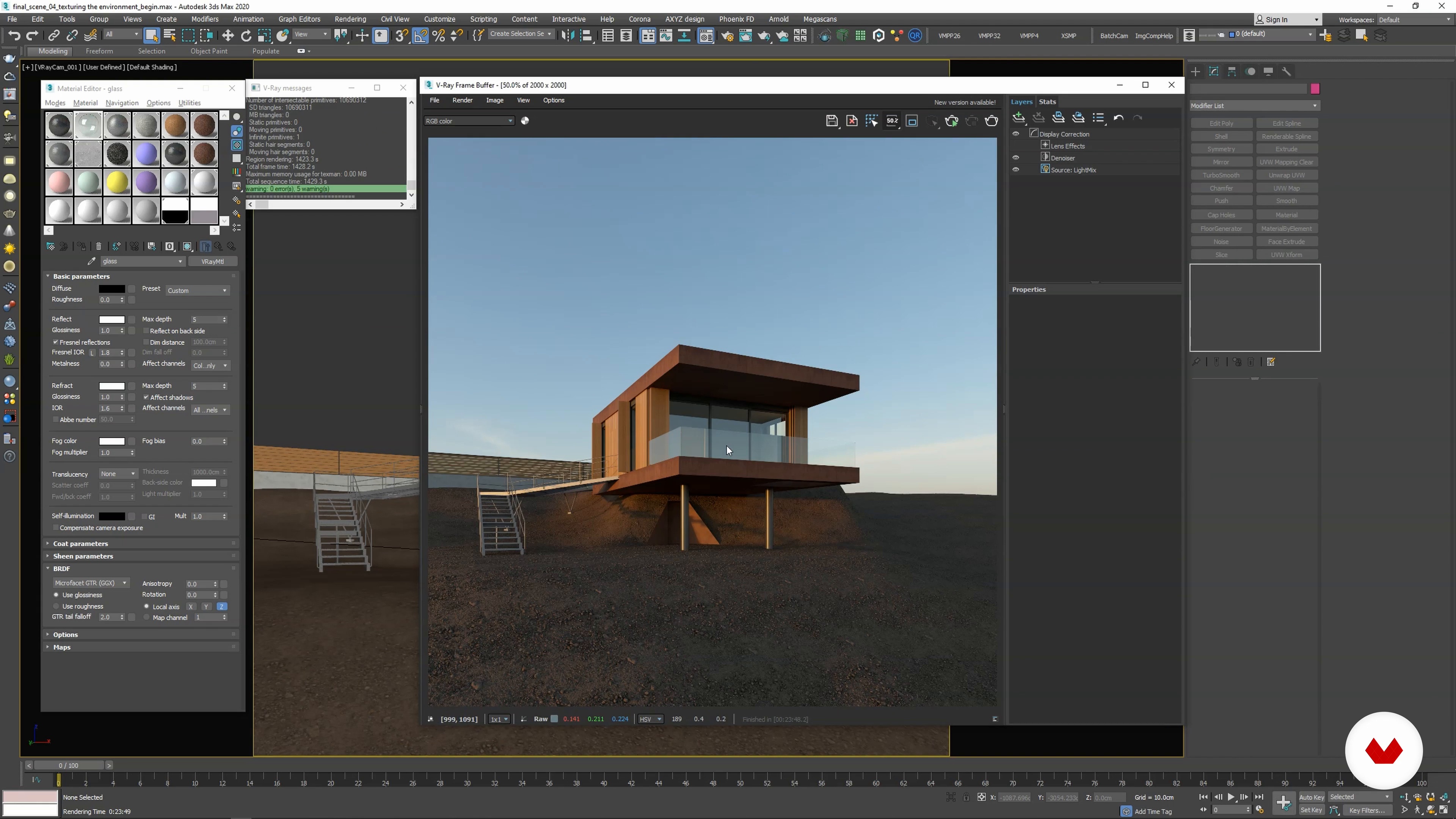
This lesson will explore the basic parameters of the VRay shader, including color diffusion, reflection, refraction, etc. Then, you will create simple metal and glass materials for your scene.
7m
image
19
Creating Simple Shaders
This lesson will cover importing shaders from Quixel Bridge to 3ds Max and how to use or adjust them as needed.
16m
image
20
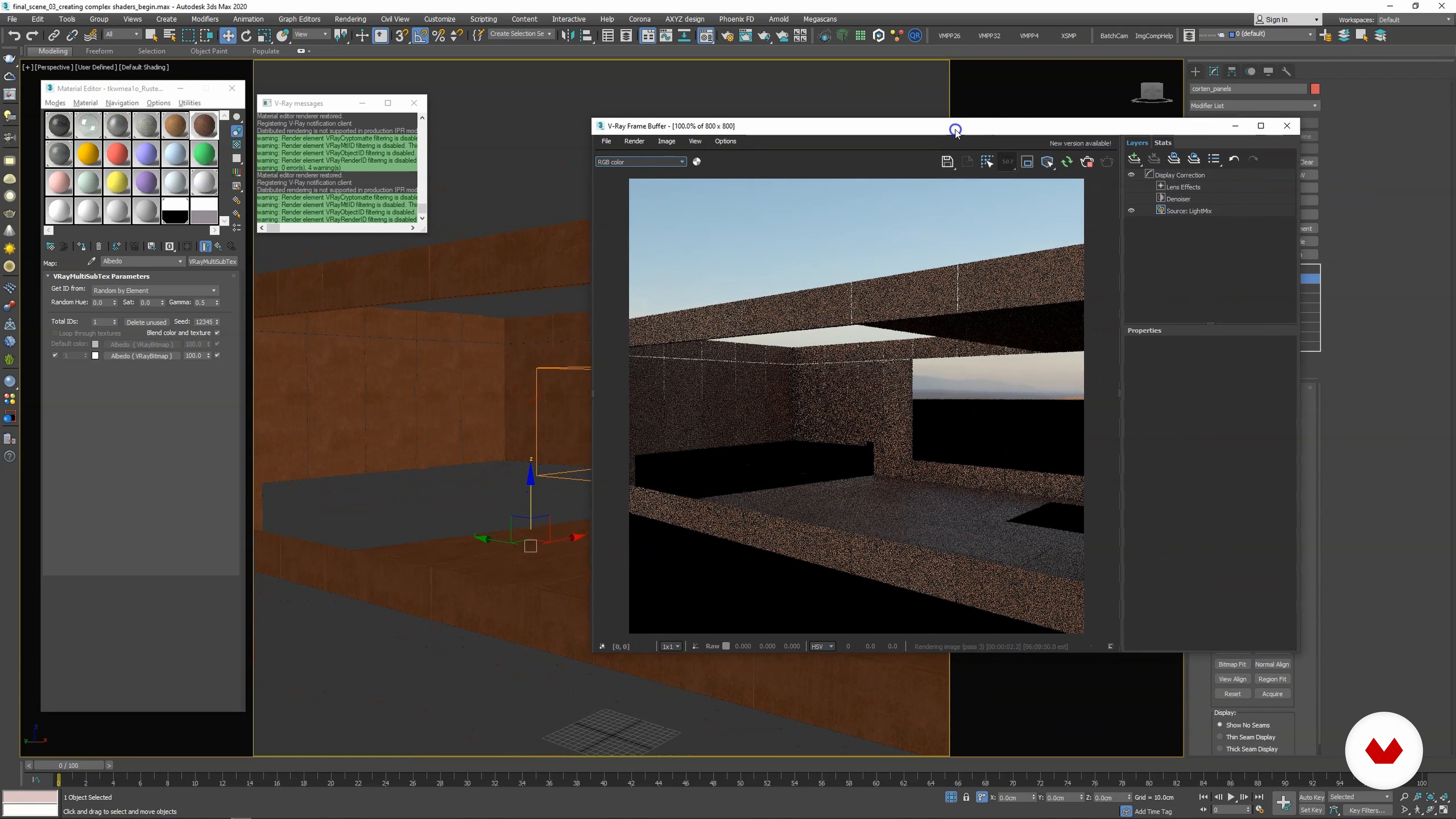
Importing Shaders From Quixel
In this lesson, I will build on what we've covered so far. I will show you how to add more details to your shaders, such as dirt and leaks, touching on UVW Unwrapping.
14m
image
21
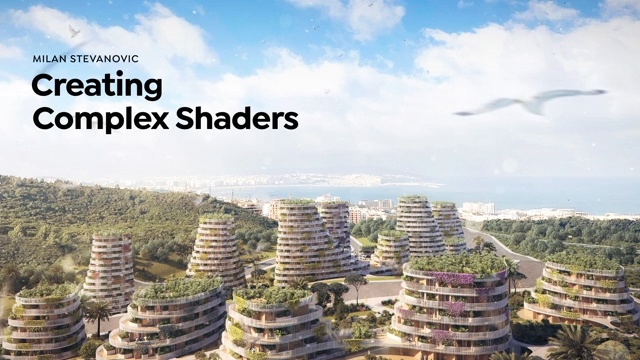
Creating Complex Shaders
20m
image
22
Texturing the Environment
To conclude this unit, I will show you how to texture the environment adding complexity to your design. You will use UVW Unwrap. I will also cover VRay displacement and how to apply it to get more realistic results.
12m
image
23
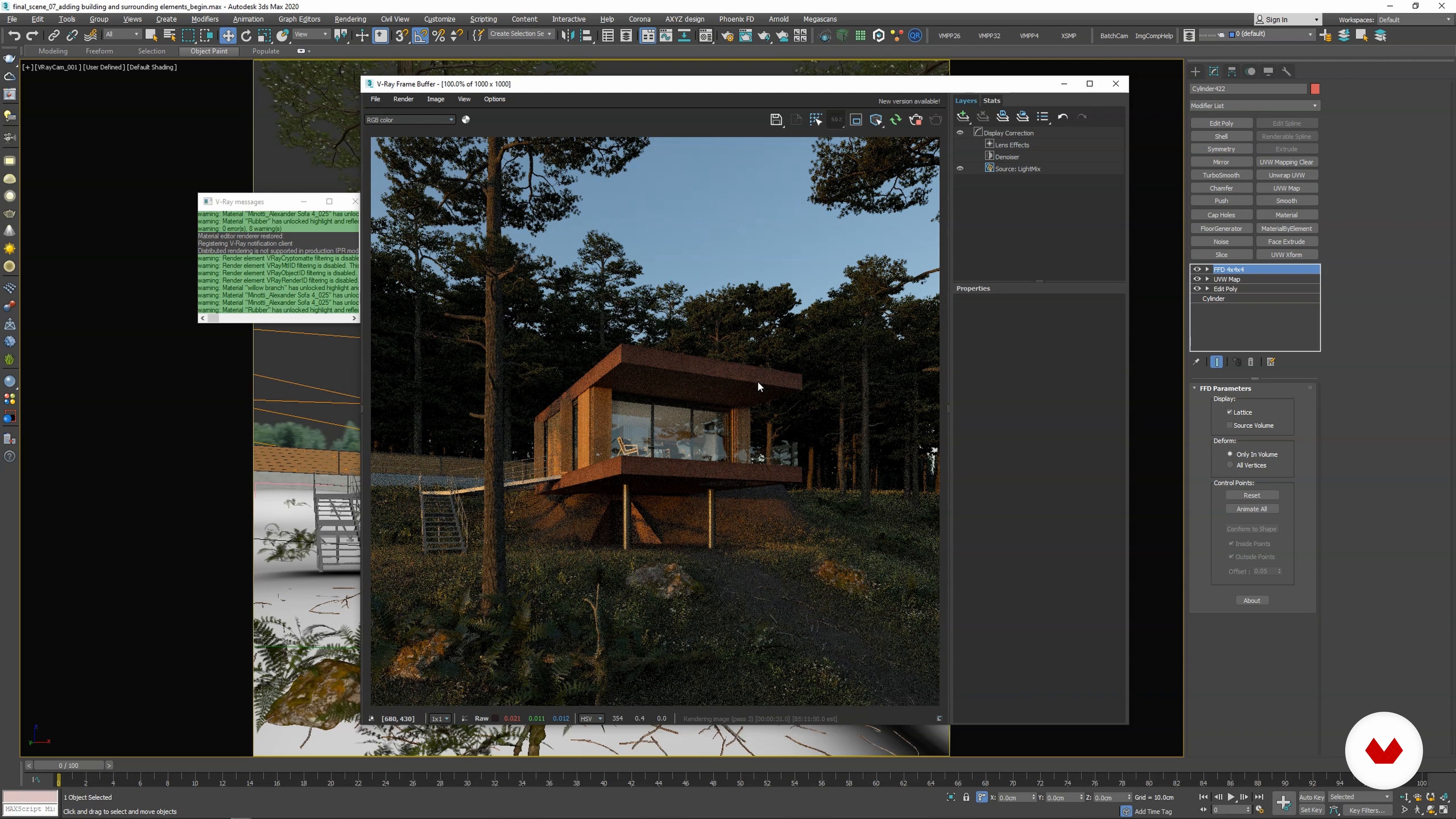
Adding Grass With MultiScatter
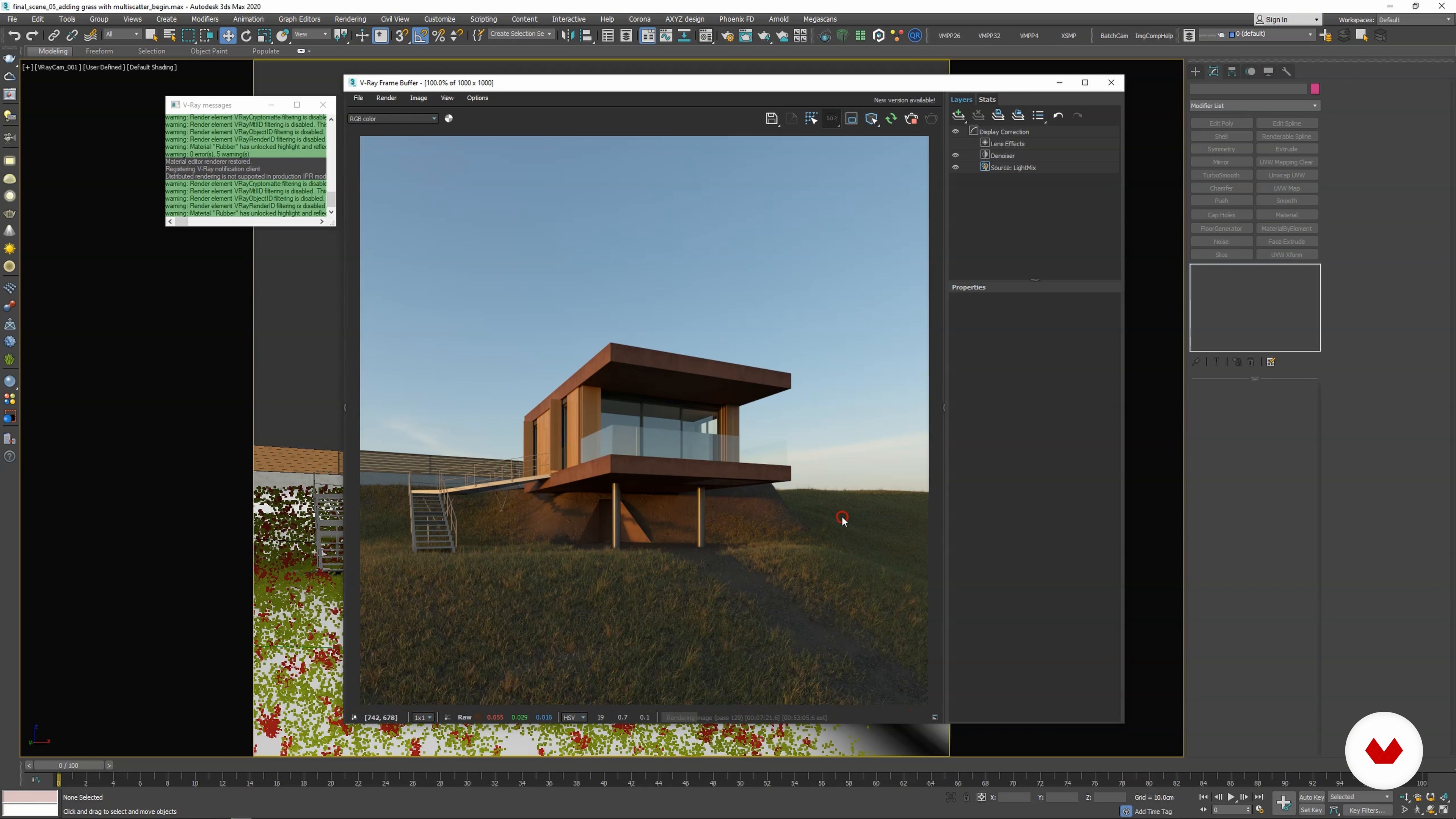
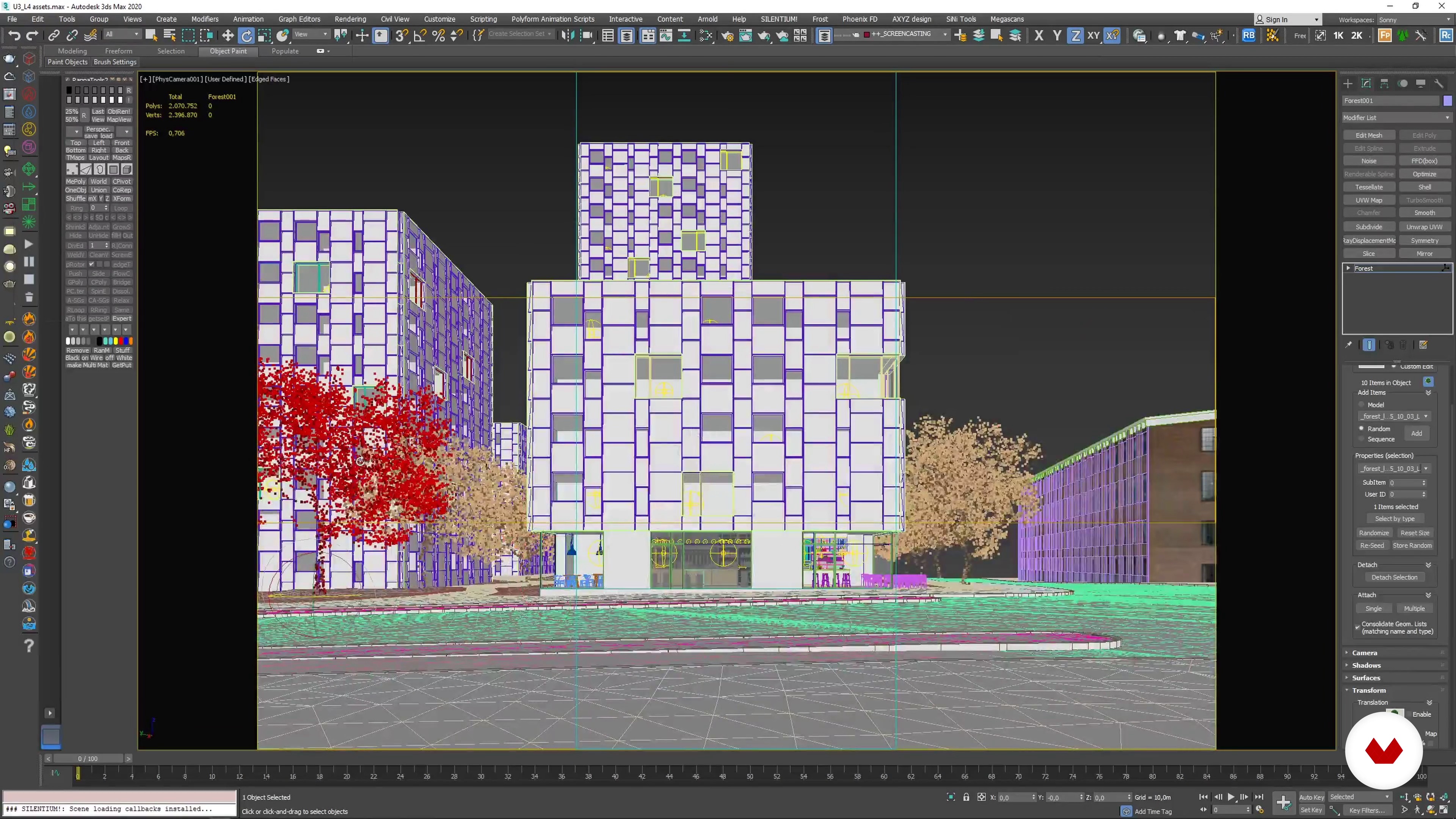
In this lesson, I will show you how to use the MultiScatter plugin and apply grass geometry to the terrain. After, I'll show an alternative way of painting masks on the geometry, by switching to Vertex Paint Mode.
19m
image
24
Adding Additional Vegetation
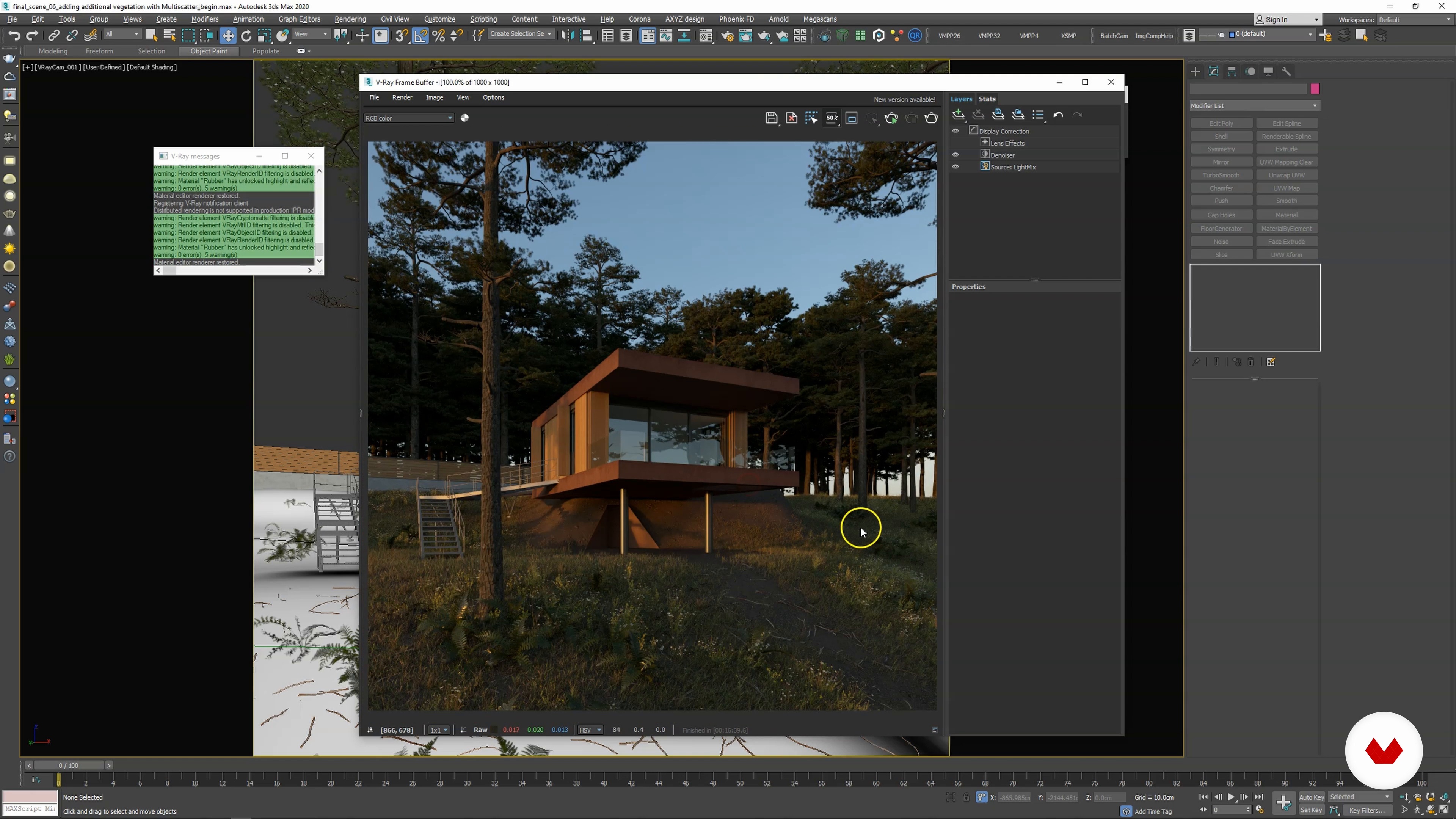
Let's further enhance the vegetation of our scenes! I will teach you how to add additional MultiScatter objects for plants and trees. Then, I will demonstrate adding vegetation geometry with the Object Paint tool inside 3ds Max.
16m
image
25
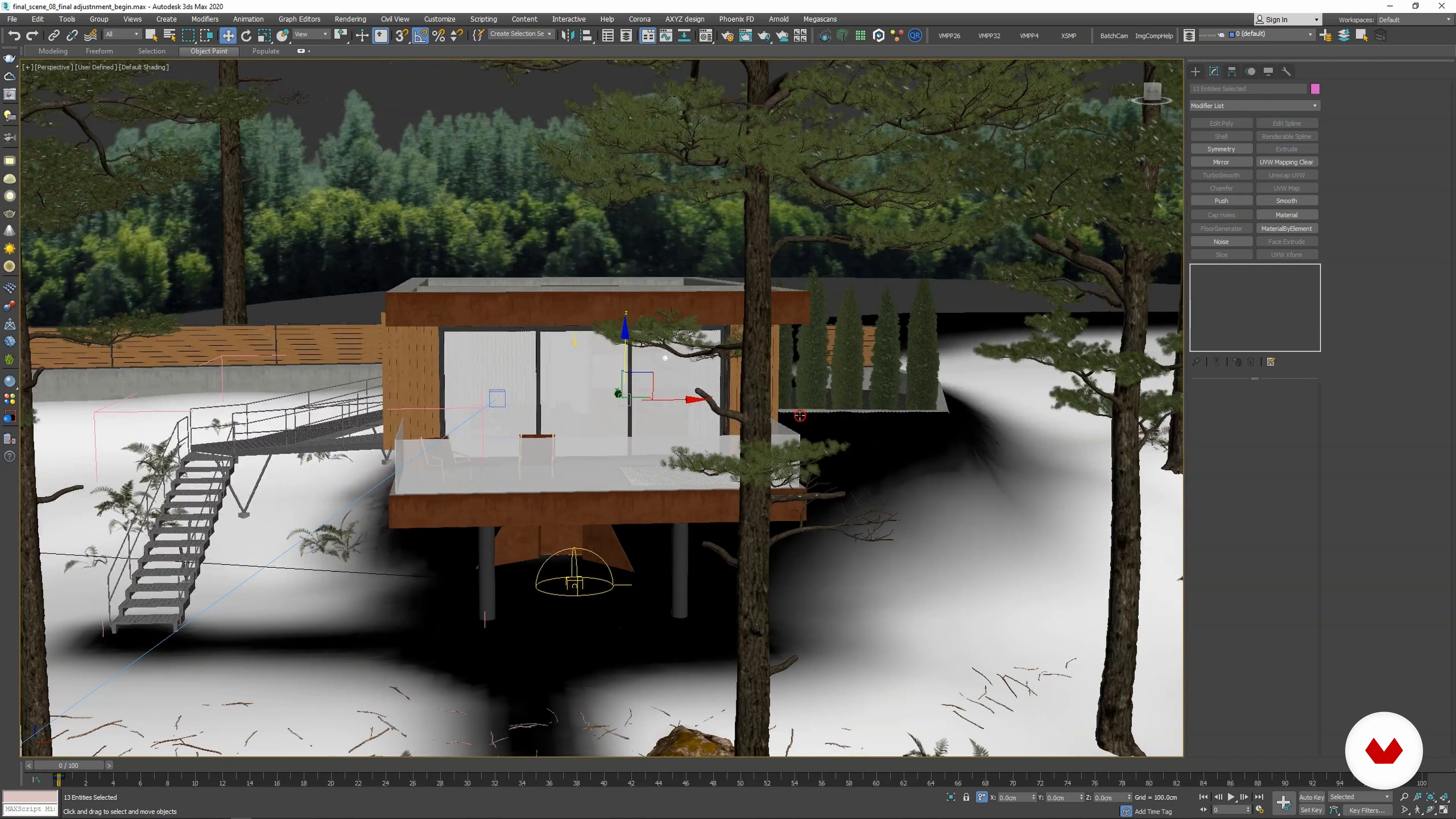
Adding Details and Surrounding Elements
This lesson will focus on interior and exterior decorative elements, like furniture. I will also model different ways to light the interior. Then, you can adapt your approach depending on what you need.
15m
image
26
Final Scene Adjustments
Now, we've reached the stage of final adjustments. I will show you how to refine the geometry, lighting, materials, etc. Paying special attention to the material glass. We will also add Object IDs to the geometry in order to get selections inside the MultiMatte Render Element. Let's dive in and optimize our scenes!
13m
image
27
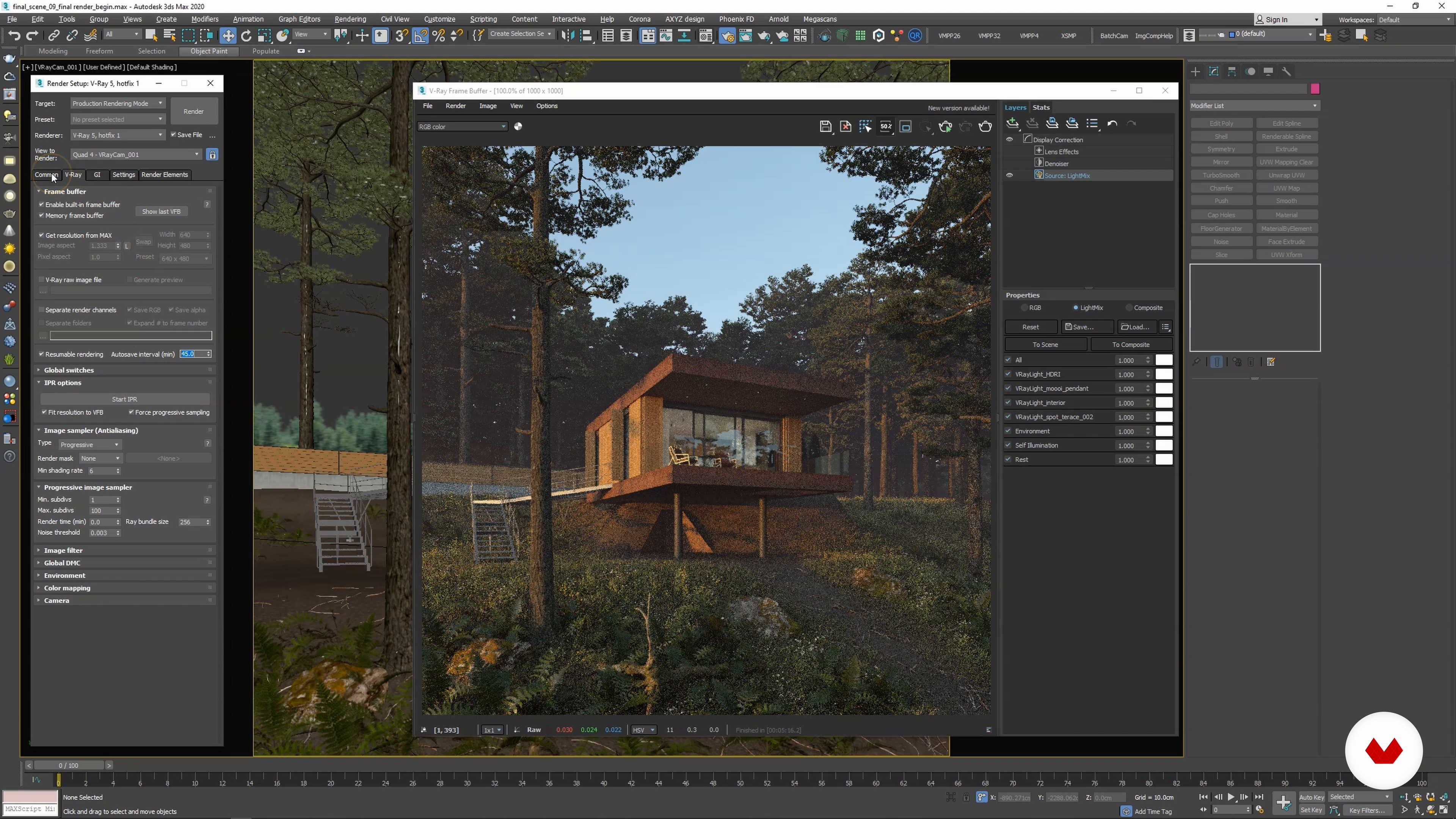
Final Render Setup
In this lesson, I will discuss final tweaks. I will also show you how to add more depth to your render by using the VRay Aerial Perspective effect. Then, I will set up a final render resolution.
5m
image
28
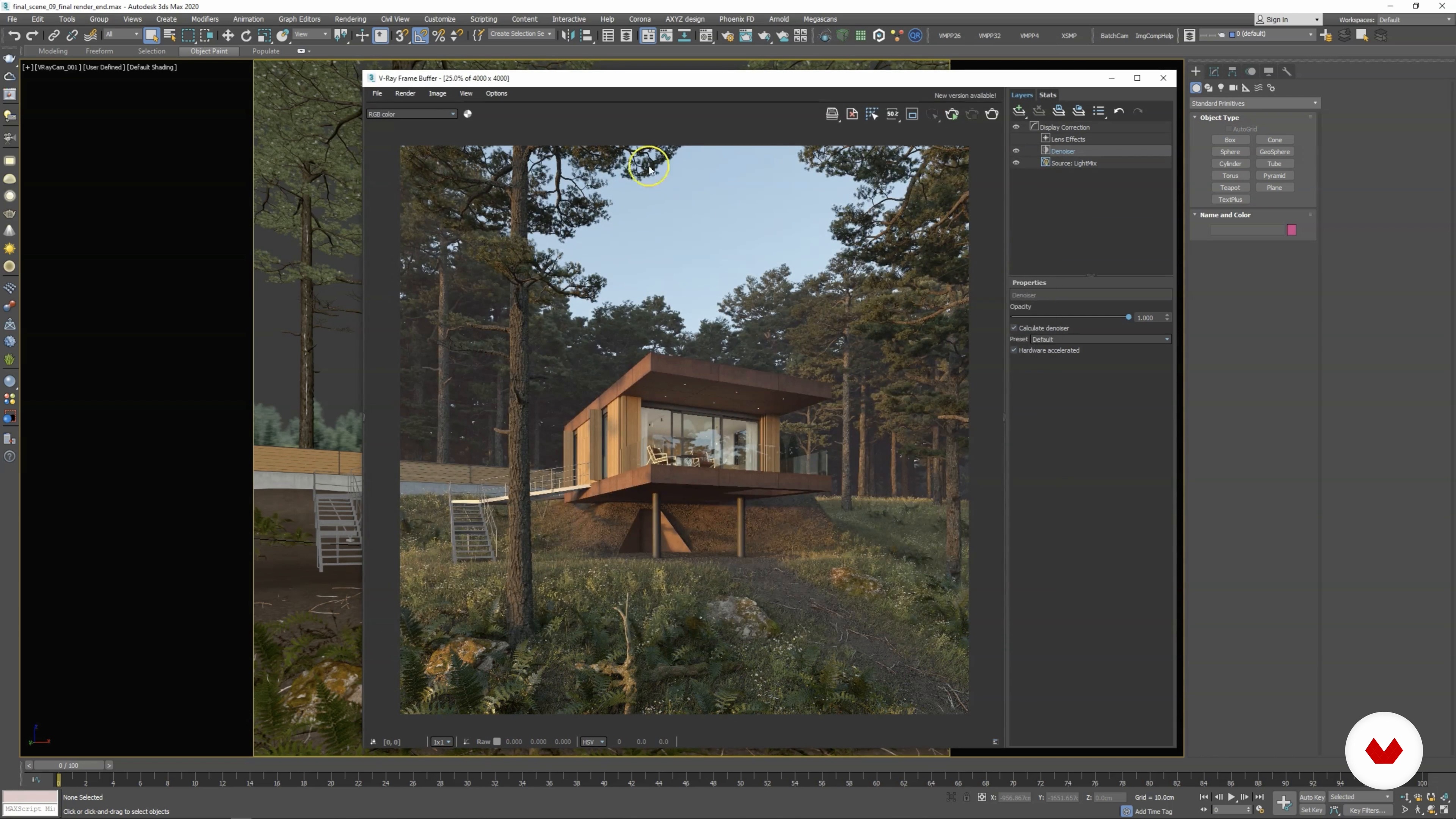
Final Render Review and LightMix in VRay
Finally, I will review the final render in VRay Frame Buffer. At this stage, I recommend taking advantage of LightMix. In this lesson, I will show you how powerful this tool can be.
9m
image
29
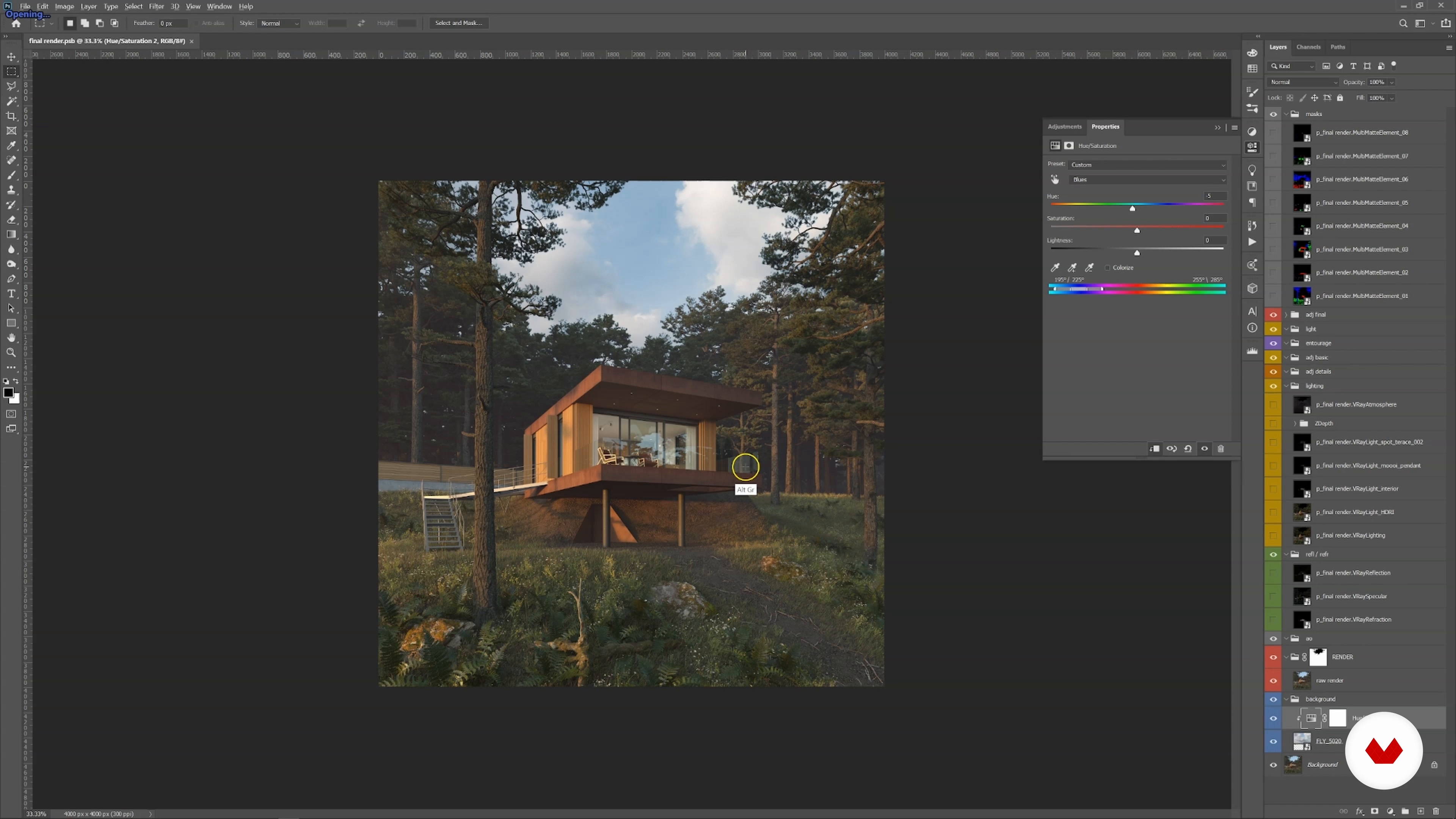
Opening Render in Photoshop
This lesson will cover opening raw render in Photoshop and forming the basic folder structure for post-production. After that, I will import render passes and place them into the proper folder.
5m
image
30
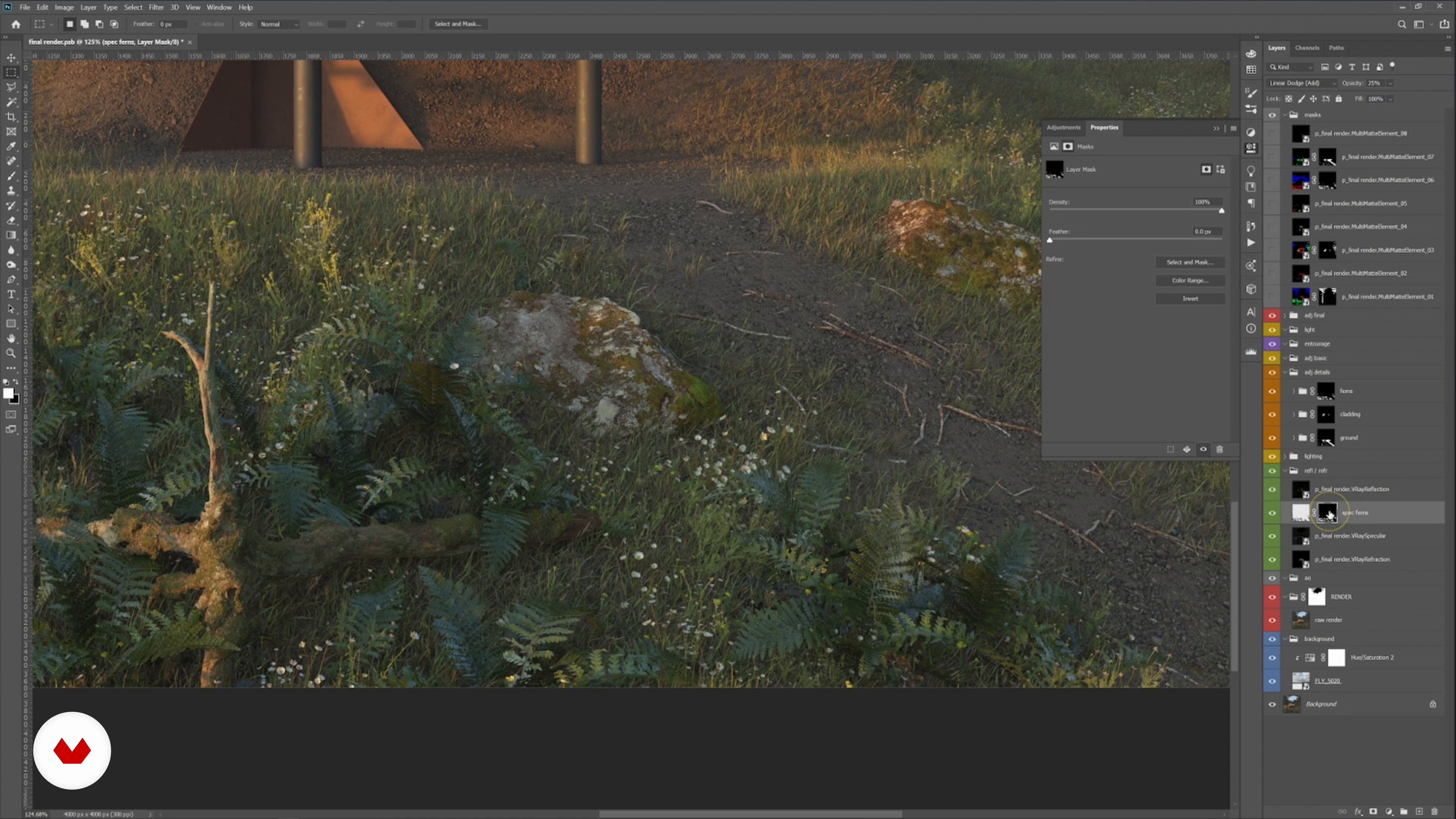
Working With Render Passes
In this lesson, I will go over render passes and show you how to use them inside Photoshop. I will also show you which blending modes to use and how to get masks from the MultiMatte Render Element.
15m
image
31
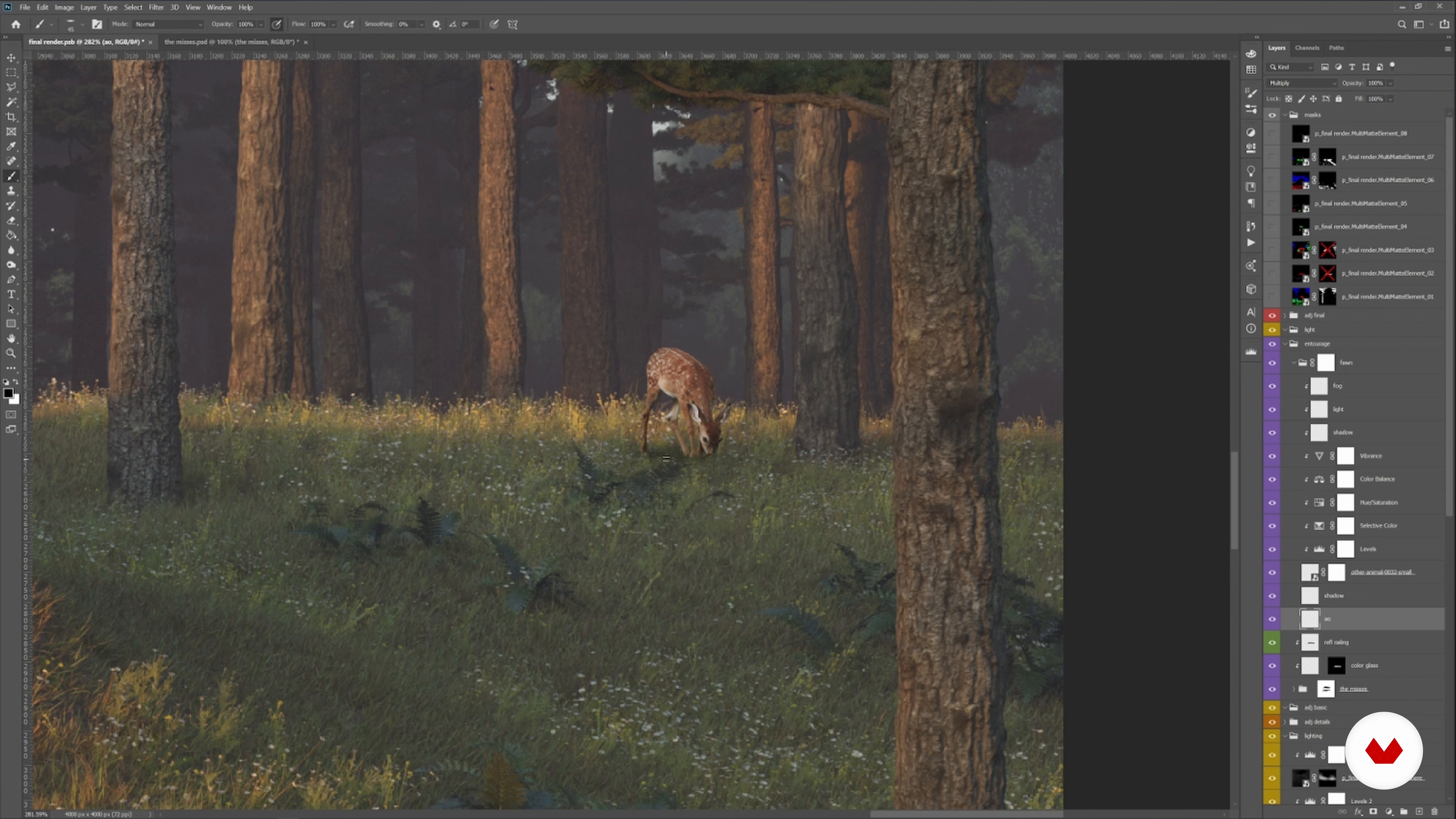
Adding Entourage
In this lesson, I will show you how to add 2D cutouts to your render. You will see how to incorporate your 2D cutout using adjustment layers, and painting light and shadows on it.
12m
image
32
Nik Color Efex Pro Plugin for Photoshop
Next, I will show you how to use the Nik Color Efex Pro plugin for Photoshop. I will go over some of the filters that I use most often and demonstrate how to combine them in order to enhance your render.
7m
image
33
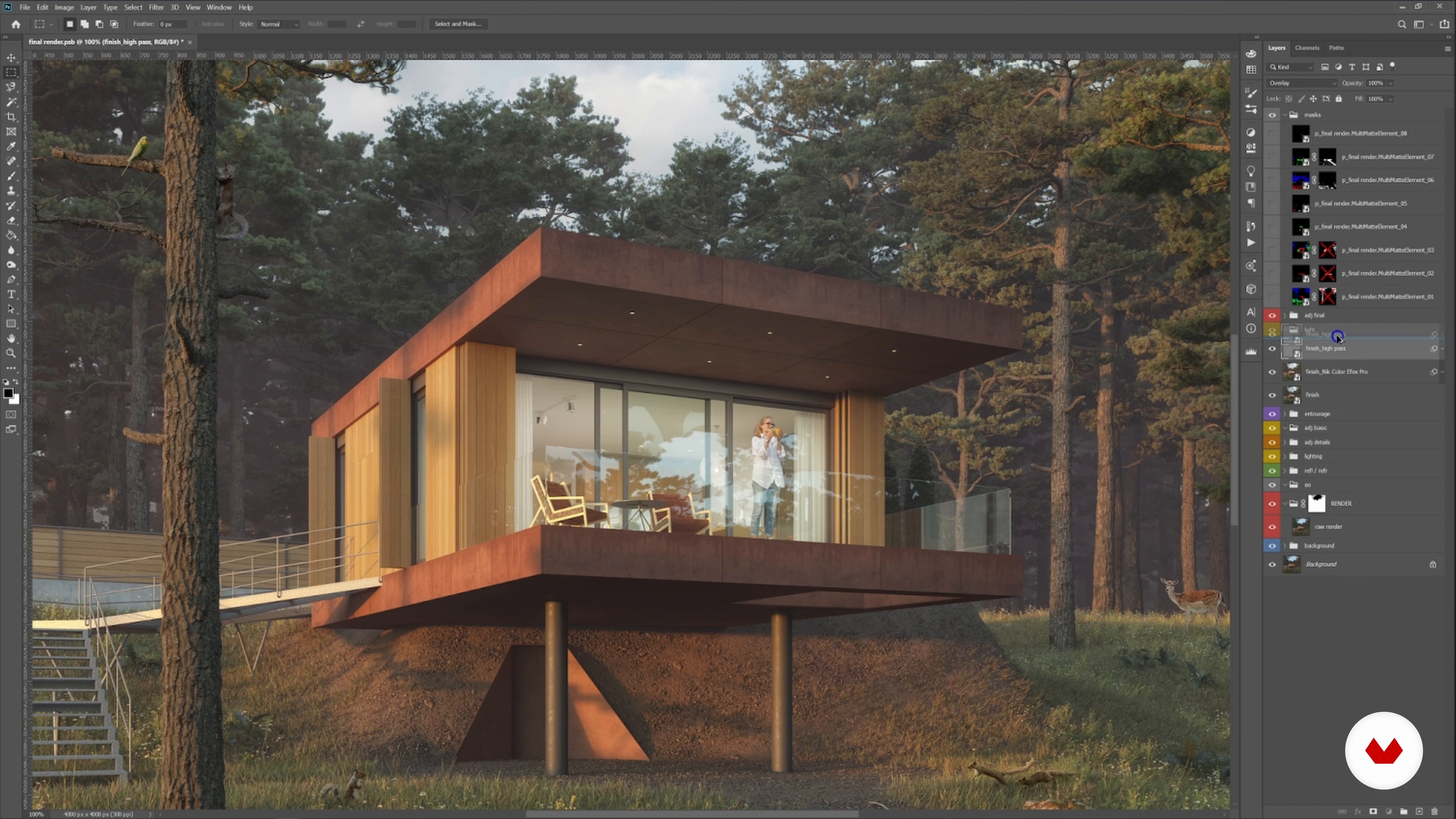
Final Adjustments
To finish, I will discuss the final render adjustments. First, I will paint in additional light and fog. Then, I will use adjustment layers to adapt final color grading, levels, etc.
17m
image
3
What Is Visual Storytelling in Architectural Visualization?
In this lesson, I will talk about where architectural visualization originates from and what I believe is important to tell stories through architectural images.
10m
image
4
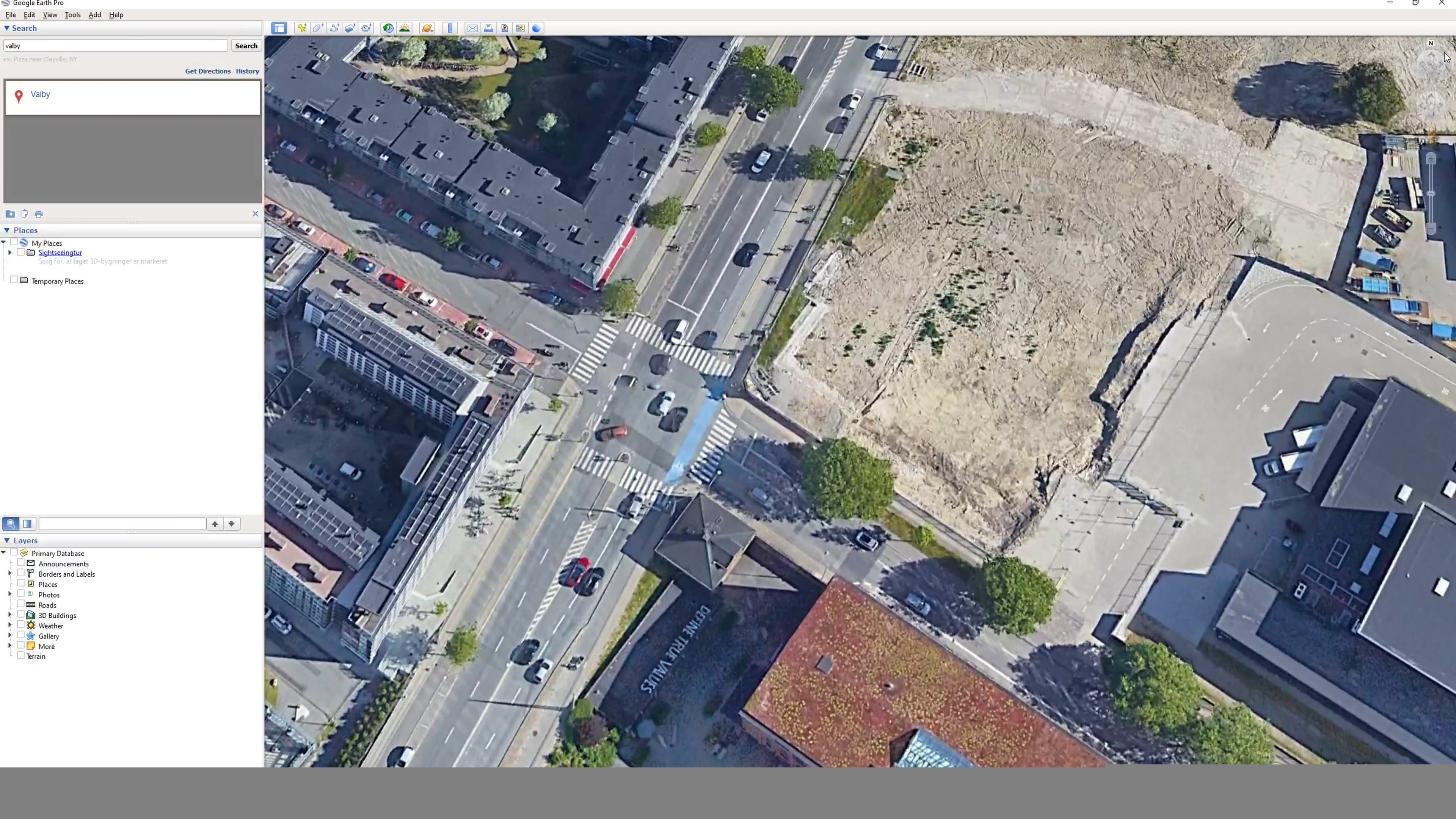
Preparing Scene File, Site and Surrounding 1
Now, I will go through a few basic tips about what to be aware of when starting up a scene file. I will identify the site location and save an image of the satellite view from Google Earth and import it to 3ds max.
11m
image
5
Preparing Scene File, Site and Surrounding 2
With basic spline drawing techniques, I will trace the roads with the use of the Google Earth satellite image as a base. I will then form the flat site onto a basic terrain. Lastly, I'll show you how to create a simple context building with poly modelling techniques.
13m
image
6
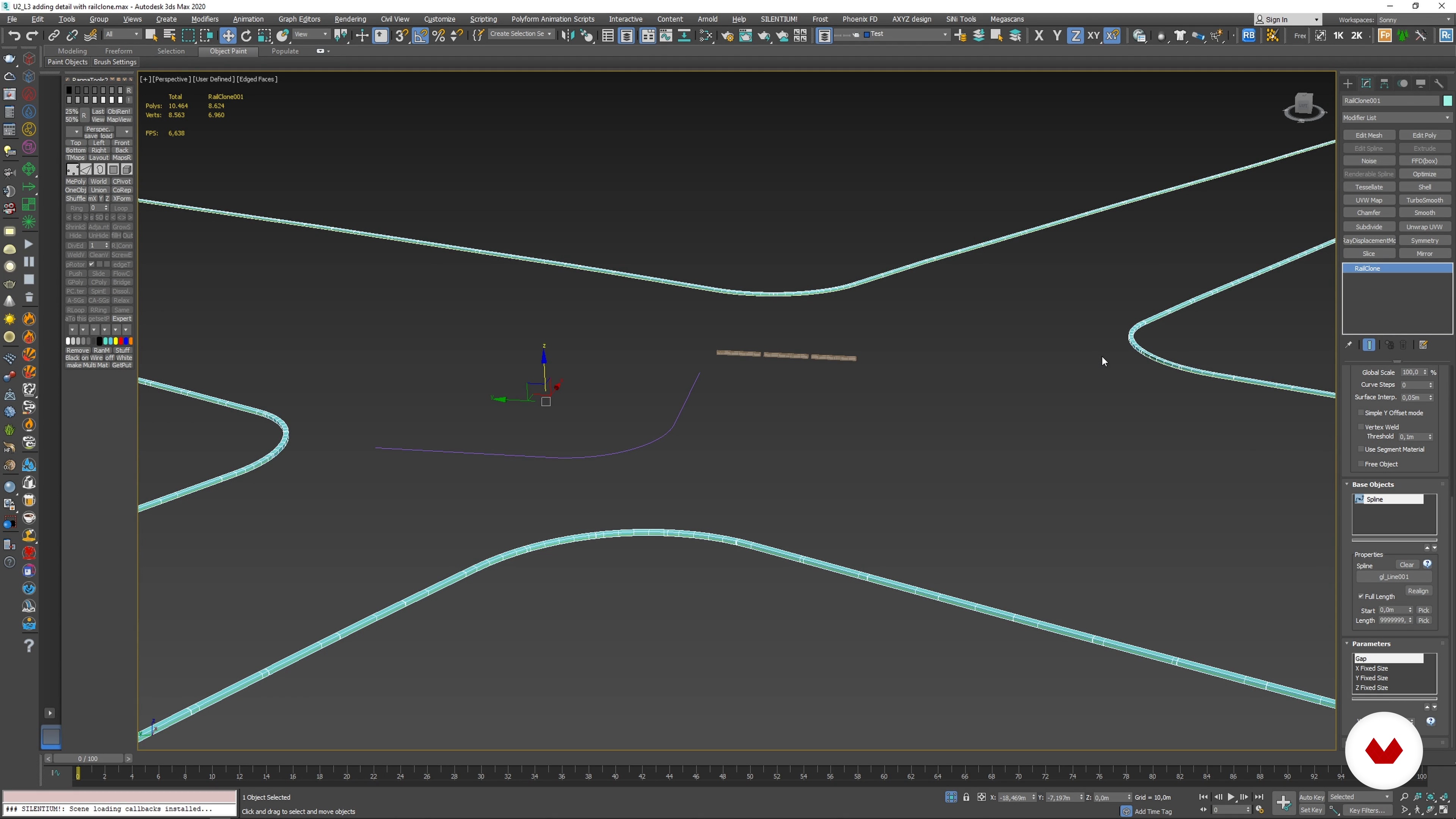
Adding Details with Railclone
In this lesson, I will create a detailed procedural curb with RailClone to add detail to the road.
8m
image
7
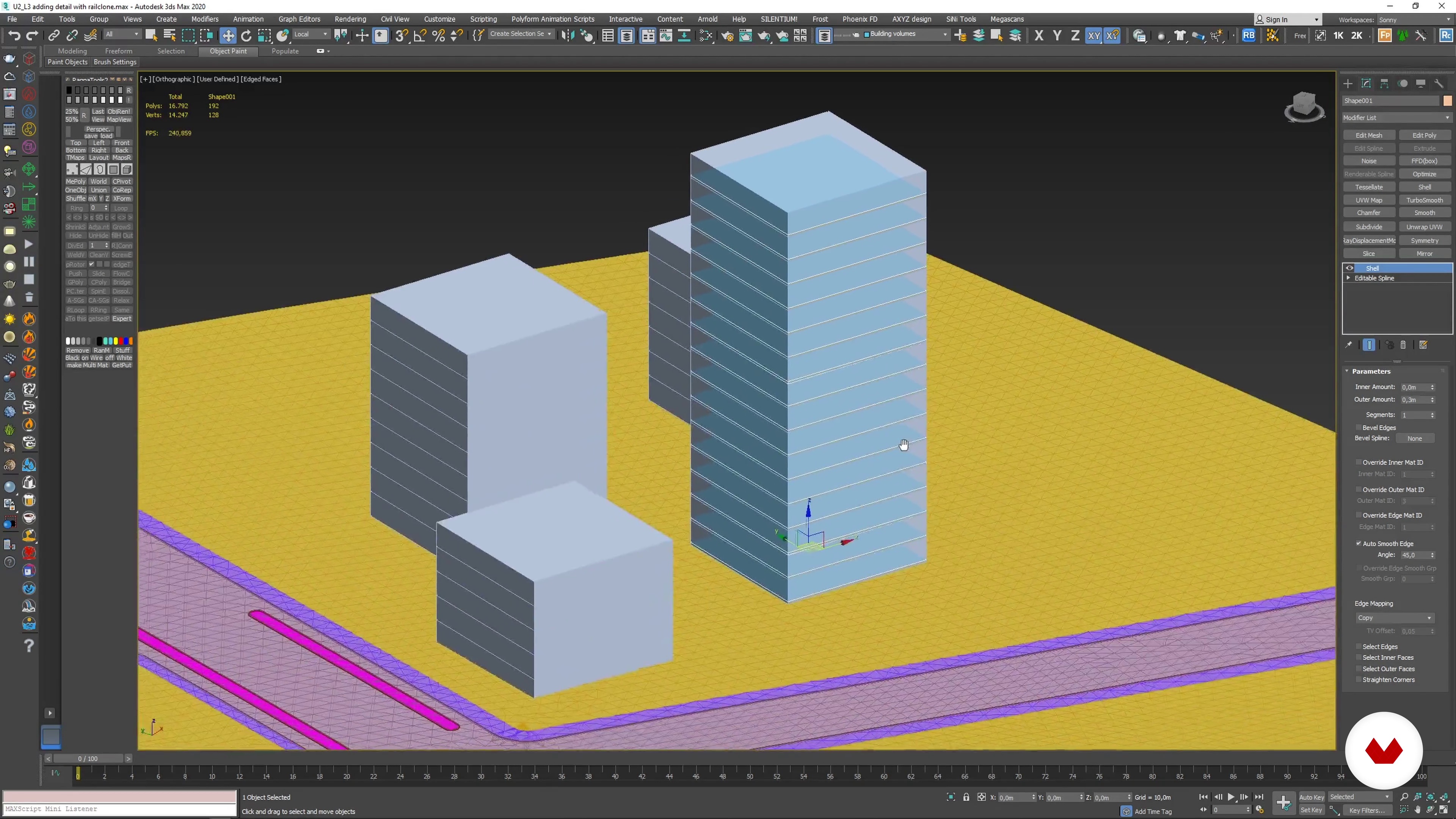
Blocking Out Buildings on Site
I will block out the volumes making up the base for the building design with simple geometries and poly modelling techniques.
4m
image
8
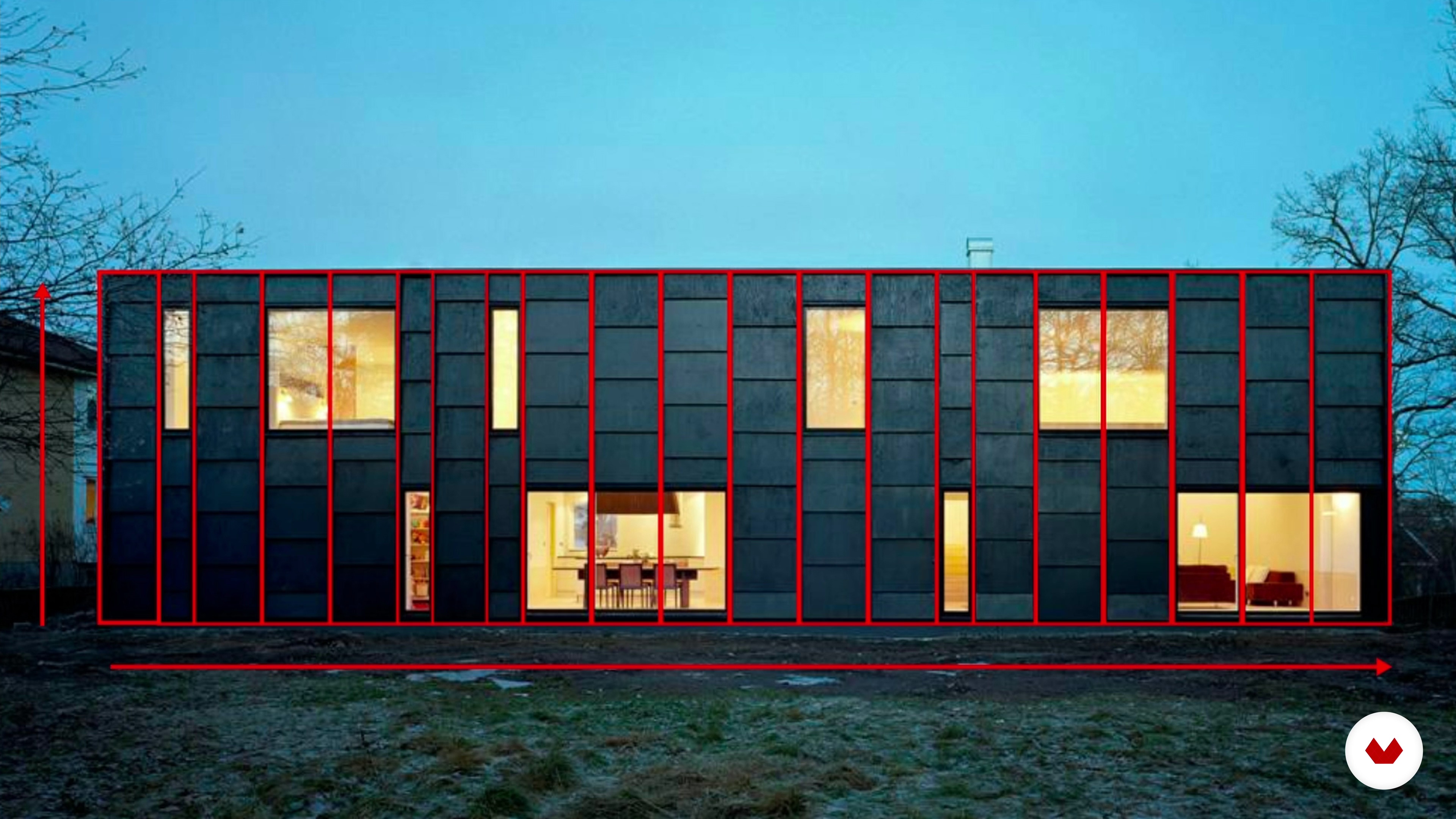
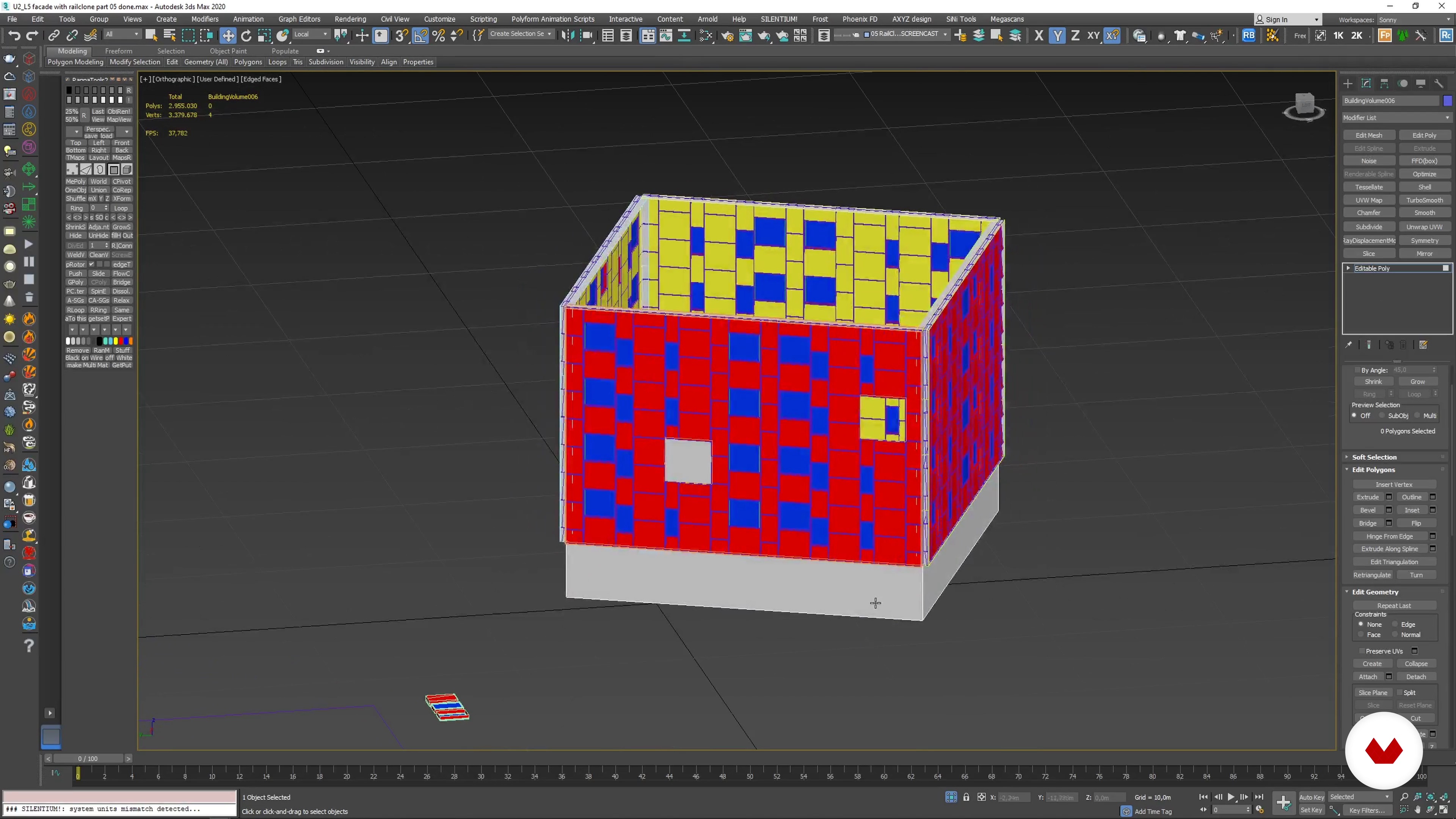
Create a Modular Facade with Railclone 1
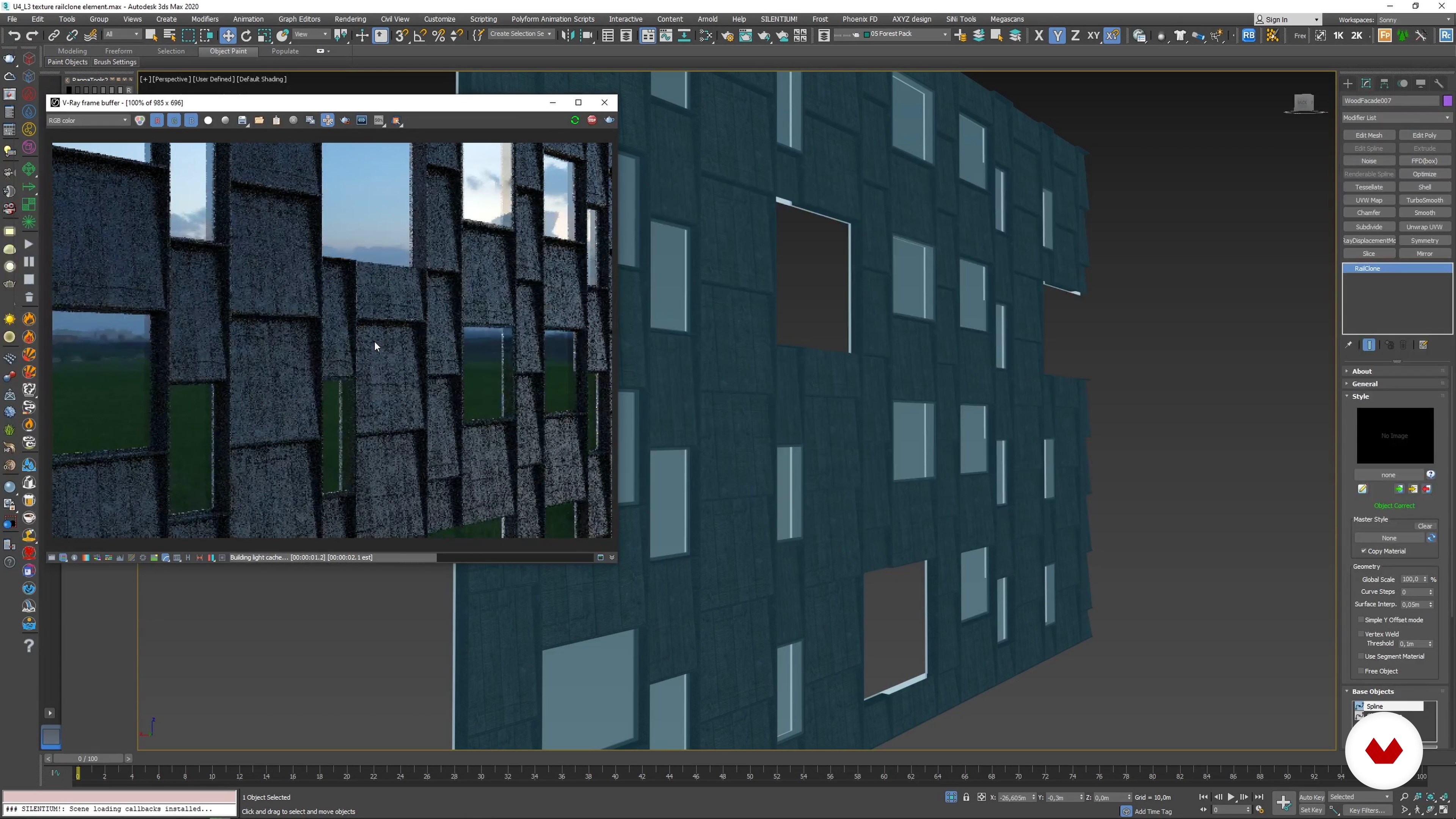
Now I will prepare elements to be used in RailClone. You will learn some procedural modelling techniques setting up a RailClone element to build your modular facade.
13m
image
9
Create a Modular Facade with Railclone 2
I'll show you how to apply the facade to the project's building.
13m
image
10
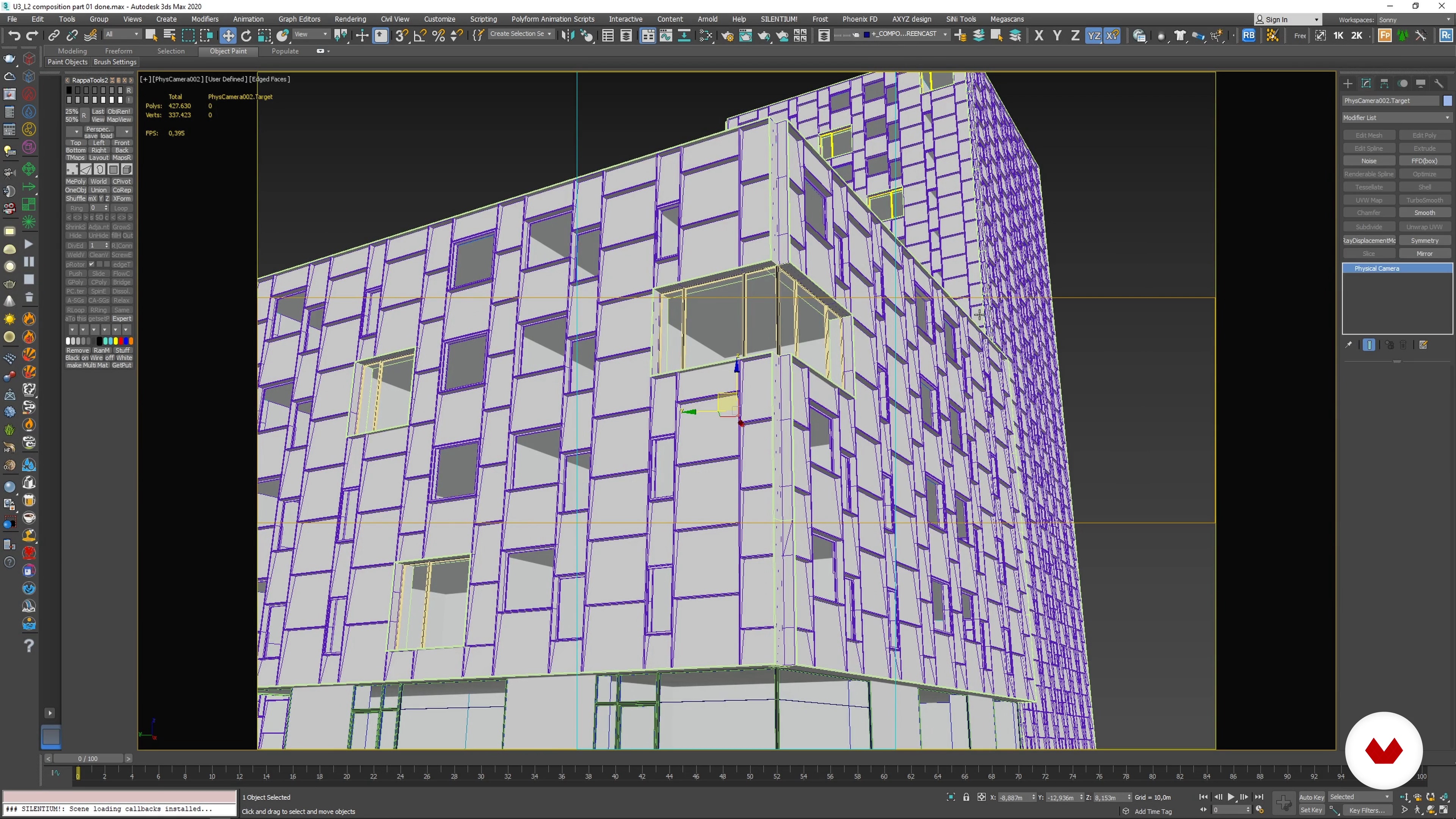
Setting Up a Composition Using Physical Camera
In this lesson, I'll teach you how to use 3ds Max’s Physical Camera to set up the main composition for the image.
9m
image
11
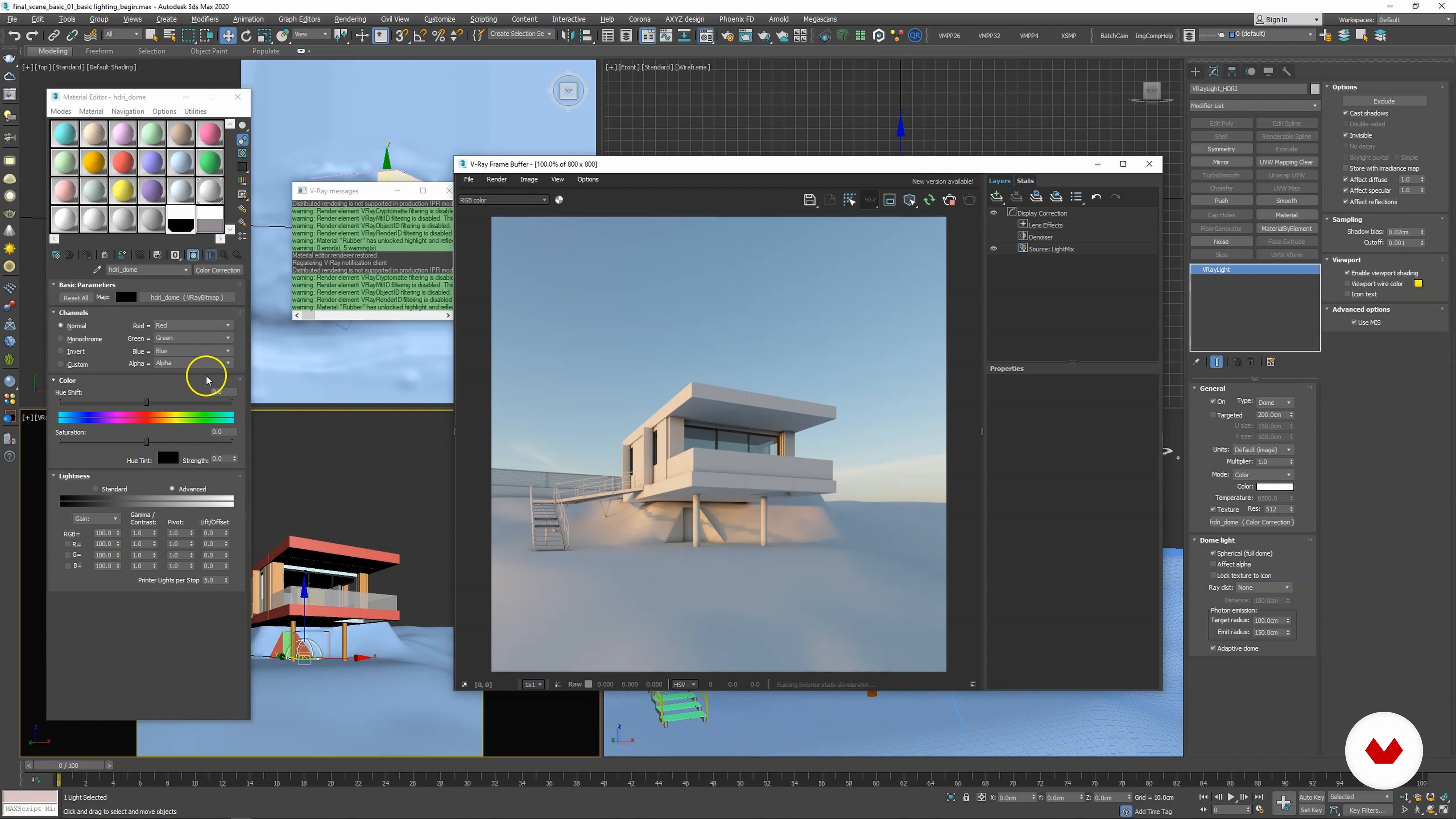
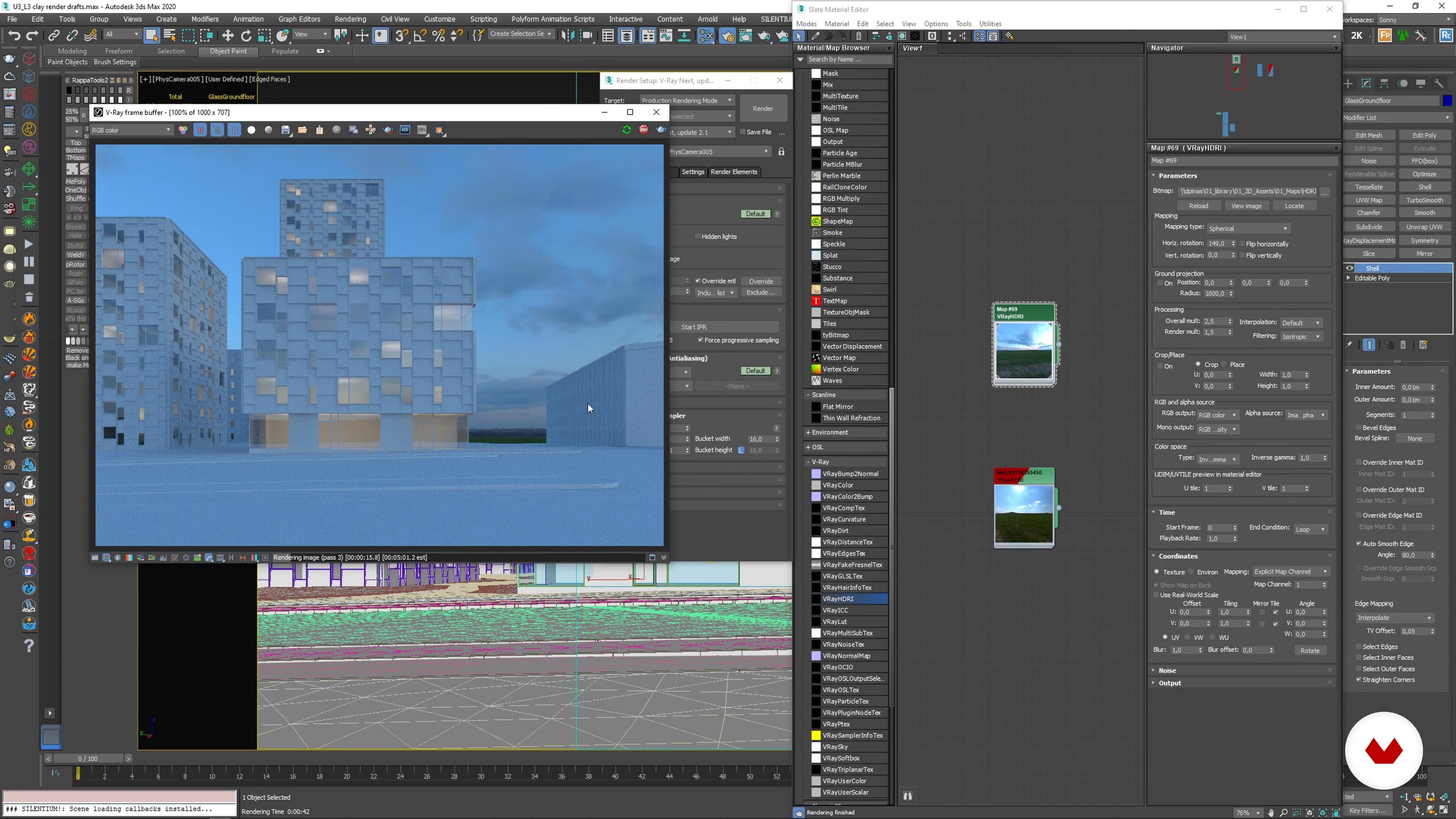
Lighting of a Scene with an HDRI Dome
In this lesson, you will learn to light up your scene with an HDR image in a VRay Dome Light.
5m
image
12
Communicate Camera Drafts with White “Clay Renders” and References
You will learn the advantage of using white clay renders to have a quick communication with your client to settle the overall direction and composition for your image.
3m
image
13
Gathering and Adding Assets
Now, you will look at gathering and adding assets to your scene.
6m
image
14
Basic Texturing With V-Ray
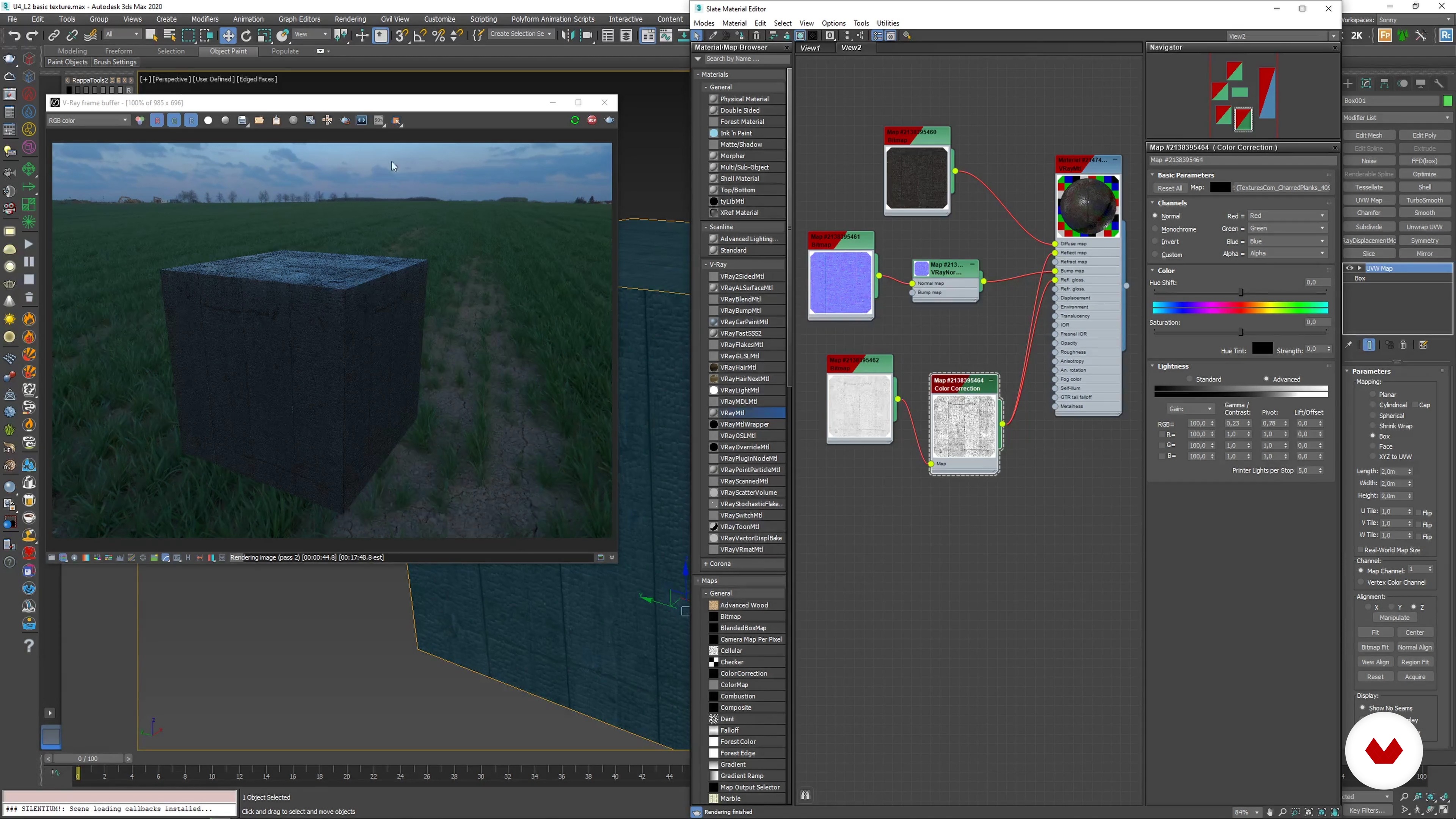
In this lesson, I will create a V-Ray material with a focus on achieving good results with a simple approach to texturing.
7m
image
15
Apply Materials to Railclone Element
Now I'll show you how to create a Multi/sub-object material to control the texturing of the RailClone Facade.
3m
image
16
Texturing Using Quixel Megascans
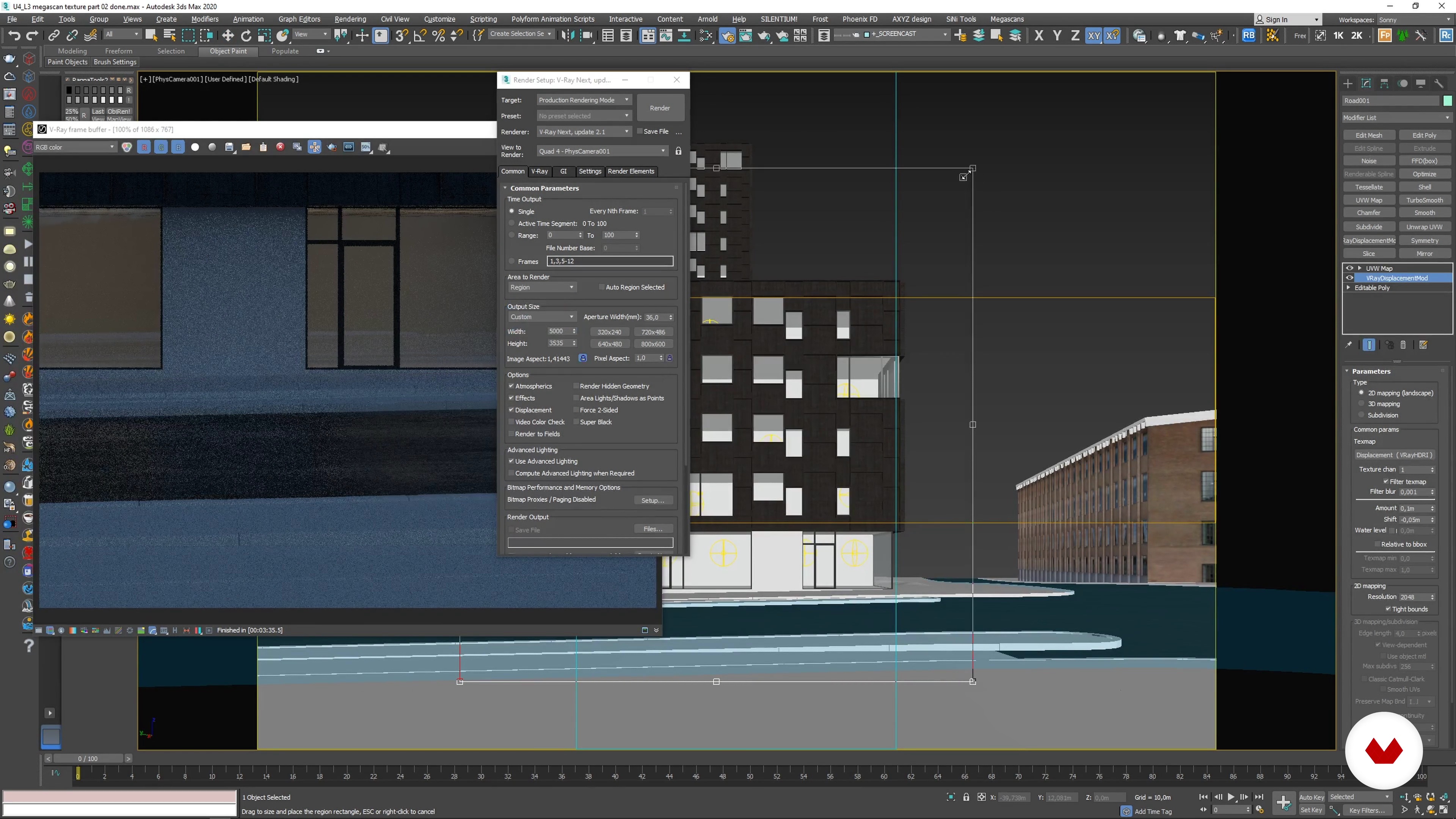
In this lesson, you will learn how to use the Quixel Megascans library to texture your scene.
7m
image
17
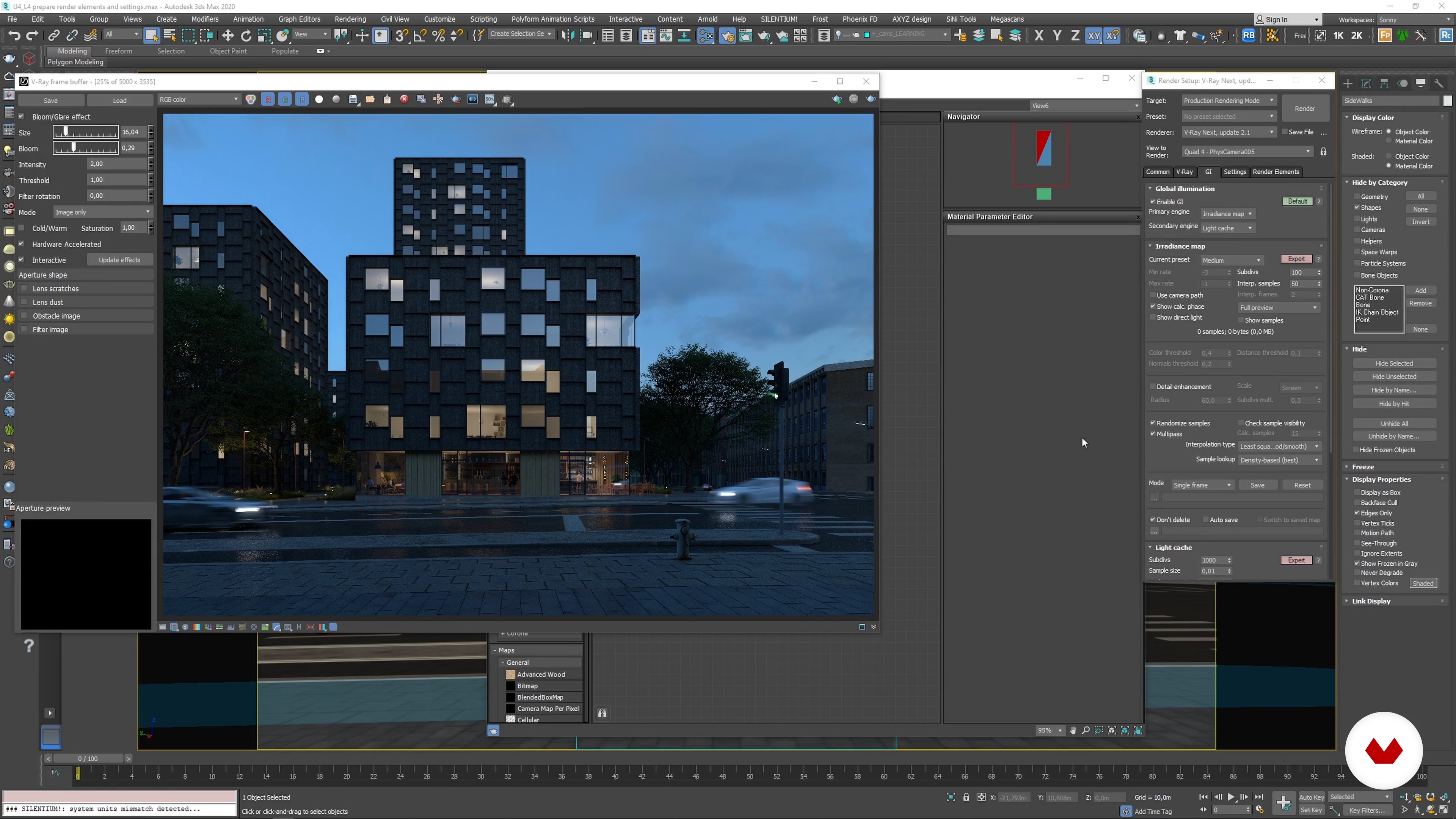
Prepare Render Elements and Render Settings
Lastly, you will learn how to set up render elements and control render setting for your final render output.
10m
image
18
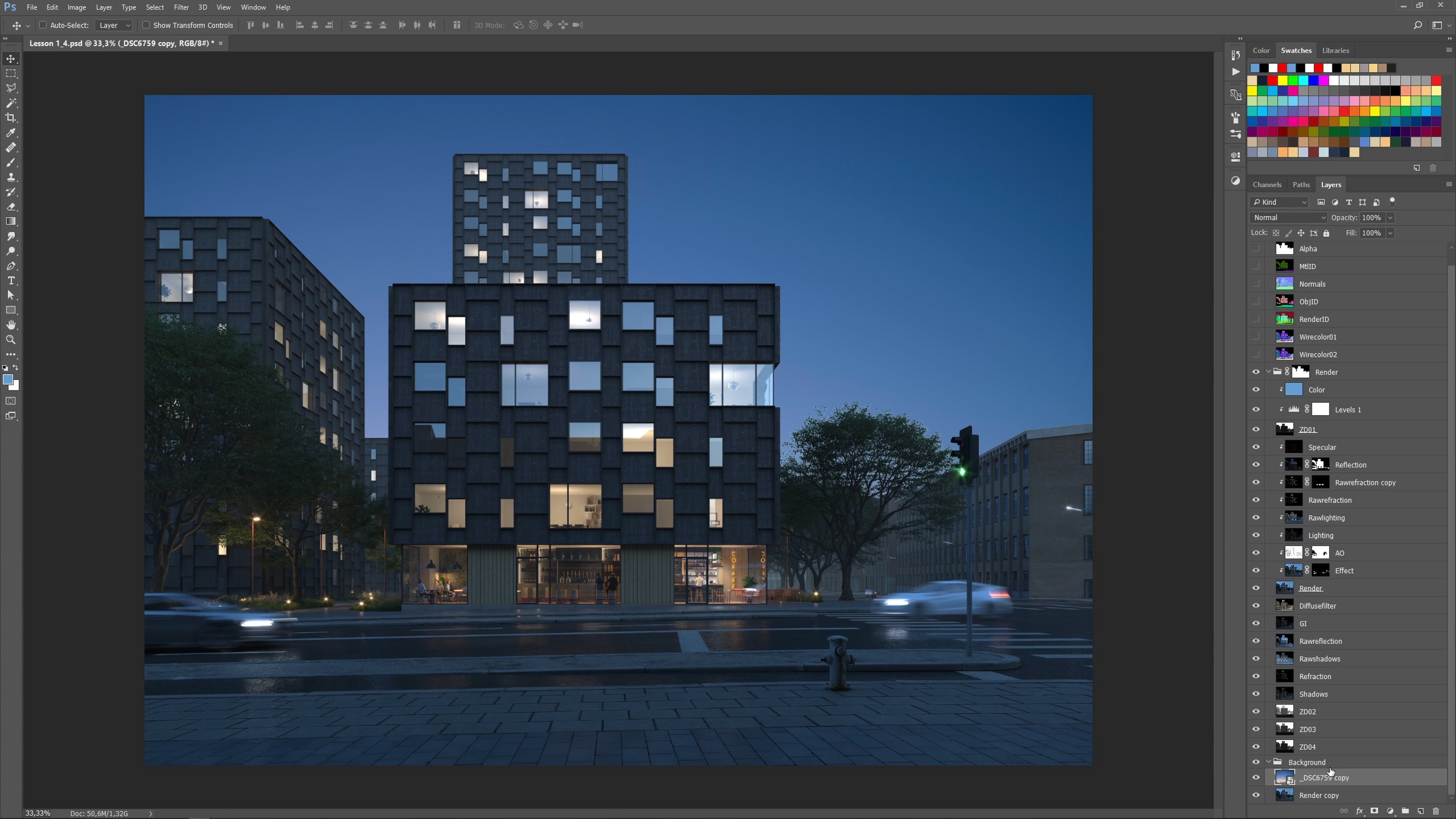
Compile Render Elements and Get Started with the Post-production
In this lesson, you will learn how to compile, organise and use your render elements to get a good base for your post-production process.
13m
image
19
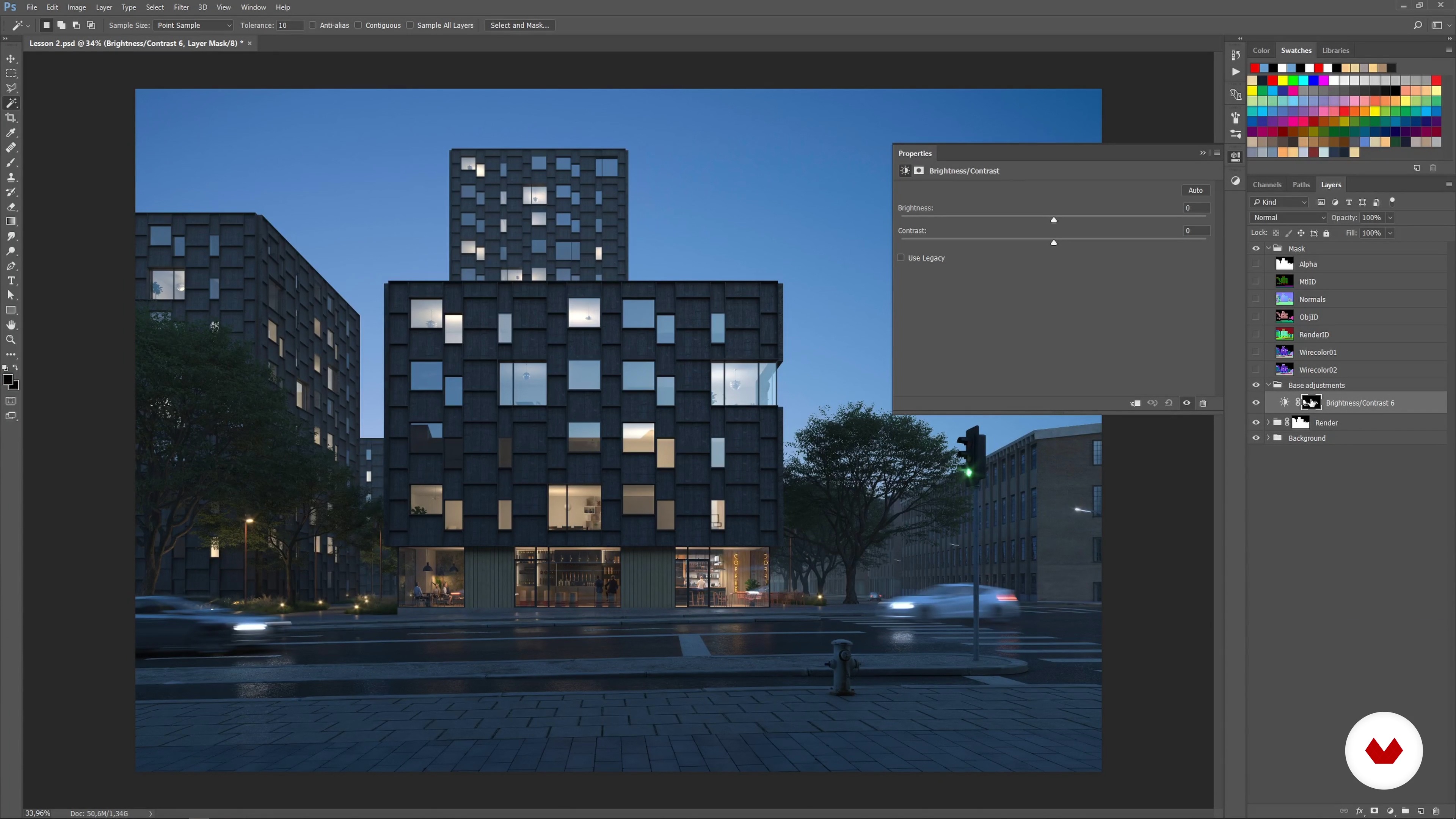
Base Corrections of Elements in the Image
Here you will learn how to use adjustment layers to adjust and balance elements in your render.
4m
image
20
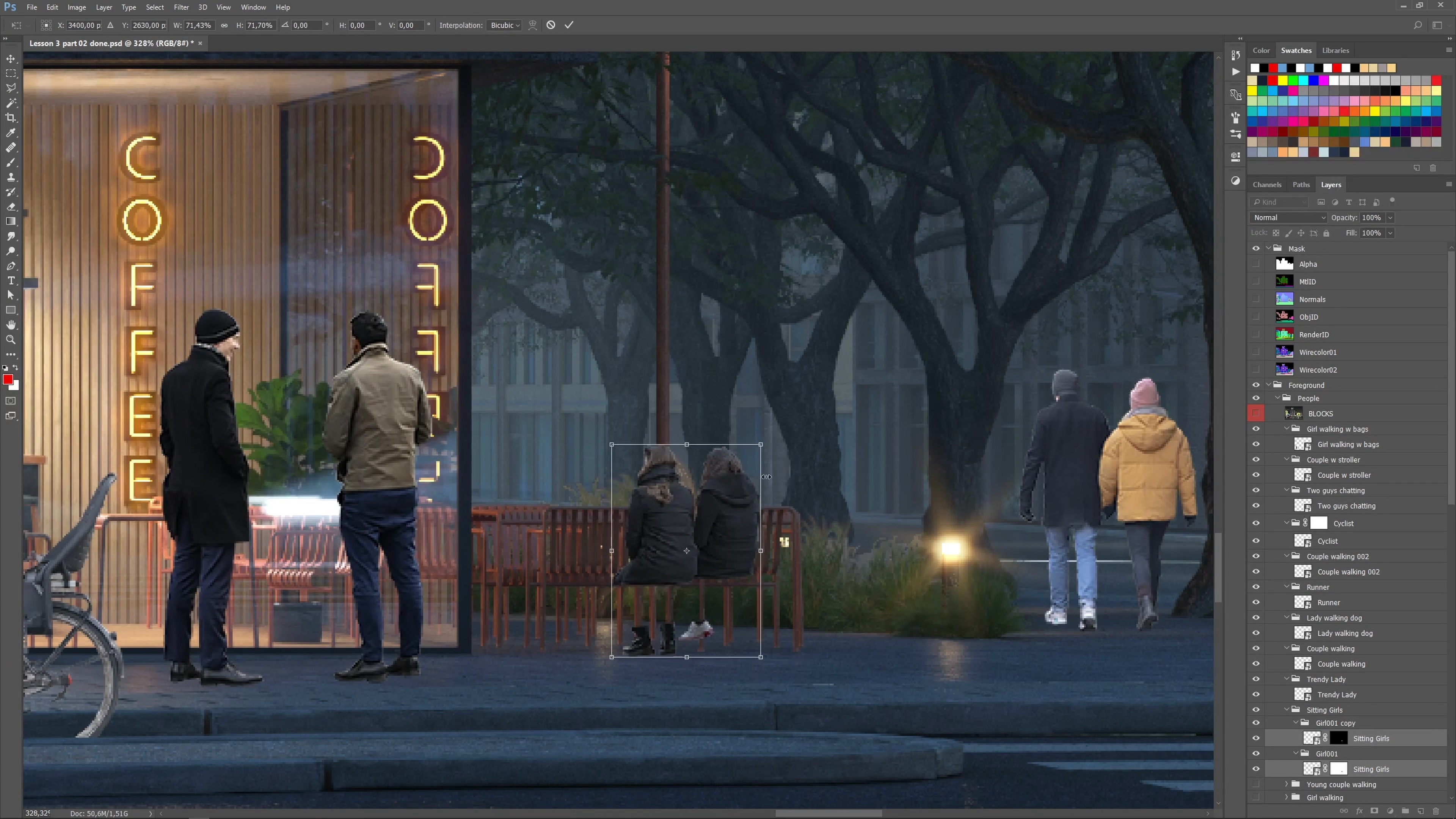
Compose and Balance 2D People
Now I will show you how to add, compose and balance 2D cutout people into your image.
19m
image
21
Light and Mood
In this lesson, you will learn how to add light and mood to the image. I will boost some lights in the image and create some more depth and atmosphere.
9m
image
22
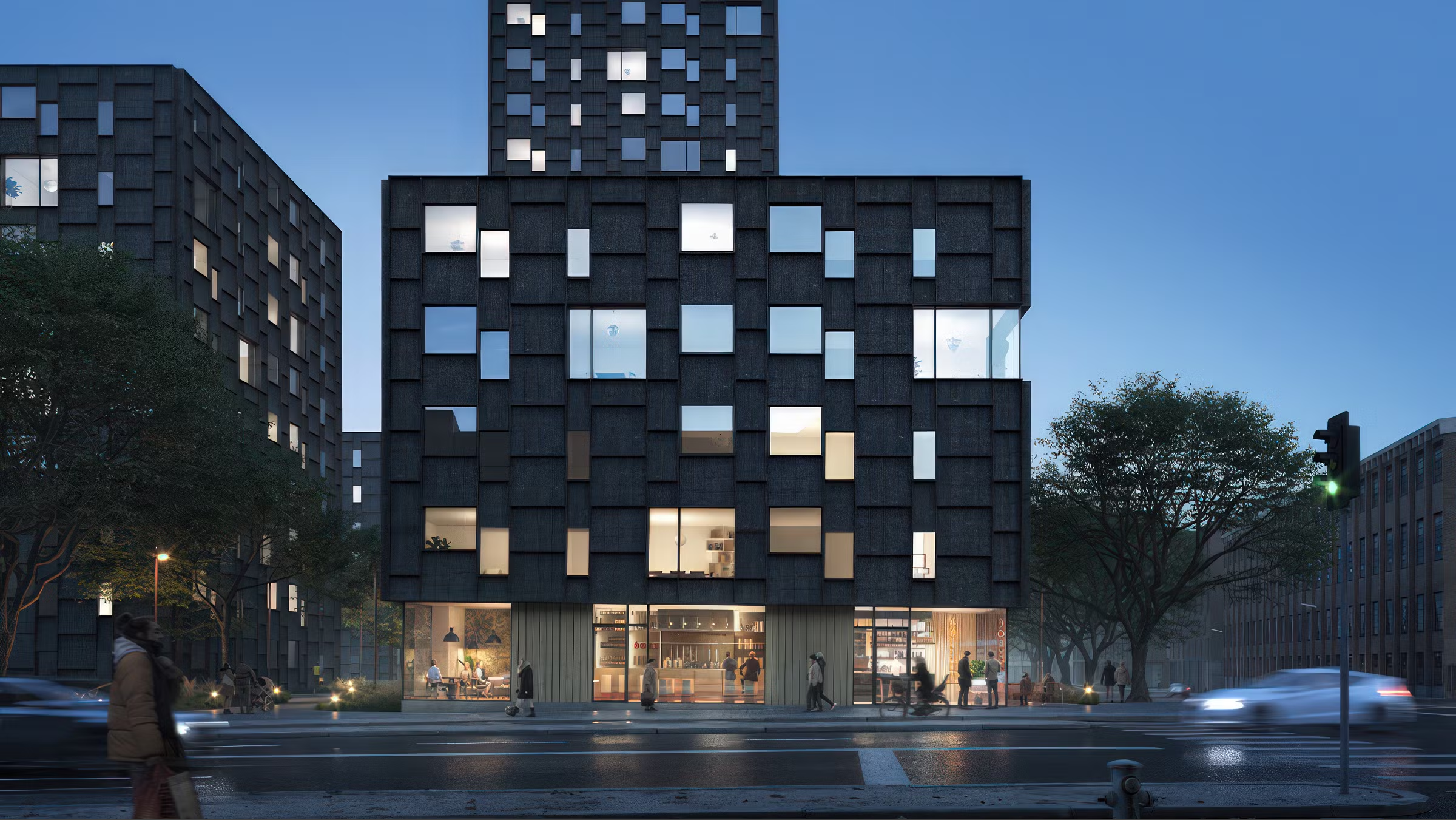
Color Grading with Adjustment Layers and Nik Color Efex
I will finalize the image with some colour grading using adjustment layers and a plugin called Nik Color Efex.
11m
image
3
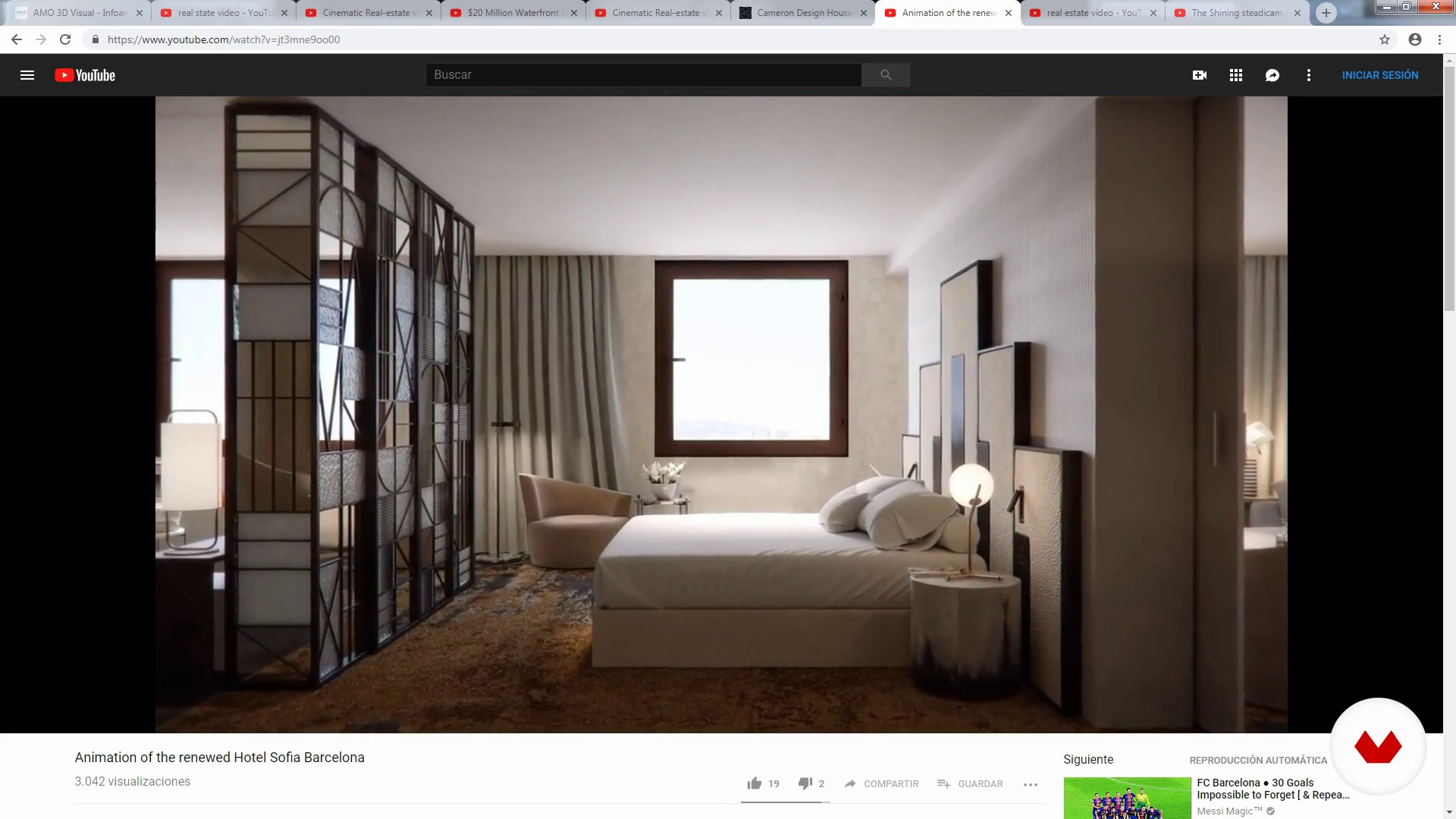
References
In this lesson we will see real videos and 3D animations of interior spaces and we will analyze what kind of routes and cameras are used.
5m
image
4
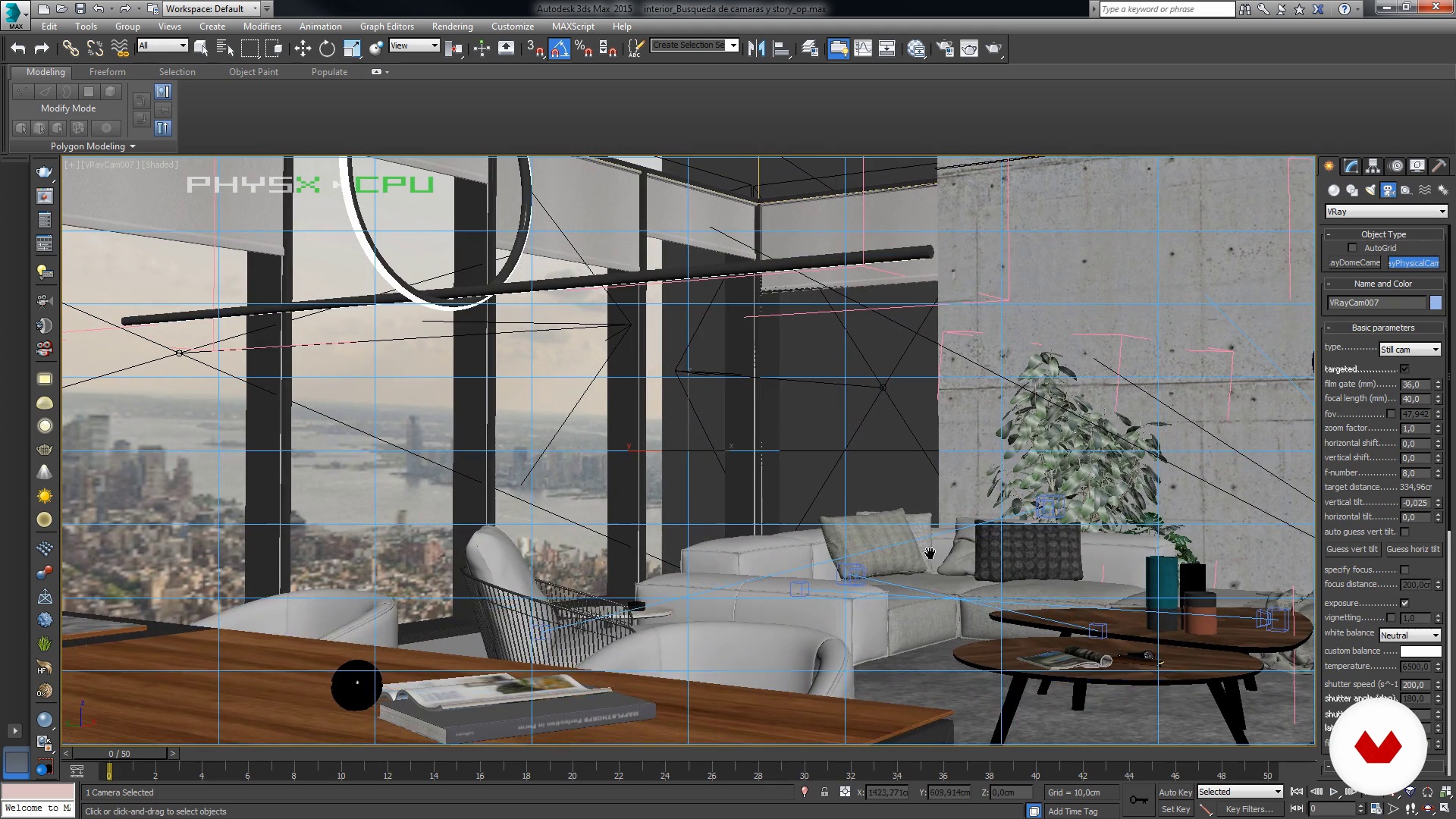
Search for cameras
We are going to look for interesting camera angles that help show our space in a dynamic and attractive way.
7m
image
5
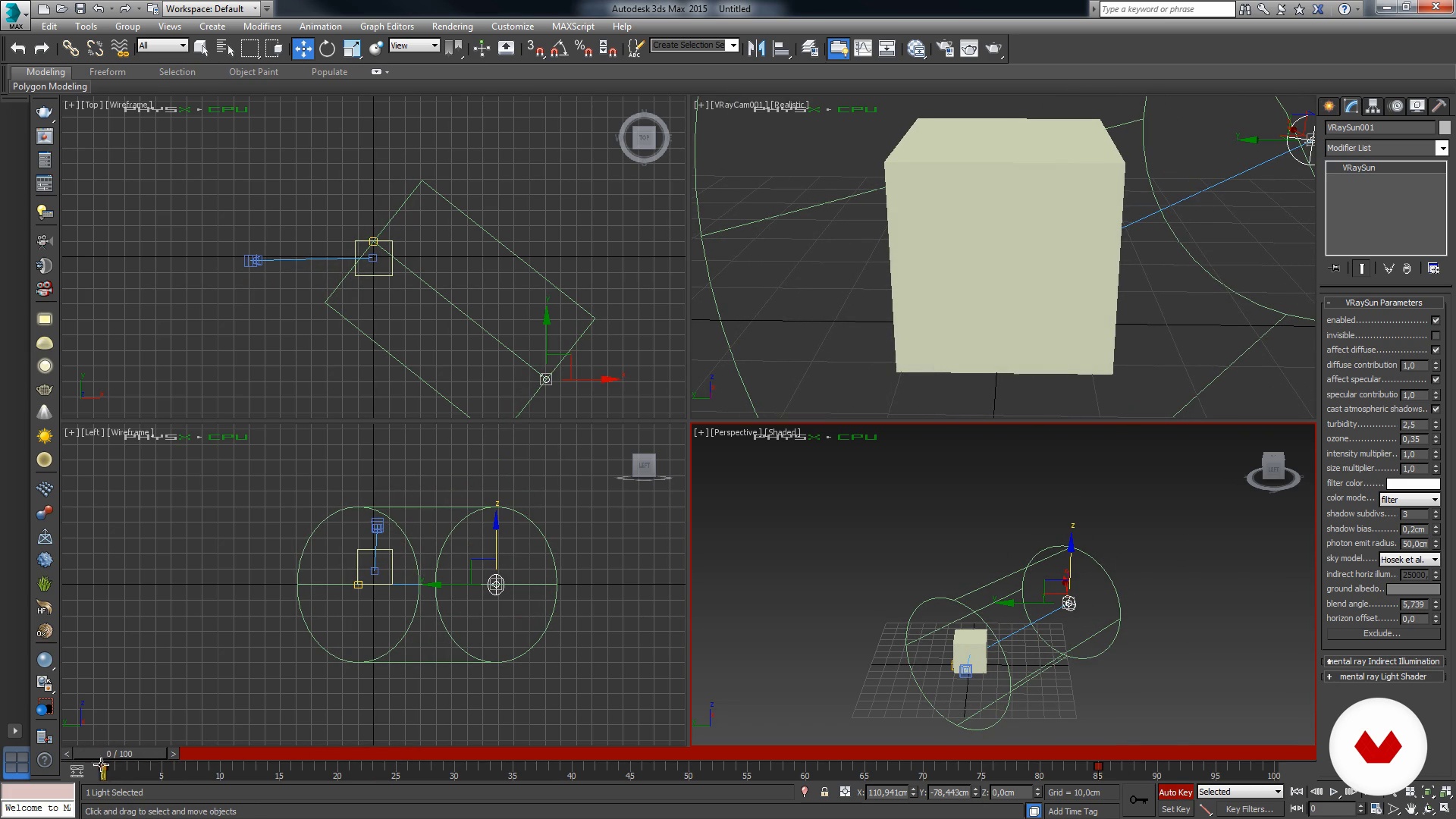
Animation
To give some life to the scene, let's learn to animate some elements! This will be very useful to make the scene seem more alive. Sometimes it's not enough just to move the camera.
16m
image
6
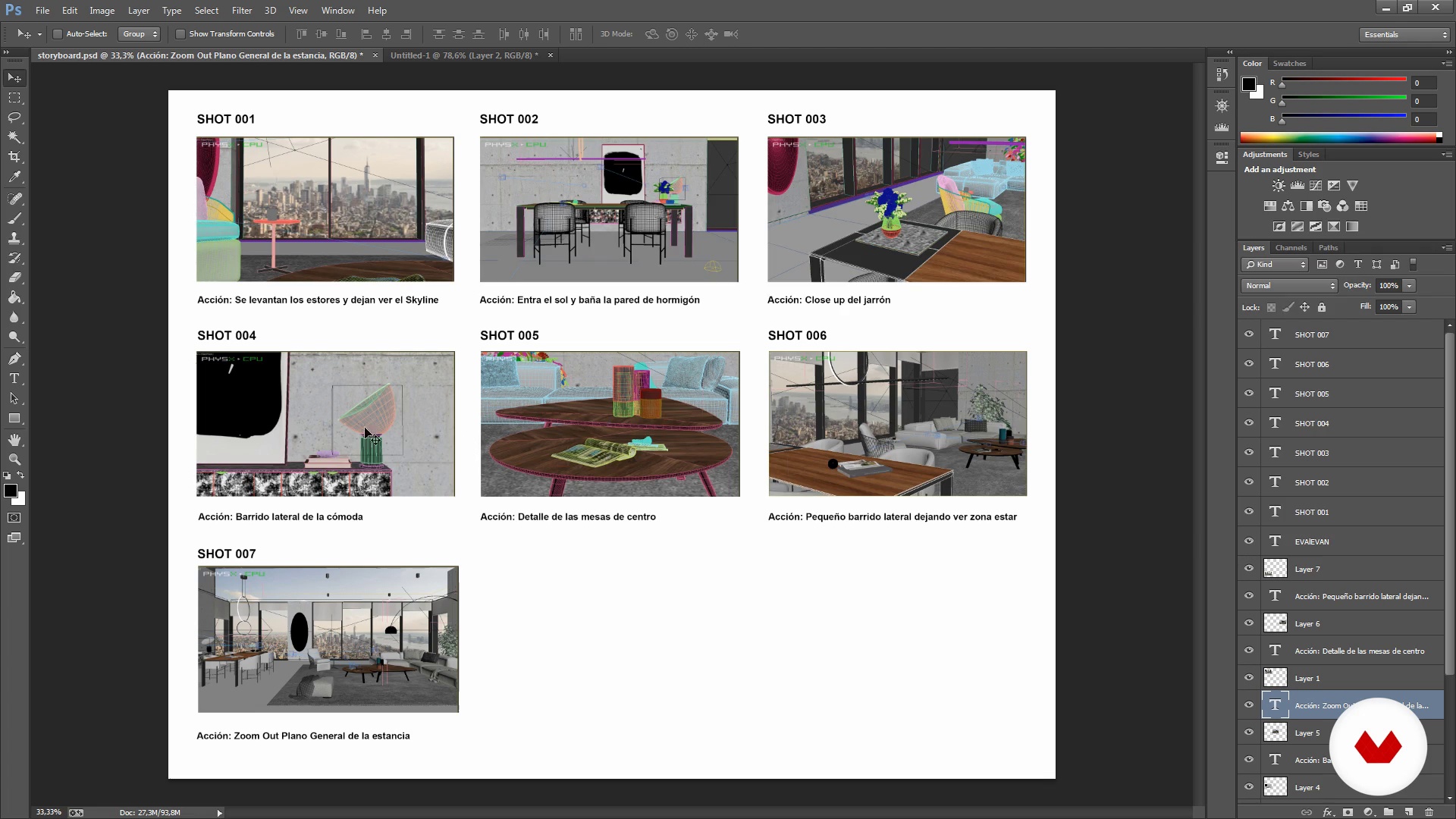
Storyboard
Rendering video is a long process, so we are going to prepare a short summary of our plans for the client to approve and there are no surprises.
5m
image
7
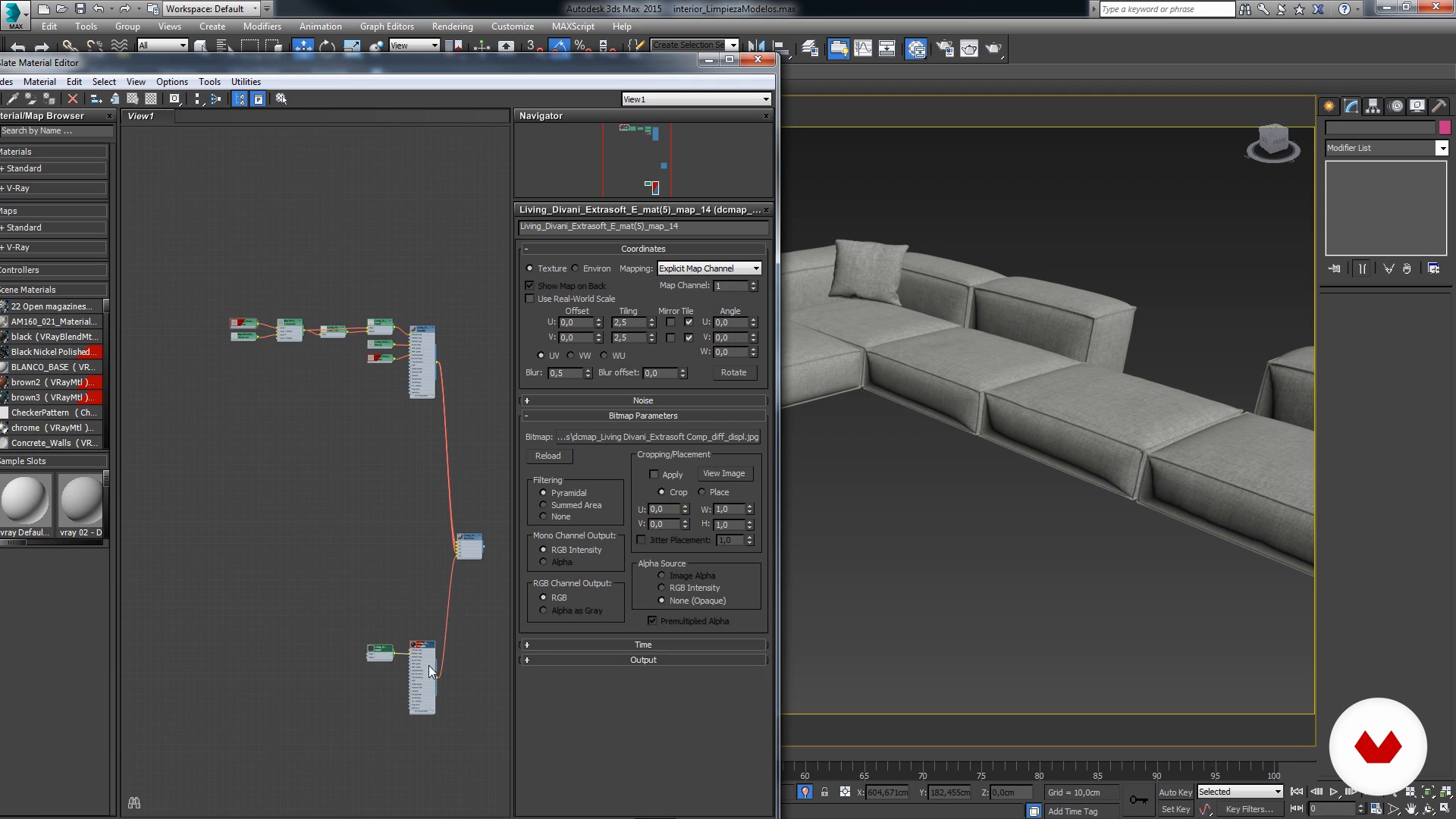
Cleaning of models
The first step will be to clean the models that you have imported from unknown libraries, most of the times the models have very poorly optimized materials and do not respond to a physically correct model. We are going to fix that.
12m
image
8
Scripts + Relink
After so much work in a scene, it is full of textures with broken links and other problems that slow down the scene and the render, we will clean those details.
14m
image
9
Render tips and settings
Now you are going to prepare the settings for your render with a couple of tricks to speed up production.
19m
image
10
Rendering
We will configure the passes and a route so that your animation is saved correctly and can move to the assembly and post-production phase.
17m
image
11
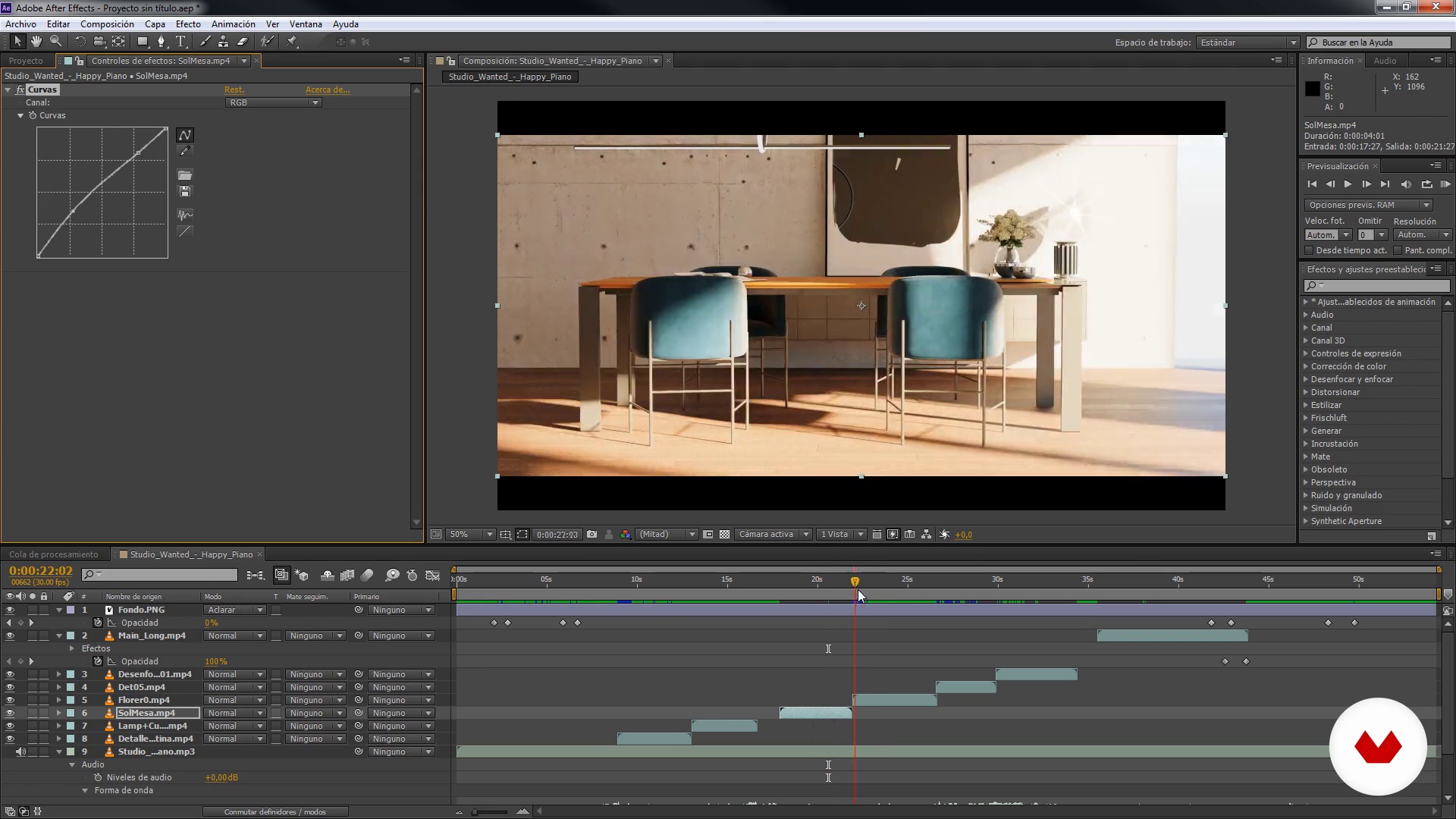
Postproduction of a plane
The output format of our render is not a video but a sequence of images, the first thing you must do is learn to join them in a single file in After Effects.
19m
image
12
Mounting
We are already finishing. Once you have all the plans ready, it's time to join them in a single music video.
20m
  • 25 students
  • 92 lessons (17h 57m)
  • 80 additional resources (40 files)
  • Online and at your own pace
  • Audio: English, German, Spanish, Spanish (Latam), French, Italian, Polish, Portuguese, Turkish
  • Spanish · English · Portuguese · German · French · Italian · Polish · Dutch · Turkish · Romanian · Indonesian
  • Level: Beginner
  • Unlimited access forever

What is this course's project?
Students will craft a complete architectural visualization project showcasing their skills in technical modeling, photorealistic rendering, visual storytelling, and 3D animation, transforming architectural concepts into compelling, multidimensional visual presentations that effectively communicate and sell design visions.

Who is this specialization for?

Architects, designers, and 3D artists aiming to excel in professional architectural visualization will benefit from mastering parametric design to advanced animation. They will develop skills to create compelling, commercially successful architectural stories and visual representations.

Requirements and materials

No extensive prior knowledge is needed. A basic understanding of architectural design and familiarity with software like Revit, SketchUp, V-Ray, and 3ds Max is helpful. Access to a computer with these programs installed is essential for hands-on practice.


Select to get to know your teachers in this specialization course
Read more ↓

What to expect from this specialization course

  • Learn at your own pace

    Enjoy learning from home without a set schedule and with an easy-to-follow method. You set your own pace.

  • Learn from the best professionals

    Learn valuable methods and techniques explained by top experts in the creative sector.

  • Meet expert teachers

    Each expert teaches what they do best, with clear guidelines, true passion, and professional insight in every lesson.

  • Certificates
    Plus

    If you're a Plus member, get a custom certificate for every specialization course. Share it on your portfolio, social media, or wherever you like.

  • Get front-row seats

    Videos of the highest quality, so you don't miss a single detail. With unlimited access, you can watch them as many times as you need to perfect your technique.

  • Share knowledge and ideas

    Ask questions, request feedback, or offer solutions. Share your learning experience with other students in the community who are as passionate about creativity as you are.

  • Connect with a global creative community

    The community is home to millions of people from around the world who are curious and passionate about exploring and expressing their creativity.

  • Watch professionally produced courses

    Domestika curates its teacher roster and produces every course in-house to ensure a high-quality online learning experience.


FAQs

Domestika courses are online classes that allow you to learn new skills and create incredible projects. All our courses include the opportunity to share your work with other students and/or teachers, creating an active learning community. We offer different formats:
Original Courses: Complete classes that combine videos, texts, and educational materials to complete a specific project from start to finish.
Basics Courses: Specialized training where you master specific software tools step by step.
Specialization Courses: Learning paths with various expert teachers on the same topic, perfect for becoming a specialist by learning from different approaches.
Guided Courses: Practical experiences ideal for directly acquiring specific skills.
Intensive Courses (Deep Dives): New creative processes based on artificial intelligence tools in an accessible format for in-depth and dynamic understanding.

All specialization courses are 100% online, so once they're published, specialization courses start and finish whenever you want. You set the pace of the class. You can go back to review what interests you most and skip what you already know, ask questions, answer questions, share your projects, and more.

The specialization courses are divided into different modules. Each one includes lessons, informational text, tasks, and practice exercises to help you carry out your project step by step, with additional complementary resources and downloads. You'll also have access to an exclusive forum where you can interact with other students, as well as share your work and your final project, creating a community around the specialization courses.

You can redeem the specialization courses you received by accessing the redeeming page and entering your gift code.
If you're a Plus member, when you complete a course you've purchased, you'll instantly get your personalized certificate. You can see all your certificates in the Certificates section of your profile. You can download your certificates as PDFs and share the link online. Learn more about certificates.
3D Architectural Visualization Specialization. Architecture, and Spaces course by Domestika

3D Architectural Visualization Specialization

A specialization by multiple teachers
Berkeley, United States.
Joined April 2002
  • 25 students